
FoMaKo BN302
FoMaKo NDI PTZ Camera System BN302 Instruction Manual
Model: BN302 (Includes 2x KN30A Cameras + 1x KC608 Controller)
1. Introduction
This manual provides detailed instructions for the setup, operation, and maintenance of your FoMaKo NDI PTZ Camera System BN302. This system is designed for professional video production and live streaming applications, featuring advanced NDI capabilities, AI auto-tracking, and a comprehensive control interface.
The BN302 system includes:
- Two (2) FoMaKo KN30A NDI PTZ Cameras
- One (1) FoMaKo KC608 Pro PTZ Controller Keyboard
2. Product Components Overview

Image 2.1: The FoMaKo NDI PTZ Camera System BN302, showing two KN30A cameras and the KC608 Pro controller.
2.1 FoMaKo KN30A NDI PTZ Camera
The KN30A camera features 30x optical zoom, NDI 6 & NDI HX3 certification, and advanced AI auto-tracking. It supports multiple video outputs including 3G-SDI, HDMI, IP, and USB3.0, making it versatile for various production environments.

Image 2.2: Rear panel of the KN30A camera, illustrating the various input/output ports.
2.2 FoMaKo KC608 Pro PTZ Controller Keyboard
The KC608 Pro is a dedicated PTZ controller designed for precise and intuitive control of multiple cameras. It features a joystick for pan, tilt, and zoom, along with dedicated buttons for presets, exposure, and tracking functions.
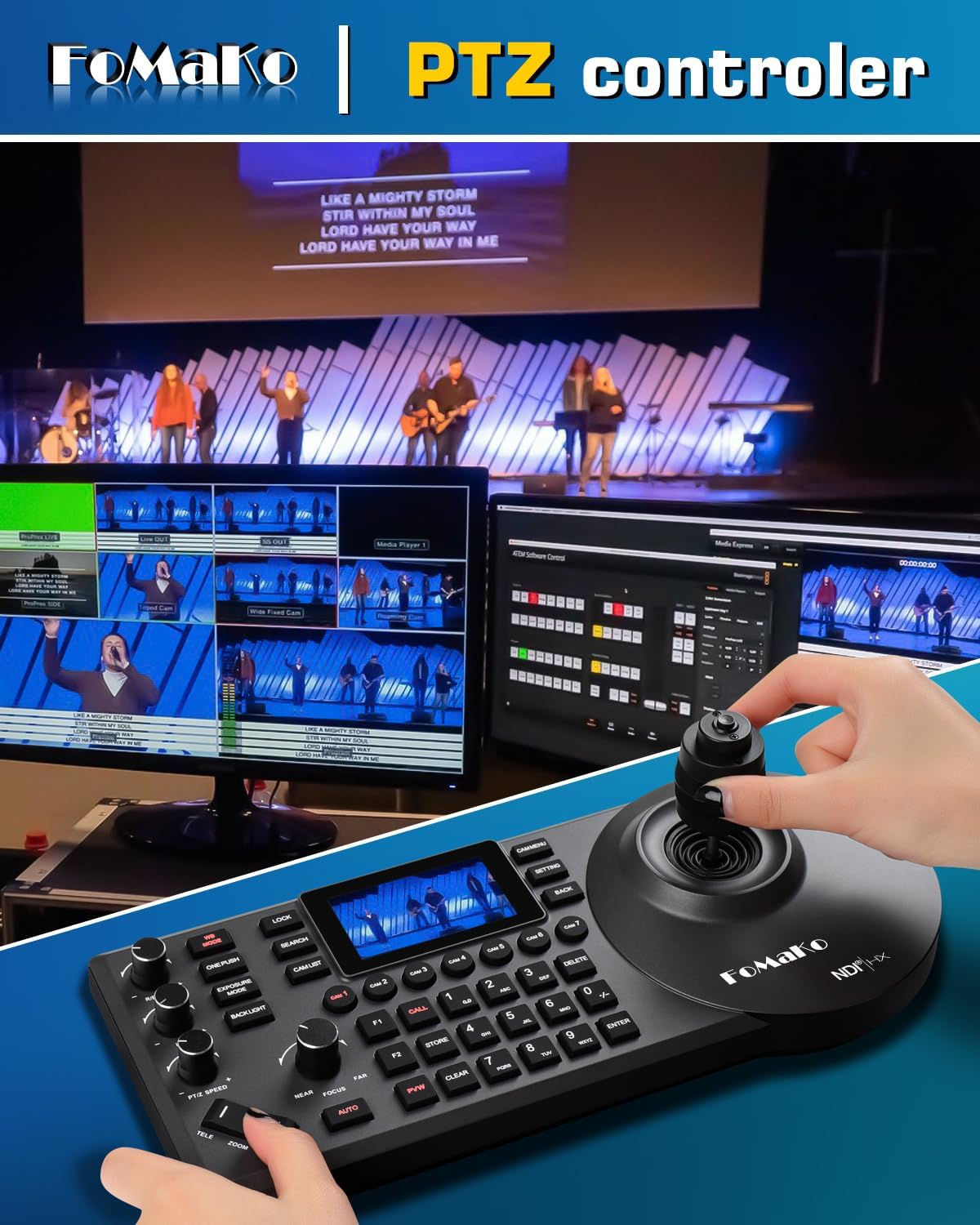
Image 2.3: The KC608 Pro PTZ Controller Keyboard, demonstrating its use for camera control.
3. Key Features
- Official NDI 6 & NDI HX3 Certification: Ensures stable, high-quality video transmission over IP networks, even with limited bandwidth. Compatible with vMix, OBS, Propresenter, StreamYards, Streamlabs, Wirecast, Zoom, and other live streaming software.
- Advanced AI Auto-Tracking (Gen 3): Offers customizable tracking modes, sensitivity, figure size, and target switching. Activate tracking with F2 on the remote and switch targets with F4.
- 30X Optical Zoom: Provides clear, high-definition 1080p video with a 58.1-degree field of view. Fast auto-focus maintains image clarity during movement and zooming.
- Multiple Video Resolutions: Supports 1080P60/50, 1080P30/25, 720P60/50, 720P30/25.
- Efficient Video Encoding: H.264/H.265 encoding ensures smooth and clear motion video under various bandwidth conditions.
- Versatile Connectivity: Includes 3G-SDI, HDMI, IP, NDI, and USB3.0 outputs.
- Power over Ethernet (PoE) Support: Simplifies installation by providing power and data through a single Ethernet cable.
- Gear Transmission Structure: Enhances precision for preset positioning and increases durability compared to belt-driven systems.
- Extensive Control Options: Supports RS232/RS485, TCP/IP, RTSP, RTMP, VISCA OVER IP, VISCA, SRT, network protocols, 360-degree IR remote control, FoMaKo PTZ controller, and webpage control.
4. Setup Guide
4.1 Unpacking and Inspection
- Carefully unpack all components from the packaging.
- Verify that all items listed in the product bundle are present.
- Inspect each camera and the controller for any signs of physical damage.
4.2 Physical Connection
Ensure all devices are powered off before making connections.

Image 4.1: Example diagram of a multi-camera live streaming setup using FoMaKo NDI PTZ cameras and controller.
Camera Connections (KN30A)
- Power: Connect the provided power adapter to the DC12V port or use a PoE-enabled network switch for Power over Ethernet.
- Network (IP/NDI): Connect an Ethernet cable from the camera's LAN port to your network switch or router. If using PoE, this also provides power.
- HDMI Output: Connect an HDMI cable from the camera's HDMI port to a display, video switcher, or capture device.
- 3G-SDI Output: Connect a 3G-SDI cable from the camera's 3G-SDI port to a compatible video switcher or capture device.
- USB3.0 Output: Connect a USB3.0 cable to a computer for use as a webcam or for direct capture.
- Control (RS232/RS485): For serial control, connect to a compatible control device using RS232 or RS485 ports.
Controller Connections (KC608 Pro)
- Power: Connect the provided power adapter to the controller.
- Network: Connect an Ethernet cable from the controller's LAN port to the same network as your cameras for IP control.
4.3 Initial Network Configuration
For IP control and NDI functionality, ensure your cameras and controller are on the same network. Cameras typically come with a default IP address (e.g., 192.168.1.77). You can change the IP address through the camera's web interface or the controller's menu.

Image 4.2: Example of network settings accessible via the camera's menu or web interface.
5. Operation Guide
5.1 Powering On/Off
After all connections are made, power on the cameras and the controller. The power indicator on the camera will illuminate.
5.2 PTZ Control
Using the KC608 Pro Controller
The KC608 Pro controller provides tactile control over camera movements:
- Joystick: Use the joystick to pan (left/right), tilt (up/down), and zoom (twist).
- Speed Adjustment: Adjust PTZ speed and preset speed using dedicated knobs or buttons on the controller.
- Camera Selection: Use the camera selection buttons (e.g., CAM1, CAM2) to choose which camera to control.
Using the IR Remote Control
The included IR remote control allows basic PTZ functions and preset recall.

Image 5.1: The IR remote control for basic camera functions.
Web Interface Control
Access the camera's web interface by entering its IP address into a web browser. This interface provides comprehensive control over all camera settings, including PTZ, image parameters, and network configuration.
5.3 AI Auto-Tracking
The Gen 3 AI auto-tracking feature allows the camera to automatically follow a designated subject.

Image 5.2: The AI auto-tracking feature in action, highlighting a tracked subject.
- Activation: Press the F2 button on the remote control or use the controller/web interface to enable auto-tracking.
- Target Switching: Press F4 on the remote control to switch between detected tracking targets.
- Customization: Adjust tracking modes, sensitivity, figure size, AI-Track speed, and other parameters via the web interface or controller menu.
5.4 Preset Configuration
The camera supports up to 255 presets (10 via IR remote control) for quick recall of specific camera positions and zoom levels.
- Storing Presets: Position the camera to the desired view, then use the controller or remote to store the preset to a specific number.
- Recalling Presets: Select the desired preset number on the controller or remote to move the camera to the stored position.
6. Connectivity Options
The KN30A camera offers a variety of connectivity options to integrate into diverse production workflows:
- NDI/IP: Primary output for high-quality, low-latency video over standard Ethernet networks. Supports NDI 6 and NDI HX3.
- HDMI: Direct video output for monitors, switchers, or capture cards.
- 3G-SDI: Professional video output for long cable runs and broadcast-grade equipment.
- USB3.0: Connects directly to a computer for use as a high-quality webcam or for software-based streaming.
- RS232/RS485: Serial control ports for integration with third-party control systems.
- Audio Line In: 3.5mm audio input for embedding external audio into the video stream.
7. Maintenance
- Cleaning: Use a soft, dry cloth to clean the camera body and controller. For the lens, use a specialized lens cleaning cloth and solution. Avoid abrasive cleaners.
- Firmware Updates: Periodically check the FoMaKo official website for available firmware updates to ensure optimal performance and access to new features. Follow the provided instructions carefully during the update process.
- Storage: When not in use for extended periods, store the equipment in a dry, dust-free environment.
8. Troubleshooting
8.1 No Video Output
- Check Power: Ensure the camera is powered on and the power indicator light is illuminated.
- Cable Connections: Verify that all video cables (HDMI, SDI, Ethernet for NDI/IP) are securely connected to both the camera and the receiving device.
- Input Selection: Confirm that your receiving device (monitor, switcher, computer) is set to the correct input source.
- Network Configuration (NDI/IP): Ensure the camera and receiving device are on the same network subnet and that NDI discovery is functioning.
8.2 PTZ Control Issues
- Controller Power: Ensure the KC608 Pro controller is powered on.
- Network Connection: Verify the controller's network cable is connected and that it can communicate with the cameras (check IP settings).
- Camera Selection: Make sure the correct camera is selected on the controller.
- Control Protocol: Confirm that the camera and controller are configured to use compatible control protocols (e.g., VISCA over IP).
8.3 Auto-Tracking Malfunction
- Lighting Conditions: Ensure adequate and consistent lighting in the tracking area. Extreme backlighting or low light can affect performance.
- Tracking Settings: Review the AI auto-tracking settings via the web interface or controller. Adjust sensitivity and tracking modes as needed.
- Obstructions: Ensure there are no objects obstructing the camera's view of the subject.
9. Technical Specifications
| Feature | Specification |
|---|---|
| Brand | FoMaKo |
| Model Number | BN302 (Kit) / KN30A (Camera) |
| Optical Zoom | 30X |
| Video Capture Resolution | 1080p (1080P60/50, 1080P30/25, 720P60/50, 720P30/25) |
| Photo Sensor Technology | CMOS |
| Connectivity Technology | NDI, LAN, HDMI, 3G-SDI, USB3.0 |
| Video Encoding | H.264/H.265 |
| Special Features | AI Tracking, NDI 6 & NDI HX3 Certified, PoE Support |
| View Angle (FOV) | 58.1 degrees |
| Control Interface | RS232/RS485, TCP/IP, VISCA OVER IP, VISCA, IR Remote, Webpage |
| Presets | Up to 255 (10 via remote) |
| Product Dimensions | 6.93 x 5.63 x 6.3 inches (Camera) |
| Item Weight | 18.48 pounds (Total Kit) |
10. Warranty and Support
FoMaKo provides a 3-Year Limited Warranty for this product. This warranty covers manufacturing defects and ensures reliable operation under normal use conditions.
- 30-Day Money-Back Guarantee: Risk-free purchase.
- Free Online Training: Resources available to assist with initial setup and operation.
- 24/7 Expert Assistance: Customer support responses typically within 24 hours. Please include your Order ID when contacting support. Remote assistance for setup is available if necessary.
- Lifetime Customer Technical Support: Ongoing technical assistance for the lifespan of the product.
For support, please refer to the contact information provided with your purchase or visit the official FoMaKo website.
11. Application Scenarios
The FoMaKo NDI PTZ Camera System BN302 is suitable for a wide range of professional AV and live streaming applications, including but not limited to:
- Church worship live services
- Educational institutions (classrooms, lecture halls)
- Live streaming and broadcasting
- Studio productions
- University events
- Factory live monitoring
- Sports clubs / eSports events
- Training classrooms
- Large conferences and theaters
- Concerts and live performances

Image 11.1: Visual representation of diverse environments where the FoMaKo PTZ camera system can be effectively utilized.
Related documentsBN302


Ask a question about this manual
Ask about setup, troubleshooting, compatibility, parts, safety, or missing instructions. Manuals+ will review the question and use this page’s manual context to help answer it.