Introduction
This manual provides comprehensive instructions for setting up, operating, maintaining, and troubleshooting your Mistel X-VIII Mechanical Keyboard. Designed for optimal performance and durability, this full-size keyboard features Cherry MX Brown switches, PBT double-shot keycaps, and a detachable USB Type-C cable, making it suitable for both gaming and office use.
What's in the Box
Your Mistel X-VIII Mechanical Keyboard package includes the following items:
- Mistel X-VIII Mechanical Keyboard
- USB Type-C Cable
- Keycap Puller
- Spare Keycap
- Switch Tester
- Dust Cover
- User Manual (this document)

Description: This image displays all components included in the Mistel X-VIII Mechanical Keyboard package, neatly arranged. It shows the keyboard itself, a detachable USB Type-C cable, a keycap puller tool, a spare keycap, a switch tester, a dust cover, and the user manual.
Setup
Follow these steps to set up your Mistel X-VIII Mechanical Keyboard:
Unpack the Keyboard: Carefully remove the keyboard and all accessories from the packaging.
Connect the USB Type-C Cable: Locate the USB Type-C port on the back or top edge of the keyboard. Insert one end of the provided USB Type-C cable into this port. Connect the other end (USB-A) to an available USB port on your computer (desktop or laptop).

Description: This image highlights the detachable USB Type-C cable connection point on the Mistel X-VIII keyboard, emphasizing its stable connection feature.
Driver Installation: The Mistel X-VIII keyboard is plug-and-play. Your operating system (Windows, macOS, Linux) should automatically detect and install the necessary drivers. No manual driver installation is typically required.
Placement: Place the keyboard on a stable, flat surface. Adjust the keyboard feet on the underside if you prefer an angled typing position.
Operating Instructions
Basic Usage
The Mistel X-VIII is a standard full-size mechanical keyboard. Simply connect it to your computer, and you can begin typing immediately. All standard keys function as expected.
Function Keys (Fn Combinations)
The keyboard features a row of function keys (F1-F12) that can perform secondary actions when combined with the Fn key. Specific functions may vary, but commonly include:

Description: This image provides a visual representation of the Mistel X-VIII keyboard, specifically highlighting the F1 through F12 keys and the Fn (Function) key, which are used in combination to access various multimedia and system controls.
- Fn + F1-F12: Typically control multimedia playback (play/pause, stop, previous/next track), volume (mute, volume up/down), and other system functions (e.g., opening calculator, email, web browser). Refer to the keycap legends for specific icons indicating these functions.
- Fn + Windows Key: May lock or unlock the Windows key to prevent accidental presses during gaming.
Macro Support
The Mistel X-VIII keyboard supports macro programming. For detailed instructions on how to record and assign macros, please refer to the dedicated software or advanced user guide available on the Mistel official website. This feature allows you to automate complex key sequences for enhanced productivity or gaming.
Keycap Removal and Replacement
Your keyboard comes with a keycap puller for easy removal and replacement of keycaps. This is useful for cleaning or customizing your keyboard.
To Remove: Gently place the keycap puller over the keycap you wish to remove, ensuring the two arms of the puller hook underneath the keycap. Apply even, upward pressure until the keycap detaches from the switch stem.
To Replace: Align the keycap with the switch stem. Press down firmly and evenly until you feel a click, indicating the keycap is securely seated on the switch.
Key Features
- Cherry MX Brown Switches: Provides a tactile bump without an audible click, offering a balanced typing experience suitable for both gaming and office environments.
- PBT Double Shot Keycaps: Manufactured using a double-shot molding process, these keycaps feature legends that will not fade or wear off over time. PBT material offers superior durability and a textured feel compared to ABS keycaps.
Description: This image provides a detailed close-up of the keyboard's keycaps, showcasing the quality of the PBT material and the clarity of the double-shot legends.
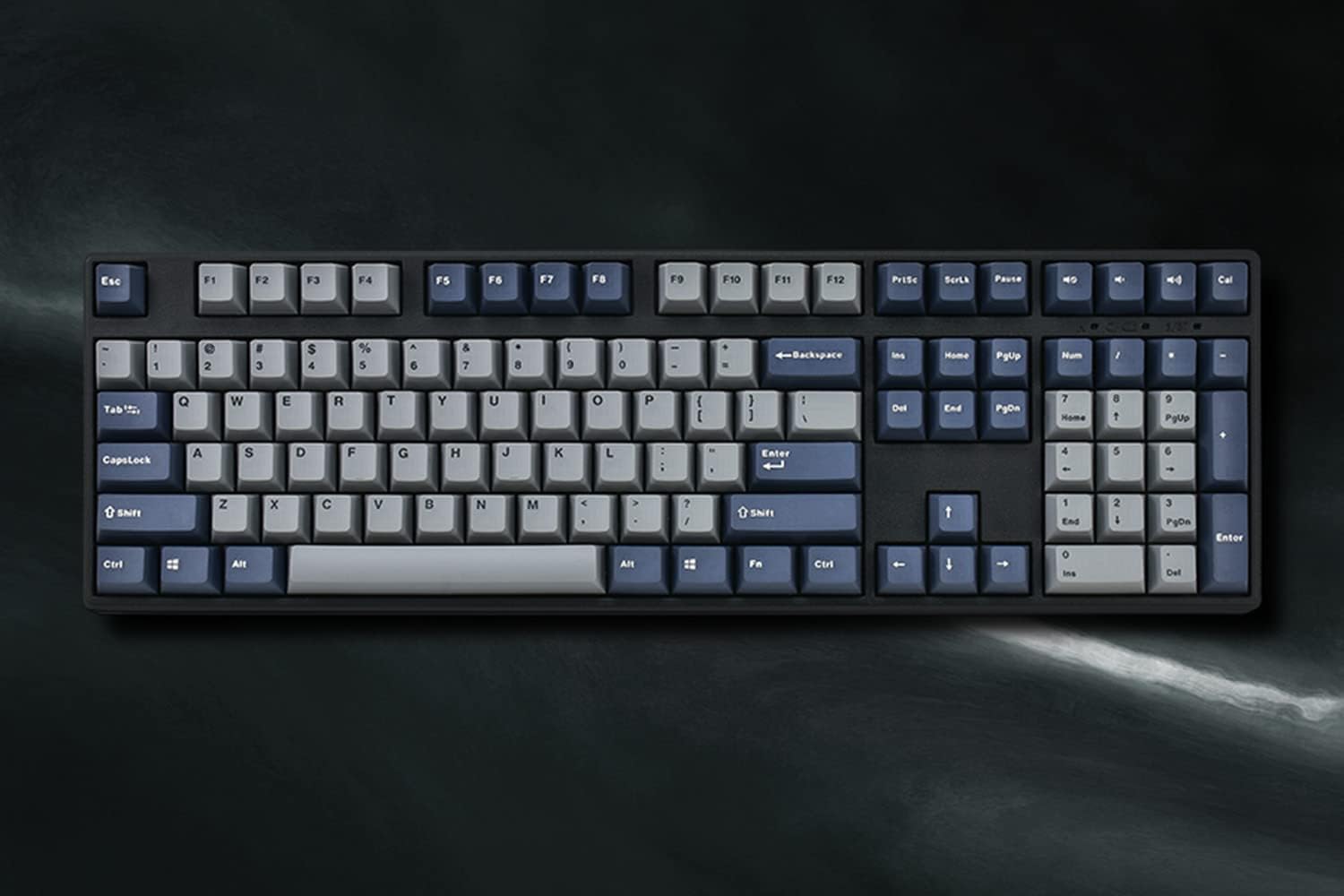
- Full-Size Layout: Includes a full numeric keypad and dedicated navigation keys, providing complete functionality for various tasks.

Description: This image presents a clear, overhead view of the Mistel X-VIII Mechanical Keyboard, highlighting its complete full-size layout.
- Ergonomic Design (OEM Profile Keycaps): The keycaps are sculpted with an OEM profile, meaning each row has a different shape to conform to the natural curve of your fingers, promoting a more comfortable typing posture.

Description: This image illustrates the ergonomic design of the keyboard, specifically showing the OEM profile of the keycaps which are sculpted to provide a comfortable typing angle and promote better posture.
- Detachable USB Type-C Cable: Offers a stable and reliable connection, and its detachable nature enhances portability and simplifies cable management.
Maintenance
Proper maintenance will extend the lifespan of your Mistel X-VIII Mechanical Keyboard.
- General Cleaning: Use a soft, lint-free cloth to wipe down the keyboard surface regularly. For dust and debris between keycaps, use compressed air.
- Keycap Cleaning: If keycaps become dirty, they can be removed using the provided keycap puller and cleaned with mild soap and water. Ensure they are completely dry before reattaching them to the keyboard.
- Avoid Liquids: Do not spill liquids on the keyboard. If a spill occurs, immediately disconnect the keyboard from your computer and allow it to dry completely before reconnecting.
Troubleshooting
If you encounter issues with your Mistel X-VIII Mechanical Keyboard, try the following troubleshooting steps:
| Problem | Solution |
|---|---|
| Keyboard is not responding. |
|
| Specific keys are not working. |
|
| Fn key combinations are not working. |
|
Specifications
| Feature | Detail |
|---|---|
| Brand | Mistel |
| Model | X-VIII |
| Keyboard Description | Mechanical |
| Switch Type | Cherry MX Brown |
| Keycap Material | Polybutylene Terephthalate (PBT) |
| Number of Keys | 108 |
| Connectivity Technology | USB, USB-C (Detachable Cable) |
| Compatible Devices | PC (Windows, macOS, Linux compatible) |
| Color | Black (with Black and White Letter Nimitz PBT Double Shot Keycaps) |
| Recommended Uses | Office, Gaming |
| Product Dimensions | 17.99 x 7.99 x 2.01 inches |
| Item Weight | 3.64 pounds |
| Power Source | USB Power |
Warranty and Support
Mistel products are manufactured to high-quality standards. For information regarding warranty coverage, please refer to the warranty card included with your product or visit the official Mistel website. For technical support, troubleshooting assistance beyond this manual, or inquiries about replacement parts, please contact Mistel customer service through their official channels.
Mistel Official Website: www.mistelkeyboard.com


