
1. Introduction
This manual provides essential information for the proper use and maintenance of your Marklife P50 Printer Thermal Labels. These self-adhesive labels are designed for use with compatible Marklife P50 thermal printers, offering a convenient and ink-free printing solution for various applications.

Image 1.1: Marklife P50 Thermal Label Roll and its packaging, indicating the size 1.57" x 2.36" and 125 labels per roll.
2. Product Features
- Thermal Printing Technology: Utilizes direct thermal printing, eliminating the need for ink cartridges or ribbons.
- Self-Adhesive: Features a strong adhesive backing for secure attachment to various surfaces.
- Durable Construction: Designed to be waterproof, oil-resistant, tear-resistant, and scratch-resistant.
- BPA-Free: Manufactured with environmentally friendly, non-toxic materials.
- Easy Peeling: Equipped with a back split design for effortless removal from the backing paper.
- Clear Printing: Provides crisp and legible text and graphics.
- Versatile Applications: Suitable for home organization, office labeling, price barcodes, QR codes, name tags, and DIY logo designs.

Image 2.1: Visual representation of key features including BPA-free, strong adhesion, abrasion resistance, and waterproof properties, alongside a schematic showing the label dimensions of 1.57" x 2.36".

Image 2.2: Diagram illustrating the multi-layered structure of the thermal label, including protective and adhesive layers. Also shown are tests demonstrating oil, water, tear, and scratch resistance.
3. Setup and Loading
These labels are designed for use with the Marklife P50 thermal printer. Follow these general steps for loading the label roll:
- Open Printer Cover: Gently open the cover of your Marklife P50 thermal printer according to its specific instructions.
- Insert Label Roll: Place the Marklife thermal label roll into the designated compartment. Ensure the labels are oriented correctly, with the printing surface facing the print head. The leading edge of the label roll should feed smoothly into the printer mechanism.
- Adjust Guides: If your printer has adjustable label guides, slide them to fit snugly against the edges of the label roll to prevent misalignment during printing.
- Close Printer Cover: Close the printer cover securely until it clicks into place.
- Feed Labels: If necessary, press the feed button on your printer to advance a few labels and ensure they are properly aligned and ready for printing.
4. Operating Instructions
Once the labels are loaded, you can begin printing using your Marklife P50 thermal printer and its associated application or software.
- Connect Printer: Ensure your Marklife P50 printer is connected to your device (smartphone, tablet, or computer) via Bluetooth or USB, as per the printer's instructions.
- Open Application: Launch the Marklife printing application on your device.
- Select Label Size: Within the application, select the correct label size (1.57" x 2.36" or 40x60mm) to match the loaded labels.
- Design Your Label: Use the application's tools to design your label content, including text, images, barcodes, or QR codes.
- Print: Send the print job to your Marklife P50 printer.
- Peel and Apply: Once printed, carefully peel the label from its backing using the back split design. Apply the label to a clean, dry, and smooth surface, pressing firmly to ensure strong adhesion.

Image 4.1: A Marklife thermal label with printed content (e.g., "Canned salmon") adhered firmly to the back of a smartphone, demonstrating its strong adhesive properties.

Image 4.2: A Marklife thermal printer actively printing a label with product information and a barcode, shown next to a loaf of bread, illustrating its use for food labeling.
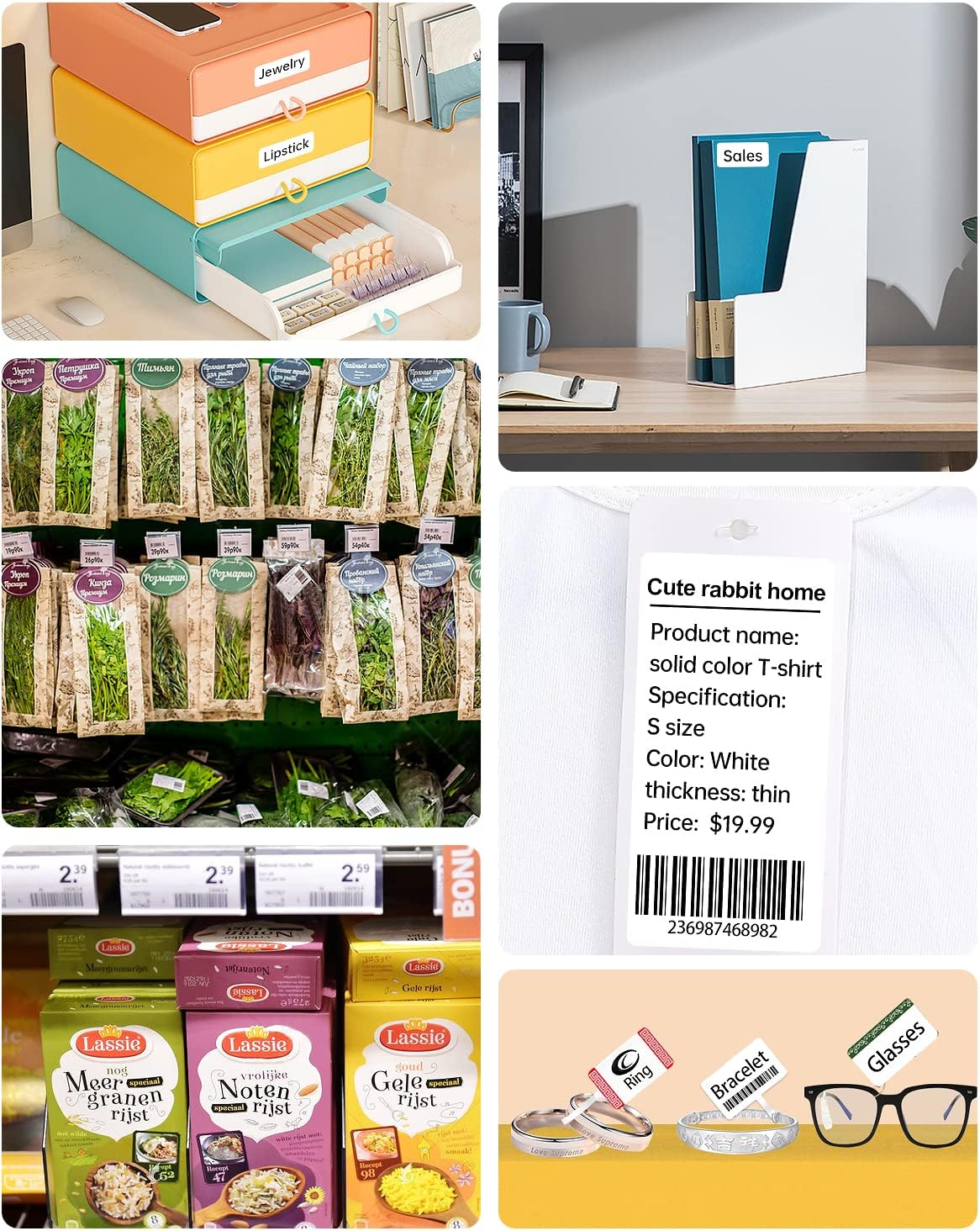
Image 4.3: A collage showcasing diverse uses of Marklife thermal labels, including labeling drawers for jewelry and lipstick, organizing office documents, pricing produce, and creating product tags for clothing.

Image 4.4: Another collage demonstrating practical applications, such as labeling small storage containers, identifying food containers, creating decorative stickers for envelopes, and marking cables with waterproof and oil-proof labels.
5. Maintenance and Storage
Proper care and storage of your thermal labels will ensure their longevity and optimal performance.
- Storage Conditions: Store label rolls in a cool, dry place, away from direct sunlight, high temperatures, and excessive humidity. Exposure to these conditions can degrade the thermal coating and affect print quality.
- Avoid Chemicals: Do not expose labels to harsh chemicals, solvents, or abrasive materials, as this can damage the label surface and adhesive.
- Printer Head Cleaning: Regularly clean the print head of your Marklife P50 thermal printer as recommended in its user manual. A clean print head is crucial for clear and consistent label printing.
- Handle with Care: Avoid touching the thermal printing surface of the labels directly with bare hands, as oils and dirt can affect print quality.
6. Troubleshooting
If you encounter issues while using your Marklife thermal labels, consider the following common solutions:
- Faint or Incomplete Print:
- Ensure the label roll is loaded correctly with the thermal side facing the print head.
- Clean the print head of your Marklife P50 printer.
- Check printer settings in the application to ensure optimal print density.
- Labels Not Feeding Properly:
- Verify the label roll is seated correctly and not jammed.
- Ensure the label guides in the printer are properly adjusted.
- Check for any obstructions in the label path.
- Labels Not Sticking:
- Ensure the application surface is clean, dry, and free of dust, oil, or moisture.
- Apply firm, even pressure across the entire label when adhering.
- Labels Peeling Off:
- Re-evaluate the application surface for cleanliness and suitability.
- Ensure sufficient pressure was applied during initial adhesion.
7. Specifications
| Attribute | Detail |
|---|---|
| Brand | MARKLIFE |
| Model Number | P50-LT |
| Label Size | 1.57" x 2.36" (40 x 60mm) |
| Labels per Roll | 125 |
| Print Color | Black on White |
| Material Type | Thermal Paper |
| Key Features | Self-adhesive, Waterproof, Oil-resistant, Tear-resistant, Scratch-resistant, BPA-free |
| Item Weight (per roll) | 2.08 ounces |
| Package Dimensions | 2.17 x 2.13 x 2.09 inches |
8. Warranty and Support
For specific warranty information or technical support regarding your Marklife P50 Printer Thermal Labels, please refer to the documentation provided with your Marklife P50 printer or visit the official MARKLIFE website. You may also contact MARKLIFE customer service directly for assistance.