
1. Introduction
Thank you for purchasing the Smart Tech 50UA10V3 50-inch 4K UHD Android TV. This television combines stunning 4K Ultra High Definition visuals with the versatility of Android 9.0, offering access to a wide range of streaming services and smart features. With integrated Google Assistant, Chromecast, and a triple tuner, your entertainment experience is enhanced and simplified.
Included Components:
- Smart Tech 50UA10V3 TV
- Power Cable
- User Manual
- Stand
- Remote Control (batteries included)
2. Safety Information
Please read all safety instructions carefully before using your TV. Keep this manual for future reference.
- Power Source: Connect the TV only to an AC 220V 50Hz power supply. Ensure the power cord is not damaged or pinched.
- Ventilation: Do not block ventilation openings. Allow sufficient space around the TV for proper airflow to prevent overheating.
- Water and Moisture: Do not expose the TV to rain, moisture, or place objects filled with liquids (e.g., vases) on or near the TV.
- Cleaning: Unplug the TV before cleaning. Use a soft, dry cloth. Do not use liquid cleaners or aerosol sprays.
- Placement: Place the TV on a stable, level surface. Avoid placing it in direct sunlight or near heat sources.
- Children: Supervise children to ensure they do not climb on the TV or stand.
3. Setup
3.1 Unpacking
Carefully remove the TV and all accessories from the packaging. Retain the packaging for future transport or service needs.
3.2 Attaching the Stand
Place the TV screen-down on a soft, flat surface to prevent damage. Align the stand with the mounting holes on the bottom of the TV and secure it with the provided screws.

Image Description: This image displays the Smart Tech 50UA10V3 television from the front and side, showing its dimensions (1111mm width, 688mm height with stand, 643mm height without stand, 231mm depth with stand). The elegant U-shaped central stand is visible. A remote control is also shown separately at the bottom right.
3.3 Wall Mounting
The TV supports VESA standard 200 x 200 mm for wall mounting. Use appropriate wall mount brackets (not included) and follow the instructions provided with the wall mount. Ensure the wall can support the TV's weight (8.3 kg).
3.4 Connecting Peripherals
Connect your external devices to the TV's ports. The TV features 3 HDMI ports (HDMI 2.0), 2 USB 2.0 ports, Ethernet, RF, and AV inputs.
- HDMI: For connecting Blu-ray players, game consoles, set-top boxes.
- USB: For connecting USB storage devices to play media files.
- Ethernet: For a wired internet connection.
- RF: For connecting an antenna or cable for DVB-T2/C/S2 reception.
- AV: For connecting older devices with composite video and stereo audio.
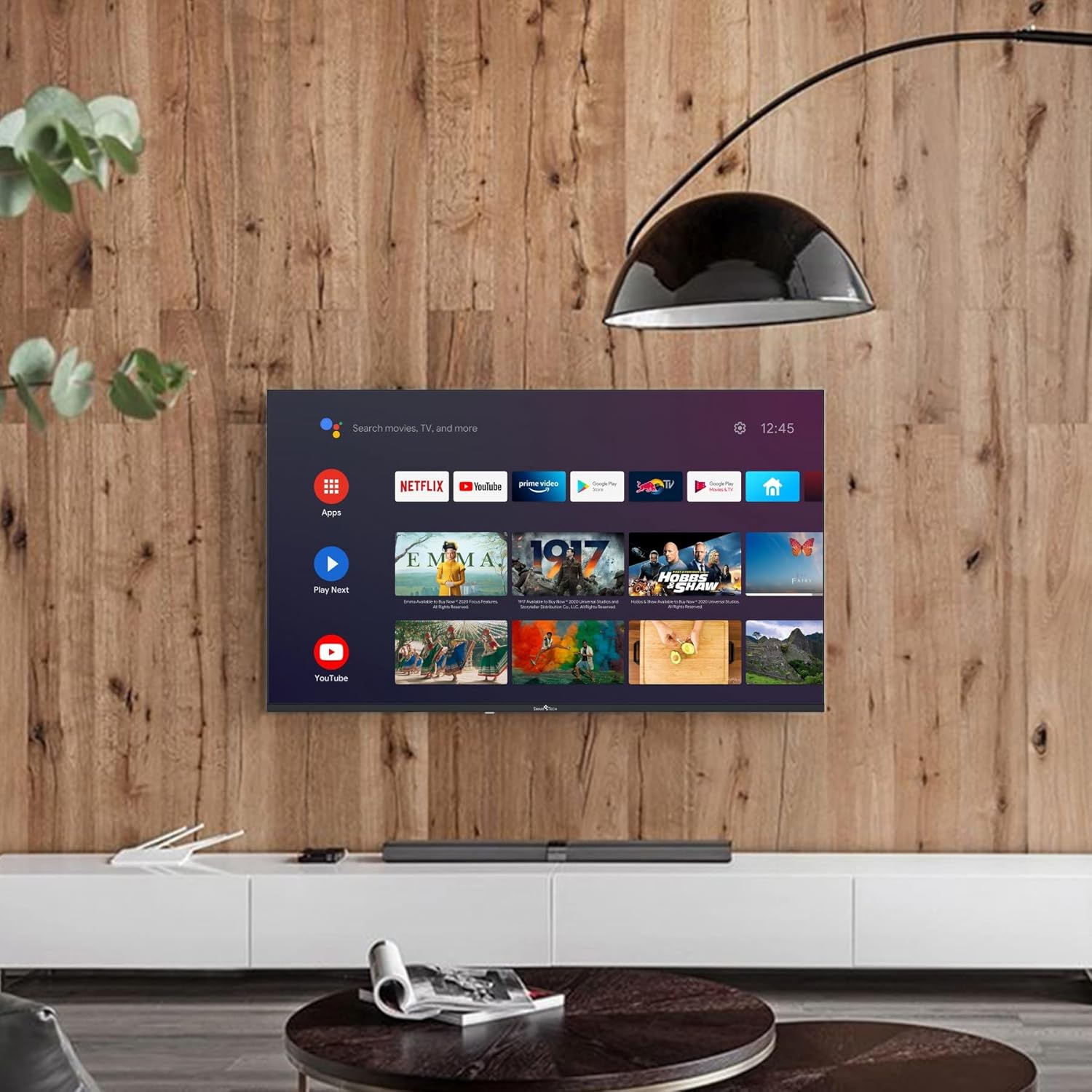
Image Description: This image shows the Smart Tech 50UA10V3 television mounted on a wooden wall in a modern living room setting. The TV displays the Android TV home screen with various app icons like Netflix, YouTube, and Google Play. A soundbar is placed on the cabinet below the TV.
3.5 Initial Power On and Setup Wizard
After connecting the power cable, press the power button on the remote control or TV. The TV will guide you through the initial setup process, including language selection, network connection, and Google account sign-in for Android TV features.
4. Operating
4.1 Remote Control Overview
The included remote control allows you to navigate the TV's functions. It features dedicated buttons for popular streaming services like Netflix and YouTube, as well as Google Assistant for voice commands.
Refer to the image in section 3.2 for a visual representation of the remote control.
4.2 Basic Functions
- Power: Press the power button to turn the TV on or off.
- Volume: Use the Volume +/- buttons to adjust the sound level.
- Channel: Use the Channel +/- buttons to change TV channels (when using the built-in tuner).
- Input: Press the Input button to select connected devices (HDMI, AV, etc.).
4.3 Android TV Interface
The Android TV home screen provides quick access to your favorite apps, live TV, and recommended content. Use the directional pad and OK button on your remote to navigate.
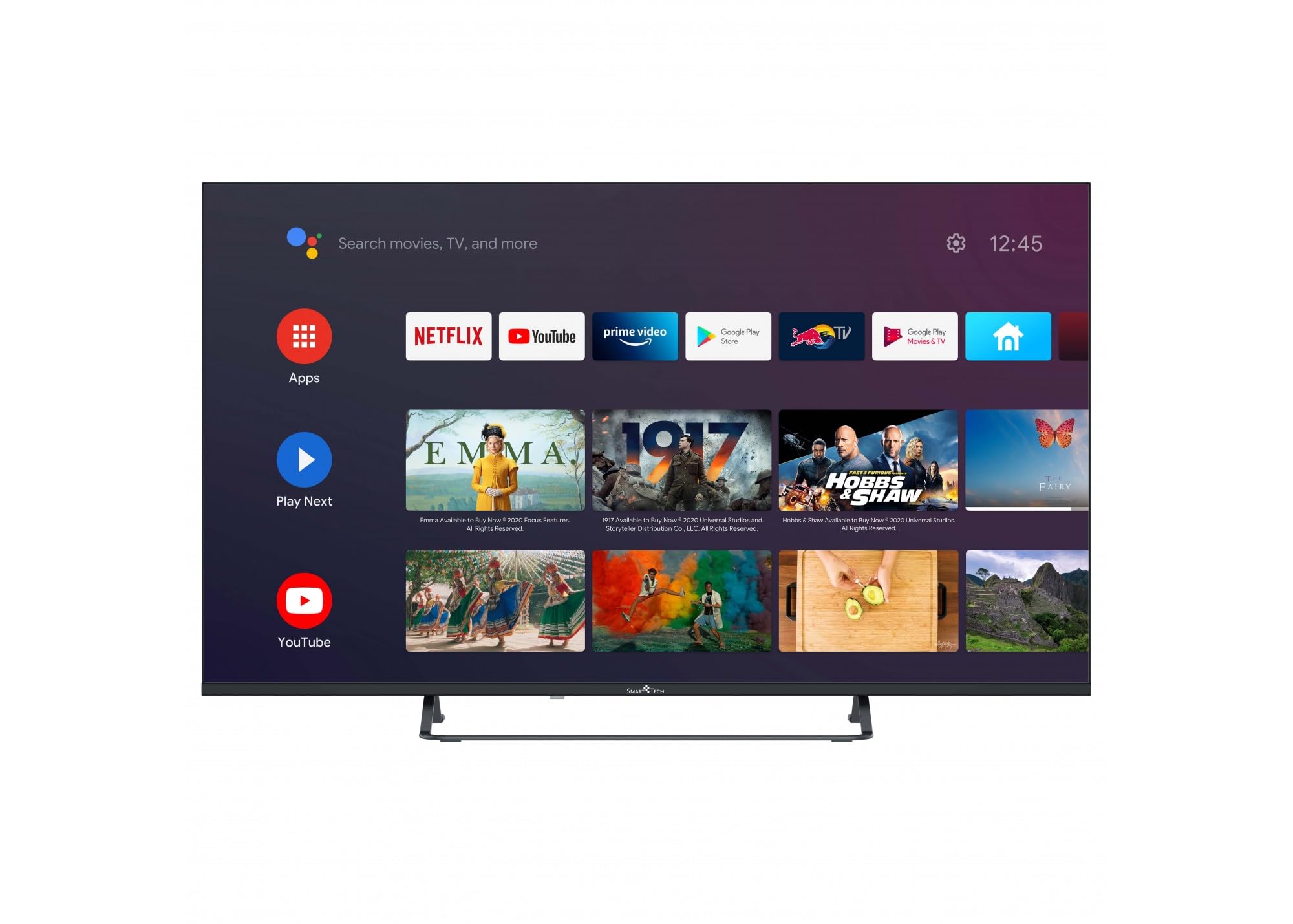
Image Description: This image shows the Smart Tech 50UA10V3 television displaying the Android TV home screen. The interface features a search bar, time, and various app icons including Netflix, YouTube, Prime Video, Google Play Store, and Google Play Movies & TV. Recommended content is also displayed below the app row.
4.4 Smart Features
- Google Assistant: Press the Google Assistant button on your remote and speak into the microphone to control your TV, search for content, or get information.
- Netflix/YouTube/Amazon Prime: Access these streaming services directly from the home screen or dedicated remote buttons.
- Google Play Store: Download additional apps, games, and content.
- Chromecast Built-in: Cast content from your compatible smartphone or tablet directly to the TV.
- HbbTV: Access interactive services from broadcasters (if available in your region).
4.5 Network Connection
- Wi-Fi: Connect to your wireless network via the TV's settings menu. The TV supports WiFi 2T2R for stable connectivity.
- Ethernet: For a more stable connection, plug an Ethernet cable from your router into the TV's LAN port.
4.6 Bluetooth Connectivity
Pair Bluetooth devices such as headphones, soundbars, or game controllers with your TV through the settings menu for enhanced audio or control.
5. Maintenance
5.1 Cleaning the Screen and Cabinet
- Always unplug the TV before cleaning.
- Use a soft, lint-free cloth to gently wipe the screen. For stubborn marks, slightly dampen the cloth with water or a specialized screen cleaner (apply to cloth, not directly to screen).
- Wipe the cabinet with a soft, dry cloth. Do not use abrasive cleaners, waxes, or solvents.
5.2 Software Updates
Your Smart Tech TV may receive software updates to improve performance and add new features. You can usually check for updates in the TV's settings menu under 'About' or 'System Update'. Follow the on-screen prompts to install any available updates.
6. Troubleshooting
If you encounter issues with your TV, refer to the following common problems and solutions:
| Problem | Possible Solution |
|---|---|
| No power | Check if the power cable is securely connected to the TV and the power outlet. Ensure the outlet is working. |
| No picture, but sound is present | Check the input source. Ensure external devices are powered on and connected correctly. |
| No sound, but picture is present | Check the volume level. Ensure mute is not activated. Check audio cables for external sound systems. |
| Remote control not working | Replace the batteries. Ensure there are no obstructions between the remote and the TV's IR sensor. |
| Cannot connect to Wi-Fi | Check your router and modem. Restart them if necessary. Re-enter the Wi-Fi password. |
| Apps are slow or crashing | Close unused apps. Clear app cache in settings. Restart the TV. |
If the problem persists after trying these solutions, please contact customer support.
7. Specifications
| Feature | Detail |
|---|---|
| Model Number | 50UA10V3 |
| Screen Size | 50 Inches |
| Display Technology | LED |
| Resolution | 4K (3840 x 2160) |
| Refresh Rate | 60 Hz |
| Operating System | Android 9.0 |
| Storage Capacity | 8 GB |
| Connectivity | Bluetooth, Ethernet, HDMI (x3), RF, USB (x2), WLAN (WiFi 2T2R) |
| Special Features | HDR10, HbbTV, Dolby Audio, Chromecast Built-in, Google Assistant, Ultra-thin frame |
| Video Encoding | MPEG-1, 2, 4 video MP@HL and HD level, H.265 HEVC |
| Audio Output Mode | Digital |
| VESA Mount Standard | 200 x 200 mm |
| Power Consumption | 54 Watt |
| Voltage | 220 Volts AC 50 Hz |
| Item Weight | 8.3 Kilograms |
| Model Year | 2022 |
8. Warranty & Support
Your Smart Tech 50UA10V3 TV comes with a standard manufacturer's warranty. Please refer to the warranty card included in your product packaging for specific terms and conditions.
Spare Parts Availability: Information regarding the availability of spare parts is currently not provided.
For technical support, service, or warranty claims, please contact your retailer or the Smart Tech customer service department. Contact details can typically be found on the manufacturer's official website or in your purchase documentation.


