
1. Introduction
The Losfom WD2 is a versatile 2K Body Camera designed for various applications, including law enforcement, personal security, and vehicle recording. It features high-definition video recording, robust night vision capabilities, and a long-lasting battery. This manual provides detailed instructions to help you set up, operate, and maintain your WD2 camera for optimal performance.

Figure 1.1: Losfom WD2 2K Body Camera and Dash Cam.
2. What's in the Box
Please check the package contents to ensure all items are present:
- WD2 Body Camera
- Car Suction Bracket
- Shoulder Clip
- Short Clip
- Car Charger
- Charger (Wall Adapter)
- USB-C Cable
- Card Reader (2 units)
- 64GB Memory Card (pre-installed or included separately)
- User Manual (this document)

Figure 2.1: All included accessories with the WD2 Body Camera.
Video 2.1: Unboxing and overview of Losfom WD2 Body Camera accessories.
3. Product Features
-
UHD 2K Recording & Wide Angle: Records in 2560*1440P HD, capturing clear and detailed footage. The 170° ultra-wide angle lens provides a broad field of view, ensuring more information is captured in critical scenes.

Figure 3.1: Visual comparison highlighting the clarity of 2K HD video.
-
Strong IR Night Vision: Equipped with high-intensity infrared LEDs, the camera features Auto/Manual Night Vision, capable of capturing clear images from up to 10m/32 feet away in complete darkness.

Figure 3.2: The camera's super night vision capturing details in low light conditions.
-
Long Battery Life: A powerful 3100mAh battery allows for up to 11 hours of continuous recording (at 1080P with IR Off), suitable for extended shifts or activities.

Figure 3.3: Battery performance details, showing 11 hours of recording time.
-
64GB Large Storage & Loop Recording: Comes with 64GB of internal storage for video, picture, and audio recordings, expandable up to 256GB. The loop recording function automatically overwrites the oldest footage when the memory is full.

Figure 3.4: Illustration of the camera's storage capacity.
-
2-in-1 Dash Cam/Body Camera: This multi-functional device can be used as a dash cam with the car suction bracket or as a body cam with the included clips. It supports continuous recording even when the car engine is off.

Figure 3.5: Various applications of the WD2 camera.
- File Delete Function & Stealth Mode: Files can be deleted directly from the camera. Stealth mode allows recording without indicator lights or button sounds for discreet operation.
4. Setup
4.1 Attaching Clips and Mounts
The WD2 camera comes with various attachments for different uses:
- Shoulder Clip: For body-worn use, attach the shoulder clip to the back of the camera. It offers 180° rotation.
- Short Clip: A more compact clip for general body-worn attachment, offering 360° rotation.
- Car Suction Bracket: For use as a dash cam, attach the camera to the car suction bracket. This allows for secure mounting on your vehicle's windshield.
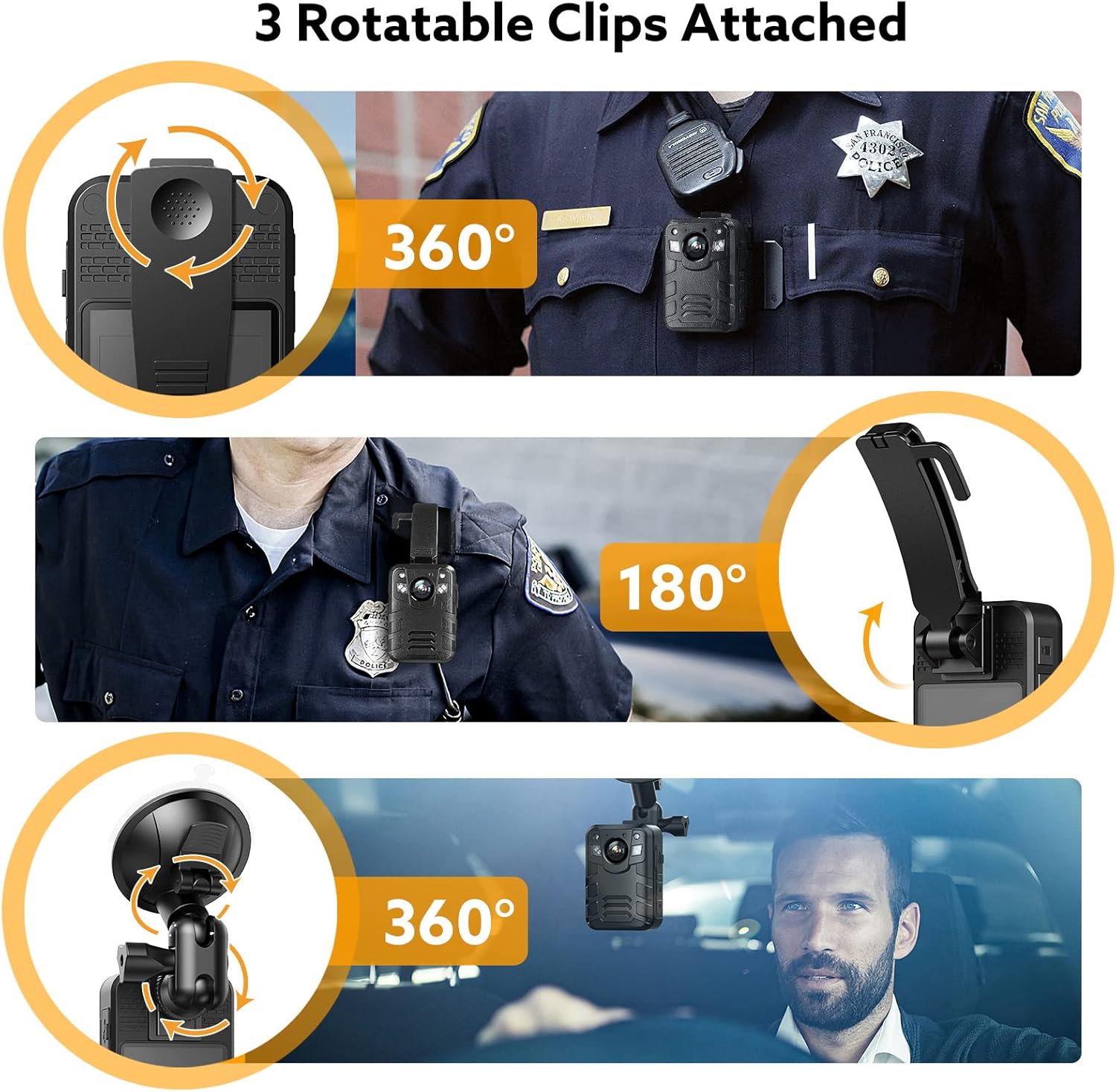
Figure 4.1: Different clip and mount options for the WD2 camera.
4.2 Car Suction Cup Bracket Installation
- Install the screw connector to the bracket.
- Press the clip down with your finger to open it.
- Attach the bracket to the camera.
- Secure the suction cup to your windshield by pressing firmly and locking the lever.

Figure 4.2: Step-by-step guide for installing the car suction cup bracket.
5. Operating Instructions
Familiarize yourself with the camera's buttons and interface:

Figure 5.1: Button layout and interfaces of the WD2 camera.
5.1 Power On/Off
To power on the camera, long press the Power button for 3 seconds. The indicator light will show blue. To power off, long press the Power button again.
Video 5.1: Demonstrating how to power on the WD2 camera.
5.2 Recording Video
Press the "Video" key to start recording video. Press it again to stop recording.
Video 5.2: How to start and stop video recording.
5.3 Night Vision Activation
While recording, press the "Up" button (▲) to activate Night Vision. Press it again to deactivate.
Video 5.3: Activating Night Vision mode.
5.4 White Light / Alarm Function
- White Light: Press the "FN" button to turn on the white light. Press again to turn it off.
- Alarm Function: Long press the "FN" button for 3 seconds to activate the alarm function. The camera will emit a loud alarm sound.
Video 5.4: Demonstrating white light and alarm activation.
5.5 Laser Light
Press the "Down" button (▼) to turn on the laser light. Press again to turn it off.
Video 5.5: Activating the laser light.
5.6 Menu Settings
Press the "M" button to access the Menu settings. Use the Up/Down buttons to navigate and the "OK" button to select. Here you can adjust settings like Resolution, Photo Size, Date & Time Stamp, and more.
Video 5.6: Navigating and adjusting settings in the camera menu.
5.7 File Management (Delete & Mark Important Files)
- Delete Files: Short press the "OK" button to enter the playback menu. Navigate to the desired file (video, photo, or audio). Long press "OK" and select "YES" to delete the file.
- Mark Important Files: While recording, short press the "Return" button to mark the current video with a sign. This saves it as a key video, preventing it from being overwritten during loop recording.
Video 5.7: Instructions for deleting and marking important files.
6. Maintenance
- Cleaning: Use a soft, dry cloth to clean the camera body. For the lens, use a specialized lens cleaning cloth and solution. Avoid abrasive materials or harsh chemicals.
- Storage: Store the camera in a cool, dry place away from direct sunlight and extreme temperatures.
- Battery Care: To prolong battery life, avoid fully discharging the battery frequently. Charge the camera regularly, even if not in use for extended periods.
- Firmware Updates: Check the Losfom official website periodically for any available firmware updates to ensure optimal performance and new features.
7. Troubleshooting
| Problem | Possible Cause | Solution |
|---|---|---|
| Camera does not power on. | Low battery; Power button not pressed long enough. | Charge the camera fully. Long press the power button for 3 seconds. |
| Cannot record video/take photos. | Memory card full or corrupted; Memory card not inserted correctly. | Delete old files or format the memory card (backup important data first). Reinsert the memory card. |
| Video quality is poor. | Lens is dirty; Incorrect resolution setting. | Clean the camera lens. Check menu settings to ensure 2K (1440P) resolution is selected. |
| Camera freezes or becomes unresponsive. | Software glitch; Overheating. | Use a thin object to press the Reset Hole (refer to Figure 5.1). Allow the camera to cool down if it feels hot. |
8. Specifications
| Feature | Detail |
|---|---|
| Model Number | WD2 |
| Video Capture Resolution | 1440P (2K), 1080P |
| Lens Type | 170° Ultra Wide Angle |
| Flash Memory Type | SD (64GB included, Max Support 256GB) |
| Battery Capacity | 3100mAh Lithium Ion |
| Recording Time | Up to 11 hours (1080P & IR Off) |
| Special Feature | Infrared Night Vision, Loop Recording, Stealth Mode, Alarm Function, Laser Light |
| Screen Size | 2 inches |
| Connectivity Technology | USB |
| Item Weight | 12.8 ounces (approx. 363 grams) |
| Manufacturer | Losfom |
9. Warranty and Support
Losfom is committed to providing high-quality products. For any product-related inquiries, technical support, or warranty claims, please refer to the contact information provided on the product packaging or visit the official Losfom website. Please retain your proof of purchase for warranty purposes.

