
1. Introduction
Thank you for choosing the ICON Morpheus GX 66 Wired Gaming Mouse. This manual provides essential information for setting up, operating, and maintaining your new gaming mouse. Please read this guide thoroughly to ensure optimal performance and longevity of your device.
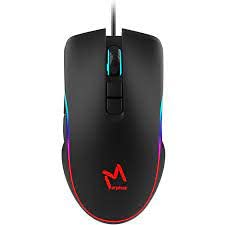
The ICON Morpheus GX 66 is a high-performance wired gaming mouse featuring customizable LED lighting and a precise 7200 DPI optical sensor, designed for an optimal gaming experience. It offers a modern style and ambidextrous design, compatible with Windows 7, Windows XP, and Linux operating systems.
2. Product Features
- High Precision Sensor: Equipped with a 7200 DPI optical sensor for accurate tracking and responsiveness.
- Customizable LED Lighting: Dynamic LED illumination enhances your gaming setup.
- 7 Programmable Buttons: Offers extensive customization for various gaming commands.
- Wired Connectivity: Ensures a stable and lag-free connection.
- Ambidextrous Design: Comfortable for both left and right-handed users.
- Durable Build: Designed for long-lasting use in intense gaming sessions.
- Wide Compatibility: Supports Windows 7, Windows XP, and Linux operating systems.

3. Setup
- Unpack the Mouse: Carefully remove the ICON Morpheus GX 66 mouse from its packaging.
- Connect to Computer: Locate an available USB port on your computer. Plug the USB connector of the mouse firmly into the USB port.
- Driver Installation: The mouse is plug-and-play. Your operating system (Windows 7, Windows XP, or Linux) should automatically detect and install the necessary drivers. This process may take a few moments.
- Test Functionality: Once installed, move the mouse and click the buttons to ensure it is working correctly.
4. Operating Instructions
4.1 Basic Functions
- Left Click: Primary action, selection, activation.
- Right Click: Context menu, secondary actions.
- Scroll Wheel: Scroll up/down, middle click for specific functions.
4.2 DPI Adjustment
The mouse features a dedicated DPI button (often located behind the scroll wheel) to cycle through different sensitivity levels. Press this button to adjust the DPI (Dots Per Inch) to your preferred setting for various tasks or games. The LED lighting may change color to indicate the current DPI level.
4.3 LED Lighting
The ICON Morpheus GX 66 features dynamic LED lighting. The lighting patterns and colors are typically pre-programmed and may change based on the selected DPI setting or cycle automatically. There are no user-configurable software controls for the LED lighting on this model.

5. Maintenance
- Cleaning: Use a soft, dry cloth to wipe the surface of the mouse. For stubborn dirt, slightly dampen the cloth with water. Avoid using harsh chemicals or abrasive materials.
- Sensor Cleaning: Occasionally, dust or debris may accumulate around the optical sensor. Use a cotton swab or compressed air to gently clean the sensor area on the underside of the mouse.
- Cable Care: Avoid sharp bends or excessive pulling on the mouse cable to prevent damage. Store the cable neatly when not in use.
- Storage: When not in use for extended periods, store the mouse in a clean, dry environment away from direct sunlight and extreme temperatures.

6. Troubleshooting
- Mouse Not Responding:
- Ensure the USB cable is securely plugged into the computer's USB port.
- Try plugging the mouse into a different USB port.
- Restart your computer.
- Erratic Cursor Movement:
- Clean the optical sensor on the underside of the mouse.
- Ensure you are using the mouse on a clean, non-reflective, and uniform surface. Avoid glass or highly reflective surfaces.
- LED Lighting Not Working:
- Check the USB connection.
- The LED lighting is typically powered directly via USB. If the mouse functions but LEDs do not, contact support.
- Buttons Not Functioning:
- Ensure the mouse is properly connected.
- Test the mouse on another computer to rule out software issues.
7. Specifications
| Manufacturer | ICON |
| Model | Morpheus GX 66 |
| ASIN | B0B5PLWQXC |
| Special Features | LED Lighting |
| Movement Detection Technology | Optical |
| DPI | 7200 |
| Hand Orientation | Ambidextrous |
| Recommended Uses | Gaming |
| Operating System Compatibility | Linux, Windows 7, Windows XP |
| Style | Modern |
| Finish Type | Matte |
| Power Source | Corded Electric (USB) |
| Color | Multi-color |
8. Warranty and Support
The ICON Morpheus GX 66 Wired Gaming Mouse comes with a standard manufacturer's warranty. For specific warranty terms and conditions, please refer to the warranty card included with your product or visit the official ICON website.
For technical support, troubleshooting assistance, or to inquire about replacement parts, please contact ICON customer service through their official support channels. Keep your purchase receipt and product model information (GX 66) handy when contacting support.


