
1. Introduction
Thank you for choosing the Wolf Guard WT4R-W03 Wireless Burglar Security System. This advanced security system provides comprehensive protection for your home or office, featuring WiFi connectivity, GSM/4G support, and compatibility with Smart Life APP, Google Assistant, and Amazon Alexa. This manual will guide you through the installation, operation, and maintenance of your new security system.
2. Package Contents
Please verify that all items listed below are included in your package. If any items are missing or damaged, please contact customer support.
- 1 x WT4R-W03 Control Panel (Main Host)
- 4 x PIR Motion Detectors (HW-06A)
- 8 x Door/Window Sensors
- 4 x Remote Controllers (Key Fobs)
- 4 x RFID Tags
- 1 x Wired Siren
- 1 x Power Adapter
- Mounting Screws and Accessories
- User Manual (this document)

Image: All components included in the Wolf Guard WT4R-W03 security system package.

Image: A view of the unboxed security system components, including the control panel, sensors, remotes, and siren.
3. System Components Overview
Familiarize yourself with the main components of your security system:
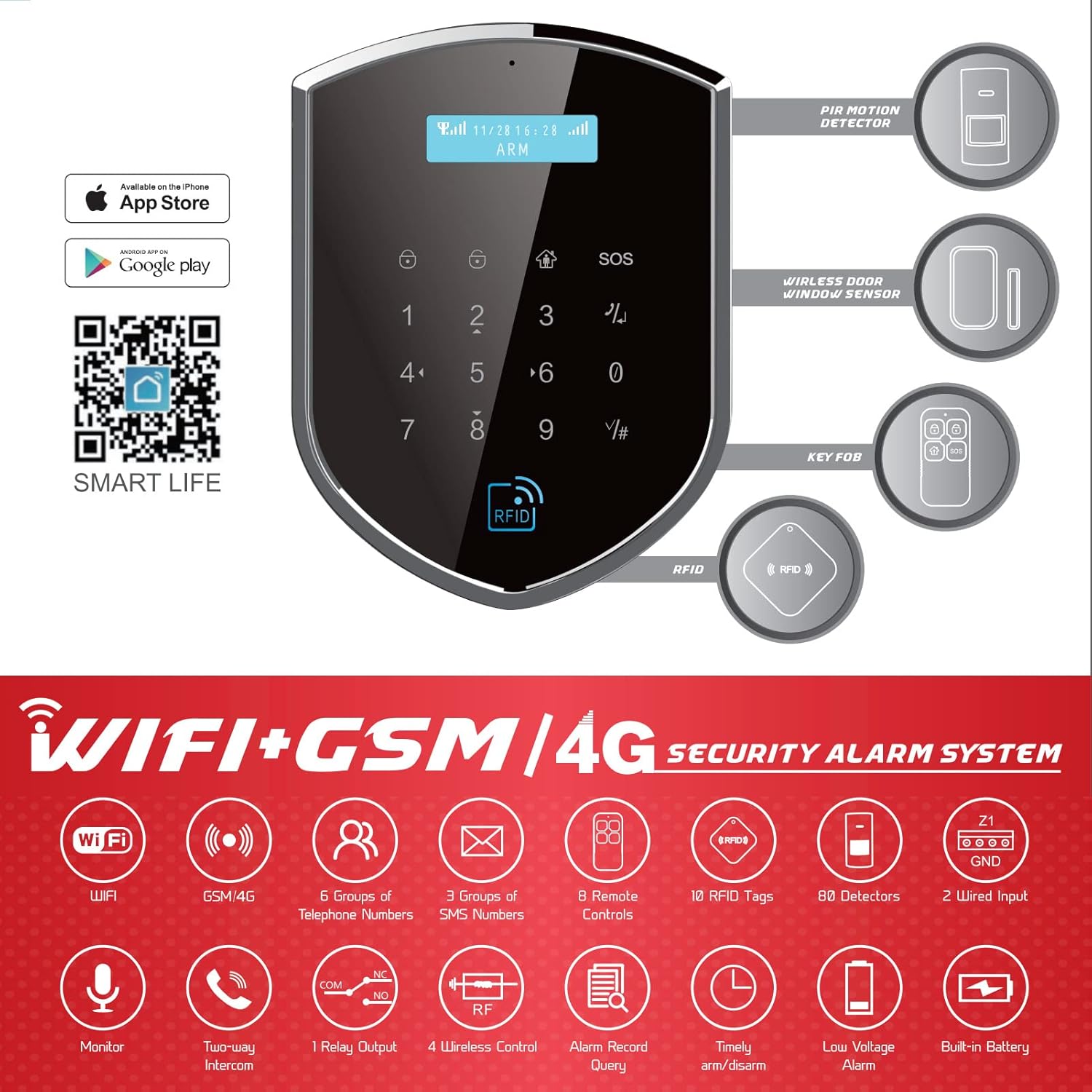
Image: Diagram illustrating the main components: PIR motion detector, wireless door/window sensor, key fob, and the control panel with RFID area.
3.1 Control Panel (Main Host)
The control panel is the central unit of your alarm system. It features a touch keypad, display screen, microphone, and RFID card area.

Image: Detailed view of the control panel, highlighting the microphone, display screen, touch keypad area, and RFID card area, along with its dimensions (7.13" H x 5.32" W).
3.2 PIR Motion Detector (HW-06A)
These smart wireless detectors sense motion within their detection range. They are designed for indoor use and should be connected to the GSM Alarm host.

Image: The HW-06A Smart wireless PIR detector, showing its horizontal (110°) and vertical (60°) detection angles and universal mounting bracket.
3.3 Door/Window Sensors
These sensors detect the opening and closing of doors and windows, triggering an alarm if the system is armed.

Image: A Wolf Guard door/window sensor installed on a door frame, demonstrating its function in detecting unauthorized entry.
3.4 Remote Controllers (Key Fobs)
Compact remote controls for convenient arming, disarming, home arming, and SOS functions.

Image: Two remote controllers, with buttons clearly labeled for Indicator, Arm, Disarm, Home Arm, and SOS (Help button).
3.5 Wired Siren
The siren provides a loud audible alarm (120 dB) when the system is triggered. It can be used both indoors and outdoors and includes a backup battery.

Image: The siren, capable of 110dB sound volume, depicted for both indoor and outdoor use, with a backup battery feature.
4. Setup and Installation
4.1 Control Panel Initial Setup
- Connect the power adapter to the control panel and plug it into a power outlet.
- Ensure the built-in lithium rechargeable battery is charged. This battery allows the system to operate for hours during a power outage.
- If using GSM/4G features, insert a compatible SIM card into the designated slot on the back of the control panel.
4.2 WiFi Connection
To connect your control panel to your home WiFi network and enable app control:
- Download the "Smart Life" app from the Apple App Store or Google Play Store. You can also scan the QR code provided in the manual or on the product packaging.
- Ensure your smartphone is connected to a 2.4GHz WiFi network. The system does not support 5GHz networks.
- Open the Smart Life app and click the "+" icon in the top right corner of the main page.
- Select [Security & Sensors] - [Alarm (Wi-Fi)].
- On the control panel, long press the host key "0" until you hear two beeps. This indicates the panel is in pairing mode.
- Follow the on-screen instructions in the Smart Life app to complete the WiFi network setup.
4.3 Sensor Pairing and Placement
All sensors are pre-configured for easy installation. The effective wireless distance between sensors and the control panel is up to 80 meters (with accessibility).
- PIR Motion Detectors: Install PIR detectors in areas where intruders are likely to pass. Consider the horizontal (110°) and vertical (60°) detection angles. Avoid placing them directly facing heat sources or strong air currents.
- Door/Window Sensors: Mount the two parts of the sensor on the door/window frame and the moving part, ensuring they are aligned and close to each other when the door/window is closed.
- Siren: Place the siren in a location where its sound can be heard effectively, both indoors and outdoors if desired. Ensure it is securely mounted.

Image: An overview of the WiFi+4G Smart Alarm System, showing the main components and highlighting features like APP Control, Timely Arm/Disarm, RFID Arm/Disarm, Alarm APP Push, and linkage to the Tuya Ecosystem.
5. Operating Instructions
5.1 Arming and Disarming the System
Your Wolf Guard security system offers multiple methods for arming and disarming:
- Via Keypad: Enter your user code on the control panel and press the arm/disarm button.
- Via Remote Controller: Use the dedicated buttons on your remote control for Arm, Disarm, and Home Arm. The SOS button can be pressed in emergencies.
- Via Smart Life App: Remotely arm or disarm your system from anywhere using the Smart Life app on your smartphone.
- Via RFID Card: Simply tap an authorized RFID tag on the RFID card area of the control panel to disarm the system.

Image: Illustrates four ways to control the alarm system: 1. Arm/disarm on the keypad, 2. One button control on your remote controller, 3. Auto arm/disarm on your phone APP/SMS, and 4. Disarm your system by reading an RFID card.
5.2 Home Mode
The "Home" mode (or "Stay" mode) allows you to arm specific zones while leaving others disarmed, typically for areas where you might be present (e.g., disarming indoor motion sensors while arming perimeter sensors). This can be set via the remote control or the Smart Life app.
5.3 SOS Function
In case of an emergency, press the SOS button on the control panel or remote controller. This will immediately trigger the alarm and send alerts to pre-programmed emergency contacts.
6. Smart Life App Integration
The Smart Life app provides full control and monitoring of your security system from anywhere in the world.
6.1 App Download and Setup
If you haven't already, download the "Smart Life" or "Tuya Smart" app from your device's app store. You can also use the following link:

Image: Instructions to search for "smart life" or "tuyasmart" on Apple Store and Google Play to download the app, or scan a QR code.
6.2 App Features
- Remote Management: Arm, disarm, and configure your alarm system from your smartphone.
- Push Notifications: Receive instant alerts directly on your smartphone for alarm triggers, system status changes, and power outages.
- Sensor Programming: All sensors can be programmed remotely via the app to work in various configurations.
- Door/Window Sensor Reminder: The app can report if a door is not closed when arming the system. If you do not require this reminder, you can turn off this function within the app settings.
- Alarm Record Query: View a history of alarm events and system activities.
6.3 Voice Control (Google & Alexa Compatible)
The system is compatible with Google Assistant and Amazon Alexa, allowing for voice commands to control certain alarm functions. Refer to the Smart Life app's integration section for specific voice command setup instructions.

Image: The Wi-Fi Smart Alarm System, highlighting its smart home security features and voice control compatibility with Alexa, Google Home, Smart Life, and Tuya Smart.
7. Maintenance
- Battery Check: The control panel has a built-in rechargeable lithium battery that provides backup power during outages. Sensors and remote controllers use standard batteries that may need periodic replacement. The system will notify you of low battery levels.
- Cleaning: Use a soft, dry cloth to clean the control panel and sensors. Avoid using abrasive cleaners or solvents.
- Regular Testing: Periodically test your alarm system to ensure all sensors are functioning correctly and the siren activates.
8. Troubleshooting
If you encounter issues with your Wolf Guard security system, refer to the following common problems and solutions:
- Cannot connect to WiFi:
- Ensure your phone and the alarm panel are connected to a 2.4GHz WiFi network. 5GHz networks are not supported.
- Verify that you are following the correct pairing steps in the Smart Life app and pressing the '0' key on the host until two beeps are heard.
- Check your WiFi signal strength at the control panel's location.
- Door/window sensor reports open when it is closed:
- Ensure the two parts of the sensor are correctly aligned and within the specified gap when the door/window is closed.
- If you do not need the open door reminder when arming, you can turn off this function in the Smart Life app settings.
- Remote controller requires multiple presses to disarm:
- Check the battery in the remote controller and replace if necessary.
- Ensure there are no significant obstructions between the remote and the control panel.
- No notifications during power outage:
- Ensure the control panel's built-in lithium battery is charged.
- If relying on SMS notifications, ensure a working SIM card is installed and has credit.
- General installation/instruction clarity issues:
- Refer to the detailed diagrams and step-by-step instructions in this manual.
- For further assistance, contact Wolf Guard customer support.
9. Specifications
| Feature | Specification |
|---|---|
| Model Number | WT4R-W03 |
| Brand | WOLF-GUARD |
| Product Dimensions | 17 x 14 x 3.2 cm |
| Item Weight | 2.12 kg |
| Power Source | Battery Powered (5 Volts) |
| Batteries | 1 Lithium Metal battery (included) |
| Battery Cell Type | Lithium Polymer |
| Installation Method | Wireless DIY |
| Sound Level (Siren) | 120 dB |
| Compatible Devices | Smartphone (via Smart Life App) |
| Wireless Frequency | 433MHz (for sensors) |
10. Warranty and Support
For warranty information and technical support, please refer to the documentation provided with your purchase or contact the seller/manufacturer directly. Keep your purchase receipt as proof of purchase.


