
OPPO Oppo A77
Oppo A77 5G Smartphone User Manual
Model: Oppo A77 (Midnight Black)
1. Product Overview
The Oppo A77 5G is a versatile smartphone designed for reliable communication and multimedia use. It features a powerful Octa-core processor, ample storage, and a high-resolution camera system, all powered by a long-lasting 5000 mAh battery.
This device supports Dual-SIM functionality and is compatible with various 2G, 3G, 4G, and 5G networks. Please verify network compatibility with your service provider before use.

Figure 1.1: Front view of the Oppo A77 5G Smartphone, showcasing its display and branding.
2. Initial Setup
2.1. SIM Card and microSDXC Installation
The Oppo A77 5G supports two Nano-SIM cards and one microSDXC card for expandable storage. Ensure the device is powered off before inserting or removing cards.
- Locate the SIM tray on the side of the phone.
- Insert the SIM ejector tool into the small hole next to the tray and press firmly until the tray pops out.
- Place your Nano-SIM cards into the designated slots (SIM1, SIM2) with the gold contacts facing down.
- If using, place the microSDXC card into its dedicated slot.
- Carefully push the tray back into the phone until it is flush with the device body.

Figure 2.1: Side view of the Oppo A77 5G, illustrating the location of the SIM tray and power/volume buttons.
2.2. Initial Power On and Charging
To power on your device, press and hold the Power button located on the side until the OPPO logo appears. Follow the on-screen instructions to complete the initial setup, including language selection, Wi-Fi connection, and Google account setup.
Before first use, it is recommended to fully charge the device. Connect the provided USB cable to the phone's charging port and the other end to a compatible power adapter. The device features a 5000 mAh battery.

Figure 2.2: Bottom view of the Oppo A77 5G, highlighting the USB-C charging port and speaker grille.
3. Operating Instructions
3.1. Basic Navigation
The Oppo A77 5G runs on Android 12 and utilizes a touchscreen interface for navigation. Common gestures include tapping to select, swiping to scroll, pinching to zoom, and long-pressing for additional options.
- Home Screen: Access apps, widgets, and notifications.
- Notification Panel: Swipe down from the top of the screen to view notifications and quick settings.
- App Drawer: Swipe up from the bottom of the screen to access all installed applications.
3.2. Camera Usage
The device is equipped with a 48 MP main camera and an 8 MP front camera. To open the camera application, tap the camera icon on your home screen or app drawer.
- Switching Modes: Swipe left or right on the camera interface to switch between photo, video, portrait, and other modes.
- Zoom: Pinch in or out on the screen to adjust the zoom level.
- Flash: Tap the flash icon to toggle between auto, on, off, or fill flash.
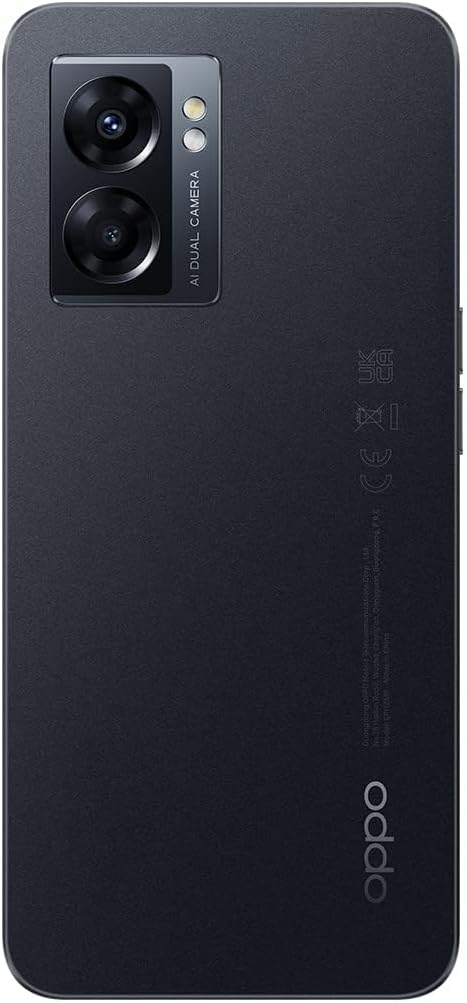
Figure 3.1: Rear view of the Oppo A77 5G, highlighting the dual camera module and OPPO branding.
3.3. Connectivity
The Oppo A77 5G supports Wi-Fi and cellular connectivity. To manage these settings:
- Go to Settings > Network & internet.
- Toggle Wi-Fi on or off and select your preferred network.
- Manage mobile data, roaming, and preferred network types under Mobile network.
4. Maintenance and Care
4.1. Cleaning Your Device
Use a soft, lint-free cloth to clean the screen and body of your phone. Avoid using abrasive materials, solvents, or aerosol sprays, as these can damage the device's finish and internal components.
4.2. Battery Care
To prolong battery life:
- Avoid exposing the phone to extreme temperatures.
- Use only OPPO-approved chargers and cables.
- Do not allow the battery to fully drain frequently.
4.3. Software Updates
Regularly check for and install software updates to ensure optimal performance, security, and access to new features. Go to Settings > About phone > Software update.
5. Troubleshooting
| Problem | Possible Cause | Solution |
|---|---|---|
| Phone does not power on. | Low battery; software crash. | Charge the phone for at least 30 minutes. Press and hold the Power button for 10-15 seconds to force restart. |
| Cannot connect to network. | Incorrect SIM installation; network compatibility issue; signal strength. | Ensure SIM cards are correctly inserted. Verify your network provider supports the phone's frequencies (GSM only, no CDMA for USA buyers). Move to an area with better signal. |
| Battery drains quickly. | Background apps; high screen brightness; poor signal. | Close unused apps. Reduce screen brightness. Enable power saving mode. |
| Apps are slow or crashing. | Insufficient RAM; outdated app; full storage. | Clear app cache. Update apps. Free up storage space. Restart the phone. |
6. Technical Specifications
| Feature | Detail |
|---|---|
| Model Name | Oppo A77 |
| Operating System | Android 12.0 |
| Processor | MediaTek MT6833P Dimensity 810 (6 nm), Octa-core (2x2.4 GHz Cortex-A76 & 6x2.0 GHz Cortex-A55) |
| RAM | 4GB |
| Internal Storage | 64GB (expandable with microSDXC) |
| Display | 6.56 inches IPS LCD, 720 x 1612 pixels, 90 Hz Refresh Rate |
| Rear Camera | 48 MP, f/1.7, 26mm (wide), PDAF; 2 MP, f/2.4 (depth) |
| Front Camera | 8 MP, f/2.0, 26mm (wide) |
| Battery | Li-Po 5000 mAh, non-removable |
| Dimensions | 19.69 x 19.69 x 11.02 inches (Product Dimensions) |
| Weight | 6.7 ounces (190 Grams) |
| Connectivity | Wi-Fi, Cellular (2G, 3G, 4G, 5G), GPS |
| SIM Type | Dual-SIM (Nano-SIM) |
| What's in the Box | USB Cable |
Note: Network compatibility is crucial. For USA buyers, this smartphone is not compatible with CDMA networks (e.g., Verizon, Sprint, US Cellular). Please check with your network provider for 3G, 4G/LTE, and 5G compatibility before purchase.
7. Warranty and Support
For detailed warranty information, please refer to the warranty card included with your product or visit the official OPPO website. Warranty terms and conditions may vary by region and retailer.
For technical support, software updates, or service inquiries, please contact OPPO customer service or visit their official support channels. Keep your purchase receipt and product serial number handy for faster assistance.
Manufacturer: OPPO
Related documentsOppo A77


Ask a question about this manual
Ask about setup, troubleshooting, compatibility, parts, safety, or missing instructions. Manuals+ will review the question and use this page’s manual context to help answer it.