
1. Introduction
This manual provides detailed instructions for the setup, operation, and maintenance of your Alecto WS5200 Professional 6-in-1 Wireless Weather Station. Please read this manual thoroughly before using the device to ensure correct installation and optimal performance.
The Alecto WS5200 is designed to provide comprehensive local weather data, including temperature, humidity, atmospheric pressure, wind speed, wind direction, and rainfall. It features Wi-Fi connectivity for app control and integration with online weather services.
2. Package Contents
Verify that all items listed below are present in your package:
- Weather Station Indoor Display Unit
- Wireless Outdoor Sensor (integrated 6-in-1 sensor)
- Power Adapter
- USB Charging Cable
- Mounting Brackets (2x) with Nuts (4x)
- Socket Wrench
- AA Batteries (2 for indoor unit included, 2 for outdoor sensor not included - please purchase separately)
- User Manual (multi-language)
- Safety Information Sheet
3. Product Overview
3.1. Indoor Display Unit
The indoor unit features a clear 4.9-inch (12.5 cm) backlit display. It shows current and historical weather data, date, and time. It can be powered by the included power adapter or two AA batteries.

Image: The Alecto WS5200 indoor display unit showing current weather data, time, and forecast, alongside icons for App Store, Google Play, Wi-Fi, and smart home integration.

Image: The Alecto WS5200 indoor display unit mounted on a light-colored wall, showing its clear, backlit screen with weather information.

Image: A hand holding the Alecto WS5200 indoor display unit, demonstrating its portable size and clear screen readability.

Image: Rear view of the Alecto WS5200 indoor display unit, showing the battery compartment, stand, and control buttons on the side.
3.2. Wireless Outdoor Sensor
The outdoor sensor is a 6-in-1 unit that wirelessly transmits data to the indoor display and your connected app. It measures temperature, humidity, atmospheric pressure, wind speed, wind direction, and rainfall. It requires two AA batteries (not included).

Image: The complete Alecto WS5200 weather station, showing the outdoor sensor assembly (anemometer, wind vane, rain gauge, temperature/humidity sensor) and the indoor display unit.
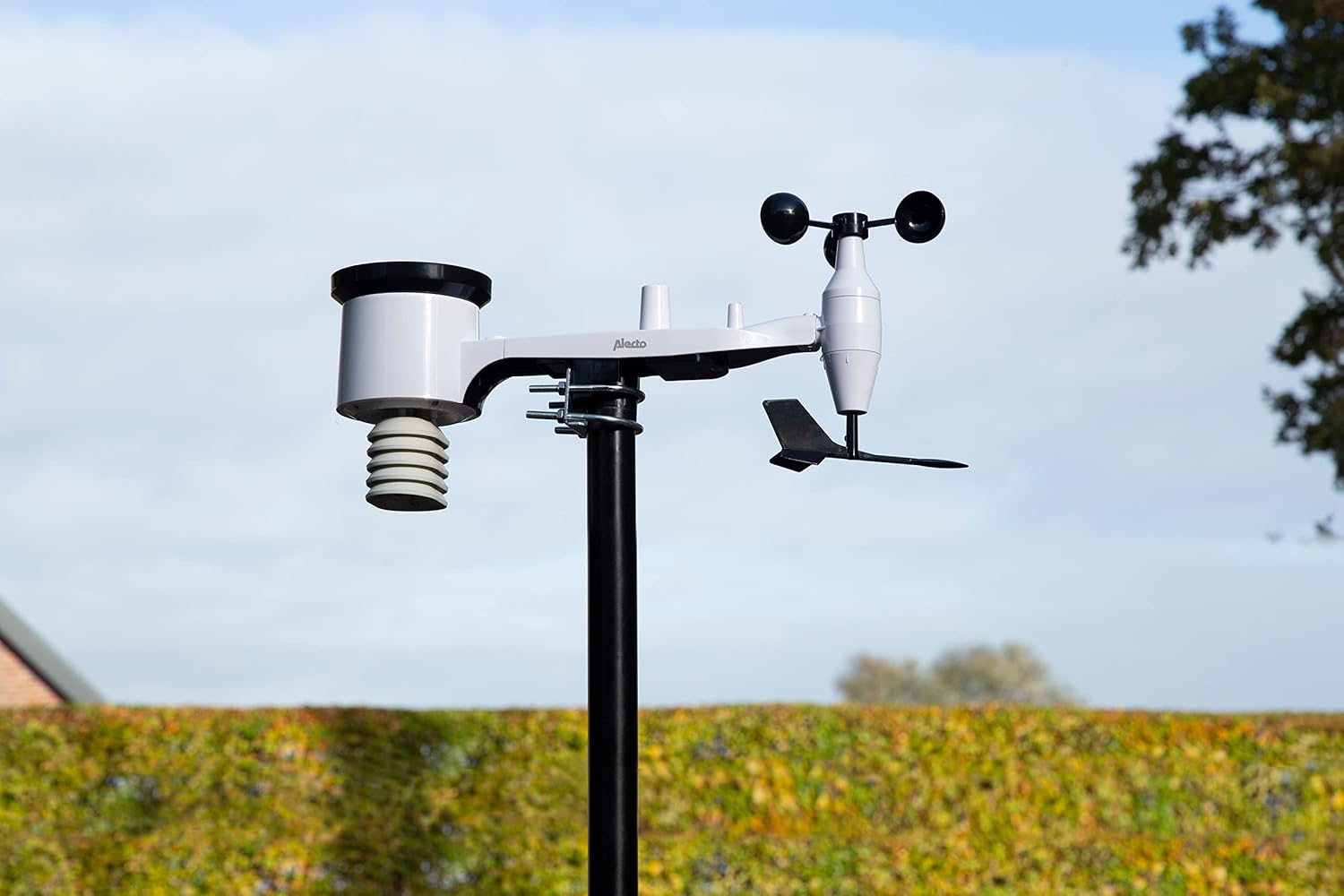
Image: The Alecto WS5200 outdoor sensor assembly mounted on a pole in a garden setting, demonstrating its typical installation.

Image: Close-up of the anemometer cups on the Alecto WS5200 outdoor sensor, used for measuring wind speed.

Image: Close-up of the wind vane on the Alecto WS5200 outdoor sensor, indicating wind direction.

Image: Close-up of the rain gauge funnel on the Alecto WS5200 outdoor sensor, designed to collect and measure rainfall.
4. Setup
4.1. Powering the Indoor Display Unit
- Connect the included power adapter to the indoor display unit and plug it into a wall outlet.
- Alternatively, insert two AA batteries (included) into the battery compartment on the back of the unit. The unit can operate on battery power, but the power adapter is recommended for continuous operation and backlight functionality.
4.2. Installing Batteries in the Outdoor Sensor
- Locate the battery compartment on the outdoor sensor.
- Insert two AA batteries (not included) into the compartment, ensuring correct polarity.
- Securely close the battery compartment to protect against weather elements.
4.3. Mounting the Outdoor Sensor
For accurate readings, the outdoor sensor should be installed in an open area, free from obstructions that could affect wind, rain, or temperature measurements. Avoid placing it directly against a wall.
- Assemble the mounting pole and brackets using the provided socket wrench and nuts.
- Attach the outdoor sensor to the assembled pole.
- Mount the pole in a suitable outdoor location, ensuring it is stable and level. The wireless range between the outdoor sensor and indoor unit is approximately 30 meters in an unobstructed line of sight.
4.4. Wi-Fi Connection and App Setup
- Ensure your indoor display unit is powered on.
- Follow the on-screen instructions or refer to the dedicated app manual (if provided) to connect the weather station to your local Wi-Fi network.
- Download the companion app (e.g., WS View) from your smartphone's app store (App Store for iOS, Google Play for Android).
- Open the app and follow the instructions to pair your weather station. This will allow you to view data, configure settings, and connect to online weather platforms like Weather-Underground, ECOWITT, Weather-Cloud, and WOW.
- The internet connection ensures automatic time and date synchronization and firmware updates.
5. Operating the Weather Station
5.1. Indoor Display Unit Functions
The indoor display unit provides real-time and historical data. Use the buttons on the unit (refer to the diagram in the full manual for button layout) to navigate through different displays:
- Current Readings: Displays live temperature (indoor/outdoor), humidity (indoor/outdoor), atmospheric pressure, wind speed, wind direction, and daily rainfall.
- Historical Data: Access minimum and maximum recorded values for various parameters.
- Forecast: Provides a general weather forecast based on atmospheric pressure trends.
- Time and Date: Automatically synchronized via Wi-Fi.
5.2. App Control and Features
The dedicated app extends the functionality of your weather station:
- Remote Monitoring: View all weather data from your smartphone or tablet, anywhere with an internet connection.
- Data Logging: Access detailed historical data and trends.
- Custom Alerts: Set up alerts for specific high or low temperature, humidity, or rainfall values.
- Platform Integration: Connect to popular online weather networks to share your data and access data from other stations globally.
- Calculated Values: The system calculates additional data such as wind chill, heat index, and dew point for the next 24 hours based on real-time and historical data.
6. Maintenance
6.1. Battery Replacement
- Indoor Unit: If using batteries, replace them when the low battery indicator appears on the display.
- Outdoor Sensor: Replace the two AA batteries in the outdoor sensor annually or when the low battery indicator for the outdoor sensor appears. Ensure the battery compartment is sealed properly after replacement.
6.2. Cleaning
- Indoor Unit: Wipe the display and casing with a soft, damp cloth. Avoid abrasive cleaners.
- Outdoor Sensor: Periodically check the rain gauge funnel, anemometer cups, and wind vane for debris (leaves, dirt, insects) and clean gently to ensure accurate readings.
7. Troubleshooting
- No Display on Indoor Unit:
Ensure the power adapter is securely connected or that the AA batteries are correctly inserted and not depleted.
- No Outdoor Sensor Data:
Check if the outdoor sensor batteries are installed correctly and are not depleted. Ensure the outdoor sensor is within the 30-meter wireless range of the indoor unit and there are no major obstructions. Try re-pairing the sensor with the indoor unit (refer to the full manual for specific re-pairing instructions).
- Wi-Fi Connection Issues:
Verify your Wi-Fi network is active and the password is correct. Ensure the weather station is within range of your Wi-Fi router. Restart both the weather station and your router if issues persist.
- Inaccurate Readings:
Ensure the outdoor sensor is mounted in an unobstructed location, away from heat sources or direct sunlight that could skew temperature readings. Clean the rain gauge and ensure the anemometer and wind vane spin freely.
- Time/Date Incorrect:
Confirm the weather station is successfully connected to Wi-Fi, as time and date synchronization occur automatically via the internet.
8. Specifications
| Feature | Detail |
|---|---|
| Model | WS5200 |
| Indoor Unit Dimensions (H x W x D) | 109 x 104 x 27 mm |
| Outdoor Unit Dimensions (H x W x D) | 200 x 460 x 115 mm |
| Indoor Unit Power | Power adapter (included) or 2x AA batteries (included) |
| Outdoor Sensor Power | 2x AA batteries (not included) |
| Wireless Range (Outdoor Sensor) | Up to 30 meters (unobstructed) |
| Connectivity | Wi-Fi |
| Measured Parameters | Temperature (indoor/outdoor), Humidity (indoor/outdoor), Atmospheric Pressure, Wind Speed, Wind Direction, Rainfall |
| Special Features | Alarm, Clock, Wireless, App Control, Online Weather Platform Integration |
9. Warranty and Support
Warranty information for the Alecto WS5200 is typically provided with your purchase documentation or can be found on the official Alecto website. Please retain your proof of purchase for warranty claims.
For technical support, troubleshooting assistance beyond this manual, or to inquire about replacement parts, please visit the official Alecto support website or contact their customer service department. Contact details are usually available on the manufacturer's website or in the product packaging.


