
1. Introduction
Thank you for choosing the Bestycar 10.1-inch Android 13 Car Stereo Radio. This head unit is specifically designed for Toyota Hilux models from 2017 to 2018, supporting both Right-Hand Drive (RHD) and Left-Hand Drive (LHD) configurations. This manual provides essential information regarding the product's features, installation, operation, and maintenance to ensure optimal performance and user satisfaction.
2. Safety Information
- Read all instructions carefully before installation and use.
- Professional installation is highly recommended for car electronics to prevent damage to the vehicle or the unit.
- Do not operate the device in a way that distracts you from driving. Always prioritize road safety.
- Ensure all wiring is correctly connected to avoid short circuits or electrical hazards.
- Keep the unit away from water and excessive moisture.
- Do not attempt to repair the unit yourself. Refer to qualified service personnel.
3. Package Contents
Please verify that all items listed below are included in your package:
- Bestycar 10.1-inch Head Unit
- AHD Rear View Camera
- Panel Removal Tool
- External Microphone
- RCA Cables
- Power Harness (Basic version; high configuration harness and CANbus decoder may be required separately for vehicles with factory amplifier or OEM backup camera)
- 4G Antenna
- GPS Antenna
- USB Cables (x2)
- Radio Fascia (Specific to your car model)
- CAM In Cable
- 4G SIM RCA Cable

An illustration detailing the various components included in the package: the main unit, GPS antenna, radio fascia, USB cables, CAM In cable, installation tool, AHD camera, 4G SIM RCA cable, 4G antenna, microphone, power harness, and optional CAN bus.
4. Product Overview
The Bestycar 10.1-inch Android 13 Car Stereo is an advanced multimedia and navigation system designed to enhance your driving experience. It features a responsive touchscreen, powerful Octa-Core processor, and extensive connectivity options.
Key Features:
- Operating System: Android 13
- Processor: Octa-Core CPU
- Memory: 2GB RAM + 32GB ROM
- Display: 10.1-inch 2.5D+IPS QLED Touch Screen, 1280*720 HD Resolution
- Audio: Built-in 32-Band EQ DSP audio processor, 4 x 60W amplifier output, Subwoofer Output
- Connectivity: Built-in 4G function, 5G WiFi support, Bluetooth (A2DP, hands-free calls), Auxiliary, RCA, USB
- Navigation: Built-in map data for North America, support for Online/Offline Maps
- Smartphone Integration: Built-in Wireless Carplay & Android Auto
- Camera Support: AHD Backup Camera (included)
- Additional Functions: Steering Wheel Control, Split Screen, Google Play Store, OBDII/TPMS/DVR/TV Tuner/DAB (accessories optional)
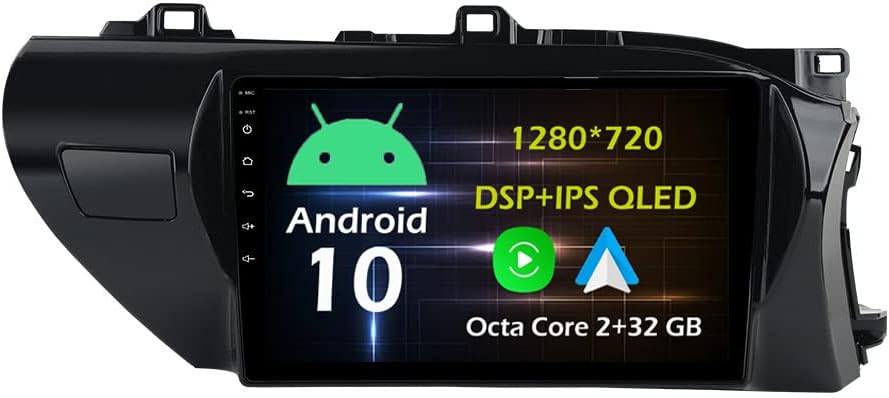
Front view of the Bestycar 10.1-inch Android car stereo head unit, highlighting its 1280x720 resolution, DSP+IPS QLED screen, and Octa Core 2+32 GB configuration.
Display Technology: QLED Screen
The unit features a QLED screen, offering enhanced visual quality compared to standard IPS displays. This technology provides a wider color gamut and higher resolution for a more vibrant and detailed viewing experience.

Visual comparison illustrating the superior color gamut (130% vs 75%) and higher resolution (1280 QLED vs 1024 IPS) of the QLED screen used in the Bestycar car stereo compared to a normal HD screen.
5. Setup & Installation
Compatibility
This car stereo is designed for Toyota Hilux models manufactured in 2017 and 2018. It supports both RHD and LHD vehicles.
Pre-Installation Check
Important Notice: If your Toyota Hilux has a factory amplifier or an OEM backup camera, you may require a high-configuration wiring harness and a CANbus decoder. The basic power harness provided with the stereo may not be sufficient. Please contact the seller with pictures of your car's dashboard and the original CD player's backside connector to confirm the correct harness requirements before installation.
General Installation Steps (Professional Installation Recommended)
- Disconnect Battery: Before starting, disconnect the vehicle's negative battery terminal to prevent electrical shorts.
- Remove Original Unit: Carefully remove the existing car stereo and dashboard trim using the provided panel removal tool.
- Connect Wiring: Connect the new power harness, RCA cables, USB cables, GPS antenna, 4G antenna, and microphone to the Bestycar head unit. Ensure all connections are secure.
- Install AHD Camera: If installing the AHD backup camera, route its cable to the rear of the vehicle and connect it to the CAM In port on the head unit.
- Test Connections: Before fully reassembling, reconnect the battery and briefly test the unit's basic functions (power on, radio, sound, camera input).
- Mount New Unit: Secure the Bestycar head unit into the dashboard opening using the appropriate radio fascia.
- Reassemble Dashboard: Carefully reattach all dashboard trim pieces.
- Final Test: Perform a comprehensive test of all features, including GPS, Bluetooth, Carplay/Android Auto, and steering wheel controls.

Comparison showing the original Toyota Hilux dashboard before and after installation of the Bestycar 10.1-inch car stereo, demonstrating seamless integration.
6. Operating Instructions
User Interface (UI)
The unit features an intuitive Android 13 interface. Navigate through applications and settings using the touchscreen. Swipe left or right to access different home screens or the app drawer. The main UI provides quick access to frequently used functions like navigation, radio, and music.

Screenshots showcasing different user interface displays of the Bestycar car stereo, including the main UI, menu UI, navigation, CarPlay, Bluetooth music, phone dialer, USB music, video player, radio, file manager, 32-band EQ, and OBD2 interface.
GPS Navigation
The unit comes with pre-installed map data for North America. You can also download and use other online or offline navigation applications from the Google Play Store. Ensure the GPS antenna is properly installed for accurate positioning.
Wireless CarPlay & Android Auto
Connect your iPhone or Android smartphone wirelessly to access CarPlay or Android Auto. This allows you to use compatible phone apps (navigation, music, messaging) directly on the stereo's screen, providing a safer and more integrated experience.

Demonstration of the built-in Apple CarPlay and Android Auto functionalities, showing how a smartphone's navigation and apps are mirrored and controlled on the car stereo screen.
Bluetooth Functionality
Pair your smartphone via Bluetooth for hands-free calling and A2DP music streaming. The included external microphone ensures clear call quality. Access your phonebook, view call history, and dial directly from the head unit.

Screenshot of the Bluetooth interface on the Bestycar car stereo, illustrating phonebook access, call dialing, and music streaming capabilities.
Steering Wheel Control (SWC)
The head unit supports digital steering wheel controls. This allows you to manage audio playback, answer calls, and navigate menus without taking your hands off the steering wheel. Refer to the unit's settings for SWC configuration.

Image showing the steering wheel control interface, explaining how to configure the unit to respond to vehicle steering wheel buttons for safe operation.
AHD Reversing Video
The included AHD backup camera provides a clear, high-definition view of the area behind your vehicle when reversing. The video automatically displays on the screen when the vehicle is shifted into reverse gear, enhancing parking safety.

Display of the AHD reversing video feed on the car stereo screen, demonstrating the clear picture quality and parking guidelines provided by the included AHD backup camera.
Audio Settings
Utilize the built-in 32-band EQ and DSP audio processor to customize your sound experience. Adjust frequencies, balance, fader, and subwoofer output to achieve your preferred audio profile.
7. Maintenance
- Screen Cleaning: Use a soft, lint-free cloth slightly dampened with water or a screen cleaner to wipe the touchscreen. Avoid harsh chemicals or abrasive materials.
- Software Updates: Periodically check for software updates through the unit's settings or the manufacturer's website to ensure optimal performance and access to new features.
- General Care: Keep the unit free from dust and debris. Avoid exposing it to extreme temperatures or direct sunlight for prolonged periods.
8. Troubleshooting
If you encounter issues, refer to the following common troubleshooting steps:
| Problem | Possible Cause | Solution |
|---|---|---|
| No Power | Incorrect wiring, blown fuse, loose connection. | Check power harness connections, inspect vehicle fuses, ensure battery is connected. |
| No Sound | Speaker wiring issues, volume too low, mute activated, incorrect audio output settings. | Verify speaker connections, increase volume, check mute status, adjust audio settings. |
| GPS Signal Lost/Inaccurate | GPS antenna not properly installed or obstructed, software issue. | Ensure GPS antenna has a clear view of the sky, check antenna connection, restart navigation app. |
| Bluetooth Connection Issues | Device not in pairing mode, interference, incorrect pairing process. | Ensure Bluetooth is enabled on both devices, delete previous pairings and re-pair, move closer to the unit. |
| Backup Camera Not Displaying | CAM In cable loose, camera faulty, reverse trigger wire not connected. | Check CAM In cable connection, verify camera power, ensure reverse trigger wire is correctly wired. |
If these steps do not resolve the issue, please contact Bestycar customer support for further assistance.
9. Specifications
| Feature | Specification |
|---|---|
| Operation System | Android 13 |
| CPU | Octa-Core |
| RAM | 2GB |
| ROM | 32GB |
| Screen Size | 10.1 inch |
| Screen Type | 2.5D+IPS QLED Touch Screen |
| Screen Resolution | 1280*720 HD |
| Audio Processor | Built-in 32-Band EQ DSP |
| Amplifier Output | 4 x 60W |
| Connectivity | 4G, 5G WiFi, Bluetooth, Auxiliary, RCA, USB |
| Carplay & Android Auto | Built-in Wireless |
| Compatible Devices | Speaker, AHD Backup Camera |
| Power Output (Total) | 240 Watts |
10. Warranty and Support
For warranty information, please refer to the terms and conditions provided at the time of purchase or contact your retailer. If you require technical support, have questions about installation, or need assistance with troubleshooting, please reach out to Bestycar customer service through the contact information provided by your seller or on the official Bestycar website.