
Introduction
Thank you for choosing the Strpump 9-inch Android 10 Car Stereo Radio. This manual provides detailed instructions for the installation, operation, and maintenance of your new in-dash navigation system. Please read this manual thoroughly before using the product to ensure proper functionality and to prevent damage.
Safety Information
- Always operate the vehicle safely. Distracted driving can lead to accidents.
- Do not attempt to install or repair the unit if you are not qualified. Refer to a professional installer.
- Ensure all wiring is correctly connected to prevent short circuits or damage to the vehicle's electrical system.
- Keep the unit away from water and excessive moisture.
- Avoid exposing the unit to extreme temperatures.
Package Contents
Verify that all items listed below are included in your package. If any items are missing or damaged, please contact customer support.
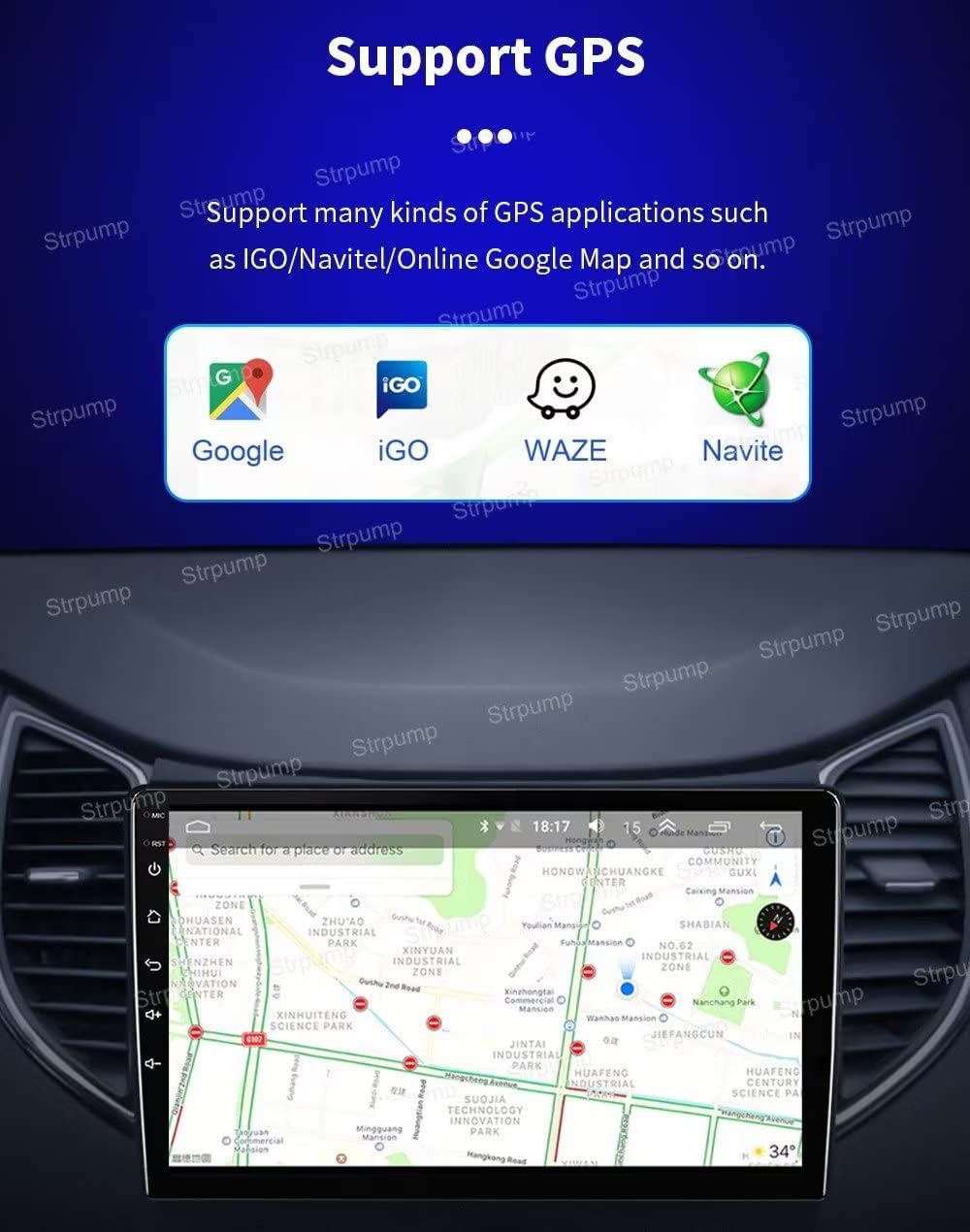
Figure 1: Included Accessories. This image displays the main unit, GPS antenna, radio fascia, two USB cables, CAM In cable, installation tools, 4G SIM RCA cable, 4G antenna, microphone, power harness, and an optional Can bus module.
- Main Unit (Car Stereo)
- GPS Antenna
- Radio Fascia (Specific to Chevrolet Spark M300)
- USB Cables (x2)
- CAM In Cable
- Installation Tool Kit
- 4G SIM RCA Cable
- 4G Antenna
- External Microphone
- Power Harness (Specific to vehicle model)
- Can bus (Optional, not required for all models)
Setup & Installation
This unit is designed for a plug-and-play, non-destructive installation in the Chevrolet Spark M300 (2010-2014). The included plastic frame and power harness are designed to integrate seamlessly with your vehicle's existing dashboard and wiring.
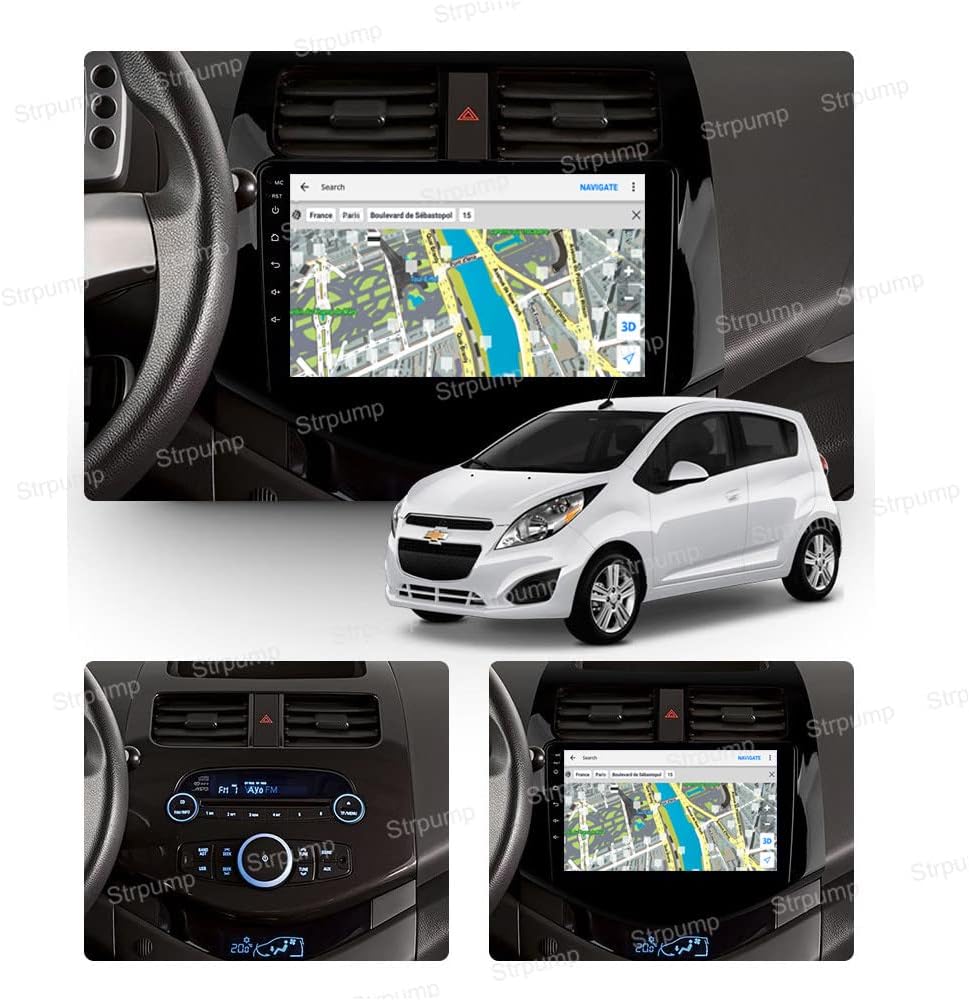
Figure 2: Installation Example. The image shows the Strpump car stereo integrated into the dashboard of a Chevrolet Spark M300, displaying a navigation map.
- Preparation: Ensure the vehicle's ignition is off and the battery is disconnected before beginning installation.
- Remove Original Unit: Carefully remove the factory radio and trim using the provided installation tools.
- Connect Wiring: Connect the included power harness to the vehicle's wiring harness. Ensure all connections are secure. Connect the GPS antenna, 4G antenna, USB cables, CAM In cable, and external microphone to the corresponding ports on the new head unit.
- Install Fascia: Attach the radio fascia to the head unit.
- Mount Unit: Carefully slide the new head unit into the dashboard opening until it clicks into place.
- Reconnect Battery: Reconnect the vehicle's battery and turn on the ignition to test the unit.
Important Note: If your vehicle comes with a factory amplifier or OEM camera, a different harness set may be required. Please contact Strpump customer support for assistance.
Operating Instructions
System Overview
The unit operates on Android 10, powered by a UIS8581A Octa-Core Cortex A55 1.6GHZ CPU with 3GB RAM and 32GB ROM. This configuration provides a responsive and smooth user experience.
Display Features

Figure 3: Screen Resolution and IPS Display. This image highlights the 1280x720P resolution and 2.5D+IPS screen technology, emphasizing improved clarity and delicate display.
The 9-inch 2.5D+IPS QLED screen offers a high-definition resolution of 1280x720 pixels, providing clear and vibrant visuals for navigation, media, and applications.
Connectivity

Figure 4: 4G and WiFi Connectivity. This image details the supported 4G working bands (GSM, WCDMA, TD-SCDMA, TDD-LTE, FDD-LTE) and indicates built-in WiFi.
- Bluetooth: Supports hands-free phone calls and A2DP music streaming. An external microphone is included for clear communication.
- Wi-Fi: Built-in Wi-Fi allows connection to wireless networks for online services and app downloads.
- 4G: Integrated 4G connectivity (via SIM card, not included) provides internet access on the go.
Navigation (GPS)

Figure 5: GPS Navigation Support. This image illustrates compatibility with various GPS applications such as Google Maps, iGO, Waze, and Navitel, with a map displayed on the unit.
The unit supports various GPS applications, including online maps (e.g., Google Maps) and offline maps. The external GPS antenna ensures accurate positioning.
Smartphone Integration (Carplay & Android Auto)
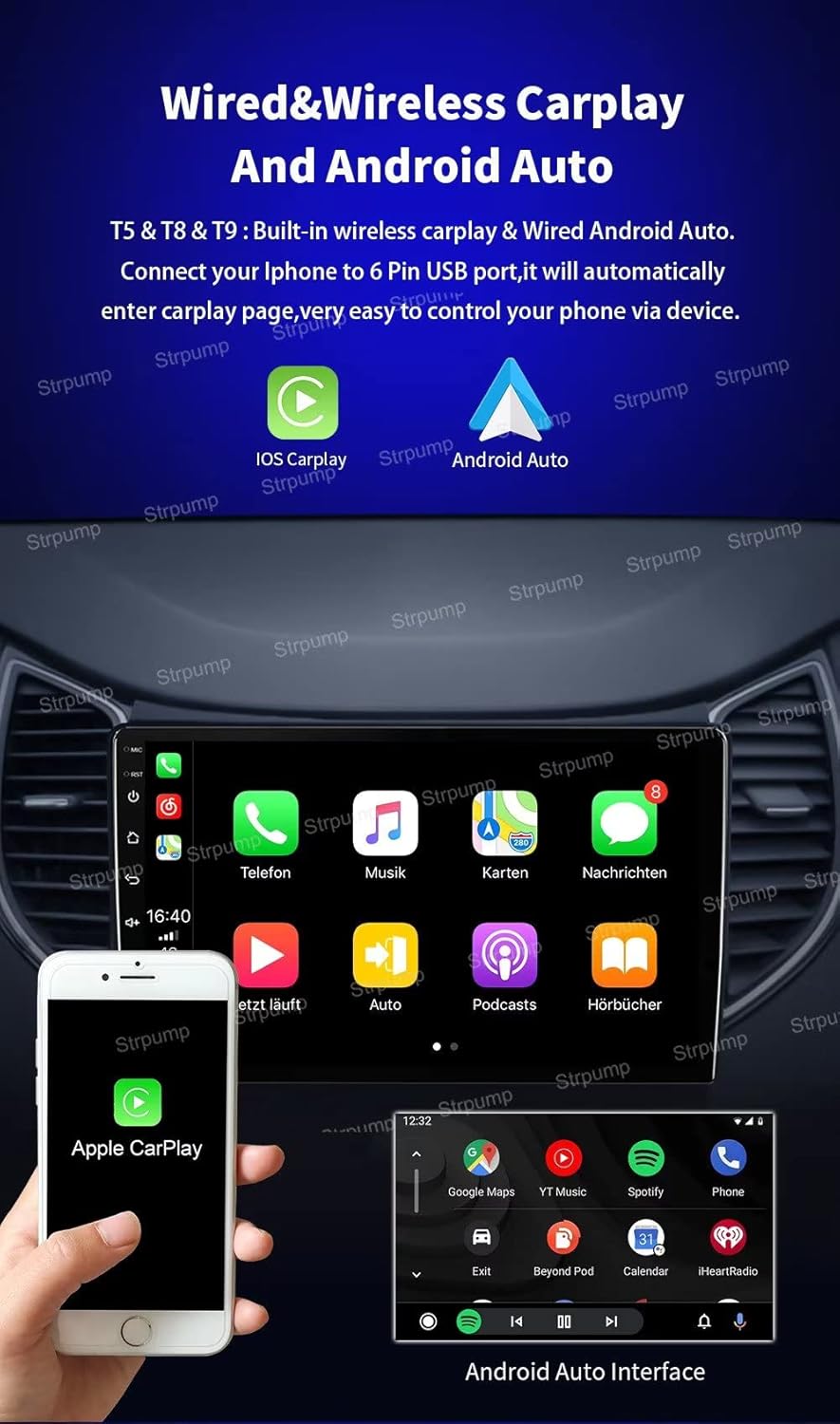
Figure 6: Carplay and Android Auto. This image demonstrates both Apple Carplay and Android Auto interfaces, showing how a smartphone can be connected for integrated functionality.
The system is compatible with Apple Carplay and Android Auto, allowing seamless integration of your smartphone for navigation, music, calls, and messages. Connect your phone via the USB port to activate these features.
Audio Features
- DSP: Built-in 32-Band Digital Sound Processor (DSP) allows for precise audio customization.
- Amplifier: Features a 4 x 60W amplifier output for powerful sound.
- Subwoofer Output: Dedicated output for connecting an external subwoofer.
Camera Support

Figure 7: Rear View Camera Functionality. This image shows the automatic display of the rear view when the car is in reverse gear, and highlights support for both normal CVBS and HD AHD cameras.
- Rear Camera: Supports both normal CVBS and HD AHD rear-view cameras. The display automatically switches to the rear view when the vehicle is in reverse gear.
- Front Dash DVR: Compatible with front dash DVR cameras for recording driving footage.
User Interface (UI) Display

Figure 8: User Interface Examples. This composite image displays various screens of the car stereo's interface, including the main home screen, application menu, navigation, Carplay, Bluetooth music, radio tuner, video player, file manager, 32-band equalizer, and OBD2 data display.
The intuitive Android interface provides easy access to various functions:
- Main UI: Customizable home screen with quick access to frequently used apps.
- Menu UI: Comprehensive list of all installed applications.
- Navigation: Access to your chosen GPS application.
- Music/Video: Play local or streaming media.
- Bluetooth: Manage phone calls and stream audio.
- Radio: FM/AM tuner.
- File Manager: Browse and manage files on internal storage or connected USB devices.
- 32 Band EQ: Fine-tune audio output.
- OBD2: (Requires optional OBD2 accessory) Monitor vehicle diagnostics.
Maintenance
- Cleaning: Use a soft, dry cloth to clean the screen and unit. Avoid abrasive cleaners or solvents.
- Software Updates: Periodically check for software updates to ensure optimal performance and access to new features. Updates can typically be found on the manufacturer's website or through the unit's system settings.
- Avoid Extreme Conditions: Do not expose the unit to direct sunlight for extended periods or to extreme temperatures, as this can affect its lifespan and performance.
Troubleshooting
| Problem | Possible Cause | Solution |
|---|---|---|
| No Power | Incorrect wiring; Blown fuse; Vehicle battery low. | Check power harness connections; Inspect vehicle fuses; Charge/check vehicle battery. |
| No Sound | Speaker wires disconnected; Volume too low; Mute activated; Incorrect audio output settings. | Check speaker connections; Increase volume; Deactivate mute; Verify audio settings. |
| GPS Not Working | GPS antenna not connected or improperly placed; GPS software issue. | Ensure GPS antenna is securely connected and has a clear view of the sky; Restart GPS application; Update GPS software. |
| Bluetooth Connection Issues | Bluetooth off; Device not discoverable; Interference. | Ensure Bluetooth is enabled on both devices; Make device discoverable; Move closer to the unit; Restart Bluetooth. |
| Touch Screen Unresponsive | System freeze; Screen calibration issue. | Restart the unit (press and hold power button); Perform a factory reset (data will be lost). |
Specifications
| Feature | Detail |
|---|---|
| Brand | Strpump |
| Model Number | SP-TS18-3GB-9526 |
| Operating System | Android 10.0 |
| CPU | UIS8581A Octa-Core CortexTM A55 1.6GHZ |
| RAM | 3GB |
| ROM | 32GB |
| Screen Size | 9 Inches |
| Screen Type | 2.5D+IPS QLED |
| Resolution | 1280 x 720 |
| Connectivity | Wi-Fi, 4G, Bluetooth |
| Special Features | Built-in Carplay & Android Auto, DSP, GPS Navigation, Steering Wheel Control Support, Front Dash DVR Camera Support, AHD Rear Camera Support |
| Audio Output Mode | AUX, Stereo |
| Amplifier Output | 4 x 60W |
| Human Interface Input | Microphone, Touch |
| Compatible Devices | Smartphone |
| Vehicle Service Type | Car (Chevrolet Spark M300 2010-2014) |
| Batteries Included | No |
Warranty & Support
This Strpump product comes with a 1-Year Warranty from the date of purchase. This warranty covers manufacturing defects and malfunctions under normal use.
For technical support, warranty claims, or inquiries regarding optional accessories (such as rear cameras, DVR, TPMS, OBD, DAB, TV tuner), please contact Strpump customer service. Refer to your purchase documentation for specific contact details or visit the official Strpump store on Amazon.
Online Support: Visit the Strpump Store on Amazon