1. Introduction
Thank you for choosing the URAMAZ Smart Food Scale. This digital kitchen scale is designed to provide precise measurements for your food items and integrate with a smart application for nutritional analysis. It is an ideal tool for managing diet, tracking macros, and supporting health goals such as weight loss or diabetic management. This manual provides detailed instructions for setup, operation, maintenance, and troubleshooting to ensure optimal performance of your device.
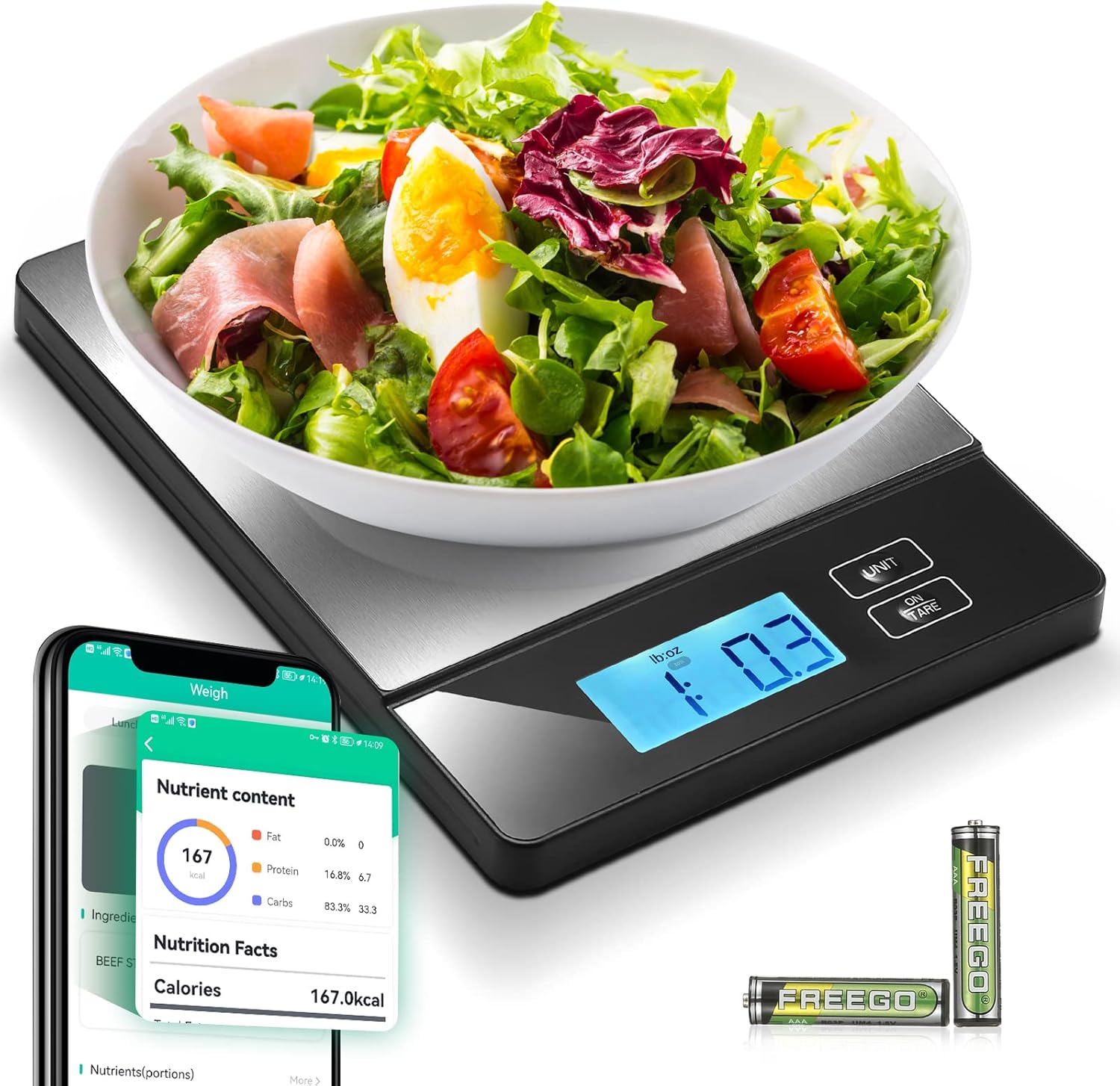
Image: The URAMAZ Smart Food Scale displaying a weight measurement, with a bowl of salad on its platform and a smartphone showing the 'Foodiet' app's nutritional content screen. Two AAA batteries are also visible.
2. Safety Information
- Do not immerse the scale in water or other liquids.
- Clean the scale surface with a damp cloth; avoid abrasive cleaners.
- Do not overload the scale beyond its maximum capacity of 11lb (5000g).
- Keep the scale away from extreme temperatures and direct sunlight.
- Ensure the scale is placed on a flat, stable surface for accurate readings.
- Batteries should be inserted with correct polarity. Remove batteries if the scale will not be used for an extended period.
3. Package Contents
Please check the package to ensure all items are present:
- URAMAZ Smart Food Scale (Model: XR-SCALE-07)
- 2 x AAA Batteries
- User Manual (this document)
4. Product Overview
The URAMAZ Smart Food Scale features a sleek design with a stainless steel weighing platform and an easy-to-read LCD display. It includes two control buttons for operation.

Image: A detailed view of the URAMAZ Smart Food Scale's top surface, highlighting the four circular sensor points at each corner, indicating its high precision measurement capabilities.
Key Components:
- Weighing Platform: Stainless steel surface for placing items.
- LCD Display: Shows weight, unit, and battery status.
- UNIT Button: Used to switch between measurement units.
- ON/TARE Button: Used to power on/off the scale and activate the tare function.
- Battery Compartment: Located on the underside of the scale.
5. Setup
5.1 Battery Installation
- Open the battery compartment cover on the underside of the scale.
- Insert the 2 x AAA batteries, ensuring correct polarity (+/-).
- Close the battery compartment cover securely.
5.2 Initial Placement
Place the scale on a hard, flat, and stable surface. Avoid soft or uneven surfaces, as this can affect accuracy.
5.3 App Download and Pairing
The URAMAZ Smart Food Scale connects with the "Foodiet" app for advanced nutritional tracking.
- Download the "Foodiet" app from your device's app store (available for iOS and Android).
- Ensure Bluetooth is enabled on your smartphone.
- Open the "Foodiet" app.
- Press the ON/TARE button on the scale to turn it on. The scale will automatically attempt to connect to the app via Bluetooth.
- Once connected, the app will display the scale's current weight reading. The app has a connection memory function and will automatically reconnect when opened if the scale is nearby and on.

Image: A graphic illustrating the Bluetooth connection between the URAMAZ Smart Food Scale and a smartphone, with the scale displaying '120g' and the phone showing a corresponding weight in the app.
6. Operating Instructions
6.1 Basic Weighing
- Place the scale on a flat, stable surface.
- Press the ON/TARE button to turn on the scale. Wait for the display to show "0" or "0.0".
- Place the item to be weighed gently on the center of the weighing platform.
- Read the weight displayed on the LCD screen.
- To turn off the scale, press and hold the ON/TARE button for 3 seconds, or it will auto-power off after 30 seconds of inactivity.
6.2 Unit Conversion
The scale supports 5 units: lb.oz, g, ml, ml (milk & water), and fl.oz.
- With the scale turned on, press the UNIT button repeatedly to cycle through the available units.
- Select your desired unit for measurement.

Image: A hand pressing the 'UNIT' button on the URAMAZ Smart Food Scale, with the display showing '616 ml' and icons for 'g', 'ml', 'ml (milk)', 'fl.oz', and 'lb:oz' indicating the available measurement units.
6.3 Tare Function
The tare function allows you to weigh items in a container or weigh multiple ingredients consecutively without removing the previous ones.
- Place an empty container on the scale. The display will show its weight.
- Press the ON/TARE button. The display will reset to "0" or "0.0", effectively subtracting the container's weight.
- Add the first ingredient to the container. Read its weight.
- To add another ingredient, press the ON/TARE button again to reset the display to zero.
- Add the next ingredient. Repeat as needed.
6.4 App Connection & Nutritional Analysis
The "Foodiet" app enhances the scale's functionality by providing detailed nutritional information.
- Ensure the scale is connected to the "Foodiet" app (refer to Section 5.3).
- In the app, select the food item you are about to weigh from the extensive USDA food database, or add a custom food item.
- Place the food item on the scale. The weight will sync to the app.
- The app will then display comprehensive nutritional data for the weighed portion, including calories, protein, fat, and carbohydrates.
- You can track your intake over time with weekly, monthly, and yearly analysis reports within the app.
- The app also supports syncing nutritional data with Apple Health and Fitbit for integrated health tracking.

Image: A woman looking at her smartphone, which displays a graph of calorie and macro trends over time, with the URAMAZ Smart Food Scale visible on the counter beside her, illustrating the app's tracking capabilities.

Image: The URAMAZ Smart Food Scale with a plate of food on it, alongside a smartphone displaying the 'Foodiet' app's detailed nutrition facts, including calories, fat, protein, and carbs, with percentages.

Image: A family on a couch, with a smartphone displaying the 'Foodiet' app's food search interface, emphasizing its reliable USDA database with over 1,420,000 kinds of food data, connected to the URAMAZ Smart Food Scale.
7. Maintenance and Care
7.1 Cleaning
To clean the scale, wipe the surface with a soft, damp cloth. For stubborn stains, a mild detergent can be used. Ensure the scale is completely dry before storage or next use. Do not use abrasive cleaners or immerse the scale in water.

Image: A hand wiping the stainless steel surface of the URAMAZ Smart Food Scale with a paper towel, demonstrating its easy-to-clean, anti-rust properties, suitable for fitness and healthy diet tracking.
7.2 Storage
Store the scale in a cool, dry place. If not used for an extended period, remove the batteries to prevent leakage and damage to the device.

Image: A hand placing the URAMAZ Smart Food Scale into a kitchen drawer, illustrating its compact size and ease of storage.
8. Troubleshooting
| Problem | Possible Cause | Solution |
|---|---|---|
| Scale does not turn on. | Batteries are dead or incorrectly installed. | Replace batteries or ensure they are inserted with correct polarity. |
| Inaccurate readings. | Scale is on an uneven surface; overloaded; or needs calibration. | Place scale on a flat, stable surface. Do not exceed 11lb capacity. Turn off and on again to re-zero. |
| App not connecting to scale. | Bluetooth is off; app not open; scale is off or out of range. | Ensure Bluetooth is on. Open the "Foodiet" app. Turn on the scale and keep it within range of your device. Restart both the app and the scale if necessary. |
| "Lo" displayed. | Low battery indicator. | Replace batteries. |
| "O-Ld" displayed. | Overload indicator. | Remove item immediately to prevent damage. Do not exceed 11lb (5000g) capacity. |
9. Specifications
- Model: XR-SCALE-07
- Capacity: 0.1oz to 11lb (3g to 5000g)
- Accuracy: 0.1oz / 1g
- Units: lb.oz, g, ml, ml (milk & water), fl.oz
- Display: LCD
- Material: Stainless Steel
- Power: 2 x AAA Batteries (included)
- Product Dimensions: 7.7 x 5.8 x 0.59 inches
- Item Weight: 9.5 ounces (268 Grams)
- Special Features: Auto Shut Off, Calorie Counting APP, Connect with Fitbit & Apple Health, Smart Nutrition Analysis, Tare Function

Image: A diagram showing the dimensions of the URAMAZ Smart Food Scale: 7.8 inches in length, 5.8 inches in width, and 0.6 inches in thickness.

Image: Two images illustrating the weight capacity of the URAMAZ Smart Food Scale: one showing a large melon on the scale with '11lb MAX WEIGHT', and another showing coffee beans with '0.1oz MINI WEIGHT'.
10. Warranty and Support
URAMAZ products are manufactured to high-quality standards. For any questions, concerns, or support needs regarding your URAMAZ Smart Food Scale, please contact URAMAZ customer service. Refer to your purchase documentation or the seller's information for specific warranty details and contact methods.


