
1. Introduction
Thank you for choosing the Strpump 10.1-inch Android 10 Car Stereo. This advanced in-dash multimedia system is designed to enhance your driving experience with features like GPS navigation, smartphone integration (CarPlay & Android Auto), high-quality audio processing, and robust connectivity. This manual provides essential information for installation, operation, and maintenance to ensure optimal performance and longevity of your device.
2. Product Overview
The Strpump 10.1-inch Android 10 Car Stereo is a comprehensive infotainment system featuring a 10.1-inch 2.5D+IPS QLED screen with 1280*720 HD resolution. It runs on Android 10.0 with a UIS8581A Octa-Core CortexTM A55 1.6GHZ CPU, 4GB RAM, and 64GB ROM. Key functionalities include:
- Built-in Wireless CarPlay & Wired Android Auto
- Integrated GPS Navigation with online/offline map support
- 32-Band DSP audio processor and 4 x 60W amplifier output
- 4G and Wi-Fi connectivity
- Bluetooth for hands-free calls and A2DP music streaming
- Support for Dash DVR camera and AHD rearview camera
- Split-screen function and Google Play Store access

Figure 2.1: The Strpump 10.1-inch Android 10 Car Stereo main unit, showcasing its display and core specifications like 1280x720 resolution, DSP+IPS QLED screen, Android 10, and Octa Core 4+64 GB configuration.
3. Setup and Installation
This unit is designed for plug-and-play, non-destructive installation. A plastic frame and power harness are included, ensuring no harm to the original car harness. However, if your vehicle has a factory amplifier or OEM camera, a different harness set may be required. Please contact the seller for assistance in such cases.
3.1 Included Accessories
Verify that all components listed below are present in your package:

Figure 3.1: A visual representation of the accessories included with the Strpump car stereo. This typically includes the main machine, GPS antenna, radio fascia (specific to car model), USB cables, CAM In cable, installation tools, 4G SIM RCA cable, 4G antenna, microphone, and an optional Can bus module.
- Main Unit (Machine)
- GPS Antenna
- Radio Fascia (specific to your car model)
- USB Cables (x2)
- CAM In Cable
- Installation Tools
- 4G SIM RCA Cable
- 4G Antenna
- External Microphone
- Power Harness (specific to your car model)
- Can bus (optional, some models may not require it)
3.2 Installation Steps (General)
- Carefully remove the original car stereo and trim.
- Connect the provided power harness to the car's wiring and the new head unit.
- Connect the GPS antenna, 4G antenna, and other necessary cables (USB, CAM In, microphone).
- Mount the new head unit into the dashboard using the provided fascia and installation tools.
- Test all functions before fully securing the unit and reassembling the dashboard trim.
4. Operating Instructions
The Strpump car stereo operates similarly to a standard Android smartphone, offering intuitive navigation and control.
4.1 User Interface (UI)

Figure 4.1: Various screens of the Strpump car stereo's user interface, including the main UI, menu UI, navigation, CarPlay, Bluetooth music, radio, USB music, video player, file manager, 32-band EQ, and OBD2 display.
The system features a customizable main UI and a clear menu UI for accessing applications and settings.
4.2 GPS Navigation
The unit supports various GPS applications, including pre-installed online/offline maps. You can download additional navigation apps from the Google Play Store.

Figure 4.2: The Strpump car stereo integrated into a Nissan dashboard, displaying a navigation map with a destination selected. This image highlights the seamless fit and the navigation capabilities of the unit.
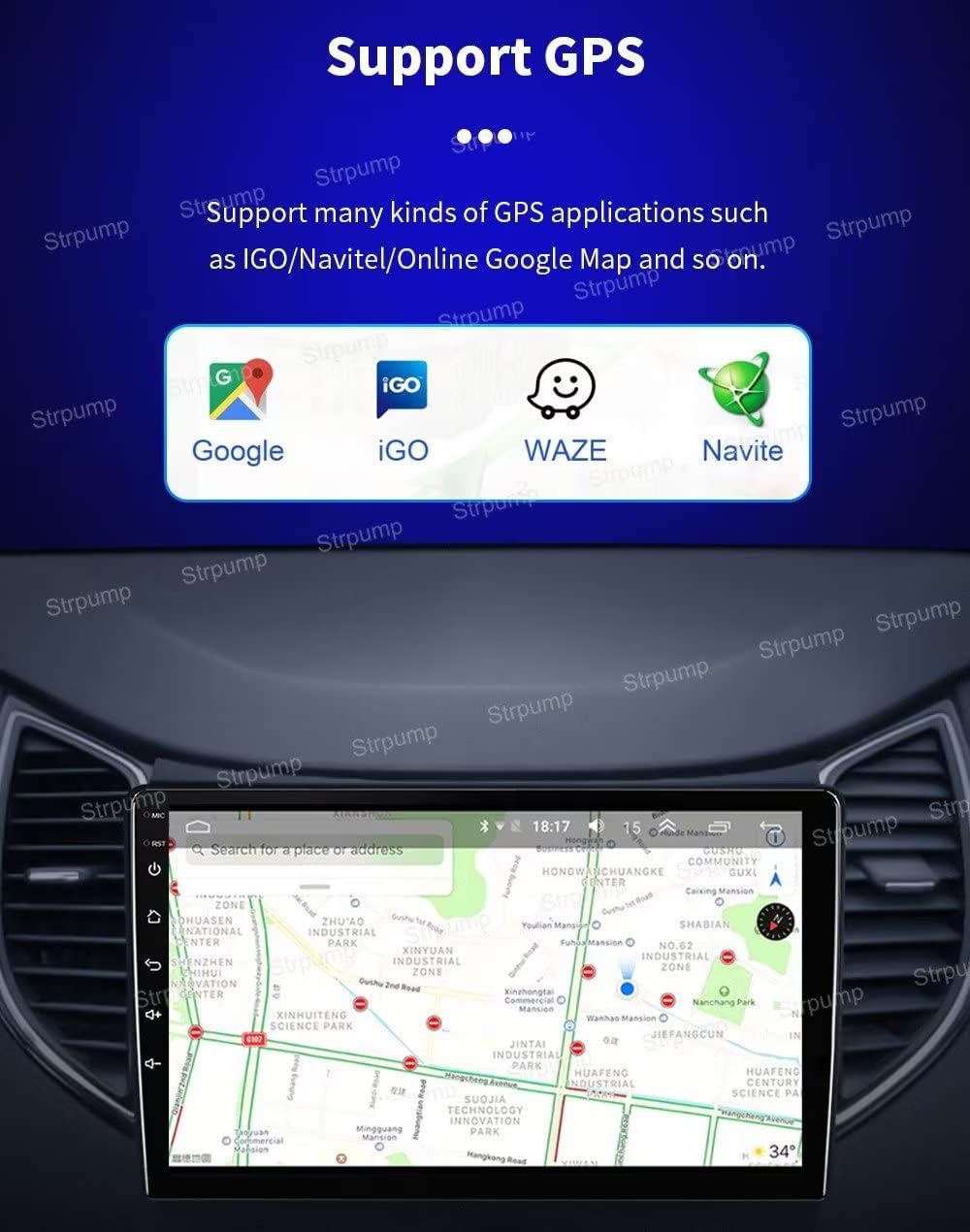
Figure 4.3: The Strpump car stereo screen showing support for multiple GPS applications such as Google Maps, iGO, Waze, and Navitel, indicating versatile navigation options.
4.3 CarPlay & Android Auto
Connect your smartphone for seamless integration. The unit supports wireless CarPlay and wired Android Auto. Connect your iPhone to the 6-Pin USB port for automatic CarPlay activation.
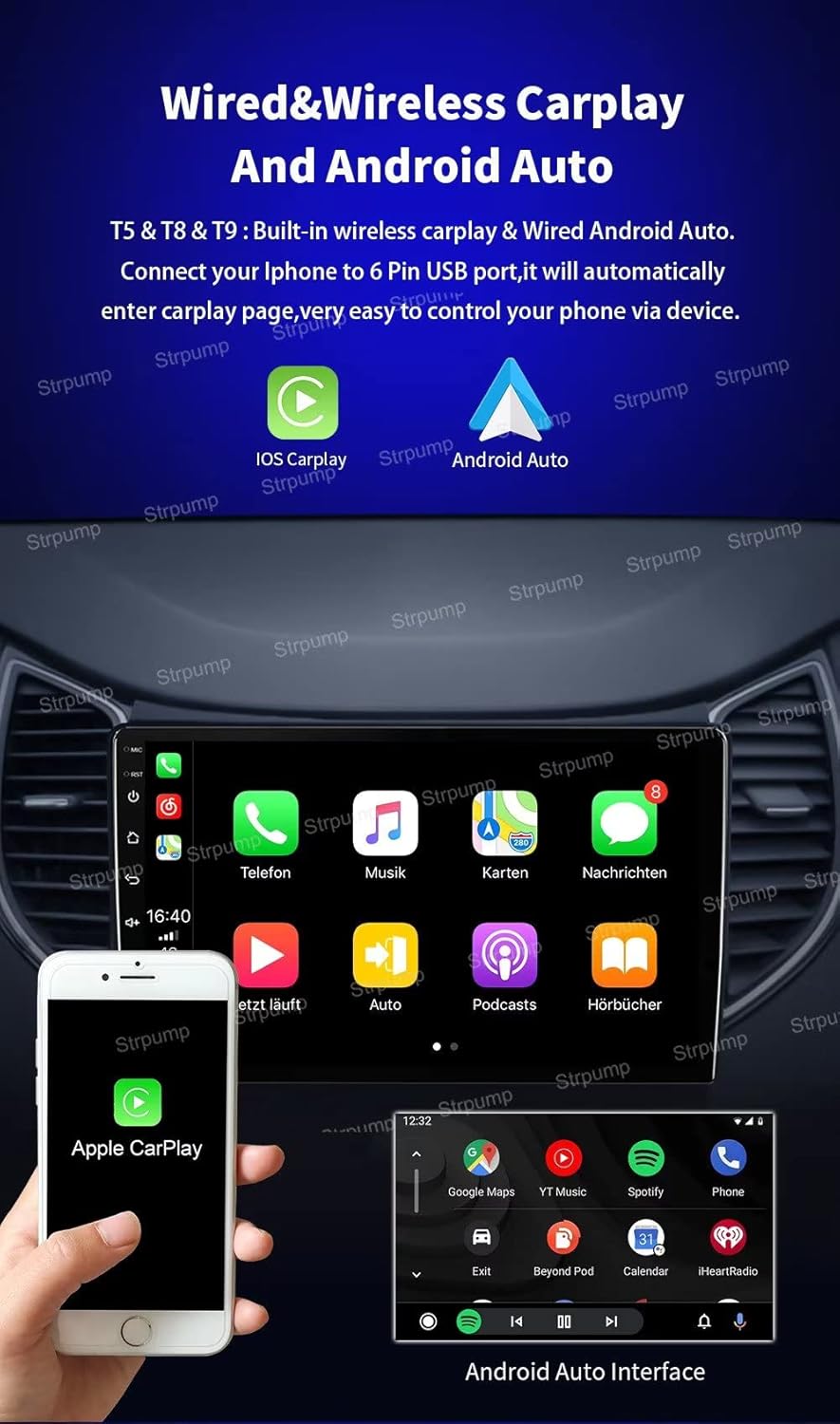
Figure 4.4: The Strpump car stereo displaying both Apple CarPlay and Android Auto interfaces, demonstrating its compatibility with both smartphone integration platforms. The image also highlights the wired and wireless connectivity options.
4.4 Bluetooth Connectivity
Pair your phone via Bluetooth for hands-free calling and A2DP music streaming. An external microphone is included for clear call quality.
4.5 4G & Wi-Fi
The unit features built-in 4G and Wi-Fi capabilities. Insert a 4G SIM card for mobile data or connect to a Wi-Fi hotspot for internet access.

Figure 4.5: A graphic illustrating the built-in 4G and Wi-Fi capabilities of the Strpump car stereo, detailing the supported GSM, WCDMA, TD-SCDMA, TDD-LTE, and FDD-LTE bands for comprehensive network compatibility.
4.6 Rear View Camera Support
The system automatically switches to the rear view display when the car is put into reverse gear. It supports both normal CVBS AV cameras and HD AHD cameras.

Figure 4.6: The Strpump car stereo screen displaying a rear view camera feed, showing parking lines and obstacles. Below, an image of an AHD rear-view camera is shown, indicating support for both standard and high-definition cameras.
4.7 Audio Settings (DSP)
Utilize the built-in 32-Band DSP audio processor to fine-tune your sound experience. Adjust equalizer settings, subwoofer output, and other audio parameters for optimal sound quality.
4.8 Split Screen Function
The Android 10 operating system allows for split-screen multitasking, enabling you to run two applications simultaneously, such as navigation and music playback.
5. Maintenance
To ensure the longevity and optimal performance of your Strpump car stereo, follow these maintenance guidelines:
- Screen Cleaning: Use a soft, lint-free cloth slightly dampened with water or a screen cleaner. Avoid harsh chemicals or abrasive materials.
- Software Updates: Periodically check for system software updates to ensure you have the latest features and security patches. Updates can usually be found in the system settings.
- Avoid Extreme Temperatures: Do not expose the unit to extreme heat or cold for extended periods, as this can affect electronic components.
- Cable Connections: Ensure all cables are securely connected. Loose connections can lead to intermittent issues.
- System Reset: If the system becomes unresponsive, a soft reset (usually a small reset button or holding the power button) may resolve the issue. Refer to the device settings for specific reset options.
6. Troubleshooting
If you encounter issues with your Strpump car stereo, refer to the following common problems and solutions:
| Problem | Possible Cause | Solution |
|---|---|---|
| Unit does not power on | Loose power connection, blown fuse, incorrect wiring. | Check power harness connections. Inspect vehicle's fuse box and the unit's inline fuse. Verify wiring against installation diagram. |
| No sound output | Volume too low, mute activated, incorrect audio settings, speaker wiring issue. | Increase volume. Check if mute is active. Verify audio output settings (e.g., AUX, Bluetooth). Inspect speaker connections. |
| GPS signal lost or inaccurate | GPS antenna not properly installed or obstructed, software issue. | Ensure GPS antenna is mounted in a clear location (e.g., dashboard, not under metal). Check antenna connection. Restart navigation app or unit. |
| Bluetooth connection issues | Device not in pairing mode, interference, incorrect pairing process. | Ensure both devices are in pairing mode. Delete previous pairings and re-pair. Move closer to the unit. Restart Bluetooth on both devices. |
| CarPlay/Android Auto not connecting | Incorrect USB cable, phone settings, app issues. | Use a high-quality USB data cable. Ensure CarPlay/Android Auto is enabled on your phone. Restart phone and unit. Check for app updates. |
| Touchscreen unresponsive | System freeze, temporary software glitch. | Perform a soft reset of the unit. If issue persists, contact support. |
If the problem persists after attempting these solutions, please contact Strpump customer support for further assistance.
7. Specifications
| Feature | Detail |
|---|---|
| Display Size | 10.1 Inches |
| Operating System | Android 10.0 |
| CPU | UIS8581A Octa-Core CortexTM A55 1.6GHZ |
| RAM | 4GB |
| ROM (Storage) | 64GB |
| Screen Type | 2.5D+IPS QLED |
| Screen Resolution | 1280*720 HD |
| Connectivity Technology | Bluetooth, Cellular (4G), Wi-Fi |
| Controller Type | Android |
| Special Features | Built-In Bluetooth, CarPlay, Android Auto, DSP, GPS Navigation |
| Compatible Devices | Smartphone |
| Connector Type | 3.5mm Jack, RCA, USB |
| Audio Output Mode | AUX, Stereo |
| Output Power | 60 Watts (per channel) |
| Wattage (Total) | 240 Watts |
| Number of Channels | 4 |
| Voice Command | Microphone |
8. Warranty and Support
8.1 Warranty Information
The Strpump 10.1-inch Android 10 Car Stereo comes with a 1-Year Warranty from the date of purchase. This warranty covers manufacturing defects and malfunctions under normal use. It does not cover damage caused by improper installation, accidents, misuse, unauthorized modifications, or natural disasters.
8.2 Customer Support
For technical assistance, troubleshooting, warranty claims, or any other inquiries, please contact Strpump customer support through the platform where you purchased the product. When contacting support, please provide your product model number and purchase details to facilitate a quicker resolution.