
1. Introduction
This manual provides detailed instructions for the installation, operation, and maintenance of your XTRONS DQS112L Single DIN Car Stereo. This advanced head unit features a 10.1-inch touch screen, Android 11 operating system, Hexa Core processor, 4GB RAM, 64GB ROM, Qualcomm Bluetooth 5.0, built-in DSP, GPS navigation, Wireless CarPlay, Wired Android Auto, and an HDMI output port.
Please read this manual thoroughly before using the product to ensure proper operation and to prevent damage.
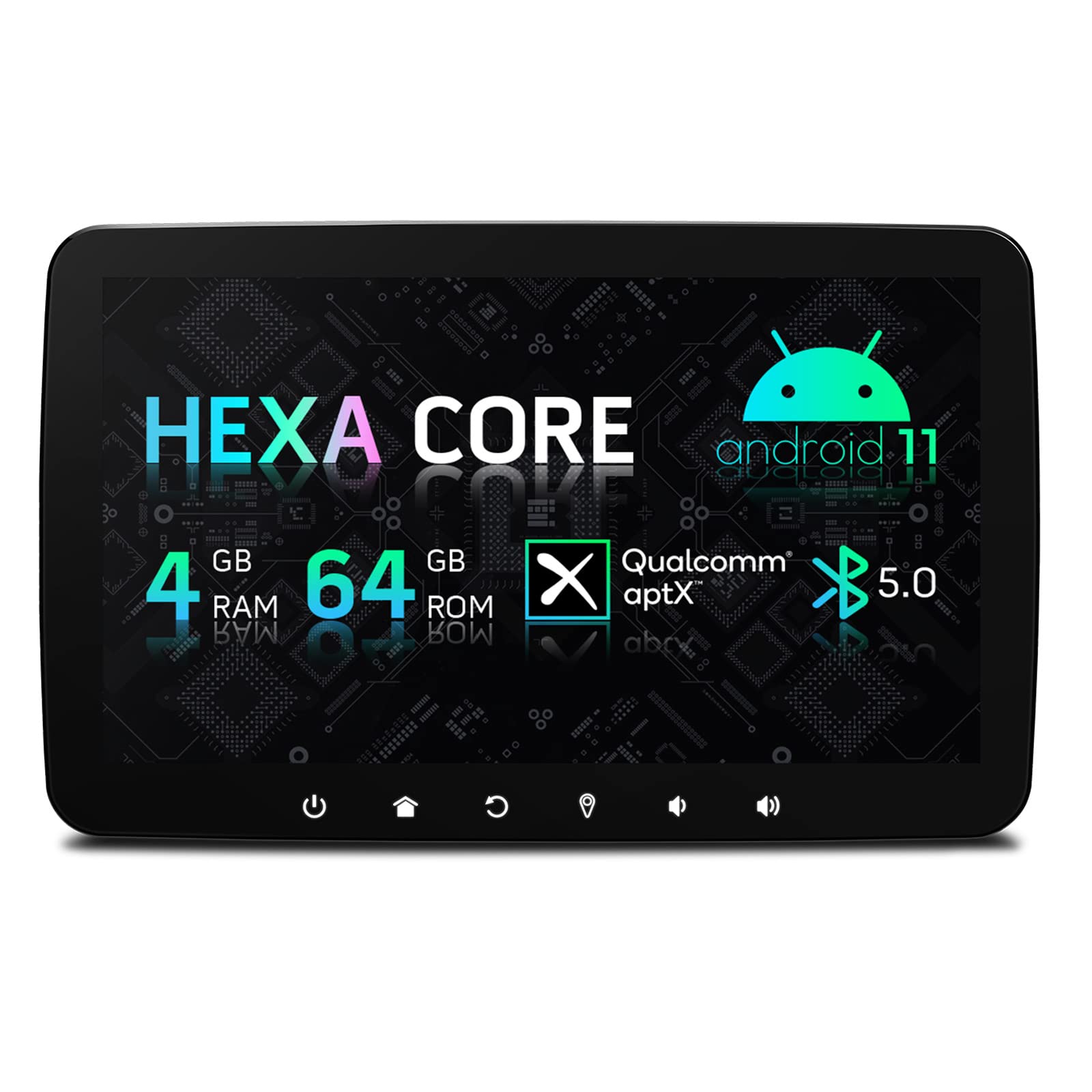
Figure 1.1: XTRONS DQS112L Car Stereo
2. Safety Information
Observe the following safety precautions to prevent injury or damage to the device:
- Do not attempt to disassemble or modify the unit. This may cause electric shock, fire, or other malfunctions.
- Ensure all wiring is correctly connected before powering on the unit. Incorrect wiring can cause damage to the unit or vehicle.
- Avoid operating the unit in extremely high or low temperatures. Refer to the specifications for operating temperature ranges.
- Do not block ventilation openings. Proper airflow is essential for cooling.
- Always pay attention to the road while driving. Operating the car stereo should not distract you from driving safely.
- Consult a professional for installation if you are unsure about any steps.
3. Package Contents
Verify that all items listed below are included in your package:
- 1 × ISO Wiring Harness
- 2 × USB Cable
- 1 × GPS Antenna
- 1 × RCA Cable (Audio/Video)
- 1 × Camera Cable
- 1 × WiFi Antenna
- 2 × Installation Kit
- 1 × User Manual (this document)

Figure 3.1: Included accessories and product dimensions
4. Product Features
4.1 Performance and Display
- Operating System: Android 11
- Processor: Hexa Core Rockchip PX6 CPU
- Memory: 4GB RAM, 64GB ROM
- Display: 10.1-inch, 1024x600 resolution, multi-touch screen
- Video Playback: Supports 4K video format
- Adjustable Screen: Vertical position adjustable up to 50mm, viewing angle up to 45 degrees forward or 20 degrees backward.

Figure 4.1: Core system specifications

Figure 4.2: 4K video playback and graphics performance

Figure 4.3: Screen adjustability

Figure 4.4: Updated User Interface
4.2 Connectivity and Audio
- Bluetooth: Qualcomm Bluetooth 5.0 with apt-X technology for enhanced audio quality and stable connections.
- Smartphone Integration: Built-in Wireless Apple CarPlay and Wired Android Auto.
- Digital Sound Processor (DSP): Built-in DSP for advanced audio tuning and sound customization.
- HDMI Output: Allows connection to external displays. Note: Audio via HDMI output does not support sources including AUX input, DVD, radio, or Bluetooth calls.
- Internet Sharing: Bluetooth tethering for internet access (requires phone support for 'Share network via Bluetooth').
4.3 Navigation and Control
- GPS Navigation: Supports Google Maps, Sygic, Waze, and other Android-compatible navigation software.
- Steering Wheel Controls: Compatible with existing steering wheel controls for volume adjustment, track skipping, and more.

Figure 4.5: Integrated features overview
5. Setup and Installation
5.1 Physical Installation
Follow these steps for attaching the display screen to the head unit:
- Connect the flat cable of the display screen with the head unit.
- Align the side screw hole of the display screen with the head unit.
- Ensure the side screw holes are overlapped. Then insert the long plugs into both side holes to affix the screen.
- Push down the clip to lock the screen's position.

Figure 5.1: Easy Installation Steps
5.2 Wiring Diagram
Refer to the diagram below for proper connection of all cables and accessories. Ensure all connections are secure to prevent malfunctions.
Figure 5.2: Wiring Diagram
ISO Wiring Harness Pinout:
| Pin | Description | Pin | Description |
|---|---|---|---|
| A3 | Power Source 12V+ | B1 | Rear Right Speaker- |
| A5 | Illumination | B2 | Rear Right Speaker+ |
| A7 | GND | B3 | Front Right Speaker- |
| A8 | ACC | B4 | Front Right Speaker+ |
| B5 | Front Left Speaker- | ||
| B6 | Front Left Speaker+ | ||
| B7 | Rear Left Speaker- | ||
| B8 | Rear Left Speaker+ |
6. Operating Instructions
6.1 Basic Functions
- Power On/Off: Press and hold the power button (usually located on the front panel or screen) to turn the unit on or off. A short press typically mutes or unmutes audio.
- Volume Control: Adjust volume using the on-screen controls or compatible steering wheel controls.
- Screen Adjustment: Utilize the physical adjustment mechanism to set the screen's vertical position and viewing angle for optimal visibility.
6.2 Smartphone Integration (CarPlay & Android Auto)
- Wireless CarPlay: For iPhone users, connect via Bluetooth to enable wireless CarPlay. Follow on-screen prompts to complete the setup.
- Wired Android Auto: For Android users, connect your phone via a compatible USB cable to activate Android Auto.
- Once connected, you can access GPS, make calls, play music, and use voice assistants (Google Assistant, Siri) directly from the car stereo display.
6.3 Navigation
- The unit comes with pre-installed navigation capabilities. You can also download and use other compatible navigation apps from the Google Play Store.
- Ensure the GPS antenna is properly installed and has a clear view of the sky for accurate positioning.
6.4 Audio Settings (DSP)
- Access the built-in Digital Sound Processor (DSP) settings through the main menu.
- Adjust equalizer settings, sound field, and other audio parameters to customize your listening experience.
6.5 Video Playback
- The unit supports 4K video playback from various sources, including USB drives.
- Ensure video files are in compatible formats for smooth playback.
7. Maintenance
- Screen Cleaning: Use a soft, lint-free cloth to gently wipe the touch screen. For stubborn smudges, slightly dampen the cloth with water or a screen-safe cleaner. Avoid harsh chemicals.
- General Cleaning: Keep the unit free from dust and debris. Use a soft brush or compressed air to clean vents and ports.
- Software Updates: Periodically check for software updates from the XTRONS official website or through the unit's system settings to ensure optimal performance and access to new features.
8. Troubleshooting
If you encounter issues with your XTRONS DQS112L, refer to the following common problems and solutions:
- No Power: Check all power connections, including the ISO wiring harness. Ensure the vehicle's ignition is on if connected to an accessory power source.
- No Sound: Verify speaker connections. Check volume levels and ensure the unit is not muted. Confirm audio output settings in the system menu.
- GPS Signal Loss: Ensure the GPS antenna is properly connected and positioned with a clear view of the sky. Move the vehicle to an open area if in a covered location.
- Bluetooth Connectivity Issues: Ensure Bluetooth is enabled on both the stereo and your device. Try unpairing and re-pairing the devices. Clear Bluetooth cache if necessary.
- Touch Screen Unresponsive: Try restarting the unit. If the issue persists, a factory reset might be necessary (note: this will erase all user data).
- CarPlay/Android Auto Not Launching: For wired Android Auto, ensure you are using a high-quality USB cable. For wireless CarPlay, ensure Bluetooth is connected and Wi-Fi is enabled on your iPhone. Check phone settings for CarPlay/Android Auto permissions.
If problems persist, contact XTRONS customer support for further assistance.
9. Specifications
| Feature | Specification |
|---|---|
| Model Number | DQS112L |
| Operating System | Android 11 |
| Screen Size | 10.1 Inches |
| Resolution | 1024 x 600 |
| Connectivity Technology | Bluetooth, HDMI, Wi-Fi |
| Bluetooth Version | 5.0 |
| Special Features | Bluetooth, Touchscreen, DSP, CarPlay, Android Auto |
| Audio Output Mode | AUX, Stereo |
| Map Type | North America (compatible with others) |
| Vehicle Service Type | Car |
10. Warranty and Support
Warranty Information: Specific warranty details for the XTRONS DQS112L are not provided in this manual. Please refer to the warranty card included with your product or visit the official XTRONS website for the most up-to-date warranty policy.
Customer Support: For technical assistance, troubleshooting beyond this manual, or inquiries regarding your product, please contact XTRONS customer support through their official website or the contact information provided with your purchase.
11. Official Product Videos
No official product videos were provided in the product data for this manual. Please check the XTRONS official website or product page for any available video resources.

