
INSEETECH WF818
INSEETECH 1080P Magnetic Wireless Backup Camera User Manual
Model: WF818
Product Overview
The INSEETECH 1080P Magnetic Wireless Backup Camera is designed to provide a clear and stable view for various vehicle types, enhancing safety during reversing, hitching, and monitoring. It features a strong magnetic base for easy, drill-free installation and a long-lasting rechargeable battery.

Image: The INSEETECH 1080P Magnetic Wireless Backup Camera, showing its compact design and antenna, with a small inset image demonstrating its use for vehicle hitching.
Key Features:
- Strong Magnetic Base: Allows for quick, 5-second installation on metal surfaces without drilling.
- Stable WiFi Connection: Provides a reliable hotspot signal up to 197ft/60m (without obstacles), suitable for vehicles under 30ft.
- Long Battery Life: Equipped with a 3000mAh rechargeable battery, offering up to 7 hours of continuous work and 90 days of standby time.
- Smart Sleep Mode: Automatically enters low-power mode when the app is closed and reactivates instantly upon app reopening.
- 1080P HD & Night Vision: Features a 1920x1080 CMOS sensor and 4 infrared LEDs for clear images and 17ft/5m night vision.
- IP69K Waterproof: Designed to operate reliably in various extreme weather conditions.
- Multiple Functions: Supports video recording, photo download, horizontal/vertical flipping, and full-screen viewing via the INSEECam App.
What's in the Box
Upon opening the package, please verify that all components are present and in good condition:
- WiFi Backup Camera x1
- USB Charging Cable x1
- User Manual x1
Setup and Installation
Follow these steps to set up and install your INSEETECH Wireless Backup Camera:
1. Download the INSEECam App
Search for "INSEECam" in your device's app store (Apple App Store for iOS or Google Play Store for Android) and download the application.

Image: Visual guide showing the steps to download the INSEECam app from App Store or Android, mount the camera, connect to WiFi, and open the app.
2. Mount the Camera
The camera features a powerful magnetic base for quick attachment to any metal surface on your vehicle. Ensure the surface is clean and free of debris for optimal magnetic adhesion. No drilling is required.

Image: Illustration of the camera's strong magnetic bracket attaching to a metal surface on a vehicle, highlighting the magnetic force.
The camera's compact size (4.05x2.75x3.46 inches) allows for portable and easy one-handed installation, making it suitable for moving between multiple vehicles or rentals.
3. Power On and Connect to WiFi
Turn on the camera. On your smartphone or tablet, go to your WiFi settings and connect to the WiFi hotspot broadcast by the camera. The network name will typically start with "WFS-XXXXX".
Once connected, open the INSEECam App. The app will automatically detect and connect to the camera, displaying the live video feed.

Image: A smartphone screen displaying a live feed from the backup camera, showing a vehicle with a trailer, illustrating the stable WiFi connection.
Operating Instructions
App Interface and Functions
The INSEECam App provides a user-friendly interface to control and view the camera feed. Key functions include:
- Parking Line: Toggle parking guidelines on/off for easier maneuvering.
- Screenshot: Capture still images from the live feed.
- Video Recording: Record video footage directly to your device.
- Horizontal/Vertical Flip: Adjust the image orientation as needed, especially if the camera is mounted in a non-standard position.
- Aspect Ratio: Change the display aspect ratio.
- Full Screen View: Maximize the video feed on your device screen.

Image: Screenshots of the INSEECam app on a smartphone and tablet, showing various control icons for parking lines, screenshot, video recording, HD, horizontal/vertical flip, aspect ratio, and full screen.
Day and Night Vision
The camera is equipped with a 1920x1080 CMOS sensor for high-definition daytime images and 4 infrared LEDs for clear night vision up to 17ft (5m) in low-light or pitch-dark environments, ensuring safety at all times.

Image: A split image demonstrating the camera's performance, showing a clear view of a horse stable in daylight and an equally clear infrared view of horses at night.
Sleep Mode and Reactivation
To conserve battery, the camera automatically enters a low-power sleep mode when the INSEECam app screen is exited. There are two ways to reactivate the camera:
- Button Wake: Gently press the power reset button on the back of the camera.
- APP Wake (Recommended): Simply reopen the INSEECam app. The camera will instantly reactivate and resume monitoring. Sleep time can be configured within the app (1min, 2min, 3min, 4min, or never).

Image: Diagram illustrating two methods to wake up the camera: pressing the button on the back or reopening the INSEECam app on a smartphone, with battery status indicators.
Battery and Charging
The camera is powered by a 3000mAh rechargeable lithium-ion battery. When fully charged, it provides up to 7 hours of continuous operation and can stand by for up to 90 days. Charge the camera using the provided USB charging cable.
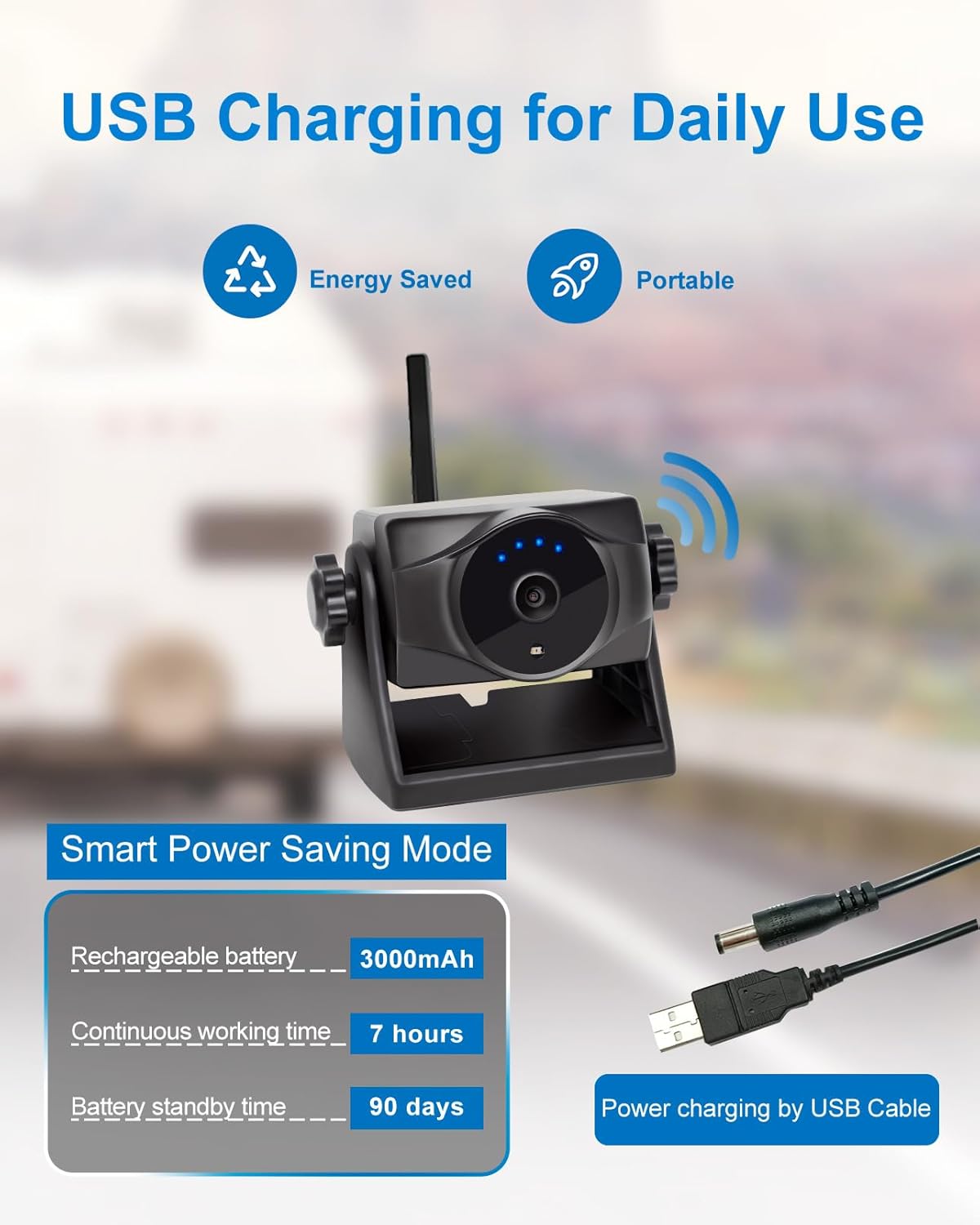
Image: An illustration showing the camera being charged via a USB cable, with details on its 3000mAh rechargeable battery, 7 hours continuous working time, and 90 days standby time.
Maintenance
The INSEETECH Wireless Backup Camera is designed for durability and minimal maintenance, thanks to its IP69K waterproof rating. However, proper care can extend its lifespan:
- Cleaning: Periodically wipe the camera lens and body with a soft, damp cloth to remove dirt and debris. Avoid abrasive cleaners.
- Charging: Ensure the battery is charged regularly, especially before extended periods of non-use, to maintain battery health.
- Storage: When not in use for long periods, store the camera in a cool, dry place.

Image: Three panels illustrating the camera's durability: high operating temperature (140°F), low operating temperature (-4°F), and IP69K waterproof rating, showing it in sunny, snowy, and rainy conditions.
Troubleshooting
If you encounter issues with your INSEETECH Wireless Backup Camera, refer to the following common troubleshooting steps:
| Problem | Possible Cause | Solution |
|---|---|---|
| No video feed in app / Disconnection |
|
|
| Poor image quality |
|
|
| Camera not charging |
|
|
If the issue persists, please contact INSEETECH customer support for further assistance.
Specifications
| Feature | Detail |
|---|---|
| Model Number | WF818 |
| Product Dimensions | 3.3 x 2.5 x 2.8 inches |
| Item Weight | 12.7 ounces |
| Battery Capacity | 3.7V/3000mAh Lithium Ion (included) |
| Continuous Working Time | Up to 7 hours |
| Battery Standby Time | Up to 90 days |
| Video Capture Resolution | 1080p, 720p |
| Optical Sensor Technology | CMOS |
| Viewing Angle | 150° |
| Night Vision Distance | 17ft / 5m |
| Waterproof Rating | IP69K |
| Transmission Distance | Up to 197ft / 60m (no obstacles) |
| Compatible Devices | iPad, Smartphone (iOS & Android) |
| Installation Type | Magnetic Mount |

Image: A detailed table outlining the technical specifications of the INSEETECH backup camera, including battery, charging, image device, effective pixels, transmission distance, night vision, viewing angle, and waterproof rating.
Warranty and Support
INSEETECH products are manufactured with quality and reliability in mind. For specific warranty details, please refer to the warranty card included with your product or contact INSEETECH customer support directly.
For technical assistance, troubleshooting not covered in this manual, or warranty claims, please contact:
INSEETECH Customer Support
(Contact information typically found on product packaging, official website, or purchase platform)
Please have your product model number (WF818) and purchase details ready when contacting support.
Related documentsWF818

Ask a question about this manual
Ask about setup, troubleshooting, compatibility, parts, safety, or missing instructions. Manuals+ will review the question and use this page’s manual context to help answer it.