
1. Introduction
This manual provides detailed instructions for the setup, operation, and maintenance of your AUN ET30S Android 9.0 Smart LED Full HD 1080p Projector. Please read this manual thoroughly before using the projector to ensure optimal performance and longevity.
The AUN ET30S projector offers a large, 1080P Full HD viewing experience with 4000 lumens brightness. It features Android 9.0, 1GB RAM, 8GB memory, built-in Playstore for applications, 2.4G Wi-Fi, and Bluetooth 4.0. Its wide compatibility allows connection to various devices including TV boxes, PCs, laptops, tablets, and smartphones.

Image 1.1: AUN ET30S Projector with its Android 9.0 interface projected, showing various applications.
2. What's in the Box
Carefully unpack your AUN ET30S projector and verify that all items listed below are included and in good condition:
- 1x AUN ET30S Projector
- 1x Remote Control (AAA batteries not included)
- 1x Power Cord
- 1x User Manual
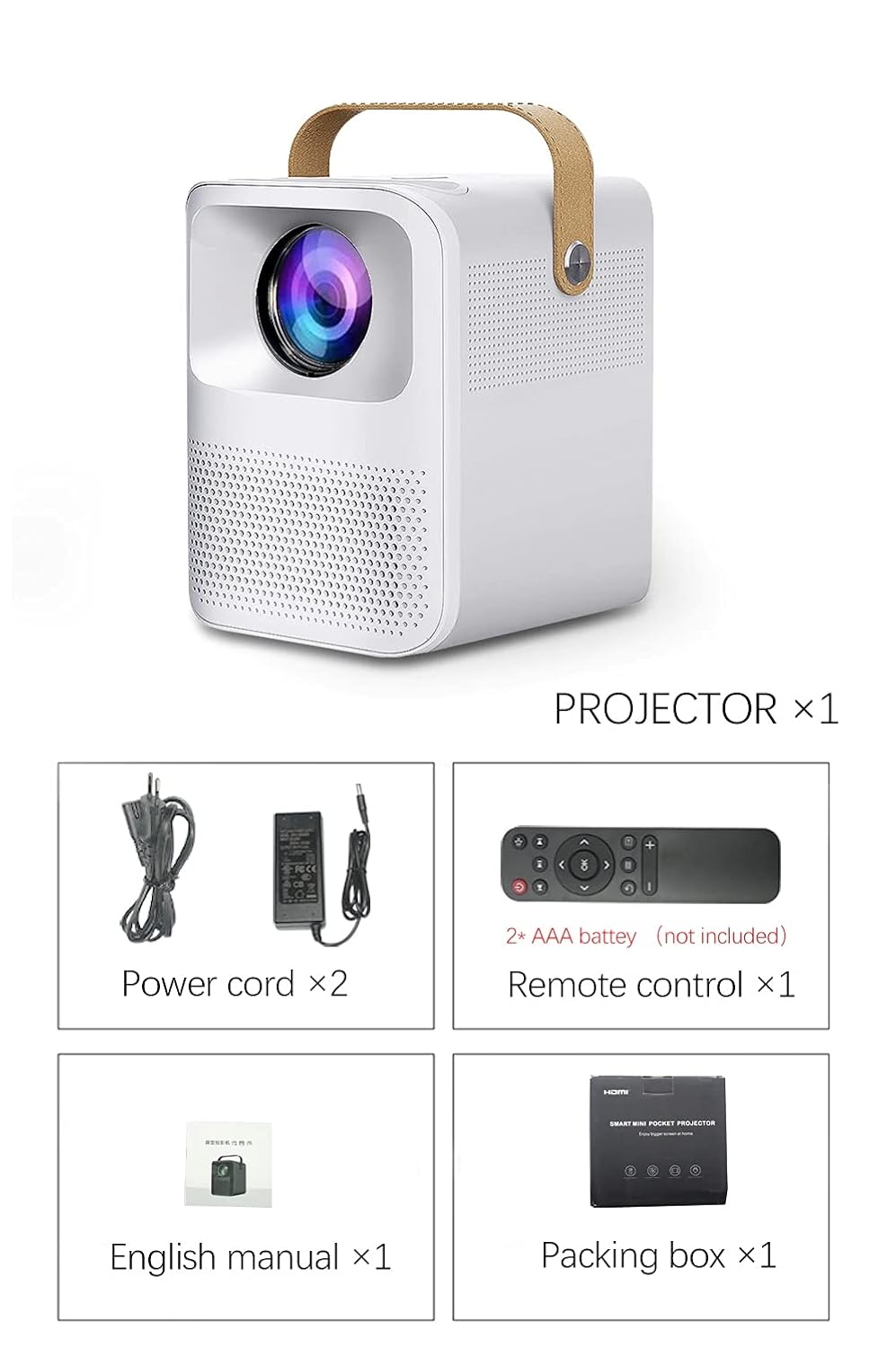
Image 2.1: Packaging contents of the AUN ET30S Projector.
3. Product Overview
The AUN ET30S projector is designed for ease of use and versatility. Familiarize yourself with its physical components and dimensions.
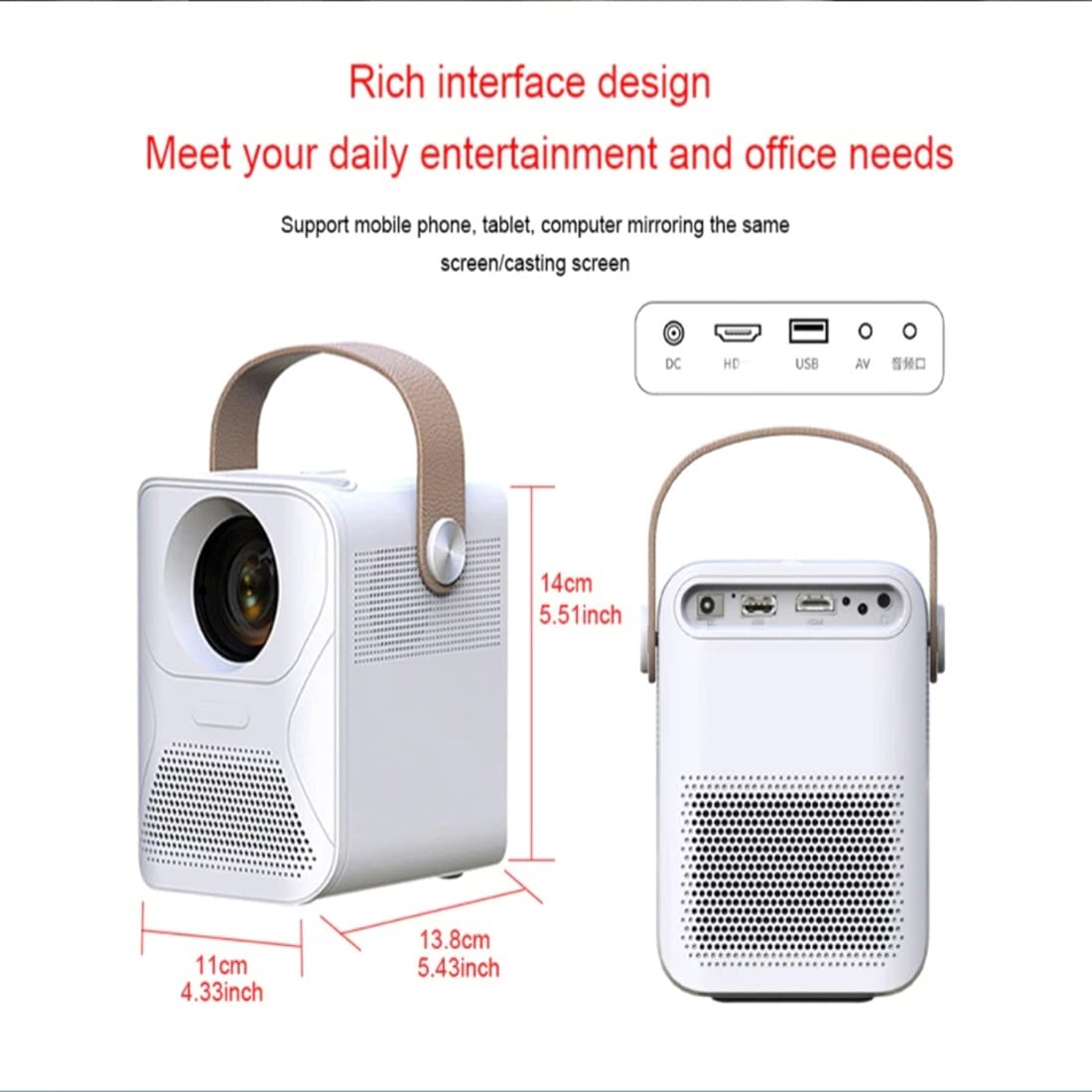
Image 3.1: AUN ET30S Projector dimensions and interface ports.
3.1 Interface Ports
The projector features a variety of ports for connecting external devices:
- DC In: For power adapter connection.
- HD (HDMI): Connects to devices like laptops, gaming consoles, or TV boxes.
- USB: For connecting USB drives to play media files.
- AV: For connecting older devices with composite video output.
- Audio Out: For connecting external speakers or headphones.
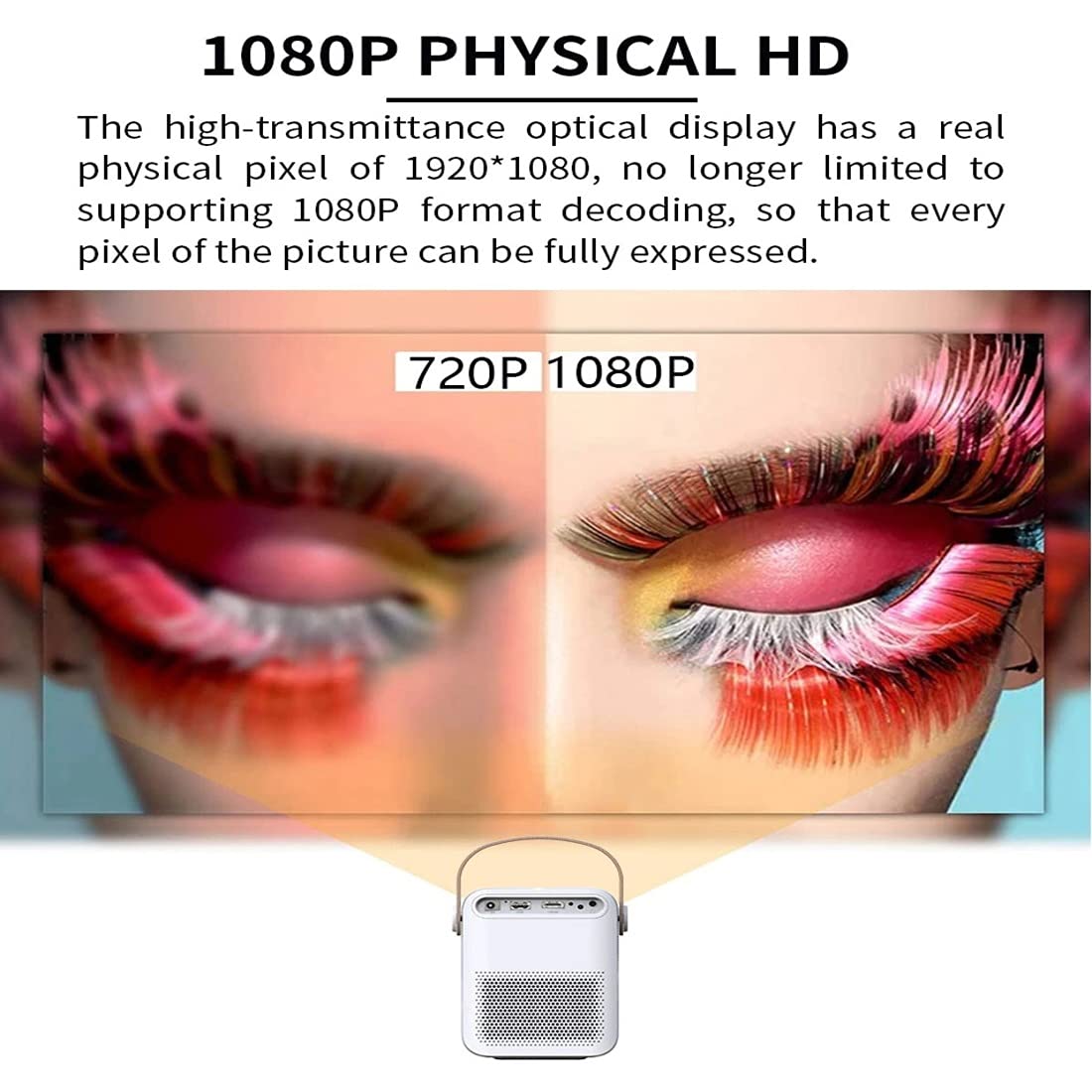
Image 3.2: Multi-media connections and controls on the AUN ET30S Projector.
4. Setup
4.1 Power Connection
- Connect the power cord to the projector's DC In port.
- Plug the other end of the power cord into a power outlet.
4.2 Initial Placement and Focus
- Place the projector on a stable, flat surface, or mount it according to your preference. Ensure adequate ventilation around the projector.
- Turn on the projector.
- Adjust the focus ring (labeled 'Focus' in Image 3.2) on the projector until the projected image is clear and sharp.
4.3 Keystone Correction
The AUN ET30S features automatic keystone correction for both up and down adjustments, and four-corner keystone correction for Android mode, ensuring a rectangular image even when the projector is not perfectly aligned with the screen.

Image 4.1: Automatic Keystone Correction in action.
5. Operating Instructions
5.1 Powering On/Off
- Power On: Press the power button on the projector or the remote control.
- Power Off: Press the power button again. A confirmation prompt may appear on screen.
5.2 Navigating the Android Interface
The projector runs on Android 9.0, providing a smart TV-like experience. Use the remote control to navigate the interface.

Image 5.1: Android 9.0 User Interface.
- Home Screen: Access pre-installed apps like YouTube, Google Play, and a browser.
- All Apps: View all installed applications.
- Source: Select input sources (HDMI, USB, AV).
- Settings: Adjust network, display, sound, and system settings.
- App Store: Download and install additional applications.
5.3 Wi-Fi and Bluetooth Connectivity
- Go to Settings on the home screen.
- Select Network to configure Wi-Fi. Choose your network and enter the password.
- Select Bluetooth to pair with external Bluetooth speakers or other devices.
6. Connectivity
The AUN ET30S offers versatile connectivity options for various devices.
6.1 Wired Connections
- HDMI: Connect a laptop, Blu-ray player, gaming console, or TV box using an HDMI cable. Select 'HD' as the input source.
- USB: Insert a USB flash drive to play videos, music, or view photos directly. Select 'USB' as the input source or navigate through the file manager in Android.
- AV: Connect older devices using an AV cable. Select 'AV' as the input source.
- Audio Out: Connect external speakers or headphones via the 3.5mm audio jack for enhanced sound.
6.2 Wireless Connections
- Wi-Fi: Connect to your home network for internet access, streaming, and app downloads.
- Bluetooth: Pair with Bluetooth-enabled audio devices for wireless sound.
- Miracast/Airplay (HappyCast): Use the pre-installed HappyCast app or similar functionality to mirror your Android smartphone or Apple device screen wirelessly to the projector.
7. Image Quality and Projection
The AUN ET30S delivers a high-quality viewing experience with its advanced projection capabilities.
7.1 Full HD 1080p Resolution
Experience crisp and clear images with a native resolution of 1920 x 1080 pixels. The projector supports 1080p format decoding, ensuring every pixel of the picture is fully expressed.
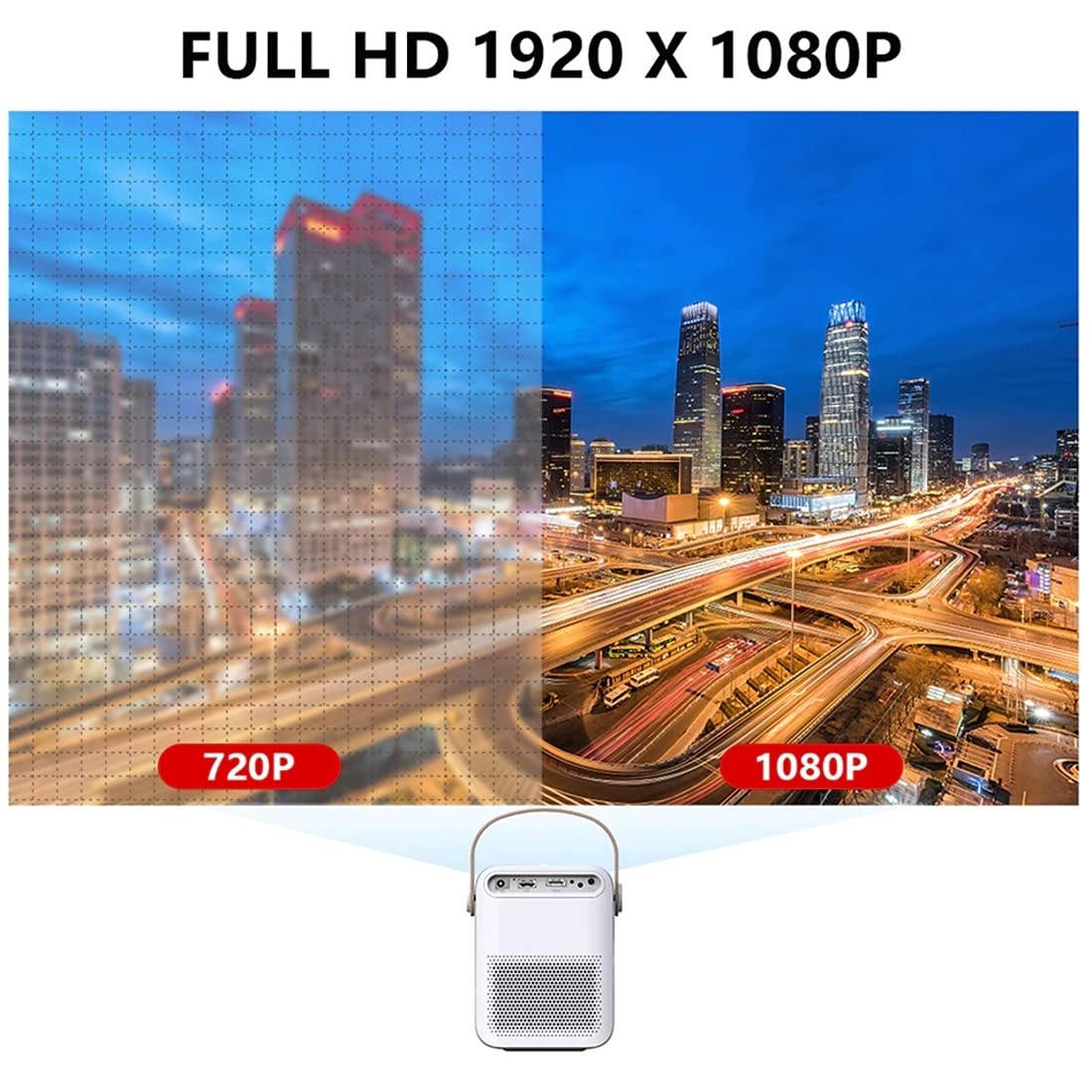
Image 7.1: 720P vs. 1080P Resolution Comparison.
7.2 Brightness and Contrast
- Brightness: 4000 lumens LED brightness ensures strong, vibrant colors.
- Contrast Ratio: A 3000:1 contrast ratio provides deeper blacks and brighter whites, resulting in vivid and immersive images with almost 100% color accuracy.
7.3 Projection Ratio and Distance
The projector features a 1.18:1 projection ratio, allowing for a large picture from a relatively short distance.

Image 7.2: Projection Ratio and Distance Guide.
Refer to the table below for approximate projection distances for various screen sizes:
| Screen Size | Projection Distance |
|---|---|
| 50 inches | 1.27 meters |
| 60 inches | 1.57 meters |
| 80 inches | 2.09 meters |
| 100 inches | 2.60 meters |
8. Maintenance
Proper maintenance ensures the longevity and optimal performance of your projector.
- Cleaning: Use a soft, dry cloth to clean the projector's exterior. For the lens, use a specialized lens cleaning cloth and solution.
- Ventilation: Ensure the projector has good airflow. Do not block the ventilation openings. High temperatures can damage internal components, especially the LCD panel.
- Dust Prevention: Keep the projector in a clean, dust-free environment. Dust accumulation can impede airflow and affect performance.
- Storage: When not in use for extended periods, store the projector in a cool, dry place, preferably in its original packaging or a protective case.
9. Troubleshooting
If you encounter issues with your AUN ET30S projector, refer to the following common problems and solutions:
| Problem | Possible Cause | Solution |
|---|---|---|
| No power | Power cord not connected, power outlet faulty | Check power cord connection. Try a different power outlet. |
| No image | Incorrect input source, device not connected, blank screen mode | Select correct input source (HDMI, USB, AV). Ensure external device is powered on and connected. Press 'Mute' or 'Blank' button on remote if applicable. |
| Image blurry | Focus not adjusted, keystone not corrected | Adjust the focus ring. Use keystone correction in settings. |
| No sound | Volume too low, external speakers not connected, audio settings incorrect | Increase volume. Check external speaker connection. Verify audio output settings. |
| Remote control not working | Batteries low/dead, obstruction, remote sensor blocked | Replace batteries. Ensure no obstruction between remote and projector. |
10. Specifications
Detailed technical specifications for the AUN ET30S Projector:
| Feature | Specification |
|---|---|
| Brand | AUN |
| Model | AUN ET30S Android Projector |
| Operating System | Android 9.0 |
| RAM / Memory | 1GB RAM / 8GB Internal Memory |
| Display Technology | LED |
| Display Type | LCD |
| Native Resolution | 1920 x 1080 Pixels (Full HD) |
| Image Brightness | 4000 Lumens |
| Image Contrast Ratio | 3000:1 |
| Connectivity Technology | Bluetooth, HDMI, USB, Wi-Fi |
| Hardware Interface | Bluetooth, HDMI, USB |
| Special Features | Built-In Wi-Fi, Portable, Wireless |
| Built-in Speaker | HIFI Stereo Speaker (3 Watts) |
| Product Dimensions | 25 x 20 x 6 cm |
| Item Weight | 1.8 kg |
| Mounting Type | Tabletop Mount |
| Remote Control | IR Remote Included |
11. Warranty and Support
11.1 Warranty Information
The AUN ET30S Projector comes with a 6-month warranty covering manufacturing defects, technical defects, and software defects.
Exclusions from Warranty:
- LCD panel damage or burns (due to insufficient ventilation).
- Dust-related issues inside the projector.
- Damage from misuse, including broken parts, burns, or physical damage.
- Repairs performed by unauthorized third parties.
11.2 Customer Support
For support or warranty claims, please contact Megaa Electronics:
- Email: support@megaaelectronics.com or megaaelectronics@gmail.com
- WhatsApp: 8328671337


