
1. Introduction
Thank you for choosing the HOMVILLA Alarm Clock Model 8813. This manual provides detailed instructions for setting up, operating, and maintaining your new alarm clock. Please read this manual thoroughly before use to ensure proper functionality and to maximize your user experience. Keep this manual for future reference.
2. Package Contents
Please check the package for the following items:
- HOMVILLA Alarm Clock (Model 8813)
- USB Charging Cable
- Power Adapter
- User Manual (this document)

Image 2.1: Alarm clock, USB cable, and power adapter included in the package.
3. Product Overview
Familiarize yourself with the various parts and controls of your alarm clock.

Image 3.1: Front and rear view of the alarm clock with labeled components.
Front Display:
- Large LED Display: Shows time, AM/PM indicator, Alarm 1 (①), Alarm 2 (②), and DST indicator.
Rear Buttons and Ports:
- Volume Wheel: Adjusts alarm volume (90-120dB).
- DST Button: Activates/deactivates Daylight Saving Time.
- Time Set Button: Enters time setting mode.
- UP Button: Increases values during setting.
- DOWN Button: Decreases values during setting.
- Alarm Set Button: Enters alarm setting mode.
- On/Off Button: Turns alarm on/off.
- Reset Button: Resets the clock to factory defaults.
- Dimmer Wheel: Adjusts display brightness (0-100%).
- USB Port: For charging external devices.
- DC Port: For power input.
Top Button:
- Snooze Button: Activates snooze function when an alarm sounds.
4. Setup
4.1 Power Connection
The HOMVILLA Alarm Clock is mains powered. Connect the provided USB charging cable to the DC port on the back of the clock and plug the power adapter into a standard wall outlet.
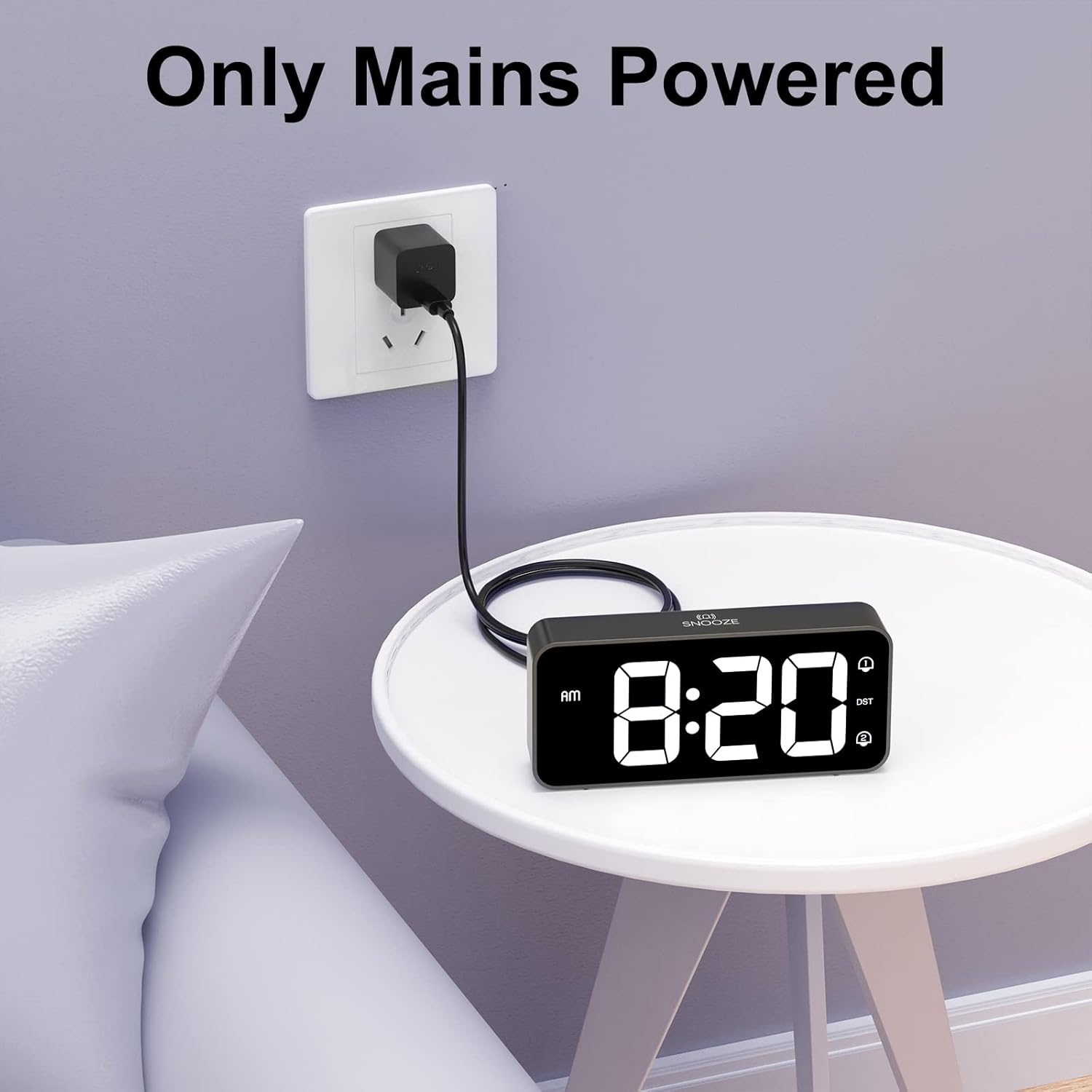
Image 4.1: Connecting the alarm clock to a power outlet.
4.2 Battery Backup Installation (Optional)
To retain time settings during a power outage, install two AAA batteries (not included) into the battery compartment on the bottom of the clock. The batteries only support the memory function and do not power the display or alarm functions.
- Open the battery compartment cover on the bottom of the clock.
- Insert two AAA batteries, ensuring correct polarity (+/-).
- Close the battery compartment cover.

Image 4.2: Installing AAA batteries for memory function.
5. Operating Instructions
5.1 Setting the Time
- Press and hold the Time Set button on the back of the clock. The hour digits will start flashing.
- Use the UP or DOWN buttons to adjust the hour.
- Press the Time Set button again to confirm the hour and move to minute setting. The minute digits will flash.
- Use the UP or DOWN buttons to adjust the minutes.
- Press the Time Set button a third time to confirm the minutes and switch between 12-hour and 24-hour format. Use UP or DOWN to select.
- Press the Time Set button once more to exit time setting mode.
5.2 Setting Alarms (Dual Alarms)
The clock supports two independent alarms (Alarm 1 and Alarm 2).
- Press and hold the Alarm Set button. The Alarm 1 icon (①) and hour digits will flash.
- Use the UP or DOWN buttons to adjust the alarm hour.
- Press the Alarm Set button again to confirm the hour and move to minute setting. The minute digits will flash.
- Use the UP or DOWN buttons to adjust the alarm minutes.
- Press the Alarm Set button a third time to select the alarm sound (see section 5.5).
- Press the Alarm Set button a fourth time to exit Alarm 1 setting.
- To set Alarm 2, repeat steps 1-6. The Alarm 2 icon (②) will flash during its setting.
5.3 Activating/Deactivating Alarms
After setting an alarm, press the On/Off button on the back of the clock to toggle Alarm 1 or Alarm 2 on/off. The corresponding alarm icon (① or ②) will appear on the display when active.
5.4 Snooze Function
When an alarm sounds:
- Press the large Snooze button on the top of the clock. The alarm will pause for 5 minutes and then sound again.
- To turn off the alarm for the day, briefly press any of the five buttons on the back of the clock. The alarm will sound again the next day at the set time.

Image 5.1: Snooze function and dual alarm capability.
5.5 Adjusting Display Brightness
The display brightness can be adjusted from 0% to 100%.
- Locate the Dimmer Wheel on the back right side of the clock.
- Slide the wheel up or down to increase or decrease the display brightness to your preference.

Image 5.2: Adjustable display brightness for day and night.
5.6 Adjusting Alarm Volume
The alarm volume can be adjusted between 90dB and 120dB.
- Locate the Volume Wheel on the back left side of the clock.
- Slide the wheel up or down to increase or decrease the alarm volume.

Image 5.3: Volume and brightness adjustment wheels.
5.7 Selecting Alarm Sounds
The clock offers eight different alarm melodies.
- During alarm setting (refer to section 5.2, step 5), use the UP or DOWN buttons to cycle through the available alarm sounds.
- The available sounds include: Classic ringtone, Bird call, Running water, Crickets, Cock call, White noise, Stringed music, and 'Di di di'.

Image 5.4: Eight available alarm sounds.
5.8 Daylight Saving Time (DST)
- Press the DST button on the back of the clock to activate or deactivate Daylight Saving Time.
- When DST is active, the time will adjust by one hour, and a DST indicator will appear on the display.
5.9 USB Charging Port
- The USB port on the back of the clock can be used to charge mobile phones or other small electronic devices.
- Connect your device's charging cable to the USB port.
6. Maintenance
- To clean the clock, gently wipe the surface with a soft, dry cloth.
- Do not use abrasive cleaners, solvents, or chemical sprays, as these may damage the finish.
- Keep the clock away from direct sunlight, extreme temperatures, and high humidity.
7. Troubleshooting
| Problem | Possible Cause | Solution |
|---|---|---|
| Clock display is off. | No power connection. | Ensure the power adapter is securely plugged into the clock and a working wall outlet. |
| Alarm does not sound. | Alarm is not activated or volume is too low. | Check if the alarm icon (① or ②) is displayed. Adjust the volume wheel to increase alarm volume. |
| Time is incorrect after power outage. | No battery backup installed or batteries are depleted. | Install fresh AAA batteries for memory function. Reset the time manually if necessary. |
| Display is too bright/dim. | Brightness setting needs adjustment. | Use the Dimmer Wheel on the back of the clock to adjust brightness. |
| USB charging port not working. | Device incompatibility or power issue. | Ensure the clock is powered. Try a different USB cable or device. The port is for charging, not data transfer. |
8. Specifications
| Feature | Detail |
|---|---|
| Model Number | 8813 |
| Display Type | Digital LED |
| Power Source | Mains Powered (USB cable + adapter) |
| Battery Backup | 2 x AAA batteries (not included, for memory function only) |
| Product Dimensions | 14.5 x 3.2 x 6.5 cm (5.7 x 1.26 x 2.56 inches) |
| Item Weight | 157 g |
| Special Features | Dual Alarm, Snooze Function, Dimmable Display, USB Charging Port, DST Mode |
| Alarm Volume Range | 90-120dB |
| Display Brightness | 0-100% adjustable |
9. Warranty and Support
HOMVILLA offers a lifetime warranty for this product. For any questions, technical support, or warranty claims, please contact our customer service team.
Service Email: support@homvillalife.com

Image 9.1: Service email for customer support.

