
1. Introduction
The Phomemo D30 is a compact, portable, and wireless label maker designed for convenient label creation and printing from your smartphone. Utilizing direct thermal technology, it operates without ink, toner, or ribbons, offering a cost-effective and eco-friendly labeling solution. Its lightweight design allows for easy portability, enabling you to print labels anytime, anywhere.
Key Features:
- Inkless Thermal Printing: No ink, toner, or ribbons required.
- Bluetooth Connectivity: Seamless connection to mobile devices.
- Portable Design: Mini size for easy carrying and use on the go.
- Mobile App Control: Create and customize labels using a dedicated smartphone application.
- High-Quality Output: Provides clear, crisp, and dark imaging.
- BPA-Free Labels: Ensures safety and environmental consideration.
2. Package Contents
Please verify that all items are present in your package:
- 1x Phomemo D30 Label Maker Machine
- 3x Black on Gold Label Tape Rolls
- 1x Rectangle Label Tape Black on White
- 1x USB Charging Cable
- 1x User Manual

Image: Phomemo D30 label tapes and their packaging, illustrating the included label rolls.
3. Product Overview
The Phomemo D30 label maker is designed for ease of use and portability. It features a simple, minimalist design with a single power button and a label output slot.

Image: The Phomemo D30 Label Maker Machine, showcasing its compact design.
4. Setup
4.1 Charging the Device
Before initial use, fully charge the Phomemo D30 label maker. Connect the provided USB cable to the charging port on the device and a power source (e.g., USB wall adapter, computer USB port). The indicator light will show charging status.
4.2 Installing Label Roll
- Open the label compartment cover on the device.
- Insert the label roll with the printing surface facing upwards, ensuring it is properly aligned.
- Pull a small portion of the label tape out through the output slot.
- Close the label compartment cover securely.

Image: A hand demonstrating the self-adhesive nature of the Phomemo D30 labels by peeling one off its backing.
4.3 App Installation and Bluetooth Connection
- Download the Phomemo app from your smartphone's app store (available for iOS and Android).
- Turn on the Phomemo D30 label maker by pressing and holding the power button. The indicator light will illuminate.
- Enable Bluetooth on your smartphone.
- Open the Phomemo app and follow the on-screen instructions to connect to your D30 device via Bluetooth.
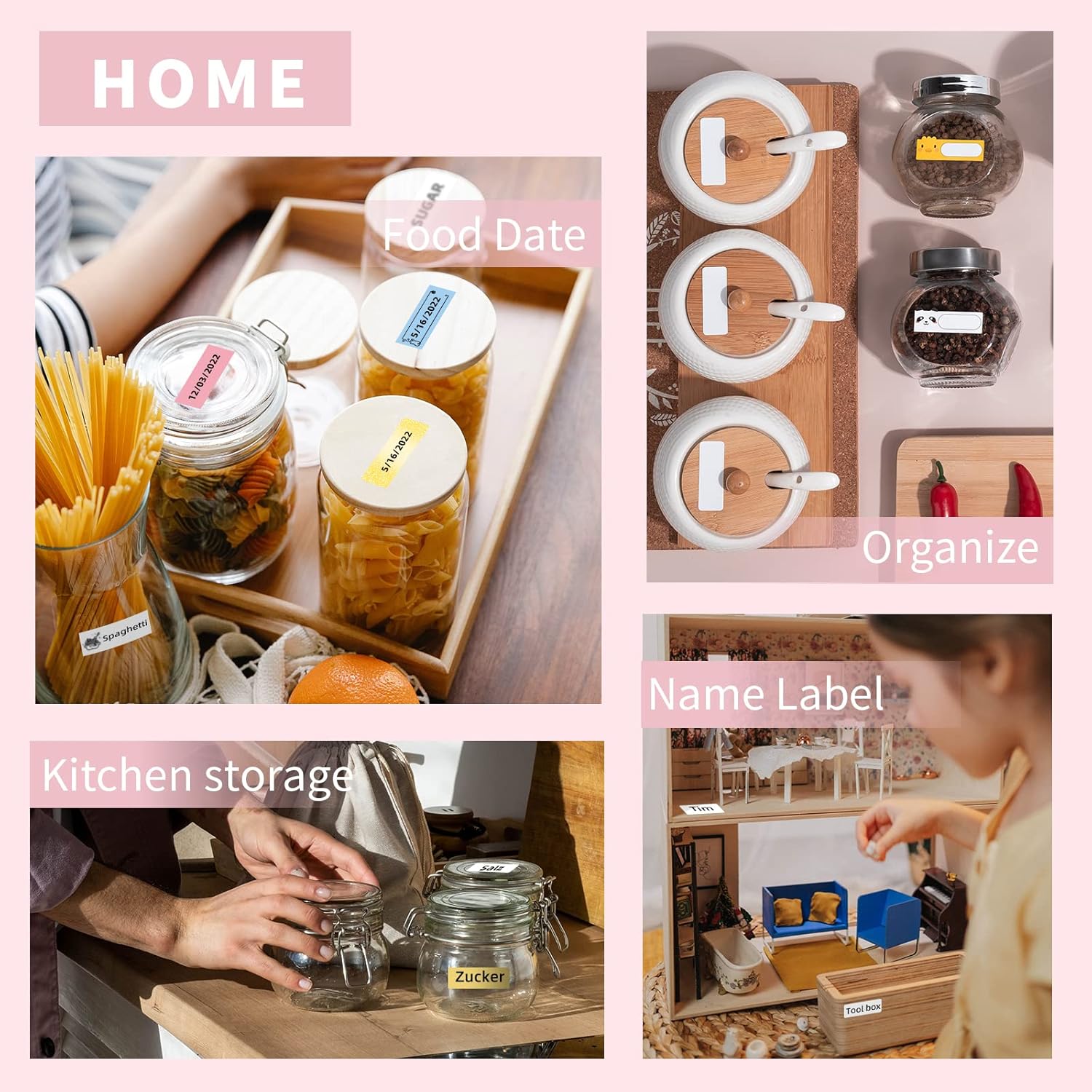
Image: A smartphone displaying the Phomemo app interface for label creation, with the D30 label maker visible in the background.
5. Operation
5.1 Creating Labels
- Open the Phomemo app on your connected smartphone.
- Select a label template or start a new blank label.
- Use the app's editing tools to add text, icons, borders, and other elements.
- Adjust font size, style, and alignment as needed.
5.2 Printing Labels
- After designing your label in the app, tap the 'Print' button.
- Confirm the print settings, such as the number of copies.
- The label maker will print the label. Gently tear off the printed label from the output slot.

Image: The Phomemo D30 label maker actively printing custom labels, demonstrating its high-quality output.
5.3 Customization Options
The Phomemo app offers various customization features to personalize your labels:
- Text Editing: Multiple fonts, sizes, and styles.
- Icons & Borders: A library of pre-designed icons and decorative borders.
- Templates: Pre-made templates for common uses (e.g., kitchen, office, school).
- Barcode/QR Code: Ability to generate and print barcodes or QR codes.
Video: A demonstration of creating and printing labels with the Phomemo D30 Label Maker, showcasing various customization options within the app.
6. Maintenance
6.1 Cleaning
- Ensure the device is powered off before cleaning.
- Use a soft, dry cloth to wipe the exterior of the label maker.
- For the print head, use a cotton swab lightly dampened with alcohol to gently clean any residue. Allow it to dry completely before use.
6.2 Storage
- Store the label maker in a cool, dry place away from direct sunlight and extreme temperatures.
- Remove any label rolls if the device will not be used for an extended period.
- Keep thermal labels away from heat sources and direct light to preserve their quality.
7. Troubleshooting
| Problem | Possible Cause | Solution |
|---|---|---|
| Device won't turn on | Low battery; Device malfunction | Charge the device; Contact customer support |
| Cannot connect via Bluetooth | Bluetooth off; App issue; Device too far | Ensure Bluetooth is on; Restart app/device; Move closer |
| Poor print quality | Dirty print head; Incorrect label orientation; Low battery | Clean print head; Reinstall label roll correctly; Charge device |
| Labels not feeding | Label roll empty; Improper installation; Jammed | Replace label roll; Reinstall correctly; Clear any obstruction |
8. Specifications
| Feature | Description |
|---|---|
| Model Name | D30 |
| Brand | Phomemo |
| Printing Technology | Direct Thermal (Inkless) |
| Connectivity | Bluetooth |
| Control Method | Mobile App |
| Printer Output | Monochrome |
| Compatible Devices | Smartphones (iOS, Android) |
| Print Media | Thermal Labels |
| Special Features | Portable, Wireless, BPA-Free Labels |

Image: Illustration detailing the dimensions (1/2'' x 1 1/2'') and features of Phomemo D30 thermal label tape, including BPA-free, water-resistant, strong adhesion, and abrasion-resistant properties.
9. Applications
The Phomemo D30 label maker is versatile and can be used for various organizational and creative tasks in different environments:
- Home Organization: Labeling food containers, spice jars, storage bins, and personal items.
- Office Use: Organizing files, folders, cables, and office supplies.
- School & Study: Labeling notebooks, textbooks, and school projects.
- Retail & Small Business: Creating price tags, product labels, and inventory management.
- Crafts & Hobbies: Personalizing gifts, scrapbooking, and other creative projects.

Image: A collage showcasing various applications of the Phomemo D30 label maker in home, kitchen, office, and school settings, including labeling food dates, organizing kitchen storage, name labels, office files, cable identification, and school supplies.

Image: A small label created with the Phomemo D30, reading 'RESERVED', attached to a pinecone as a decorative item on a table setting.

Image: Various gift boxes adorned with custom labels created using the Phomemo D30, demonstrating its use for personalizing gifts.
10. Warranty & Support
Phomemo products come with a standard manufacturer's warranty. For detailed warranty information, technical support, or service inquiries, please refer to the official Phomemo website or contact their customer service directly. You can also visit the Phomemo Store on Amazon for additional product information and support resources.


