
AWH Zedo Foldable Bluetooth Keyboard
Contents
Zedo Foldable Bluetooth Keyboard User Manual
Model: Zedo Foldable Bluetooth Keyboard
Brand: AWH
1. Product Overview
The Zedo Foldable Bluetooth Keyboard is a compact and portable wireless keyboard designed for use with various devices, including tablets, smartphones, and PCs. It features a tri-folding design for easy portability and an integrated touchpad for enhanced navigation. This manual provides instructions for setup, operation, maintenance, and troubleshooting.

Image: The Zedo Foldable Bluetooth Keyboard shown fully unfolded, displaying its QWERTY layout and integrated touchpad on the right side.

Image: A close-up view highlighting key features of the keyboard, including the power switch, Bluetooth connect button, charging port, metal connection points, magnetic adsorption, ergonomic design, and anti-slip silicone pads.
2. Package Contents
- Zedo Foldable Bluetooth Keyboard
- USB Cable
- User Manual (this document)
3. Setup Guide
3.1. Charging the Keyboard
Before first use, ensure the keyboard is fully charged. Connect the provided USB cable to the charging port on the keyboard and the other end to a USB power source (e.g., computer USB port, USB wall adapter). The charging indicator light will illuminate during charging and turn off when fully charged. A full charge typically takes approximately 2 hours and provides up to 40 hours of working time.
3.2. Powering On/Off
To power on the keyboard, unfold it completely. The keyboard will automatically power on. To power off, fold the keyboard. It will automatically power off to conserve battery.
3.3. Bluetooth Pairing
The keyboard supports connection to two devices simultaneously. Follow these steps to pair with your device:
- Unfold the keyboard to power it on.
- Press the Fn + C keys simultaneously to enter Bluetooth pairing mode. The Bluetooth indicator light will flash.
- On your device (tablet, smartphone, PC), go to Bluetooth settings and enable Bluetooth.
- Search for available devices. The keyboard will appear as "Bluetooth Keyboard" or similar.
- Select the keyboard from the list to connect. If prompted, enter the pairing code displayed on your screen using the keyboard and press Enter.
- Once connected, the Bluetooth indicator light will stop flashing.
To connect a second device, repeat the steps above, but use Fn + V to enter pairing mode for the second channel.

Image: The Zedo Foldable Bluetooth Keyboard positioned in front of a tablet, demonstrating its use as an external input device.

Image: An illustration showing the Zedo Foldable Bluetooth Keyboard's compatibility with different device types, including tablets, laptops, iOS systems, Android cell phones, and desktop PCs with integrated Bluetooth.
4. Operating Instructions
4.1. Keyboard Layout and Special Functions
The keyboard features a standard QWERTY layout. Some keys have dual functions accessible via the Fn key. Refer to the keycaps for specific function icons.
- Fn + Q: Switch to iOS system layout.
- Fn + W: Switch to Android system layout.
- Fn + E: Switch to Windows system layout.
- Fn + C: Enter Bluetooth pairing mode for device 1.
- Fn + V: Enter Bluetooth pairing mode for device 2.
- Fn + F1-F12: Access multimedia and system functions (e.g., volume control, playback, screen lock).
4.2. Using the Touchpad
The integrated touchpad allows for mouse-like navigation. It supports various gestures:
- Single Finger Tap: Left-click.
- Two Finger Tap: Right-click.
- Two Finger Scroll: Scroll up or down.
- Pinch to Zoom: Zoom in or out (application dependent).
Note: The touchpad functionality is not supported on iOS versions below 13.0.
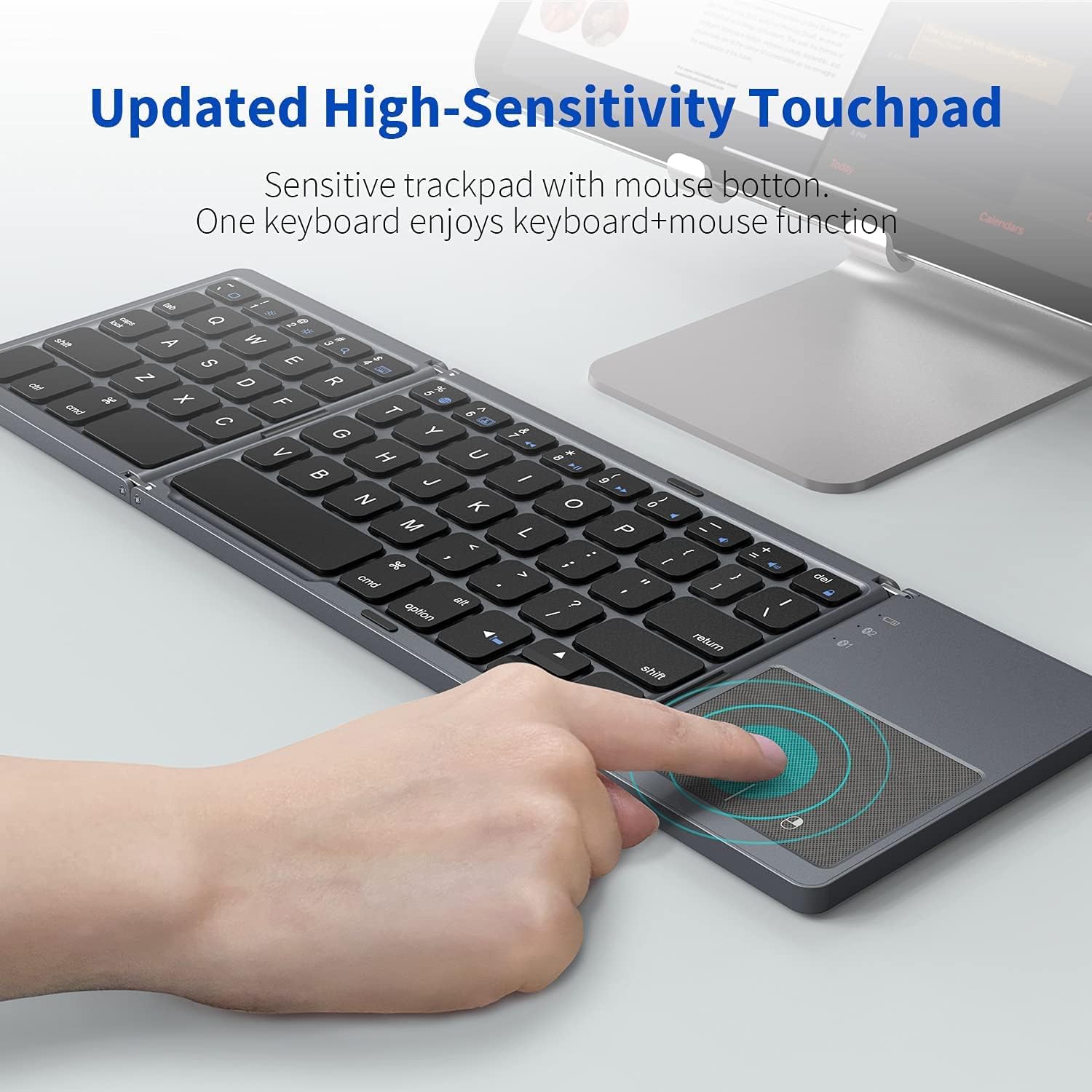
Image: A hand interacting with the high-sensitivity touchpad of the Zedo Foldable Bluetooth Keyboard, illustrating its responsive surface for navigation.
5. Maintenance and Care
To ensure the longevity and optimal performance of your keyboard, follow these maintenance guidelines:
- Cleaning: Use a soft, dry, lint-free cloth to wipe the keyboard surface. For stubborn dirt, slightly dampen the cloth with water or a mild cleaning solution. Avoid excessive moisture.
- Storage: When not in use, fold the keyboard to protect the keys and touchpad. Store it in a cool, dry place away from direct sunlight and extreme temperatures.
- Battery Care: To preserve battery life, avoid fully discharging the keyboard frequently. Recharge it when the low battery indicator appears. If storing for an extended period, charge the battery to about 50% every few months.
- Handling: Avoid dropping the keyboard or subjecting it to strong impacts. Do not attempt to disassemble the keyboard, as this will void the warranty.
6. Troubleshooting
6.1. Keyboard Not Connecting/Pairing
- Check Battery: Ensure the keyboard is sufficiently charged.
- Bluetooth On: Verify that Bluetooth is enabled on your device.
- Pairing Mode: Make sure the keyboard is in pairing mode (Fn + C or Fn + V, indicator light flashing).
- Forget Device: If previously paired, try "forgetting" or "unpairing" the keyboard from your device's Bluetooth settings and then re-pair.
- Restart Devices: Restart both the keyboard (by folding and unfolding) and your host device.
- Interference: Move away from other wireless devices that might cause interference.
6.2. Touchpad Not Responding
- iOS Version: Confirm your iOS device is running iOS 13.0 or higher for touchpad functionality.
- Clean Surface: Ensure the touchpad surface is clean and free of debris.
- Re-pair: Try disconnecting and re-pairing the keyboard.
6.3. Keys Not Responding or Typing Incorrectly
- Battery Level: Low battery can affect key responsiveness. Recharge the keyboard.
- System Mode: Ensure the keyboard is set to the correct operating system mode (Fn + Q/W/E).
- Obstruction: Check for any physical obstructions under the keys.
7. Product Specifications
| Feature | Detail |
|---|---|
| Brand | AWH |
| Manufacturer | Zedo |
| Connectivity Technology | Bluetooth |
| Compatible Devices | Mobile phone, Tablet, PC computer |
| Operating System Compatibility | Android, iOS (13.0+ for touchpad), Mac OS, Windows |
| Keyboard Description | Flexible, Foldable |
| Special Features | Ergonomic, Foldable, Rechargeable, Integrated Touchpad |
| Colour | Black |
| Number of Keys | 19 (functional keys) |
| Product Dimensions (Unfolded) | 30.4 cm (L) x 9.7 cm (W) x 0.9 cm (H) |
| Product Dimensions (Folded) | 15.19 cm (L) x 9.7 cm (W) x 1.8 cm (H) |
| Item Weight | 240 g |
| Battery Life | Up to 40 hours working time (after 2 hours charge) |
8. Warranty and Support
For warranty information and technical support, please refer to the documentation provided with your purchase or contact the seller/manufacturer directly. Keep your proof of purchase for warranty claims.
Manufacturer: Zedo
Brand: AWH
Documents and downloads
Ask a question about this manual
Ask about setup, troubleshooting, compatibility, parts, safety, or missing instructions. Manuals+ will review the question and use this page’s manual context to help answer it.