
1. Introduction
The ITECH IT-E121 is an optically isolated RS232 communication interface designed to enable communication between ITECH DC power supplies and electronic loads, such as the IT6302 DC Power Supply and IT8500+ Series DC Loads, and a host computer. This interface facilitates remote control, data acquisition, and programming of compatible ITECH instruments, often utilized with software environments like LabVIEW.
2. Safety Information
Please read and understand the following safety precautions before using the IT-E121 communication interface:
- Electrical Safety: Ensure all devices are powered off before connecting or disconnecting the interface cable. This prevents potential damage to the equipment or injury.
- Proper Connection: Connect the RS232 cable firmly to the designated ports on both the instrument and the computer. Loose connections can lead to communication errors.
- Environmental Conditions: Use the interface in a clean, dry environment. Avoid exposure to moisture, extreme temperatures, or corrosive substances.
- Intended Use: This interface is designed for use with compatible ITECH DC power supplies and electronic loads. Do not attempt to use it with incompatible devices.
- Optical Isolation: The IT-E121 features optical isolation to protect connected devices from ground loops and voltage differences. Do not attempt to bypass or modify this feature.
3. Package Contents
Verify that all items are present in the package:
- ITECH IT-E121 RS232 Communication Interface Adapter
- Standard RS232 Communication Cable (approximately 1.8 meters / 5 feet)
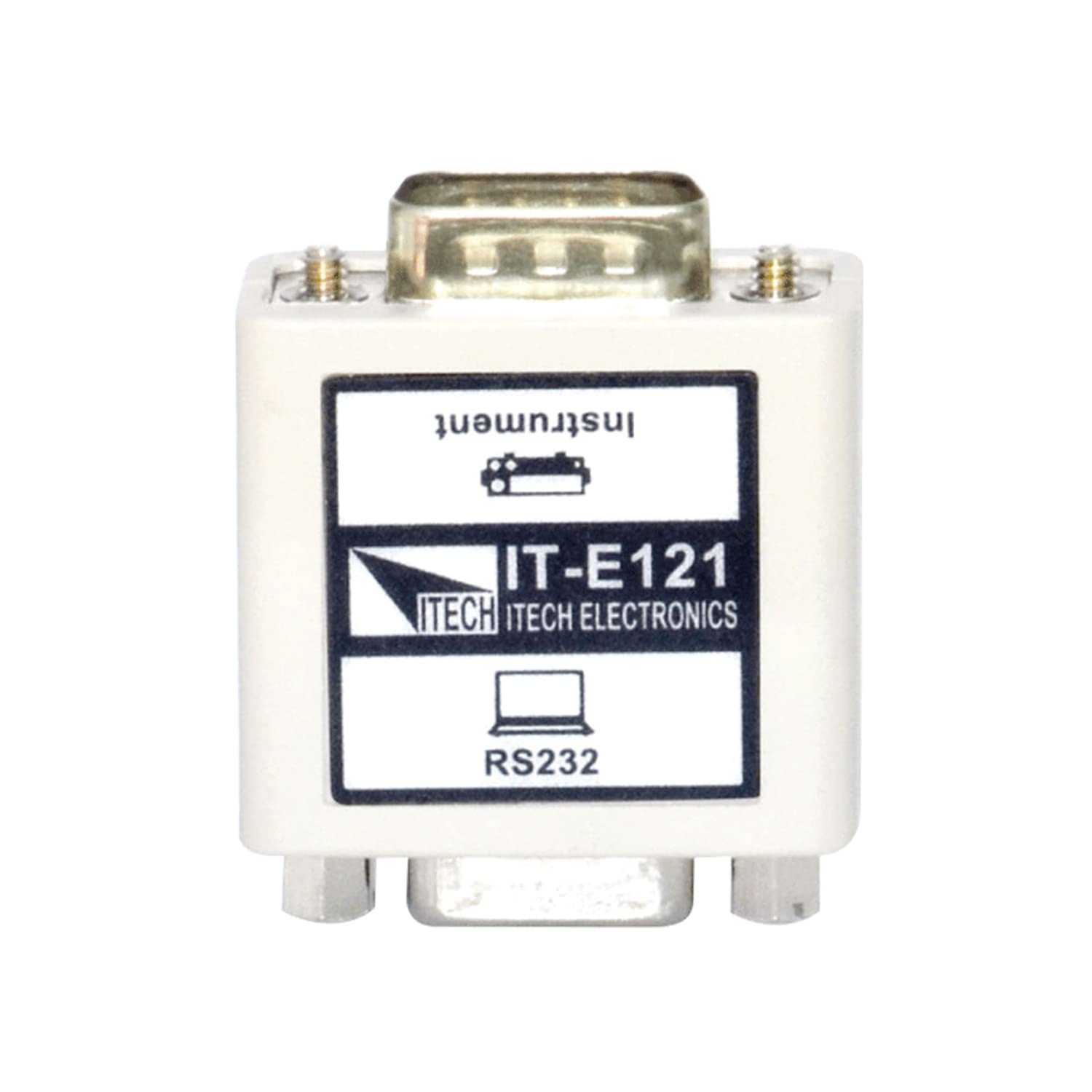
Figure 1: ITECH IT-E121 RS232 Communication Interface and included 1.8m cable. The image shows the grey RS232 cable coiled, with male DB9 connectors on both ends, and a white IT-E121 adapter with a female DB9 connector on one side and a male DB9 connector on the other, labeled "IT-E121 ITECH ELECTRONICS RS232".
4. Product Overview
The IT-E121 interface consists of two main components:
- IT-E121 Adapter: This compact module provides the optical isolation and converts the instrument's communication signal to a standard RS232 format. It features a male DB9 connector on one side for connection to the instrument and a female DB9 connector on the other for the RS232 cable.
- RS232 Communication Cable: A standard 9-pin male-to-male RS232 cable, approximately 1.8 meters (5 feet) in length, used to connect the IT-E121 adapter to a computer's serial port.
The optical isolation feature protects the connected computer from potential electrical noise or ground loop issues originating from the power supply or load, ensuring reliable and safe communication.
5. Setup Instructions
Follow these steps to set up the IT-E121 communication interface:
- Power Off Devices: Ensure that your ITECH DC power supply or electronic load and your computer are both powered off before making any connections.
- Connect IT-E121 to Instrument: Locate the RS232 communication port on your ITECH instrument (e.g., IT6302, IT8500+ series). Connect the male DB9 connector of the IT-E121 adapter directly to this port. Secure the connection using the provided screws if available.
- Connect RS232 Cable to IT-E121: Connect one end of the supplied RS232 communication cable (male DB9) to the female DB9 connector on the IT-E121 adapter. Secure the connection.
- Connect RS232 Cable to Computer: Connect the other end of the RS232 communication cable (male DB9) to an available serial port (COM port) on your computer. If your computer does not have a physical RS232 port, a USB-to-RS232 converter may be required (not included).
- Power On Devices: Once all connections are secure, power on your ITECH instrument first, then power on your computer.
- Install Drivers (if necessary): Depending on your operating system and if you are using a USB-to-RS232 converter, you may need to install specific drivers for the serial port or converter. Refer to your computer's documentation or the converter's manufacturer for driver installation instructions.
6. Operating Instructions
After successful physical setup, you can establish communication with your ITECH instrument:
- Identify COM Port: In your computer's Device Manager (Windows) or equivalent system settings (macOS/Linux), identify the COM port number assigned to your RS232 connection.
- Configure Communication Software: Open your preferred communication software (e.g., LabVIEW, a terminal emulator, or custom application). Configure the serial port settings to match your instrument's requirements. Common settings include:
- Baud Rate: Typically 9600, 19200, 38400, or 115200 bps. Refer to your instrument's manual.
- Data Bits: 8
- Stop Bits: 1
- Parity: None
- Flow Control: None or Hardware (RTS/CTS)
- Establish Communication: Once settings are configured, attempt to open the serial port connection within your software. You should then be able to send commands to and receive data from your ITECH instrument according to its programming manual.
- LabVIEW Integration: For LabVIEW users, ITECH typically provides specific drivers or VIs (Virtual Instruments) to simplify communication. Consult the ITECH website or your instrument's documentation for these resources.
7. Compatible Devices
The ITECH IT-E121 RS232 Communication Interface is compatible with the following ITECH instruments:
- IT6302 DC Power Supply
- IT6322 DC Power Supply
- IT6720 DC Power Supply
- IT6721 DC Power Supply
- IT8500+ Series DC Loads (e.g., IT8511+, IT8511A+, IT8511B+, IT8512+, IT8512A+, IT8512B+, IT8512C+, IT8512H+, IT8513A+, IT8513C+)
Always refer to your specific instrument's manual to confirm RS232 compatibility and communication protocol details.
8. Specifications
| Feature | Specification |
|---|---|
| Model Name | IT-E121 |
| Interface Type | RS232 Communication Interface |
| Cable Type | Standard RS232 (Male-to-Male) |
| Cable Length | 1.8 meters (approx. 5 feet) |
| Connector Gender | Male-to-Male (cable), Male-to-Female (adapter) |
| Number of Pins | 9-pin (DB9) |
| Isolation | Optically Isolated |
| Color | Grey (cable), White (adapter) |
| Item Weight | Approximately 0.35 Pounds (5.6 ounces) |
| Indoor/Outdoor Usage | Indoor, Outdoor |
9. Troubleshooting
If you encounter issues while using the IT-E121 interface, consider the following troubleshooting steps:
- No Communication:
- Verify all cable connections are secure and correctly oriented.
- Ensure both the instrument and computer are powered on.
- Check the COM port number in Device Manager and ensure it matches the setting in your communication software.
- Confirm that the baud rate, data bits, stop bits, and parity settings in your software match the instrument's requirements.
- If using a USB-to-RS232 converter, ensure its drivers are correctly installed and the converter is functioning.
- Try restarting both the instrument and the computer.
- Intermittent Communication:
- Check for loose cable connections.
- Ensure there are no strong electromagnetic interference sources nearby.
- Verify the integrity of the RS232 cable; try a different cable if available.
- Error Messages:
- Refer to your instrument's programming manual for specific error code interpretations.
- Ensure the commands sent from your software adhere to the instrument's communication protocol.
10. Maintenance
The ITECH IT-E121 communication interface requires minimal maintenance:
- Cleaning: Use a soft, dry cloth to clean the exterior of the adapter and cable. Do not use liquid cleaners or solvents.
- Storage: When not in use, store the interface and cable in a clean, dry place, away from direct sunlight and extreme temperatures.
- Inspection: Periodically inspect the cable and connectors for any signs of damage, such as frayed wires or bent pins. Replace damaged components immediately.
11. Warranty and Support
For warranty information, technical support, or service inquiries regarding your ITECH IT-E121 communication interface or compatible ITECH instruments, please contact ITECH customer service or visit the official ITECH website. Keep your purchase receipt as proof of purchase for warranty claims.
ITECH Official Website: www.itech.sh


