
Introduction
Thank you for choosing the FUWANG Wireless Mouse, Model 3981. This dual-mode (Bluetooth 5.2/3.0 + 2.4G) rechargeable mouse is designed for versatility and comfort, featuring adjustable DPI, silent clicks, and dynamic LED lighting. This manual provides essential information for setting up, operating, and maintaining your new mouse to ensure optimal performance.
Package Contents
Please verify that all items are present in your package:
- 1 x FUWANG Rechargeable Wireless Mouse
- 1 x USB Charging Cable (Note: Charger not included)
- 1 x USB Receiver (conveniently stored on the bottom of the mouse)
- 1 x User Manual
Setup
1. Initial Charging
Before first use, it is recommended to charge the mouse for 2-3 hours. Connect the provided USB charging cable to the mouse's charging port and to a USB power source (e.g., computer USB port, USB wall adapter). The LED lights may indicate charging status.
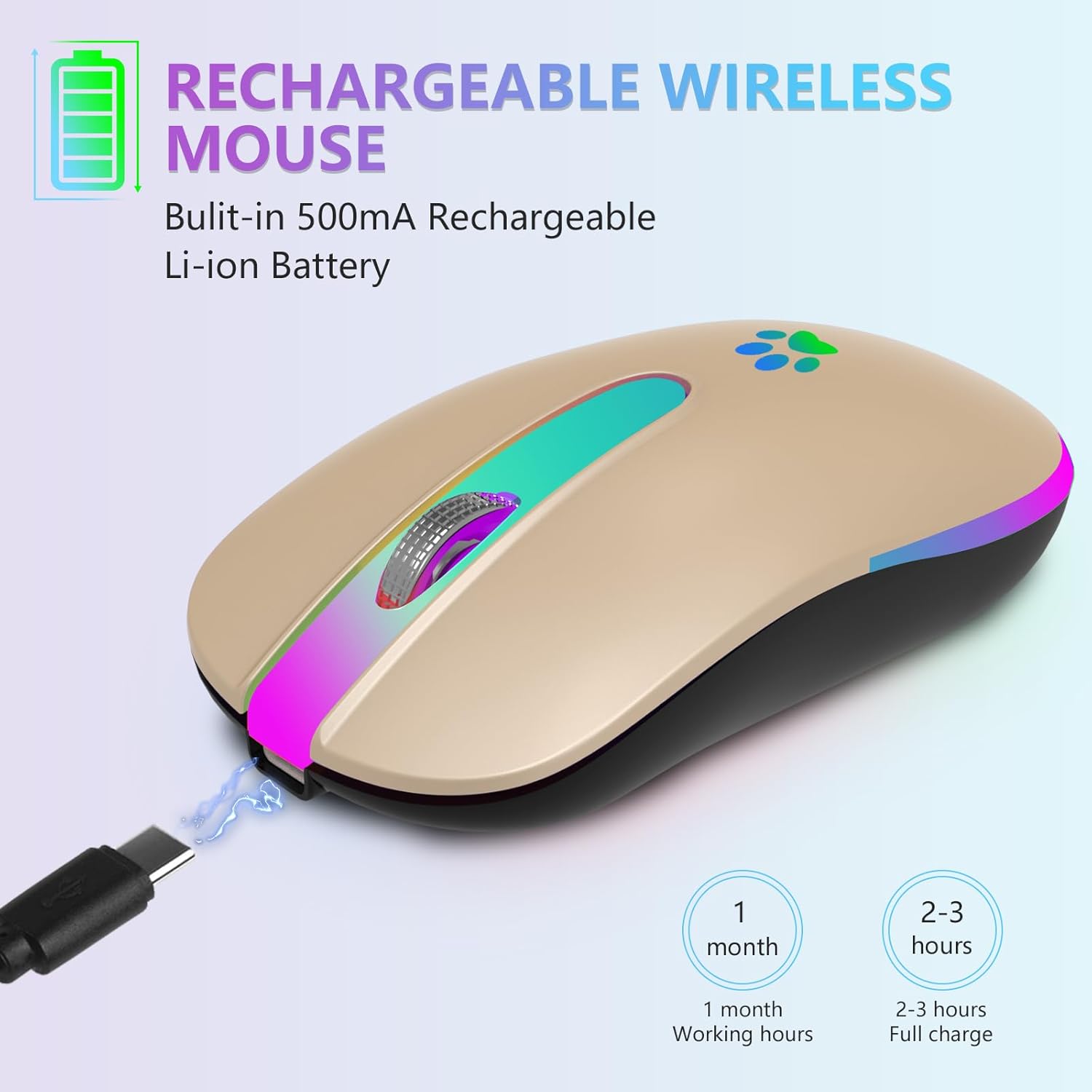
Image: The FUWANG Wireless Mouse being charged via its USB cable, highlighting the built-in rechargeable battery.
2. Connecting Your Mouse
The FUWANG Wireless Mouse offers two connection modes: 2.4G Wireless and Bluetooth. You cannot use both modes simultaneously.

Image: Visual representation of the mouse's dual-mode capability, supporting both 2.4G wireless and Bluetooth connections.
2.1. 2.4G Wireless Mode (USB Receiver)
- Locate the USB receiver stored in the compartment on the bottom of the mouse.
- Plug the USB receiver into an available USB port on your laptop, desktop, or compatible device.
- Turn on the mouse using the switch on its bottom. The mouse should automatically connect.
- If your device only has Type-C ports, use the included Type-C adapter with the USB receiver.
2.2. Bluetooth Mode
- Turn on the mouse using the switch on its bottom and ensure it is in Bluetooth mode (indicated by the switch position).
- On your device (laptop, tablet, PC), go to Bluetooth settings.
- Search for new devices and select "FUWANG Mouse" (or similar name) from the list.
- Follow any on-screen prompts to complete the pairing process.
System Requirements for Bluetooth 5.1: Windows 8.0 or higher, MacOSX 10.10 or higher, iPad OS 13 or higher, Android 5.0 or higher.
Operating Instructions
1. Basic Functions
- Left Click: Primary selection and activation.
- Right Click: Accesses contextual menus.
- Scroll Wheel: Scrolls content vertically. Can also be clicked for middle-click functionality (application dependent).
2. Adjustable DPI Settings
The mouse features 3 adjustable DPI (Dots Per Inch) values: 1000, 1200, and 1600. DPI controls the sensitivity of the mouse cursor. To adjust the DPI, press the DPI switch button located on the top of the mouse, usually below the scroll wheel. Each press cycles through the available DPI settings.

Image: Illustration of the mouse's 3-level adjustable DPI settings, allowing users to customize cursor sensitivity.
3. LED Lighting
The mouse features 7 different colors that automatically breathe and switch, creating a dynamic visual effect. The unique cat's paw design also illuminates. Please note that the LED colors cannot be fixed to a single color.

Image: The mouse showcasing its vibrant 7-color breathing LED lights and distinctive cat's paw design.
4. Silent Clicks
The mouse is designed with silent buttons, ensuring a quiet and comfortable working or gaming environment without disturbing others.

Image: The mouse in use, highlighting its silent click functionality for a peaceful environment.
5. Automatic Sleep Technology
To conserve battery life, the mouse will automatically enter sleep mode after 10 minutes of inactivity. To wake it up, simply click any button.

Image: The mouse demonstrating its automatic sleep mode feature for power saving.
Maintenance
1. Charging
The built-in 500mAh rechargeable battery provides over 7 days of working time and 30 days of standby time on a full charge. When the battery is low, the LED indicator may change or flash. Connect the mouse to a USB power source using the provided cable for 2-3 hours to fully recharge.
2. Cleaning
To clean your mouse, gently wipe its surface with a soft, dry cloth. Avoid using harsh chemicals or abrasive materials that could damage the finish or internal components.
Troubleshooting
- Mouse not responding:
1. Ensure the mouse is turned on.
2. Check battery level and recharge if necessary.
3. For 2.4G mode, ensure the USB receiver is securely plugged into a working USB port.
4. For Bluetooth mode, ensure Bluetooth is enabled on your device and the mouse is properly paired. Try re-pairing if connection is lost. - Cursor movement is erratic or slow:
1. Clean the optical sensor on the bottom of the mouse.
2. Try adjusting the DPI settings using the DPI button.
3. Ensure you are using the mouse on a suitable surface (non-reflective, non-glass). - LED lights are not working:
1. Check if the mouse is turned on.
2. The LED lights are designed to breathe and switch automatically; they cannot be fixed to a single color. - Cannot connect in Bluetooth mode:
1. Verify your device meets the Bluetooth 5.1 system requirements (Windows 8.0+, MacOSX 10.10+, iPad OS 13+/Android 5.0+).
2. Ensure the mouse is in Bluetooth mode and discoverable.
Specifications
| Feature | Detail |
|---|---|
| Model Number | 3981 |
| Product Dimensions | 1 x 1 x 0.04 inches |
| Item Weight | 1.06 ounces |
| Batteries | 1 Lithium Ion battery (included) |
| Connectivity Technology | 2.4G USB Wireless Mouse, Bluetooth (BT5.2/3.0) |
| Special Features | Bluetooth, LED Lights, Lightweight, Rechargeable, Wireless Silent and Durable Click |
| Movement Detection | Optical |
| Adjustable DPI | 1000, 1200, 1600 |
| Manufacturer | FUWANG |
Warranty and Support
For warranty information or technical support, please refer to the product packaging or contact FUWANG customer service directly. Keep your purchase receipt for warranty claims.
Product Videos
Colorful Wireless Mouse Overview
Video: A seller-provided overview of the FUWANG Wireless Mouse, highlighting its colorful design and features.
Mouse Functionality and Design
Video: A seller-provided demonstration showcasing the mouse's cute design and effective functionality.
LED Lights and Bluetooth Connectivity
Video: A seller-provided clip demonstrating the mouse's colorful LED lights and its Bluetooth connectivity feature.
