Introduction
This manual provides essential information for setting up, operating, maintaining, and troubleshooting your Acer Predator Helios 300 PH315-55-70ZV gaming laptop. Please read this guide thoroughly to ensure optimal performance and longevity of your device.
1. Initial Setup
1.1 Unpacking and First Power On
- Carefully remove the laptop and all accessories from the packaging.
- Connect the AC adapter to the laptop's power port and then to a power outlet.
- Open the laptop lid and press the power button to turn on the device.
1.2 Connecting Peripherals
Connect your mouse, external keyboard, monitor, or other USB devices to the available ports on the laptop. Refer to the specifications section for port details.
1.3 Operating System Setup (Windows 11 Home)
Follow the on-screen instructions to complete the initial setup of Windows 11 Home. This includes setting up your region, language, user account, and privacy settings.
1.4 Network Connection
Connect to a Wi-Fi network using the built-in Killer Double Shot Pro Wireless-AX 1650i 802.11ax Wi-Fi 6E, or use an Ethernet cable for a wired connection via the Killer Ethernet E2600 Gigabit LAN port.
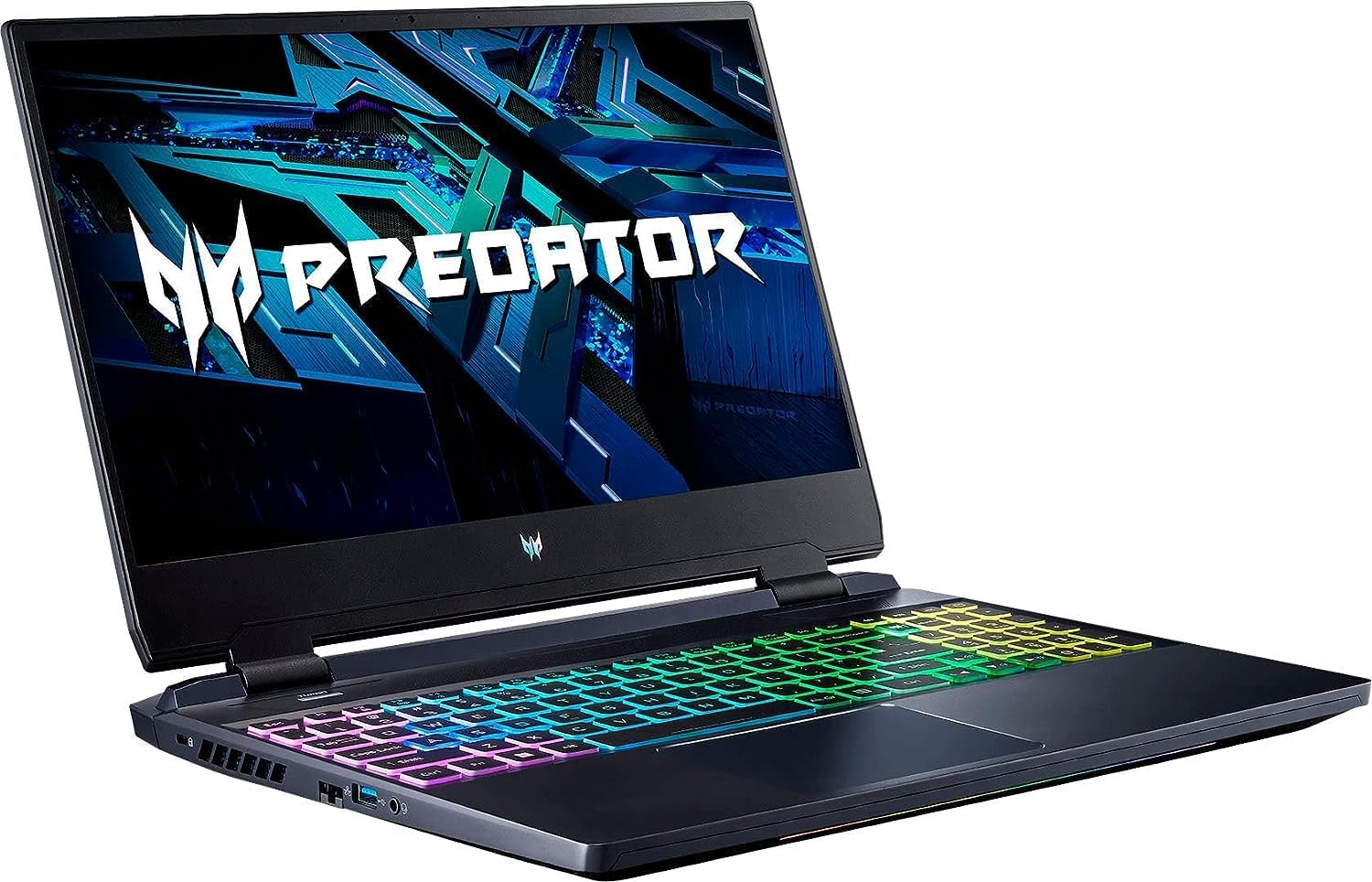
Image: The Acer Predator Helios 300 PH315-55-70ZV laptop in an open position, showcasing its vibrant display and RGB keyboard, ready for initial setup.
2. Operating Your Laptop
2.1 Keyboard and Touchpad
The laptop features a 4-zone RGB backlit keyboard, allowing for customizable lighting effects. The precision touchpad supports multi-touch gestures for intuitive navigation.
2.2 Display Features
Experience smooth visuals on the 15.6-inch Full HD (1920 x 1080) Widescreen LED-backlit IPS display, featuring a 165Hz refresh rate, 3ms overdrive response time, and 300 nits brightness.
2.3 Audio System
The integrated audio system supports DTS X: Ultra-Audio for an immersive sound experience.
2.4 Performance Management
Utilize the PredatorSense software (pre-installed) to monitor system performance, customize RGB lighting, control fan speeds, and switch between various performance modes to optimize for gaming or productivity.

Image: A detailed top-down view of the laptop's keyboard, highlighting the customizable 4-zone RGB backlighting and key layout.
3. Maintenance and Care
3.1 Cleaning Your Laptop
- Use a soft, lint-free cloth to clean the screen and chassis. Avoid harsh chemicals.
- Use compressed air to clear dust from keyboard keys and cooling vents.
3.2 Battery Management
To maximize the lifespan of your lithium-ion battery (average 6 hours), avoid extreme temperatures and prolonged periods of full charge or full discharge. For long-term storage, charge the battery to around 50%.
3.3 Cooling System Care
The laptop features a 4th Gen All-Metal AeroBlade 3D Fan system. Ensure that the cooling vents are not obstructed to maintain optimal airflow and prevent overheating. Regularly clean dust from the vents.
3.4 Software Updates
Regularly update your Windows operating system, graphics drivers (NVIDIA GeForce RTX 3060), and other system software to ensure stability, security, and performance.

Image: The rear and side profile of the laptop, illustrating the design of the cooling vents and the placement of connectivity ports.
4. Troubleshooting Common Issues
4.1 Power and Charging Issues
- Laptop not turning on: Ensure the AC adapter is securely connected and the power outlet is functional. Try holding the power button for 10-15 seconds.
- Battery not charging: Verify the AC adapter connection. Check for any damage to the adapter or charging port.
4.2 Display Problems
- No display: Connect an external monitor to check if the issue is with the laptop's screen. Restart the laptop.
- Flickering or distorted display: Update your graphics drivers. Adjust display settings in Windows.
4.3 Network Connectivity Issues
- Wi-Fi not connecting: Restart your router and modem. Check Wi-Fi settings in Windows. Ensure Wi-Fi is enabled.
- Slow internet speed: Check other devices on your network. Update network drivers.
4.4 Performance Degradation
- Laptop running slow: Close unnecessary applications. Check for background processes. Ensure sufficient free storage space.
- Overheating: Ensure cooling vents are clear. Use PredatorSense to monitor temperatures and adjust fan speeds.
4.5 Contacting Support
If you encounter issues that cannot be resolved with the above steps, please refer to the Warranty and Support section for further assistance.
5. Product Specifications
| Feature | Specification |
|---|---|
| Model Name | PH315-55-70ZV |
| Processor | 12th Generation Intel Core i7-12700H (6-Core, up to 4.7 GHz) |
| Graphics Coprocessor | NVIDIA GeForce RTX 3060 with 6GB GDDR6 VRAM |
| Display | 15.6" Full HD (1920 x 1080) IPS, 165Hz Refresh Rate, 3ms Overdrive, 300 Nits |
| RAM | 16GB DDR5 (Expandable to 64GB) |
| Storage | 512GB NVMe SSD |
| Operating System | Windows 11 Home |
| Wireless Connectivity | Killer Double Shot Pro Wireless-AX 1650i 802.11ax Wi-Fi 6E, Bluetooth |
| LAN | Killer Ethernet E2600 10/100/1000 Gigabit Ethernet |
| USB Ports | 3x USB 3.0 Ports (additional ports may vary by configuration) |
| Audio | DTS X: Ultra-Audio |
| Keyboard | 4-Zone RGB Backlit Keyboard |
| Battery | 1 Lithium Ion battery (Average Battery Life: 6 hours) |
| Weight | Approximately 7 pounds |
6. Warranty and Support Information
6.1 Product Warranty
Your Acer Predator Helios 300 PH315-55-70ZV laptop is covered by a limited warranty. For detailed information regarding warranty terms, conditions, and duration, please refer to the warranty card included with your product or visit the official Acer support website.
6.2 Technical Support
For technical assistance, driver downloads, FAQs, and service inquiries, please visit the official Acer support website:
You may also find contact information for your regional Acer support center on their website.