
Introduction
This manual provides detailed instructions for the installation, operation, and maintenance of your Bestycar 9-inch Android 13 Car Stereo Radio. Designed specifically for the Audi TT MK2 8J models from 2006 to 2012, this head unit offers advanced features including GPS navigation, CarPlay, Android Auto, Bluetooth connectivity, and a high-definition touchscreen display. Please read this manual thoroughly before installation and use to ensure proper function and safety.
Safety Information
Always observe the following safety precautions to prevent accidents and damage to the unit or vehicle:
- Professional Installation Recommended: Due to the complexity of car electrical systems, professional installation is highly recommended. Incorrect wiring can cause damage to the unit or vehicle.
- Driving Safety: Do not operate the unit in a way that distracts you from driving. Always keep your eyes on the road and hands on the steering wheel.
- Volume Control: Keep the volume at a level that allows you to hear outside traffic sounds.
- Power Source: Connect the unit only to a 12V DC power supply with a negative ground.
- Avoid Moisture: Do not expose the unit to water or excessive moisture.
- Temperature: Avoid extreme temperatures. The unit is designed for typical automotive operating conditions.
- Ventilation: Ensure proper ventilation around the unit to prevent overheating.
Package Contents
Verify that all items listed below are included in your package. If any items are missing or damaged, please contact your seller.

Figure 1: Overview of included accessories. This image displays the main head unit, GPS antenna, radio fascia (which may vary by car model), two USB cables, a CAM In cable, an installation tool kit, an AHD camera, a 4G SIM RCA cable, a 4G antenna, a microphone, the power harness (which may vary by car model), and an optional Canbus decoder.
- Head Unit (9-inch Android Car Stereo)
- AHD Rear View Camera
- Panel Removal Tool
- Microphone
- RCA Cables
- Power Harness (Note: Basic version provided. High configuration harness and Canbus decoder may be needed for factory backup camera/amplifier, sold separately.)
- 4G Antenna
- GPS Antenna
- USB Cables (x2)
- Radio Fascia (Specific to Audi TT MK2 8J)
- CAM In Cable
Setup and Installation
This Bestycar Android Car Stereo is designed for direct replacement of the factory OEM radio in Audi TT MK2 8J models (2006-2012).
Important Considerations:
- Power Harness: The basic power harness is included. If your vehicle has a factory amplifier or an OEM backup camera, a high-configuration harness and a Canbus decoder may be required. These are sold separately. Please verify your vehicle's specific requirements before installation.
- Professional Installation: It is strongly recommended to have this unit installed by a qualified professional to ensure correct wiring and functionality, and to prevent damage to your vehicle or the stereo.
General Installation Steps (Consult a professional or vehicle-specific guides):
- Disconnect Battery: Before starting, disconnect the negative terminal of your car battery to prevent electrical shorts.
- Remove Old Unit: Carefully remove the existing factory radio and trim using the provided panel removal tools. Refer to your vehicle's service manual for specific instructions.
- Connect Wiring:
- Connect the main power harness to the vehicle's wiring.
- Connect the GPS antenna, 4G antenna, and microphone.
- Connect the AHD rear view camera cable and RCA cables as needed.
- If applicable, connect the Canbus decoder and specific harnesses for factory amplifier or OEM camera.
- Test Connections: Before fully securing the unit, reconnect the battery and perform a basic test of the stereo's functions (power on, sound, radio, etc.).
- Install New Unit: Mount the new head unit into the dashboard opening, ensuring all cables are neatly tucked away and not pinched. Secure it using the appropriate brackets and screws.
- Reassemble Dashboard: Reinstall any removed trim pieces and panels.

Figure 2: Visual comparison of the Audi TT dashboard with the original radio (bottom left) and the Bestycar Android stereo installed (top and bottom right), demonstrating the integrated fit.
Operating Instructions
Basic Operation (Android 13 System)
The head unit runs on Android 13, providing a familiar smartphone-like interface. Navigate through menus and applications using the 9-inch HD touchscreen. Swipe, tap, and pinch-to-zoom gestures are supported.

Figure 3: Main interface of the Bestycar Android stereo, displaying common application icons and system information.
CarPlay and Android Auto
The unit features built-in CarPlay and Android Auto, allowing seamless integration with your smartphone for navigation, music, calls, and messages. Connect your iPhone via USB for CarPlay or your Android phone for Android Auto.

Figure 4: Display of CarPlay (left) and Android Auto (right) on the stereo screen, illustrating smartphone integration for navigation and other apps.
Bluetooth Functionality
Pair your smartphone via Bluetooth for hands-free calling and audio streaming (A2DP). The unit supports phonebook synchronization, caller ID display, and music playback control.
- Pairing: Go to the Bluetooth settings on the head unit and your phone. Search for available devices and select the head unit's name to pair.
- Hands-free Calling: Use the built-in or external microphone for clear calls. Dial numbers directly from the touchscreen or access your phonebook.
- Audio Streaming: Play music from your phone through the car's speakers.

Figure 5: Bluetooth interface on the stereo, showing the dial pad for making calls and indicating a connected device.
GPS Navigation
The unit comes with built-in map data for North America. It supports both online and offline navigation. You can also download additional navigation apps from the Google Play Store.
- Offline Maps: Pre-installed maps allow navigation without an internet connection.
- Online Maps: Connect to Wi-Fi or use a 4G connection for real-time traffic updates and online map services.
Steering Wheel Control (SWC)
The head unit supports steering wheel controls, allowing you to manage audio playback and hands-free calls without taking your hands off the wheel. This unit works with digital SWC.
- Configuration: Access the SWC settings in the unit's menu to program the buttons according to your preference. Follow the on-screen instructions to assign functions to each button.

Figure 6: Steering Wheel Control learning interface, guiding users to program their steering wheel buttons for the stereo.
AHD Reversing Video
The included AHD (Analog High Definition) rear view camera provides a clearer image than standard cameras, enhancing safety when reversing. The display automatically switches to the camera view when the vehicle is put into reverse gear.

Figure 7: AHD Reversing Video display, showing a clear rear view from the included backup camera.
Audio Features
- DSP Audio Processor: Built-in 32-band EQ DSP audio processor for fine-tuning sound output.
- Amplifier Output: Features a built-in 4 x 60W amplifier for powerful audio.
- Subwoofer Output: Supports external subwoofer connection for enhanced bass.
Display Technology
The unit features a 9-inch 2.5D IPS QLED Touch Screen with a resolution of 1280x720, offering vibrant colors and wide viewing angles.
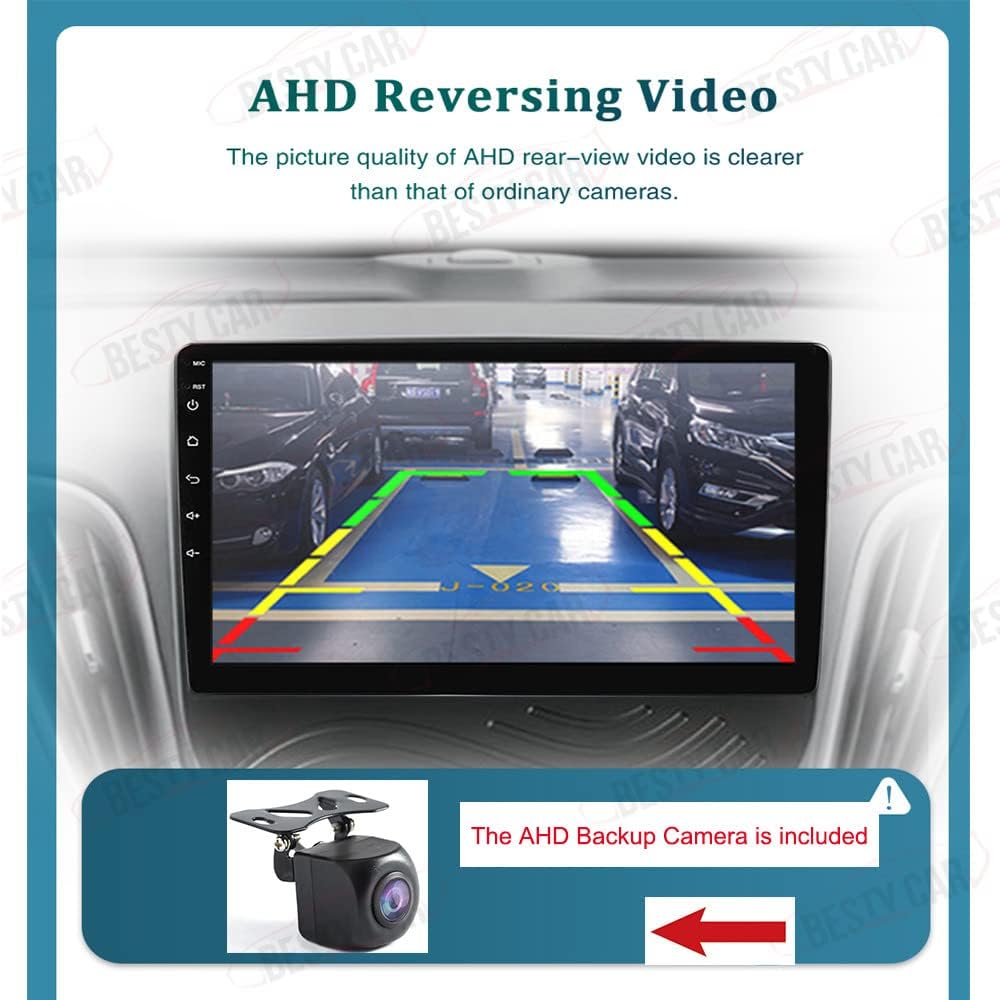
Figure 8: Comparison of screen technologies, highlighting the superior color gamut and resolution of the QLED display.
Connectivity
- 4G & Wi-Fi: Built-in 4G function and support for 5G Wi-Fi hotspot for internet access.
- USB: Multiple USB ports for media playback and device charging.
- AUX IN & CAM IN: Auxiliary input and camera input for additional devices.
- Optional Accessories: Supports external OBDII, TPMS, DVR, TV Tuner, and DAB accessories (sold separately).
Maintenance
- Cleaning the Screen: Use a soft, lint-free cloth to gently wipe the touchscreen. For stubborn smudges, slightly dampen the cloth with water or a screen-cleaning solution. Avoid harsh chemicals.
- Software Updates: Periodically check for system software updates to ensure optimal performance and access to new features. Updates can typically be found in the system settings menu or on the manufacturer's website.
- General Care: Keep the unit free from dust and debris. Avoid placing heavy objects on the unit or exposing it to direct sunlight for extended periods.
Troubleshooting
If you encounter issues with your Bestycar Android Car Stereo, refer to the following common problems and solutions:
| Problem | Possible Cause | Solution |
|---|---|---|
| Unit does not power on. | Loose power connection, blown fuse, incorrect wiring. | Check all power connections. Inspect vehicle fuses and the unit's fuse. Verify wiring according to the installation guide. |
| No sound from speakers. | Volume too low, mute activated, incorrect speaker wiring, amplifier issue. | Increase volume. Check if mute is active. Verify speaker connections. If using a factory amplifier, ensure the correct harness/Canbus is installed. |
| GPS signal is weak or inaccurate. | GPS antenna not properly installed or obstructed. | Ensure the GPS antenna is mounted in a clear location with an unobstructed view of the sky. Check antenna connection. |
| Bluetooth connection issues. | Device not in pairing mode, interference, incorrect pairing process. | Ensure both devices are in pairing mode. Delete previous pairings and try again. Move closer to the unit. Restart both devices. |
| Touchscreen unresponsive. | System freeze, temporary software glitch. | Perform a soft reset (refer to the unit's specific reset procedure, often a small reset button). If issue persists, disconnect battery for a few minutes. |
For issues not covered here, please contact Bestycar customer support or your authorized dealer.
Specifications
| Feature | Detail |
|---|---|
| Brand | Bestycar |
| Operating System | Android 13 |
| CPU | Octa Core |
| RAM | 4GB |
| ROM | 64GB |
| Screen Size | 9-inch (2.5D IPS QLED Touch Screen) |
| Screen Resolution | 1280x720 HD |
| Audio Processor | Built-in 32-Band EQ DSP |
| Amplifier Output | 4 x 60W |
| Connectivity | Bluetooth, Wi-Fi (5G), 4G, USB, Auxiliary, RCA |
| Navigation | Built-in North America Map Data, Online/Offline Map Support |
| Smartphone Integration | Built-in Wireless CarPlay & Android Auto |
| Special Features | Steering Wheel Control (SWC), Split Screen, Subwoofer Output, Google Play Store, AHD Backup Camera Support (camera included), OBDII/TPMS/DVR/TV Tuner/DAB (optional accessories) |
| Compatible Vehicle | Audi TT MK2 8J (2006-2012) |
Warranty and Support
For warranty information, please refer to the documentation included with your purchase or contact your seller directly. Bestycar strives to provide reliable products and customer service.
If you require technical assistance or have questions regarding your product, please reach out to Bestycar customer support through the contact information provided at the point of purchase or on the official Bestycar website.