
1. Introduction
Thank you for choosing the SYMYNELEC PTZ-03 Light Bulb Camera. This wireless security IP camera offers 2K Super FHD resolution, human motion detection, night vision, and two-way talk functionality, designed for smart home surveillance. This manual provides detailed instructions for installation, setup, operation, and maintenance to ensure optimal performance and security.
2. Safety Information
Please read and understand all safety instructions before installing and operating this device. Failure to follow these instructions may result in electric shock, fire, or other hazards.
- Electrical Safety: Ensure power is turned off at the circuit breaker before installing or removing the camera from any light fixture.
- Installation Location: Install the camera in a standard E27 light bulb socket. Ensure the socket is securely mounted and can support the weight of the camera.
- Outdoor Use: This camera is rated IP65 waterproof, suitable for outdoor use. However, avoid submerging it in water or exposing it to extreme weather conditions beyond its operating limits.
- Wi-Fi Connection: The camera operates on a 2.4GHz Wi-Fi network only. Ensure your router supports this frequency.
- Children and Pets: Keep the camera and its components out of reach of children and pets to prevent accidental damage or injury.
- Operating Temperature: Refer to the specifications for the recommended operating temperature range.
3. Package Contents
Verify that all items listed below are included in your package:
- SYMYNELEC PTZ-03 Light Bulb Camera
- E27 Light Socket Adapter (if needed for installation)
- Mounting Screws and Wall Anchors
- User Manual

Image: SYMYNELEC Light Bulb Camera, E27 adapter, and mounting hardware.
4. Product Overview
The SYMYNELEC PTZ-03 camera is designed for versatile surveillance with advanced features:
- 2K Super FHD Resolution: Captures clear and detailed video footage.
- Pan-Tilt-Zoom (PTZ): Remotely adjust the camera's viewing angle (360° horizontal, 120° vertical) and zoom digitally via the app.
- Human Motion Detection: Intelligent detection to identify human movement, reducing false alarms.
- Alarm & Auto Sound/Light: Customizable sound and light alarms to deter intruders.
- Night Vision Modes:
- Infrared Night Vision (Black & White)
- Full-Color Night Vision (with built-in spotlights)
- Alarm Siren and Auto Light-up (triggered by motion)
- Two-Way Talk: Built-in microphone and speaker for real-time communication.
- IP65 Waterproof: Durable design for outdoor installation, resistant to rain and extreme temperatures (-4°F to 176°F).
- 24/7 Recording: Supports optional Cloud Storage and local storage via a Max 128GB TF Card (not included).
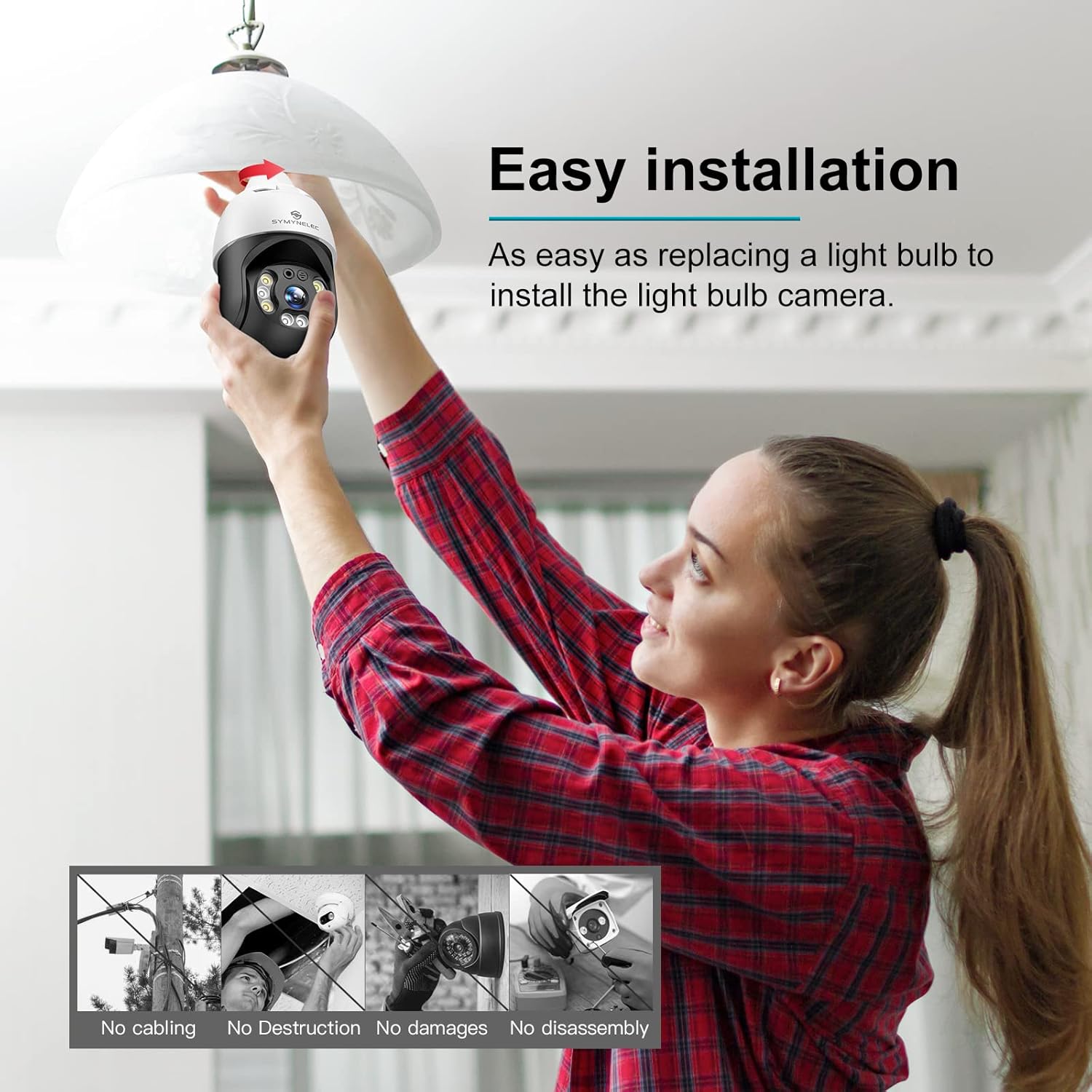
Image: Front view of the SYMYNELEC Light Bulb Camera, showcasing its lens, IR lights, and spotlights.

Image: Visual comparison demonstrating the clarity of 4MP Ultra-clear Day & Night vision compared to standard 1080P.
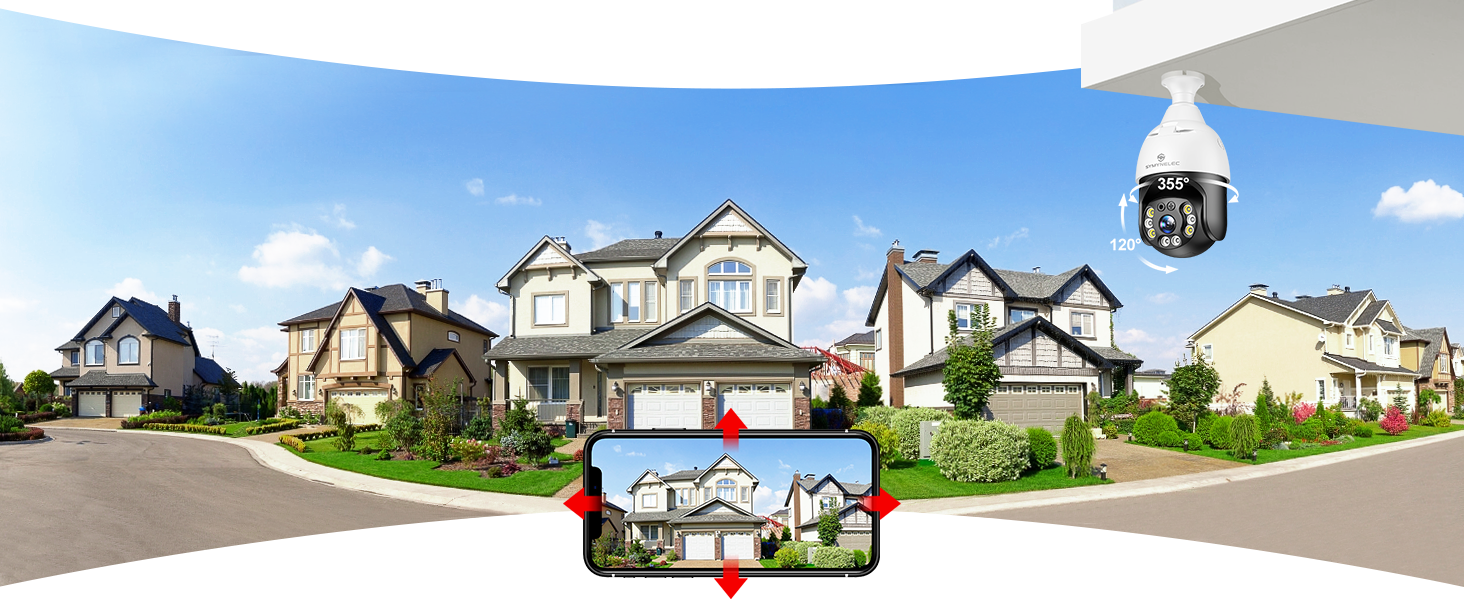
Image: The camera is shown operating reliably in various weather conditions, highlighting its IP65 waterproof rating.
5. Setup
5.1. Installation
- Power Off: Before installation, ensure the power to the light fixture is turned off at the circuit breaker to prevent electric shock.
- Screw In: Carefully screw the SYMYNELEC PTZ-03 camera into a standard E27 light bulb socket. If your existing socket is not E27, use the provided E27 adapter.
- Secure Mounting: Ensure the camera is securely fastened. If mounting to a wall or ceiling without an existing light socket, use the provided mounting screws and wall anchors with the E27 adapter.
- Power On: Restore power to the light fixture. The camera will power on and initiate its self-test sequence.

Image: A person demonstrating the easy installation of the camera by screwing it into a light bulb socket.
5.2. App Download
Download the "Tuya Smart" app from your mobile device's app store (App Store for iOS or Google Play for Android). Alternatively, scan the QR code below:

Image: QR code to download the Tuya Smart app. You can also visit smartapp.tuya.com/tuyasmart.
5.3. Device Pairing
- Register/Login: Open the Tuya Smart app and register a new account or log in if you already have one.
- Add Device: Tap the "+" icon in the top right corner or select "Add Device".
- Select Camera: Choose "Security & Video Surveillance" and then "Smart Camera (Wi-Fi)".
- Reset Device: Follow the in-app instructions to reset the camera. The camera will typically announce "Waiting for Wi-Fi configuration" or similar.
- Connect to Wi-Fi: Enter your 2.4GHz Wi-Fi network name and password. Note: The camera only supports 2.4GHz Wi-Fi.
- Scan QR Code: The app will generate a QR code. Hold your phone with the QR code approximately 6-8 inches (15-20 cm) in front of the camera lens. The camera will emit a sound when the QR code is successfully scanned.
- Confirmation: Once the camera connects to the network, it will announce "Connected to the network" or "Configuration successful". Tap "I heard a prompt" in the app.
- Name Device: Assign a name to your camera (e.g., "Front Porch Camera", "Garage Camera").

Image: The Tuya Smart app interface displaying multiple connected cameras.
6. Operating Instructions
Once your camera is successfully paired, you can access and control it via the Tuya Smart app.
6.1. Live View & PTZ Control
- From the app's home screen, tap on your camera's name to access the live view.
- Use the on-screen joystick or swipe gestures to pan (left/right) and tilt (up/down) the camera.
- Pinch to zoom in or out on the live feed.

Image: The mobile app displaying the camera's live feed with directional controls for PTZ functionality.
6.2. Two-Way Talk
- In the live view interface, tap the microphone icon to speak through the camera's speaker.
- Tap the speaker icon to listen to audio from the camera's microphone.
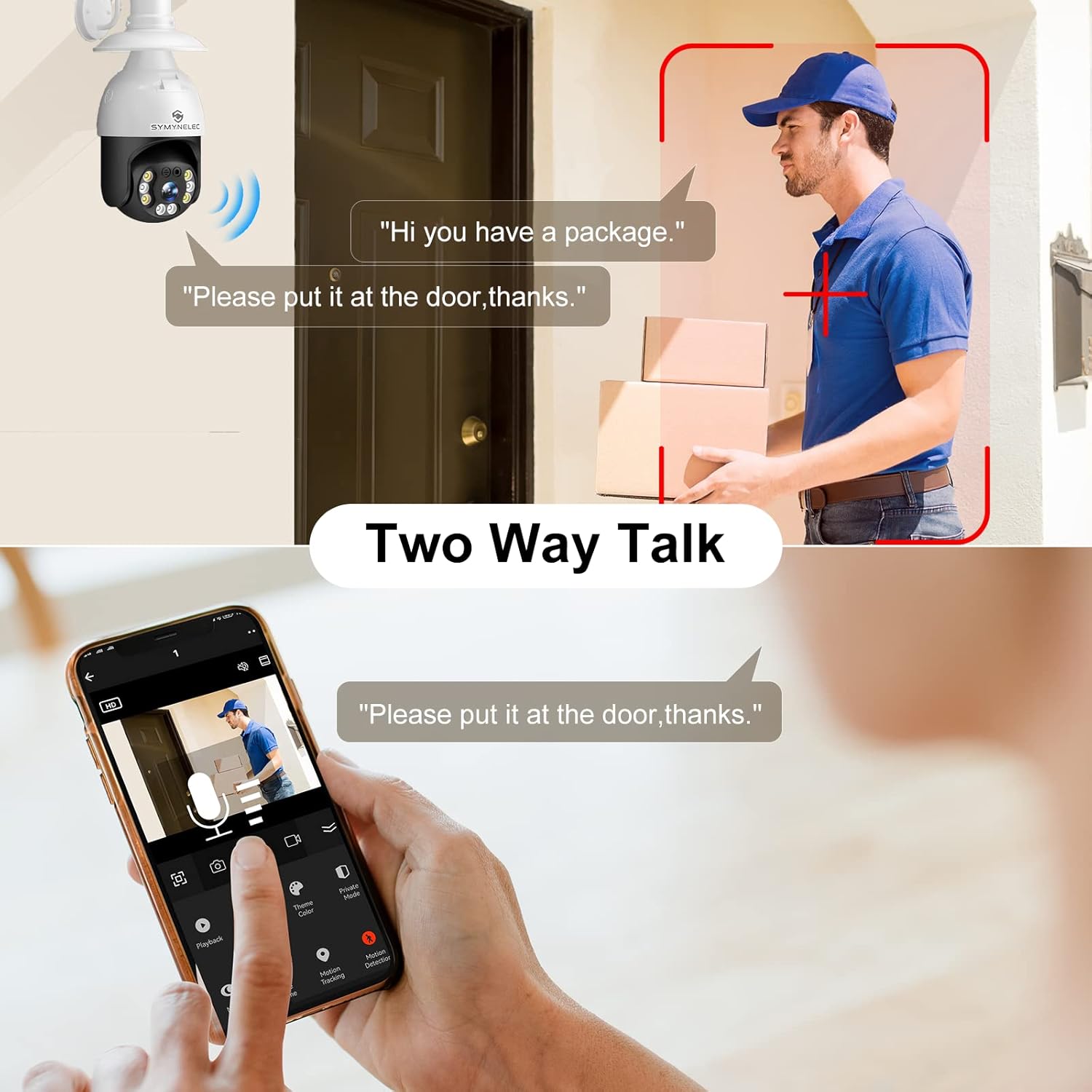
Image: A person interacting with a delivery driver via the camera's two-way talk feature.
6.3. Motion Detection & Alarms
- Enable "Motion Detection" in the app settings to receive alerts when movement is detected.
- Customize detection zones and sensitivity levels.
- Activate the "Auto Sound/Light Alarm" feature to trigger a siren and/or turn on the camera's spotlights upon detection.

Image: The camera's motion detection feature is active, showing an alert on a smartphone and the camera's lights activating.
6.4. Night Vision Modes
- The camera automatically switches to infrared night vision in low light conditions.
- You can manually select "Full-Color Night Vision" in the app to utilize the built-in spotlights for a color image in the dark.
- The "Alarm Siren and Auto Light-up" mode will activate spotlights upon motion detection at night.

Image: Demonstrates the three night vision modes: Alarm Siren and Auto Light-up, Infrared Night Vision, and Full-color Night Vision.
6.5. 24/7 Recording & Storage
- The camera supports continuous recording.
- Cloud Storage: Subscribe to the optional cloud storage service via the app for secure, remote access to your footage.
- TF Card Storage: Insert a Micro SD (TF) card (Max 128GB, not included) into the designated slot on the camera for local storage. The slot is typically located under a protective cover on the camera body.
- View recorded footage through the "Playback" option in the app.

Image: The camera's TF card slot is visible, alongside icons for optional cloud storage and local TF card storage.
6.6. Privacy Mode
- Activate "Privacy Mode" in the app settings to temporarily disable video recording and live view for enhanced privacy. The camera lens will typically rotate to a concealed position.

Image: The camera is shown in privacy mode, with the app indicating the device is in sleep mode.
7. Maintenance
- Cleaning: Use a soft, dry cloth to clean the camera lens and body. Avoid harsh chemicals or abrasive materials.
- Firmware Updates: Regularly check the Tuya Smart app for available firmware updates to ensure optimal performance and security features.
- Power Cycle: If the camera experiences issues, try turning off the power at the light switch or circuit breaker for 10 seconds, then turn it back on.
8. Troubleshooting
| Issue | Possible Cause | Solution |
|---|---|---|
| Camera fails to connect to Wi-Fi. | Incorrect Wi-Fi password, 5GHz network, or weak signal. |
|
| No motion detection alerts. | App notification settings, motion detection disabled, or incorrect sensitivity. |
|
| Poor video quality or lag. | Weak Wi-Fi signal, network congestion. |
|
| Camera goes offline frequently. | Unstable Wi-Fi connection, power interruptions. |
|
9. Specifications
| Feature | Detail |
|---|---|
| Model Number | PTZ-03 |
| Brand | SYMYNELEC |
| Connectivity Technology | Wireless (2.4GHz Wi-Fi only) |
| Maximum Webcam Image Resolution | 4 MP (2K Super FHD) |
| Special Features | Motion Sensor, Night Vision, PTZ Technology, Two-Way Talk |
| International Protection Rating | IP65 (Waterproof) |
| Item Dimensions (L x W x H) | 4.33 x 4.33 x 8.07 inches |
| Item Weight | 1.19 pounds |
| Max TF Card Support | 128 GB (TF Card not included) |
| Recommended Uses | Outdoor security, Voice Detection, Surveillance, Motion Detection, Night Vision, Pet monitoring, Baby monitoring |
10. Warranty & Support
The SYMYNELEC PTZ-03 Light Bulb Camera typically comes with a 12-month manufacturer's warranty. For specific warranty details, please refer to the documentation included with your purchase or contact SYMYNELEC customer support.
For technical assistance, troubleshooting, or any product-related inquiries, please contact SYMYNELEC customer support via the contact information provided on their official website or within the Tuya Smart app.


