1. Introduction
Thank you for choosing the GEEKOM Wireless Keyboard and Mouse Combo. This essential work duo provides a reliable and comfortable wireless experience for your PC. Featuring a compact design and quiet click functionality, this combo is designed to enhance your productivity and comfort.
This manual provides detailed instructions on setting up, operating, and maintaining your new wireless keyboard and mouse combo. Please read it carefully before use and retain it for future reference.
2. Package Contents
Please check the package contents to ensure all items are present:
- 1 x GEEKOM Wireless Keyboard
- 1 x GEEKOM Wireless Mouse
- 1 x 2.4GHz USB Receiver (stored inside the mouse battery compartment)
- 1 x User Manual
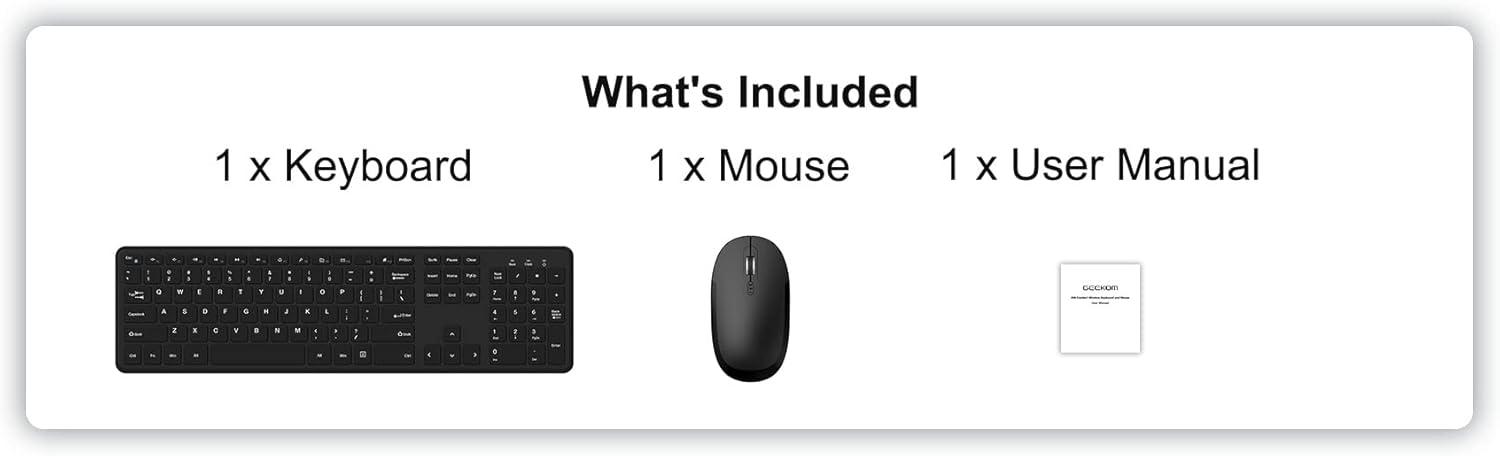
Image: The package contents, showing one keyboard, one mouse, and one user manual.
3. Setup and Installation
3.1 Battery Installation
The keyboard and mouse require batteries (not included) for operation.
- For the Keyboard: Locate the battery compartment on the underside of the keyboard. Insert 2 x AAA batteries, ensuring correct polarity (+/-). Close the battery compartment cover.
- For the Mouse: Locate the battery compartment on the underside of the mouse. Insert 2 x AAA batteries, ensuring correct polarity (+/-). The 2.4GHz USB receiver is typically stored in this compartment for safekeeping during transport. Remove the receiver before inserting batteries. Close the battery compartment cover.
3.2 Connecting the Combo
The GEEKOM Wireless Keyboard and Mouse Combo uses a single 2.4GHz USB receiver for both devices, offering a simple plug-and-play connection.
- Remove the 2.4GHz USB receiver from the mouse battery compartment.
- Plug the USB receiver into an available USB port on your computer.
- Turn on the power switch located on the underside of the mouse.
- Your computer should automatically detect and install the necessary drivers. The keyboard and mouse will be ready for use within a few seconds.

Image: A laptop with the small USB receiver plugged into its side, illustrating the plug-and-play wireless connection for the keyboard and mouse.
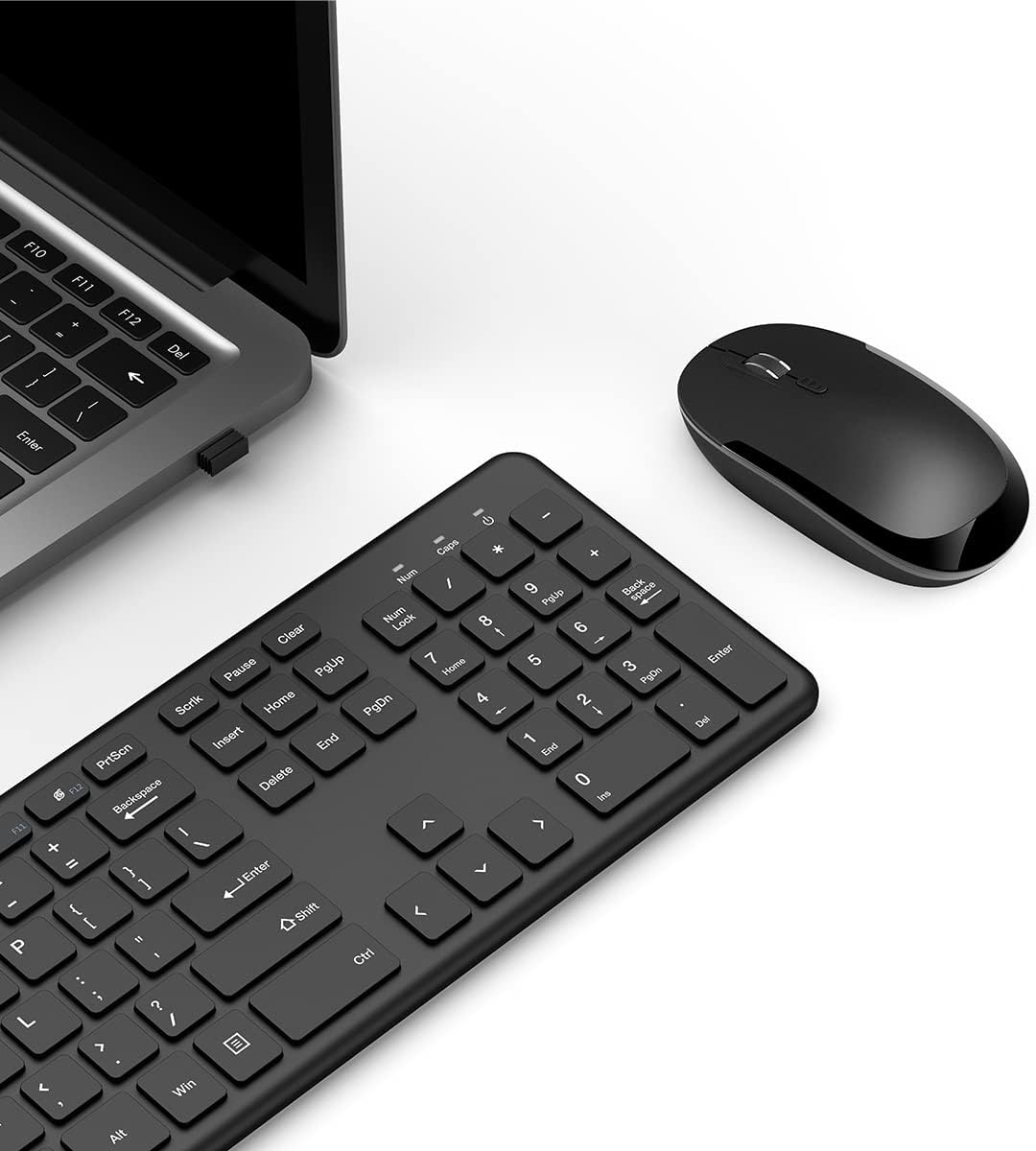
Image: An overhead view of the GEEKOM wireless keyboard and mouse, with the USB receiver visible in a laptop's USB port, demonstrating the complete setup.
4. Operating Instructions
4.1 Keyboard Features
The GEEKOM wireless keyboard is a full-size keyboard designed for comfort and efficiency.
- Whisper-Quiet Keys: Designed to minimize typing noise for a more peaceful work environment.
- F-Keys and Number Pad: Includes a full set of function keys and a dedicated number pad for comprehensive input.
- Ergonomic Keycaps: Shaped for comfortable typing during extended use.
- Multimedia Hotkeys: Provides instant access to functions such as media player control, homepage, and volume adjustment for convenience.

Image: A close-up, angled view of the GEEKOM wireless keyboard, showcasing its full layout and ergonomic keycap design.

Image: Two views of the GEEKOM wireless keyboard, showing the full key layout from the top and the battery compartment and feet from the bottom.
4.2 Mouse Features
The GEEKOM wireless optical mouse is designed for comfortable and precise navigation.
- Slim Size and Ergonomic Design: Provides all-day comfort for your hand.
- Adjustable DPI: Features three levels of adjustable DPI (800/1200/1600) for smooth cursor control and accurate tracking on most surfaces. To change DPI, press the DPI button located behind the scroll wheel.

Image: A close-up, angled view of the GEEKOM wireless optical mouse, emphasizing its ergonomic shape and the DPI adjustment button.

Image: Three distinct views of the GEEKOM wireless mouse: top-down, bottom-up showing the power switch and battery compartment, and a side profile illustrating its slim design.
5. Specifications
5.1 Keyboard Specifications
| Feature | Description |
|---|---|
| Wireless Connectivity | 2.4 GHz wireless USB receiver |
| Wireless Range | 8 meters |
| Service Life | 3 million keystrokes |
| Battery | 2 x AAA battery (not included) |
| Indicator Light | Yes |
| Continuous Working Time | 85 hours |
| Sleep Mode | 5 seconds after stop using |
| Wake-up Way | Click any key for about 3 seconds |
| Size | 428.10 x 125.07 x 16.26 mm |
| Operating System | Windows 7 or later |

Image: A table detailing the specifications of the GEEKOM wireless keyboard.
5.2 Mouse Specifications
| Feature | Description |
|---|---|
| Wireless Connectivity | 2.4 GHz wireless USB receiver |
| Wireless Range | 8 meters |
| Battery | 2 x AAA battery (not included) |
| DPI Frequency | 800/1200/1600 |
| Continuous Working Time | 85 hours |
| Sleep Mode | 10 minutes after stop using |
| Wake-up Way | Click any key for about 3 seconds |
| Size | 107.5 x 60 x 27.5 mm |

Image: A table detailing the specifications of the GEEKOM wireless mouse.
6. Maintenance
To ensure the longevity and optimal performance of your GEEKOM Wireless Keyboard and Mouse Combo, follow these maintenance guidelines:
- Cleaning: Use a soft, dry cloth to clean the surfaces of the keyboard and mouse. For stubborn dirt, slightly dampen the cloth with water or a mild cleaning solution. Avoid using harsh chemicals or abrasive materials.
- Battery Replacement: When the devices become unresponsive or the indicator light (if present) signals low battery, replace the batteries with new ones (2 x AAA for each device). Ensure correct polarity.
- Storage: When not in use for extended periods, turn off the mouse to conserve battery life. Store the USB receiver in the mouse's battery compartment to prevent loss.
- Avoid Liquids: Keep the devices away from liquids to prevent damage to internal components.
- Temperature and Humidity: Avoid exposing the devices to extreme temperatures or high humidity.
7. Troubleshooting
If you encounter issues with your GEEKOM Wireless Keyboard and Mouse Combo, please refer to the following common troubleshooting steps:
- No Response from Keyboard/Mouse:
- Ensure the mouse is turned on.
- Check if the batteries in both the keyboard and mouse are correctly installed and have sufficient charge. Replace them if necessary.
- Verify that the USB receiver is securely plugged into a working USB port on your computer. Try a different USB port.
- Move the keyboard and mouse closer to the USB receiver to ensure they are within the 8-meter wireless range.
- Restart your computer.
- Lag or Intermittent Connection:
- Ensure there are no large metal objects or other electronic devices (like Wi-Fi routers, cordless phones) operating on the 2.4GHz frequency that might cause interference.
- Reduce the distance between the devices and the USB receiver.
- Try plugging the USB receiver into a different USB port, preferably one on the front of your computer if using a desktop.
- Mouse Cursor Jumps or is Inaccurate:
- Clean the optical sensor on the bottom of the mouse.
- Ensure you are using the mouse on a suitable surface. Highly reflective or transparent surfaces may affect tracking. A mouse pad is recommended.
- Adjust the DPI setting using the DPI button on the mouse.
- Multimedia Hotkeys Not Working:
- Ensure your operating system and media player software are up to date.
- Some hotkeys may require specific software or drivers, though this combo is generally plug-and-play. Check the GEEKOM support website for any specific driver updates if issues persist.
8. Warranty and Support
GEEKOM products are designed for reliability and performance. For warranty information, technical support, or further assistance, please visit the official GEEKOM website or contact their customer service directly.
Please retain your proof of purchase for any warranty claims.
GEEKOM Official Website: www.geekompc.com


