
1. Introduction
This manual provides detailed instructions for the installation, operation, and maintenance of your Geek Smart Fingerprint Door Lock, Model L-B201. Please read this manual thoroughly before installation and use to ensure proper function and longevity of the product. Keep this manual for future reference.
2. Product Features
- Fingerprint Recognition: Stores up to 20 unique fingerprints for quick and secure access. Unlocks in approximately 0.1 seconds.
- Dual Operating Modes: Easily switch between Normal mode (auto-lock after 5 seconds) and Passage mode (remains unlocked for free passage).
- Long Battery Life: Powered by 4 AAA batteries (not included), providing approximately 8-12 months of operation.
- Emergency Power: Equipped with a USB port for emergency charging if batteries deplete.
- Simple Installation: Designed for easy DIY installation with minimal tools required. Voice assistant guides programming.
- Universal Compatibility: Suitable for both left and right-handed doors. Fits standard door thicknesses from 1-3/8'' to 2-1/8'' (35 to 55mm). Adjustable latch for 2-3/8'' (60mm) or 2-3/4'' (70mm) backsets.
- Backup Access: Includes physical keys for manual override.
3. Package Contents
Verify that all components are present before beginning installation:
- Front Handle Assembly
- Rear Handle Assembly
- Latch
- Strike Plate
- Keys (2)
- Keyhole Cover Pin
- Mounting Screws (4)
- Rubber Gasket
- Instruction Manual (this document)
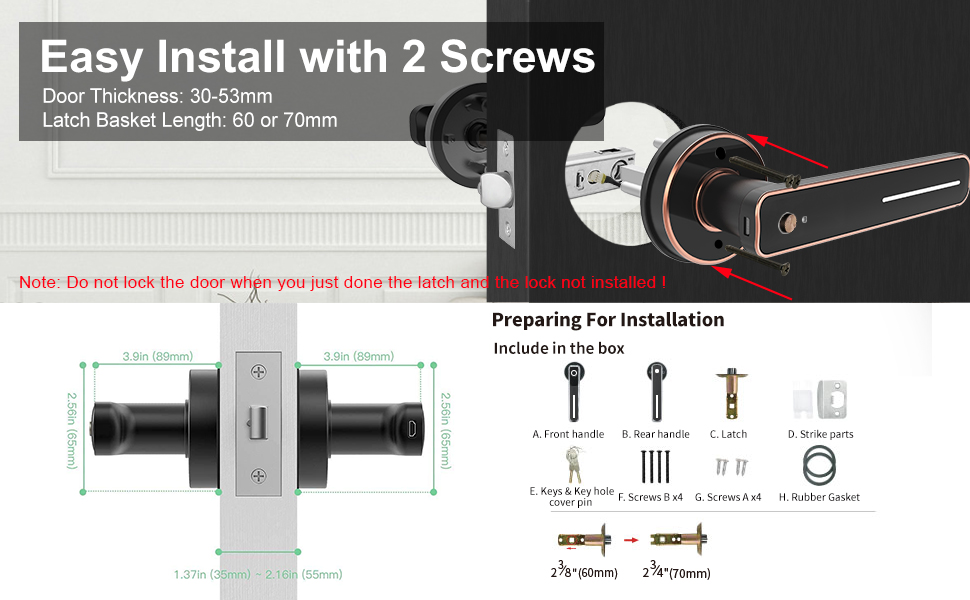
Image: Included components for installation, featuring front and rear handles, latch, strike plate, keys, screws, and gasket.
4. Installation Guide
Installation typically requires only a screwdriver. Follow these steps carefully:
- Prepare the Door: Ensure your door meets the thickness requirements (1-3/8'' to 2-1/8'' or 35-55mm) and that the latch backset is set correctly (60mm or 70mm).
- Install the Latch: Insert the latch into the door edge. Ensure the bevel of the latch bolt faces the door frame. Secure with screws.
- Install the Front Handle: Position the front handle assembly on the exterior side of the door, aligning the spindle with the latch mechanism.
- Install the Rear Handle: Place the rubber gasket on the interior side of the door. Connect the rear handle assembly to the front handle, ensuring wires are not pinched.
- Secure the Lock: Use the provided screws to firmly attach both handle assemblies to the door.
- Install Strike Plate: Mount the strike plate on the door frame, aligning it with the latch bolt.
- Insert Batteries: Open the battery compartment on the rear handle and insert 4 AAA batteries (not included), observing polarity.

Image: Visual guide for installing the smart lock using two screws, highlighting door thickness and latch basket length.
Note: Do not lock the door when you have just installed the latch and the lock is not fully assembled.
5. Operation
5.1 Initial Setup and Fingerprint Enrollment
- After battery installation, the lock will prompt you with voice instructions.
- To add the first administrator fingerprint, follow the voice prompts. You will typically need to place your finger on the sensor multiple times from different angles.
- Once the administrator fingerprint is registered, you can add additional user fingerprints (up to 20 total) by following similar voice prompts.

Image: The fingerprint sensor in action, showing a quick 0.1-second read speed and capacity for 20 fingerprints.
5.2 Unlocking the Door
- Fingerprint: Place a registered finger on the sensor. The lock will unlock if the fingerprint is recognized.
- Key: In case of emergency or battery depletion, use the provided physical key to unlock the door.
5.3 Mode Switching (Passage Mode / Normal Mode)
The lock features a mode switching button, typically located on the interior handle. Press this button to toggle between modes.
- Normal Mode: The lock will automatically engage (auto-lock) approximately 5 seconds after being unlocked. This is the standard secure mode.
- Passage Mode: The lock will remain unlocked, allowing free entry and exit without requiring a fingerprint or key. This mode is suitable for periods of high traffic.
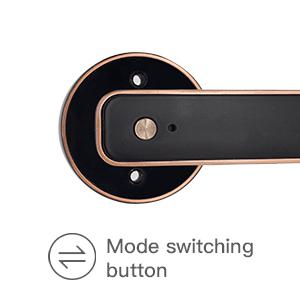
Image: Detail of the mode switching button on the lock's interior handle.

Image: The lock set to Passage Mode, allowing unrestricted entry and exit.
5.4 Emergency Charging
If the batteries run out, the lock can be temporarily powered using a standard USB power bank connected to the emergency USB port on the exterior handle. This allows you to unlock the door with a registered fingerprint or key.

Image: The USB port for emergency power, located on the exterior handle.

Image: A physical backup key provided for manual access.
6. Maintenance
- Cleaning: Wipe the lock surface with a soft, dry cloth. Avoid abrasive cleaners or solvents that could damage the finish or electronic components.
- Battery Replacement: Replace all 4 AAA batteries when the low battery indicator or voice prompt is activated. Do not mix old and new batteries.
- Fingerprint Sensor Care: Keep the fingerprint sensor clean and dry for optimal performance.
7. Troubleshooting
| Problem | Possible Cause | Solution |
|---|---|---|
| Lock does not respond. | Dead batteries. | Replace batteries or use emergency USB power. |
| Fingerprint not recognized. | Finger is wet/dirty, sensor is dirty, or fingerprint not properly registered. | Clean finger and sensor. Re-enroll fingerprint if necessary. Try a different registered finger. |
| Lock does not auto-lock. | Lock is in Passage Mode. | Press the mode switching button to return to Normal Mode. |
| Voice prompts are unclear or absent. | Low battery or internal error. | Replace batteries. If problem persists, contact customer support. |
8. Specifications
| Feature | Detail |
|---|---|
| Model | L-B201 |
| Brand | Geek Smart |
| Lock Type | Biometric Fingerprint Handle Lock |
| Material | Aluminum |
| Color | Black |
| Fingerprint Capacity | Up to 20 |
| Unlock Speed | Approximately 0.1 seconds |
| Power Source | 4 x AAA Batteries (not included) |
| Emergency Power | USB Port |
| Battery Life | 8-12 months (approx.) |
| Door Thickness | 1-3/8'' to 2-1/8'' (35-55mm) |
| Adjustable Latch | 2-3/8'' (60mm) or 2-3/4'' (70mm) |
| Dimensions (L x W x H) | 6.03 x 2.55 x 2.82 inches |
| Item Weight | 2.72 pounds |
| Connectivity | No Bluetooth or Wi-Fi Connectivity |
9. Warranty and Support
For warranty information and customer support, please refer to the official Geek Smart website or contact the retailer from whom you purchased the product. Keep your purchase receipt as proof of purchase.


