
Microsoft QQ2-01368
Microsoft Office 365 Personal User Manual
Model: QQ2-01368
1. Introduction
Welcome to the user manual for Microsoft Office 365 Personal. This guide provides essential information to help you set up, operate, maintain, and troubleshoot your Office 365 Personal subscription. Microsoft Office 365 Personal is a subscription service that includes premium versions of Office applications like Word, Excel, PowerPoint, Outlook, and more, along with cloud services such as 1 TB of OneDrive cloud storage and advanced security features.

Image 1.1: Microsoft Office 365 Personal product packaging. This image shows the front of the product box, highlighting "Microsoft 365 Personal" and key features like "1 person," "12-month subscription," "PC, Mac, and mobile devices," "Premium apps with latest updates," "1 TB cloud storage," and "Advanced security."
2. Setup and Activation
Activating your Microsoft Office 365 Personal subscription is a straightforward process. Follow these steps to get started:
- Step 1: Initiate an Application
Open one of the premium Office applications, such as Microsoft Word, Excel, or PowerPoint, on your PC or Mac. If you don't have them installed, you can download them from the official Microsoft website after logging in with your Microsoft account.

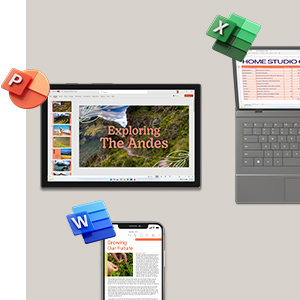

Image 2.1: Icons for Microsoft Word, Excel, and PowerPoint, representing the core applications included in Office 365 Personal.
- Step 2: Sign In or Create an Account
When prompted, sign in with your existing Microsoft account. If you do not have one, you will be guided through the process of creating a new Microsoft account. This account will be linked to your Office 365 Personal subscription.
- Step 3: Accept License Agreement
Follow the on-screen instructions to complete the activation. This typically involves accepting the Microsoft Services Agreement and confirming your subscription details. Once completed, your Office 365 Personal will be ready for use.

Image 2.2: Visual guide illustrating the three activation steps for Microsoft 365. It shows icons for Word, Excel, PowerPoint, and Outlook, alongside simplified steps for activation.
For detailed instructions or troubleshooting during activation, please refer to the official Microsoft support website or the information provided within your product packaging.
3. Operating Your Microsoft 365 Personal Subscription
Microsoft 365 Personal provides access to a suite of powerful applications and cloud services designed to enhance your productivity and creativity. Here's an overview of key features:
3.1 Core Applications
- Word: Create and edit professional-looking documents.
- Excel: Organize, analyze, and visualize data with powerful spreadsheets.
- PowerPoint: Design compelling presentations with rich media and animations.
- Outlook: Manage your emails, calendars, contacts, and tasks efficiently.
- OneNote: Take notes, organize information, and collaborate across devices.
- Publisher (PC only): Create professional marketing materials.
- Access (PC only): Build and manage databases.

Image 3.1: An overview of applications included with Microsoft 365 Personal, featuring icons for Word, Excel, PowerPoint, Microsoft Defender, OneDrive, Outlook, Editor, and Clipchamp.
3.2 Cloud Services and Security
- OneDrive Cloud Storage: Enjoy 1 TB of secure cloud storage for your documents, photos, and videos. Access your files from anywhere, on any device.
Image 3.2: A laptop displaying the OneDrive cloud storage interface, showing organized files and folders.
- Microsoft Defender: Benefit from advanced security features to protect your data and devices from online threats.
- Outlook.com Premium: Ad-free email experience with enhanced security features.
Image 3.3: A laptop displaying the Outlook calendar interface, showing scheduled appointments and events.
- Microsoft Editor: Get intelligent writing assistance across documents, email, and the web.
- Clipchamp: A video editor to create and edit videos with ease.
For detailed guides on using specific applications, please refer to the in-app help features or the extensive resources available on the Microsoft support website.
4. Maintenance and Updates
Microsoft 365 Personal is a subscription service that automatically provides you with the latest versions of the applications and security updates. To ensure optimal performance and security:
- Stay Connected: Ensure your device has an active internet connection periodically to receive updates and verify your subscription status.
- Automatic Updates: By default, Office applications are set to update automatically. You can check your update settings within any Office application (e.g., File > Account > Update Options).
- Subscription Renewal: Your Office 365 Personal subscription is for 12 months. Ensure you renew your subscription before it expires to maintain continuous access to all features and services. Microsoft will typically send reminders before renewal is due.
- Device Management: You can manage the devices on which your Office 365 Personal is installed by logging into your Microsoft account portal.
5. Troubleshooting
If you encounter issues with your Microsoft Office 365 Personal subscription, consider the following common solutions:
| Problem | Solution |
|---|---|
| Cannot activate Office. |
|
| Office applications are not updating. |
|
| OneDrive storage is full or not syncing. |
|
| Performance issues (slow applications). |
|
For more complex issues, it is recommended to visit the official Microsoft Support website or contact their customer service directly.
6. Specifications
| Feature | Detail |
|---|---|
| Product Name | Microsoft Office 365 Personal |
| Model Number | QQ2-01368 |
| Brand | Microsoft |
| Subscription Duration | 12 Months |
| User Count | 1 Person |
| Compatible Devices | PC, Mac, Tablets, Phones |
| Included Applications | Word, Excel, PowerPoint, Outlook, OneNote, Publisher (PC only), Access (PC only), Microsoft Defender, Clipchamp, Microsoft Editor |
| Cloud Storage | 1 TB OneDrive cloud storage |
| Manufacturer Part Number | QQ2-01368 |
| ASIN | B0B4T5245K |
| Product Dimensions (Packaging) | 15 x 12 x 2 cm; 60 g (approximate) |
7. Warranty and Support
Microsoft Office 365 Personal is a software subscription. While there isn't a traditional hardware warranty, Microsoft provides comprehensive support for its software products and services.
7.1 Support Resources
- Microsoft Support Website: The primary resource for all support needs. Visit support.microsoft.com/microsoft-365 for articles, troubleshooting guides, and FAQs.
- Community Forums: Engage with other users and Microsoft experts on official forums for solutions and advice.
- Contact Support: For personalized assistance, you can contact Microsoft support directly through their website via chat, phone, or scheduled calls.
7.2 License and Usage Terms
Your use of Microsoft Office 365 Personal is governed by the Microsoft Services Agreement and the specific terms of your subscription. It is important to review these terms, which are available on the Microsoft website, to understand your rights and obligations regarding software usage, updates, and data privacy.
For any questions regarding your subscription, billing, or technical issues, always refer to official Microsoft channels.
Related documentsQQ2-01368


Ask a question about this manual
Ask about setup, troubleshooting, compatibility, parts, safety, or missing instructions. Manuals+ will review the question and use this page’s manual context to help answer it.