
1. Product Overview
The Yottamaster USB 3.0 to SATA III Adapter Cable provides a convenient solution for connecting 2.5-inch SATA SSDs and HDDs to your computer via a USB 3.0 port. This adapter is designed for easy data access, system upgrades, file backups, and data recovery from old or damaged systems.

Image: The Yottamaster USB 3.0 to SATA III adapter cable, featuring a black adapter unit with a USB 3.0 Type-A connector on one end and a SATA data and power connector on the other.
2. Key Features
- Easy SATA Drive Access: Directly connect 2.5-inch SATA SSDs and HDDs without installation into an enclosure.
- High-Speed Data Transfer: Supports USB 3.0 with transfer speeds up to 5Gbps.
- UASP Support: Enhanced data transfer performance, up to 70% faster than conventional USB 3.0 when connected to a UASP-enabled computer.
- Tool-Free & Driver-Free: Simple plug-and-play operation, no additional drivers required for most operating systems.
- Wide Compatibility: Compatible with Windows 10/8/8.1/7, Linux, macOS, and various devices including PCs, laptops, Smart TVs, Xbox, Nintendo Switch, and PlayStation consoles (PS5/PS4/PS3).
- LED Indicator: A blue LED light indicates the working status of the connected hard disk.
- Auto-Sleep Mode: Automatically enters sleep mode to save energy and extend the lifespan of the hard drive.
- Portable Design: Ultra-slim and lightweight body for easy carrying and use at home or while traveling.

Image: A close-up view of the Yottamaster adapter, emphasizing its 5Gbps Super Speed capability and support for UASP, USB 3.0, and SATA technologies.
3. Setup Instructions
- Connect SATA Drive: Align the SATA data and power connector of the adapter with the corresponding ports on your 2.5-inch SATA SSD or HDD. Gently push the drive onto the adapter until it is securely connected.
- Connect to Computer: Plug the USB 3.0 Type-A connector of the adapter cable into an available USB 3.0 port on your computer or compatible device.
- Power On: The device is bus-powered, meaning it draws power directly from the USB port. No external power adapter is required for 2.5-inch drives.
- Access Drive: Your operating system should automatically detect the connected drive. For new drives, you may need to initialize and format them through Disk Management (Windows) or Disk Utility (macOS) before use.
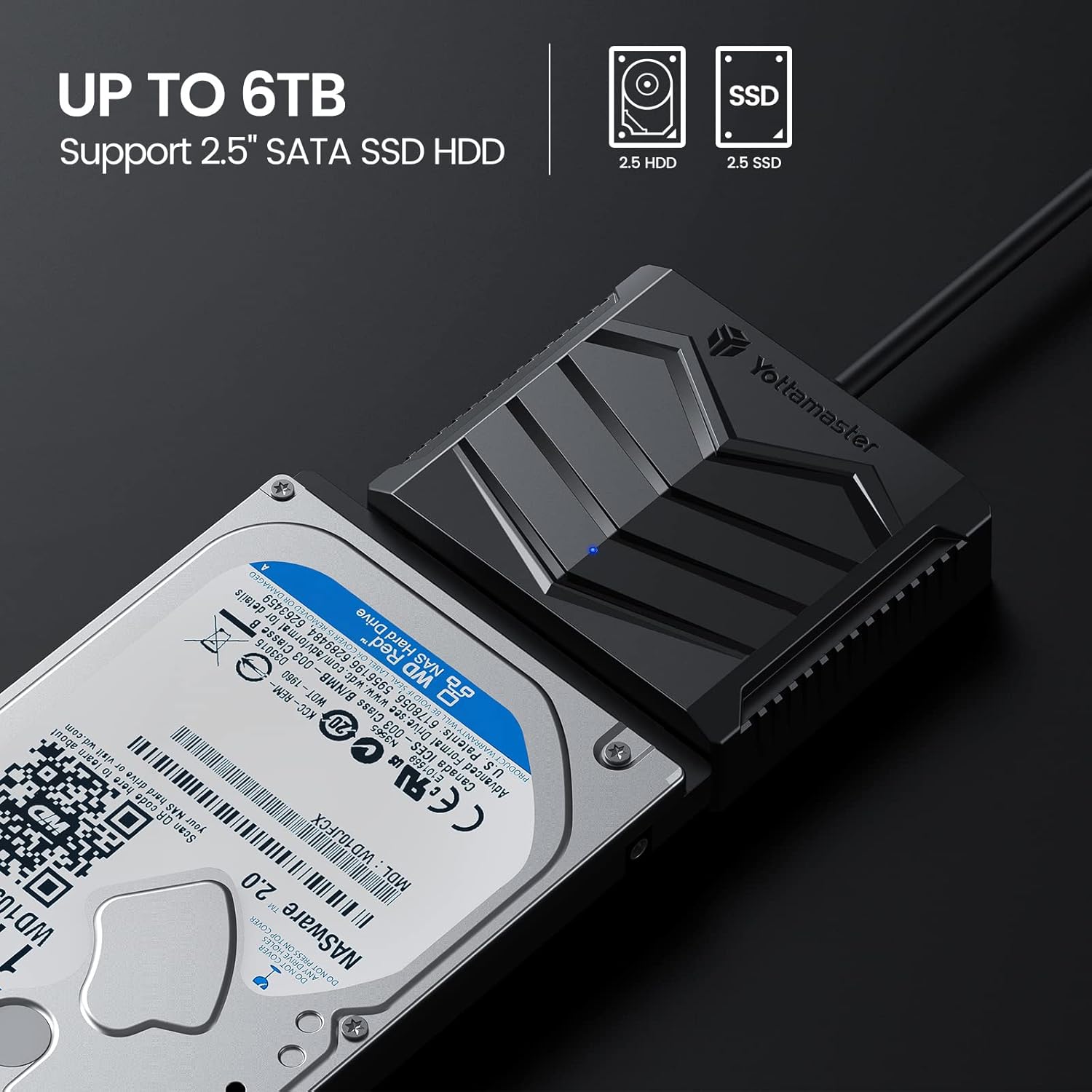
Image: The Yottamaster adapter connected to a 2.5-inch hard disk drive, illustrating its support for up to 6TB capacity for both 2.5" HDD and SSD.
4. Operating Instructions
Once connected, the adapter functions as a bridge between your SATA drive and your computer's USB port. You can perform various operations:
- Data Transfer: Drag and drop files to and from the connected drive. The blue LED indicator will blink during data activity.
- File Backup: Use your operating system's backup tools or third-party software to create backups of your important files onto the connected drive.
- System Upgrade: Clone your existing system drive to a new SSD/HDD using cloning software, then swap the drives.
- Data Recovery: Connect an old or non-booting drive from a faulty computer to recover data.
For optimal performance, ensure you are using a USB 3.0 port on your computer. If your system supports UASP (USB Attached SCSI Protocol), data transfer speeds will be significantly improved.
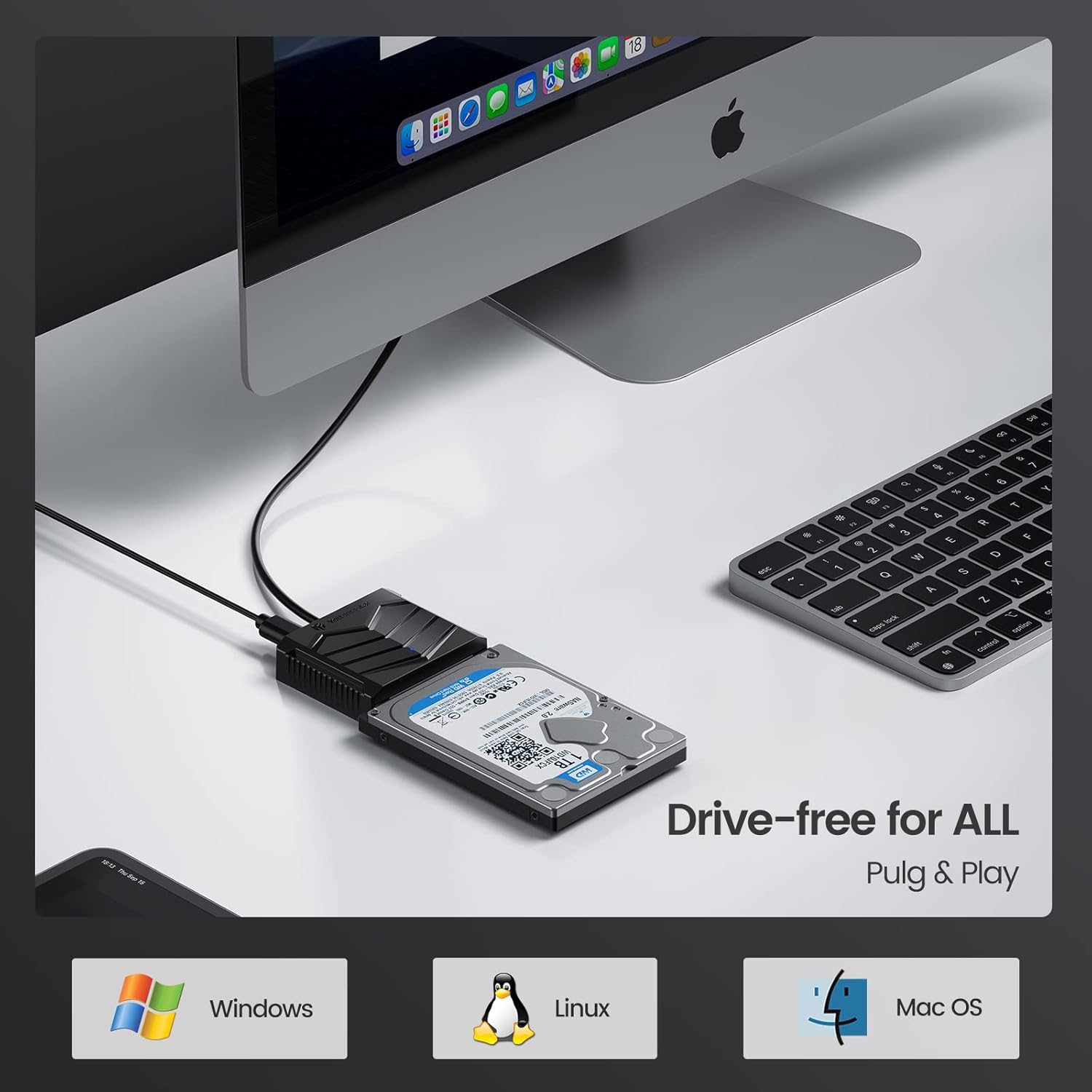
Image: The Yottamaster adapter connected to a hard drive, which is then connected to a desktop computer, illustrating its "Drive-free for ALL" and "Plug & Play" functionality across Windows, Linux, and Mac OS operating systems.
5. Maintenance
- Proper Disconnection: Always safely eject the drive from your operating system before physically disconnecting the adapter cable to prevent data corruption.
- Auto-Sleep Feature: The adapter is equipped with an auto-sleep mode. If the drive is inactive for a period, it will automatically enter sleep mode to conserve power and reduce wear on the hard drive. This is normal operation.
- Storage: Store the adapter in a cool, dry place when not in use. Avoid extreme temperatures and direct sunlight.
- Cleaning: Use a soft, dry cloth to clean the adapter. Do not use liquid cleaners or solvents.

Image: The Yottamaster adapter connected to a hard drive and a laptop, demonstrating its Auto-Sleep Mode feature for energy saving and extending hard disk service life.
6. Troubleshooting
- Drive Not Detected:
- Ensure the SATA drive is securely connected to the adapter.
- Try connecting the adapter to a different USB port on your computer.
- Test the adapter with a different 2.5-inch SATA SSD/HDD if available.
- Check Disk Management (Windows) or Disk Utility (macOS) to see if the drive is recognized but uninitialized or unformatted.
- Slow Transfer Speeds:
- Ensure you are connected to a USB 3.0 port on your computer. USB 2.0 ports will result in significantly slower speeds.
- Verify that your operating system and hardware support UASP for optimal performance.
- Close other applications that might be consuming system resources or disk I/O.
- LED Indicator Not Lighting Up:
- Ensure the adapter is properly connected to both the SATA drive and the USB port.
- The drive might be in auto-sleep mode if inactive. Accessing the drive should wake it up.
7. Specifications
| Model Number | Yottamaster-EN2-U3A-03-BK-BP |
| Interface | USB 3.0 Type-A to SATA III |
| Transfer Speed | Up to 5Gbps (USB 3.0) |
| Supported Drives | 2.5-inch SATA I/II/III SSD & HDD |
| Max Capacity | Up to 6TB (as per image) |
| Compatibility | Windows 10/8/8.1/7, Linux, macOS |
| Color | Black |
| Material | Copper (internal wiring) |
| Dimensions | 20.09 x 11 x 3.3 cm (Package Size) |
| Weight | 91 g (Package Weight) |
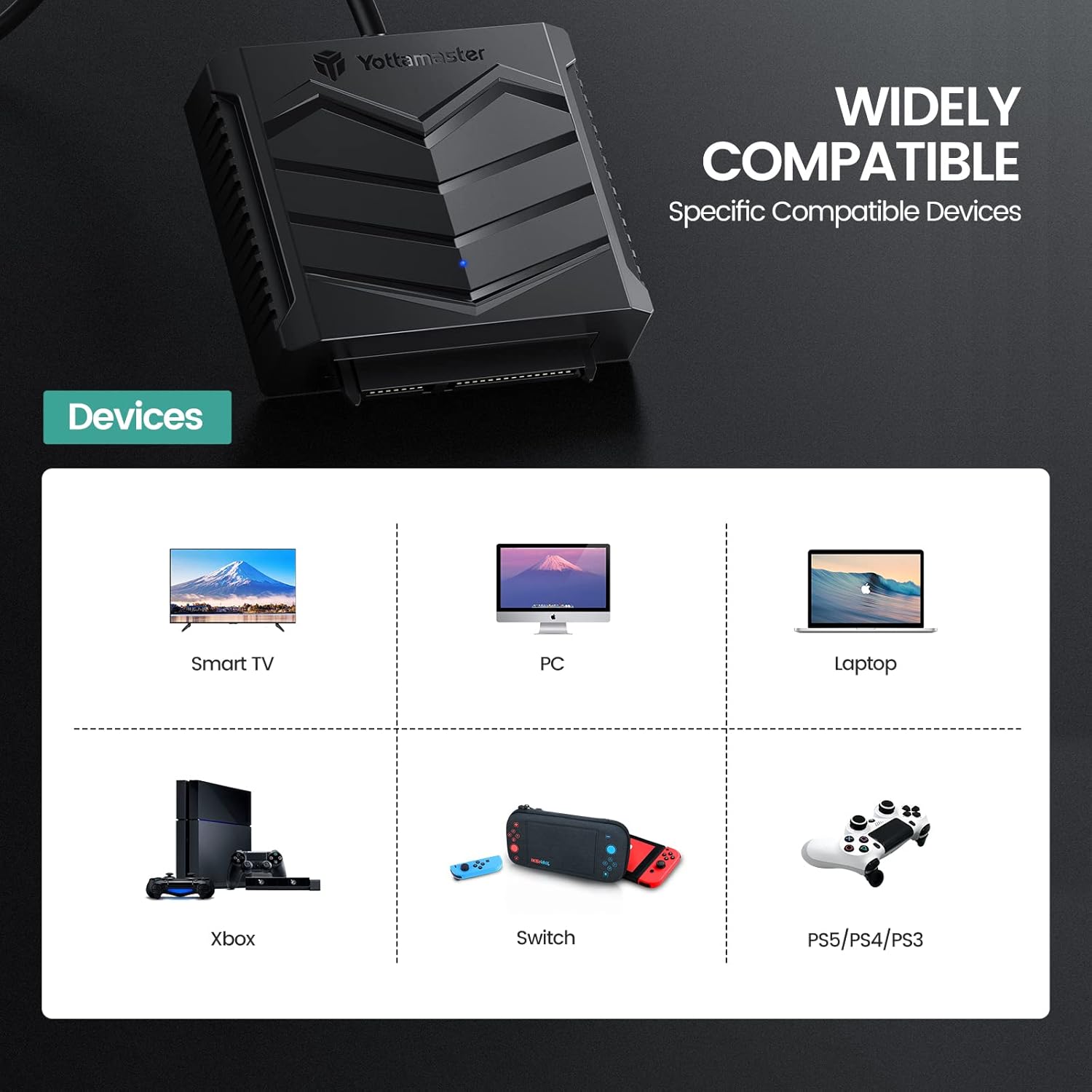
Image: The Yottamaster adapter with icons indicating its wide compatibility with various devices including Smart TVs, PCs, Laptops, Xbox, Nintendo Switch, and PlayStation consoles.
8. Warranty and Support
For warranty information or technical support, please refer to the product packaging or contact Yottamaster customer service directly. You can typically find contact details on the official Yottamaster website or through the retailer where the product was purchased.
For further assistance, please visit the Yottamaster Store on Amazon.