
1. Introduction
Welcome to the Bmax I10 Pro Tablet user manual. This guide provides essential information for setting up, operating, maintaining, and troubleshooting your new tablet. Please read this manual thoroughly to ensure proper use and to maximize your device's performance.
The Bmax I10 Pro is a 10.1-inch tablet featuring a UNISOC Tiger T310 SoC, 4GB RAM, 64GB ROM (expandable via MicroSD), and runs on Android 11. It supports 4G LTE, dual-band Wi-Fi, and Bluetooth 5.0, making it suitable for various tasks from work to entertainment.

This banner image introduces the Bmax MaxPad I10 Pro, an ultralight entertainment tablet supporting 4G network standards. It highlights features like an In-Cell Display, a high AnTuTu benchmark score, A75 and A55 CPU cores, and its slim 8.9mm, 400g design.
2. Initial Setup
2.1 Package Contents
Ensure all items are present in the package:
- Bmax I10 Pro Tablet
- USB Type-C Cable
- Power Adapter
- User Manual (this document)
2.2 Device Layout

This diagram provides a clear overview of the Bmax I10 Pro Tablet's external components, labeling the front camera, rear camera, 3.5mm audio jack, power key, reset hole, volume keys, Micro SD card reader, Type-C port, microphone, and speakers for easy identification.
2.3 Charging the Tablet
Before first use, fully charge the tablet. Connect the USB Type-C cable to the tablet's Type-C port and the other end to the power adapter. Plug the adapter into a wall outlet. The battery indicator on the screen will show charging status.
2.4 Powering On/Off
- To Power On: Press and hold the Power key until the Bmax logo appears.
- To Power Off: Press and hold the Power key until the power options appear. Select "Power off" and confirm.
- To Restart: Press and hold the Power key until the power options appear. Select "Restart" and confirm.
2.5 Initial Configuration
Upon first power-on, follow the on-screen prompts to set up your tablet:
- Select your preferred language.
- Connect to a Wi-Fi network.
- Sign in with your Google account or create a new one.
- Set up screen lock (PIN, pattern, password, or face unlock).
- Review and accept terms and conditions.
2.6 Inserting SIM and MicroSD Cards
The tablet supports dual 4G SIM cards and a MicroSD card for expandable storage.
- Locate the SIM/MicroSD card tray on the side of the tablet.
- Use the provided SIM ejector tool to open the tray.
- Carefully place the SIM card(s) and/or MicroSD card into the designated slots. Ensure correct orientation.
- Gently push the tray back into the tablet until it clicks into place.

This image demonstrates the Bmax I10 Pro Tablet's communication capabilities, showing a video call in progress. It details support for multiple 4G network standards (GSM, WCDMA, FDD-TLE, TD-TLE), dual SIM card slots (SIM 1 + SIM 2 & Dual Standby), a Micro SD card slot, and VoLTE high-definition voice calls.
3. Operating Instructions
3.1 Basic Navigation
The Bmax I10 Pro uses a touch-sensitive screen for navigation:
- Tap: Touch the screen once to select an item or open an app.
- Tap & Hold: Touch and hold an item to access contextual menus or move icons.
- Swipe: Drag your finger across the screen to scroll through pages or lists.
- Pinch: Use two fingers to zoom in or out on images and web pages.
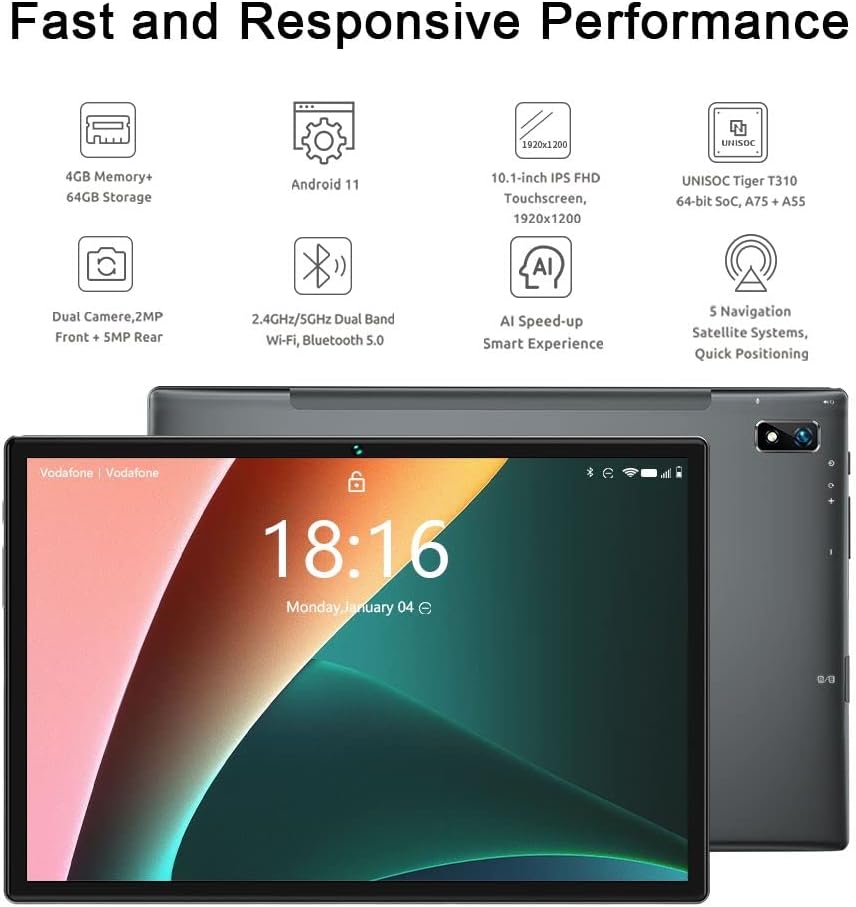
This image displays the Bmax I10 Pro tablet from both the front and rear. The front shows the Android home screen with the current time, while the rear highlights the camera module and sleek design.
3.2 Wi-Fi and Bluetooth Connectivity
To connect to Wi-Fi or Bluetooth devices:
- Go to Settings > Network & internet for Wi-Fi, or Connected devices for Bluetooth.
- Toggle Wi-Fi or Bluetooth On.
- For Wi-Fi, select your desired network and enter the password if prompted.
- For Bluetooth, select a device from the list to pair.
3.3 Using 4G LTE and VoLTE
If you have inserted a 4G SIM card, your tablet can connect to mobile data networks and make calls via VoLTE (Voice over LTE).
- Ensure mobile data is enabled in Settings > Network & internet > Mobile network.
- VoLTE will automatically activate if supported by your carrier and SIM card.
- Use the pre-installed Phone app to make and receive calls.
3.4 Camera Operation
The tablet features a 2MP front camera and a 5MP rear camera.
- Open the Camera app.
- Tap the camera switch icon to toggle between front and rear cameras.
- Tap the shutter button to take a photo or start/stop video recording.

The image shows the Bmax I10 Pro Tablet with a vibrant image of a snowboarder on its screen, emphasizing its dual camera system: a 5-megapixel rear camera and a 2-megapixel front camera.
3.5 GPS Functionality
The Bmax I10 Pro supports multiple navigation satellite systems (GPS, Beidou, GLONASS, Galileo, A-GPS) for accurate positioning.
- Ensure Location services are enabled in Settings > Location.
- Use pre-installed or downloaded navigation apps for directions and location-based services.

The image shows the Bmax I10 Pro Tablet securely mounted in a car, displaying a navigation map. This illustrates the tablet's advanced GPS features, including support for GPS, Beidou, GLONASS, Galileo, and A-GPS for accurate positioning.
3.6 Face Recognition Unlock
To set up face recognition for unlocking your tablet:
- Go to Settings > Security > Face unlock.
- Follow the on-screen instructions to register your face. Ensure you are in a well-lit area.
- Once registered, you can unlock your tablet by looking at the front camera.
4. Maintenance
4.1 Cleaning the Tablet
To keep your tablet clean:
- Use a soft, lint-free cloth to wipe the screen and body.
- For stubborn smudges, slightly dampen the cloth with water or a screen cleaner designed for electronics.
- Avoid using harsh chemicals, abrasive materials, or excessive moisture.
4.2 Battery Care
The Bmax I10 Pro has a 6600mAh battery. To prolong its lifespan:
- Avoid extreme temperatures.
- Do not let the battery completely drain frequently.
- Unplug the charger once the tablet is fully charged.

This graphic highlights the Bmax I10 Pro Tablet's 6600mAh Li-polymer battery, indicating support for fast charging and suggesting 4 to 6 hours of usage for gaming and movie watching.
4.3 Software Updates
Regularly check for and install software updates to ensure optimal performance, security, and access to new features.
- Go to Settings > System > System update.
- Follow the on-screen instructions to download and install any available updates.
4.4 Storage Management
To manage the 64GB internal storage and any MicroSD card storage:
- Go to Settings > Storage to view storage usage.
- Delete unnecessary files, apps, or move them to the MicroSD card to free up space.
5. Troubleshooting
If you encounter issues with your Bmax I10 Pro Tablet, refer to the following common solutions:
| Problem | Solution |
|---|---|
| Tablet does not power on | Ensure the tablet is charged. Connect to the charger for at least 30 minutes. If still unresponsive, press and hold the Power key for 10-15 seconds to force a restart. |
| Wi-Fi / Bluetooth connectivity issues | Toggle Wi-Fi/Bluetooth off and on. Restart the tablet. Forget the network/device and reconnect. Ensure you are within range of the network/device. |
| Slow performance / Apps crashing | Close unused apps. Clear app caches (Settings > Apps > [App Name] > Storage > Clear cache). Free up storage space. Restart the tablet. |
| Screen unresponsive | Restart the tablet by holding the Power key. If unresponsive, use the reset hole (refer to Device Layout) with a thin pin. |
| Cannot make/receive calls (4G LTE) | Ensure SIM card is correctly inserted and activated. Check mobile network settings. Verify VoLTE is enabled and supported by your carrier. |
5.1 Factory Reset
If problems persist, you may consider a factory reset. Warning: This will erase all data on your tablet. Back up important data before proceeding.
- Go to Settings > System > Reset options.
- Select Erase all data (factory reset).
- Confirm your decision and enter your PIN/password if prompted.
6. Specifications
Detailed technical specifications for the Bmax I10 Pro Tablet:

This image presents a detailed overview of the Bmax I10 Pro Tablet's key features, such as its 10.1-inch FHD display, 4GB RAM, 64GB ROM, dual speakers, UNISOC Tiger T310 processor, dual-band Wi-Fi, 5-mode GPS, 6600mAh battery, USB Type-C port, Android 11 operating system, and face recognition capability.
| Feature | Detail |
|---|---|
| Model | Bmax I10 Pro |
| Operating System | Android 11 |
| Processor | UNISOC Tiger T310 SoC (ARM Cortex A75@2.0GHz + A55@1.8GHz) |
| GPU | Imagination PowerVR GE8300 |
| RAM | 4 GB |
| Internal Storage | 64 GB |
| Expandable Storage | MicroSD card slot (up to 2TB) |
| Screen Size | 10.1 Inches |
| Display Resolution | 1920 x 1200 pixels (IPS Display Panel, 16:10 Aspect Ratio, 10-point Touch Control) |
| Rear Camera | 5 MP |
| Front Camera | 2 MP |
| Battery | 6600 mAh Li-polymer |
| Connectivity | 2.4GHz + 5GHz Wi-Fi, Bluetooth 5.0, 4G LTE (Dual SIM), GPS (GPS, Beidou, GLONASS, Galileo, A-GPS) |
| Ports | USB Type-C, 3.5mm Audio Jack |
| Dimensions | 8.9mm thin |
| Weight | 400g |

This image provides a close-up of the UNISOC Tiger T310 processor, emphasizing its DynamIQ architecture, which includes A75 cores clocked at 2.0GHz and A55 cores at 1.8GHz, manufactured using a 12nm process. It also mentions the Imagination PowerVR GE8300 GPU.

This image presents two comparison charts. The first shows the upgraded CPU architecture of the T310 compared to SC9863A, indicating better performance. The second chart illustrates the upgraded manufacturing process (TSMC 12nm vs 28nm HPC+), leading to lower power consumption. An AnTuTu 8.0.5 benchmark result shows the T310 SoC improving the score by 44% over SC9863A.

The image features the Bmax I10 Pro Tablet displaying a vivid image of the aurora borealis, illustrating its high-quality display. Key display specifications highlighted are the IPS Display Panel, 1920 x 1200 resolution, 16:10 aspect ratio, and responsive 10-point touch control.
7. Warranty and Support
7.1 Product Warranty
Your Bmax I10 Pro Tablet is covered by a standard manufacturer's warranty. Please refer to the warranty card included in your product packaging or visit the official Bmax website for detailed warranty terms and conditions.
7.2 Customer Support
For technical assistance, troubleshooting beyond this manual, or warranty claims, please contact Bmax customer support through their official website or the contact information provided in your product documentation.


