
1. Introduction
Thank you for choosing the WolfLawS G9400 Gaming Headset. This manual provides essential information for setting up, operating, and maintaining your headset. Please read it carefully to ensure optimal performance and longevity of your device.

Image 1: WolfLawS G9400 Gaming Headset. This image displays the headset with its adjustable headband, over-ear cups, and flexible microphone arm, featuring a green and black color scheme.
2. Product Overview
The WolfLawS G9400 is a wired gaming headset designed for immersive audio experiences across various platforms. Key features include:
- Connectivity: Wired 3.5mm Jack
- Audio: Bass Surround Sound
- Microphone: Noise Cancelling, Retractable
- Comfort: Memory Earmuffs, Adjustable Headband
- Control: In-line Remote for Volume and Microphone Mute
- Compatibility: PS4, PS5, PC, Xbox One Controller, Mac, Laptop

Image 2: A person wearing a WolfLawS gaming headset. The image shows the headset comfortably fitted on a user, highlighting its over-ear design and integrated microphone.
3. Package Contents
Please verify that all items are present in your package:
- WolfLawS G9400 Gaming Headset
- User Manual
4. Setup Instructions
Follow these steps to connect your G9400 Gaming Headset to your device:
- Connect to PC/Laptop: Insert the 3.5mm jack into the corresponding audio port on your computer. If your PC has separate ports for microphone and audio, you may need a 3.5mm splitter (not included). Ensure audio input/output settings are configured to the headset.
- Connect to PS4/PS5:
- Insert the 3.5mm jack into the controller's headset port.
- Go to Settings > Devices > Audio Devices.
- Set 'Output to Headphones' to 'All Audio'.
- Adjust 'Volume Control (Headphones)' to your desired level.
- Connect to Xbox One Controller:
- For controllers with a 3.5mm jack: Insert the 3.5mm jack directly into the controller.
- For older controllers without a 3.5mm jack: An Xbox One Stereo Headset Adapter (not included) is required. Plug the adapter into the controller, then plug the headset's 3.5mm jack into the adapter.
- Adjust audio settings via the Xbox Guide.
- Connect to Mac: Insert the 3.5mm jack into the audio port. Configure sound input/output in System Preferences.
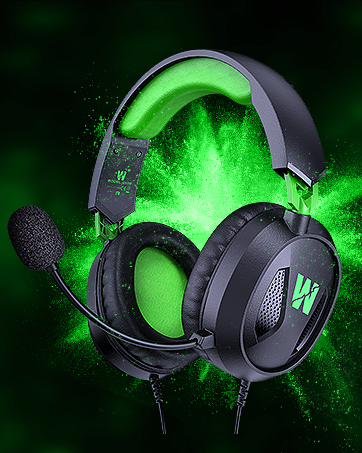
Image 3: Two individuals engaged in gaming, each wearing a WolfLawS headset. This illustrates the headset's use in a multi-player gaming environment.
5. Operating Instructions
The G9400 headset features an in-line remote for convenient control:
- Volume Control: Use the scroll wheel on the in-line remote to adjust the audio volume up or down.
- Microphone Mute: Use the switch on the in-line remote to mute or unmute the microphone. Slide the switch to the 'OFF' position to mute the microphone.
- Microphone Adjustment: The microphone arm is flexible. Adjust its position for optimal voice pickup.
6. Maintenance
Proper care will extend the life of your headset:
- Cleaning: Use a soft, dry cloth to clean the headset. For ear cushions, a slightly damp cloth can be used, but ensure they are completely dry before use. Do not use harsh chemicals or abrasive cleaners.
- Storage: Store the headset in a cool, dry place away from direct sunlight and extreme temperatures. Avoid placing heavy objects on the headset.
- Cable Care: Avoid sharp bends or excessive pulling on the cable to prevent damage.
7. Troubleshooting
If you encounter issues with your G9400 headset, refer to the following common solutions:
| Problem | Solution |
|---|---|
| No sound from headset |
|
| Microphone not working |
|
| Sound quality is poor |
|
8. Specifications
| Feature | Detail |
|---|---|
| Connectivity Technology | Wired |
| Headphones Jack | 3.5 mm Jack |
| Ear Placement | Over Ear |
| Form Factor | Over Ear |
| Noise Control | Sound Isolation, Noise Cancellation |
| Special Features | Adjustable Headband, Surround Sound, Volume Control |
| Control Method | Remote (In-line) |
| Cable Feature | Retractable (Microphone) |
| Material | Metal, Plastic |
| Item Weight | 13.7 ounces |
| Package Dimensions | 8.03 x 7.68 x 3.9 inches |
| UPC | 710050502101 |
9. Safety Information
Please observe the following safety guidelines:
- Avoid prolonged listening at high volumes to prevent hearing damage.
- Do not use the headset in situations where awareness of your surroundings is critical.
- Keep the headset away from water and moisture.
- Do not attempt to disassemble or modify the headset.
10. Warranty and Support
WolfLawS products are designed for quality and reliability. For warranty information or technical support, please refer to the contact details provided with your purchase documentation or visit the official WolfLawS website. Please retain your proof of purchase for warranty claims.