
MOKiN 1001
MOKiN USB C Docking Station Instruction Manual
Model: 1001
Product Overview
The MOKiN USB C Docking Station is a versatile 15-in-1 hub designed to expand the connectivity of your laptop, providing comprehensive solutions for multi-monitor setups, high-speed data transfer, and efficient power delivery. This universal docking station is compatible with a wide range of laptops, including those running Windows and Mac OS systems.
Key features include:
- Multiple Display Outputs: 2 HDMI ports and 1 DisplayPort for connecting up to three external monitors.
- High-Speed Data Transfer: USB A 3.1, USB A 3.0, USB A 2.0, and USB C ports for rapid data exchange with various peripherals.
- Media Card Slots: Integrated SD and Micro SD card slots for convenient file access.
- Network Connectivity: Gigabit Ethernet port for stable and fast wired internet access.
- Power Delivery: Supports 100W pass-through charging to power your laptop while using the dock.
- Audio Connectivity: 3.5mm Audio & Mic Jack for headphones or external microphones.
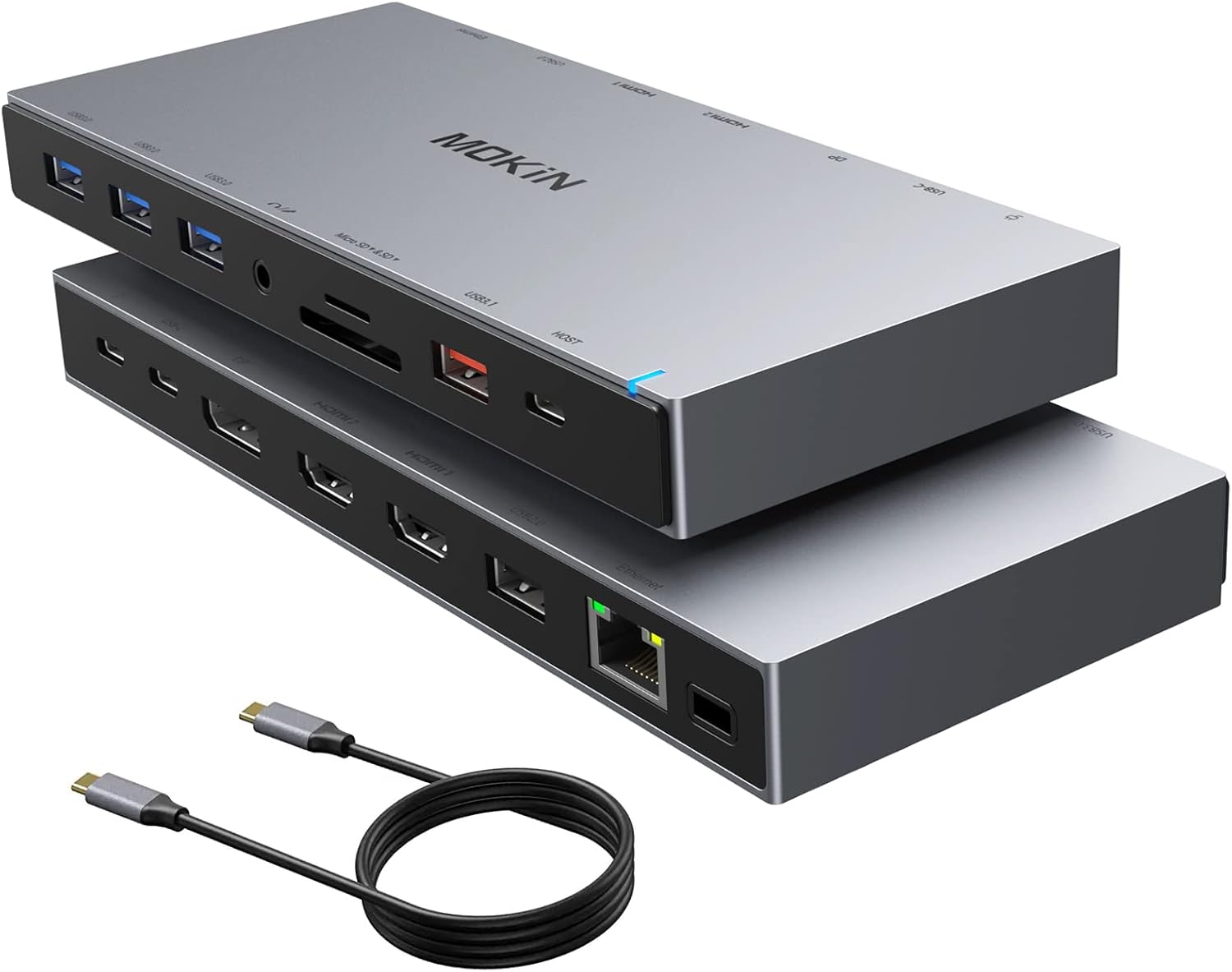
Figure 1: MOKiN USB C Docking Station with its compact design and included USB-C cable.
Setup
1. Compatibility Check
Before connecting, ensure your laptop's USB-C port supports Power Delivery, DisplayPort Alt Mode, and data transfer. Not all USB-C ports have full functionality.
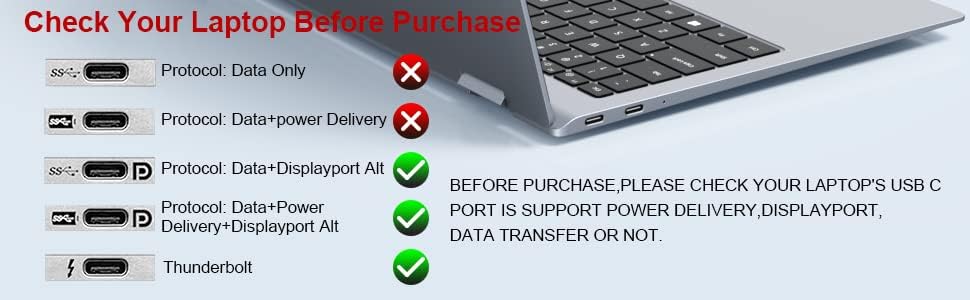
Figure 2: Verify your laptop's USB-C port capabilities for full docking station functionality.
2. Connecting the Docking Station
- Connect the provided USB-C to USB-C cable from the "HOST" port on the docking station to your laptop's compatible USB-C port.
- For power delivery to your laptop, connect your laptop's original USB-C power adapter to the PD charging port on the docking station. The docking station will consume 15W for operation, providing up to 85W for laptop charging.
- Connect your external monitors to the HDMI and/or DisplayPort outputs on the docking station.
- Plug in any USB peripherals (keyboard, mouse, external drives) into the available USB A or USB C ports.
- For wired internet, connect an Ethernet cable to the RJ45 port.
- Insert SD or Micro SD cards into their respective slots for data access.
- Connect headphones or a microphone to the 3.5mm Audio & Mic Jack.

Figure 3: Overview of all 15 ports on the MOKiN USB C Docking Station.

Figure 4: Example setup showing power delivery and Ethernet connection.
Operating Instructions
Multi-Monitor Display Configuration
The MOKiN docking station supports various display modes for Windows and Mac OS. Ensure your laptop's graphics card and USB-C port support the desired resolutions and refresh rates.
For Windows Systems:
- Mirror Mode (AA, AAA, AAAA): All connected displays show the same content as your laptop screen.
- Extend Mode (AB, ABB, ABC, ABCD): Each connected display shows different content, extending your desktop workspace.
- Resolution & Refresh Rate:
- HDMI1 or DP = 4K@60HZ (Requires host laptop to support DP 1.4 protocol).
- HDMI1 + DP = 4K@30HZ : 4K@30HZ (Requires host laptop to support 4K resolution).
- HDMI1 + HDMI2 + DP = 4K@30HZ : 1920*1080P@60HZ : 1920*1080P@60HZ (For Windows computers, only DP1.4 with AMD Graphics Card can support 3 monitors simultaneously).
- Note: The resolution of mirrored monitors will always be consistent with the laptop's resolution under Windows.

Figure 5: Visual guide for Windows multi-monitor setups.
For Mac OS Systems:
- Mirror Mode (AA, AAA, AAAA): All connected displays show the same content as your laptop screen.
- Extend Mode (AB, ABB, ABBB): Displays extend the desktop, but external monitors will show the same content (Mac OS limitation).
- Resolution & Refresh Rate:
- HDMI1 or DP = 4K@60HZ.
- HDMI1 + DP = 4K@60HZ : 4K@60HZ.
- HDMI1 + HDMI2 + DP = 4K@30HZ : 4K@30HZ : 4K@30HZ (Requires host laptop to support DP 1.4 protocol).
- Note: For MacBooks with M1 chip, only one external monitor can be extended or mirrored due to chip limitations.

Figure 6: Visual guide for Mac OS multi-monitor setups.
Data Transfer
The docking station offers various USB ports for fast data transfer:
- USB A 3.1 and USB C ports: Up to 10Gbps.
- USB A 3.0 ports: Up to 5Gbps.
- USB A 2.0 ports: Up to 480Mbps (recommended for wireless mouse/keyboard).
- SD/Micro SD Slots: SD read speeds up to 250MB/s, write speeds up to 100MB/s. Micro SD read speeds up to 104MB/s, write speeds up to 80MB/s.

Figure 7: Data transfer capabilities of the docking station's ports.
Maintenance
- Keep the docking station clean and free from dust. Use a soft, dry cloth for cleaning.
- Avoid exposing the device to extreme temperatures, humidity, or direct sunlight.
- Do not disassemble the docking station. Any repairs should be performed by qualified personnel.
- Ensure proper ventilation around the device to prevent overheating.
Troubleshooting
- No Display Output:
- Ensure all cables are securely connected.
- Verify your laptop's USB-C port supports DisplayPort Alt Mode.
- Check monitor input settings.
- For MacBooks with M1 chip, remember only one external monitor is supported for extension/mirroring.
- Ensure your laptop supports DP 1.4 protocol for 4K@60Hz output.
- Slow Data Transfer:
- Ensure you are using USB 3.0 or USB 3.1 ports for high-speed devices.
- Check the quality of your USB cables.
- No Power Delivery:
- Confirm your laptop's USB-C port supports Power Delivery.
- Ensure your power adapter is connected to the PD port on the docking station.
- Ethernet Connectivity Issues:
- Check the Ethernet cable connection.
- Ensure your laptop's network drivers are up to date.
Specifications
| Feature | Detail |
|---|---|
| Model Number | 1001 |
| Product Dimensions | 9.06 x 1.89 x 4.92 inches |
| Item Weight | 14.1 ounces (0.4 Kilograms) |
| Color | Grey |
| Total USB Ports | 11 (USB A 3.1, USB A 3.0, USB A 2.0, USB C) |
| Total HDMI Ports | 2 |
| DisplayPort | 1 |
| Ethernet | Gigabit RJ45 |
| Card Reader | SD & Micro SD |
| Audio Jack | 3.5mm Audio & Mic Jack |
| Power Delivery | 100W Pass-through (85W to laptop) |
| Compatible Devices | Macbook Pro/Air, Dell XPS, HP, Lenovo ThinkPad, Microsoft Surface, ASUS, Google |
Official Product Videos
Video 1: MOKiN 15-in-1 USB C Docking Station (Upgraded Chip) - An official overview of the product's features and capabilities.
Warranty and Support
MOKiN products are designed for durability and performance. For any warranty claims, technical support, or inquiries, please contact MOKiN customer service through the official channels provided at the point of purchase or on the MOKiN website.
Please retain your proof of purchase for warranty validation.
Related documents1001

Ask a question about this manual
Ask about setup, troubleshooting, compatibility, parts, safety, or missing instructions. Manuals+ will review the question and use this page’s manual context to help answer it.