
Merkury Innovations MI-CW007-199WW
Contents
Merkury Innovations Indoor Smart Security Camera User Manual
Model: MI-CW007-199WW
Introduction
This manual provides comprehensive instructions for the setup, operation, and maintenance of your Merkury Innovations Indoor Smart Security Camera. Please read this manual thoroughly before using the device to ensure proper functionality and safety.

Image: The Merkury Innovations Smart Wi-Fi Camera shown with its retail packaging. The camera is white with a black lens area and a flexible stem, highlighting its compact design and branding.
Key Features
- 720P HD Livestream: Clear video monitoring.
- Motion Sensor: Receive alerts for detected movement.
- Control by App: Manage settings and view feed via the Geeni app.
- Voice Control: Compatible with Amazon Alexa and Google Assistant.
- 2-Way Audio: Communicate through the camera with built-in microphone and speaker.
- Flexible Stem: Allows for versatile positioning and mounting.
- Night Vision: Monitor in low-light conditions.
- microSD Slot: Supports local storage up to 128GB (card not included).
- Cloud Storage: Optional cloud storage available (subscription may be required).

Image: A graphic illustrating the key features of the Merkury Innovations Smart Wi-Fi Camera, including HD Livestream, Motion Sensor, App Control, Voice Control, 2-Way Audio, Flexible Stem, Night Vision, microSD Slot, and Cloud Storage.
Setup
What's in the Box
- Merkury Innovations Smart Security Camera
- Power Adapter
- Mounting Hardware (if applicable, not explicitly stated but implied by "Set Up Anywhere" image)
- User Manual (this document)
Before You Begin
- Ensure your Wi-Fi network is 2.4GHz. This camera does not support 5GHz Wi-Fi.
- Have your Wi-Fi network name (SSID) and password ready.
- Download the Geeni app from the App Store (iOS) or Google Play Store (Android).
- Find a suitable indoor location for your camera, ensuring it is within Wi-Fi range and near a power outlet.
Installation Steps
- Power On: Connect the provided power adapter to the camera's micro USB port and plug it into a power outlet. The camera will power on and indicate readiness for pairing (e.g., a blinking LED light).
- App Pairing:
- Open the Geeni app and create an account or log in.
- Tap the "+" icon to add a new device.
- Select "Smart Camera" from the device list.
- Follow the on-screen prompts to connect the camera to your 2.4GHz Wi-Fi network. This typically involves scanning a QR code generated by the app with the camera's lens.
- Positioning: Place the camera in your desired indoor location. The flexible stem allows for various angles and can be mounted on a wall or placed on a flat surface.
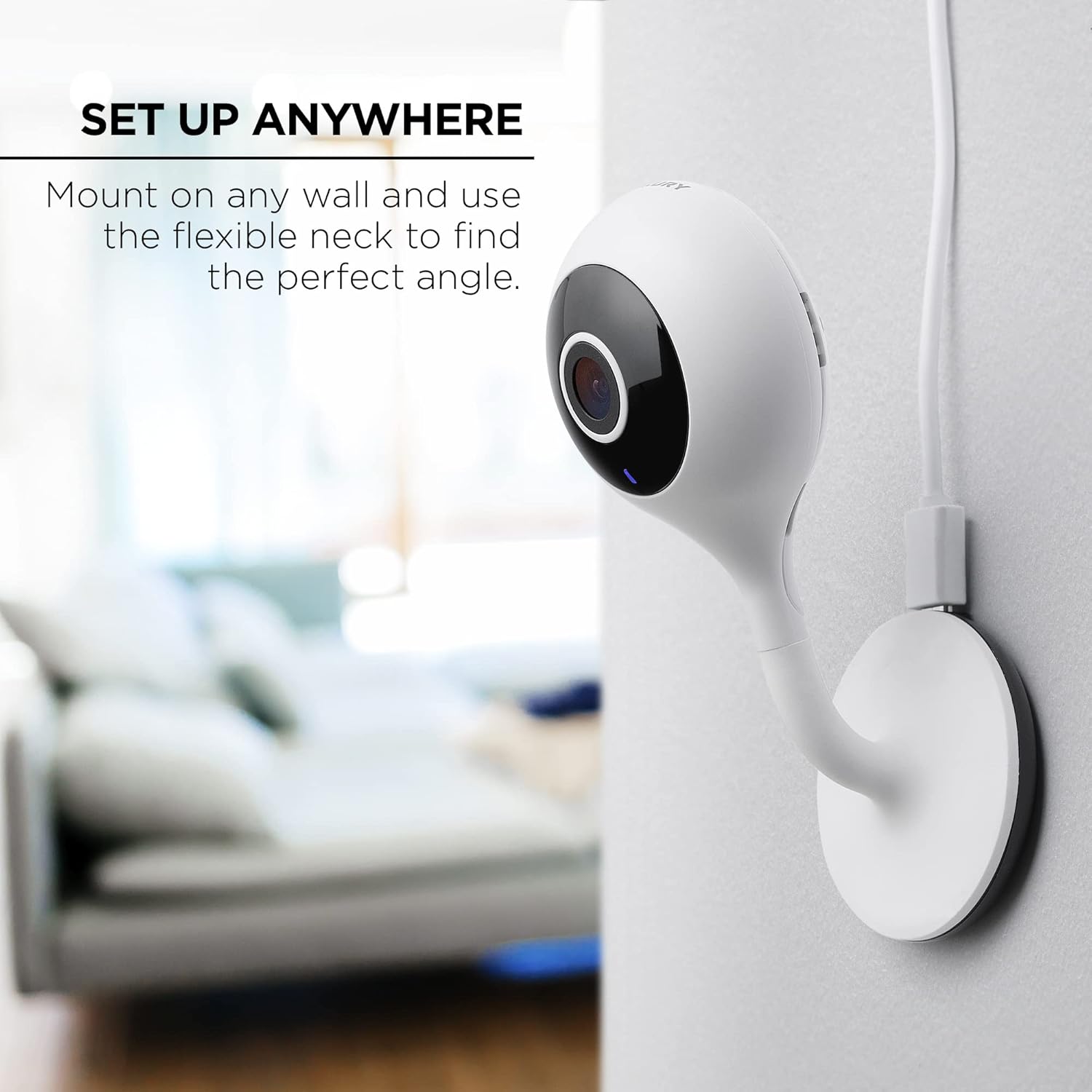
Image: The Merkury Innovations Smart Wi-Fi Camera shown mounted on a wall, demonstrating its flexible neck and versatile placement options for optimal viewing angles.
Operating Instructions
Using the Geeni App
The Geeni app is the primary interface for controlling and monitoring your smart camera.
- Live View: Tap on the camera's name in the app to access the live video feed.
- Motion Alerts: Enable or disable motion detection and customize alert sensitivity in the camera settings. You will receive notifications on your smartphone when motion is detected.
- 2-Way Audio: Use the "Press & Hold to speak" button in the live view to communicate through the camera's speaker.
- Recording: Manually record video or capture screenshots from the live view.
- Playback: Access recorded footage from your microSD card or cloud storage (if subscribed).
- Night Vision: The camera automatically switches to night vision in low-light conditions.
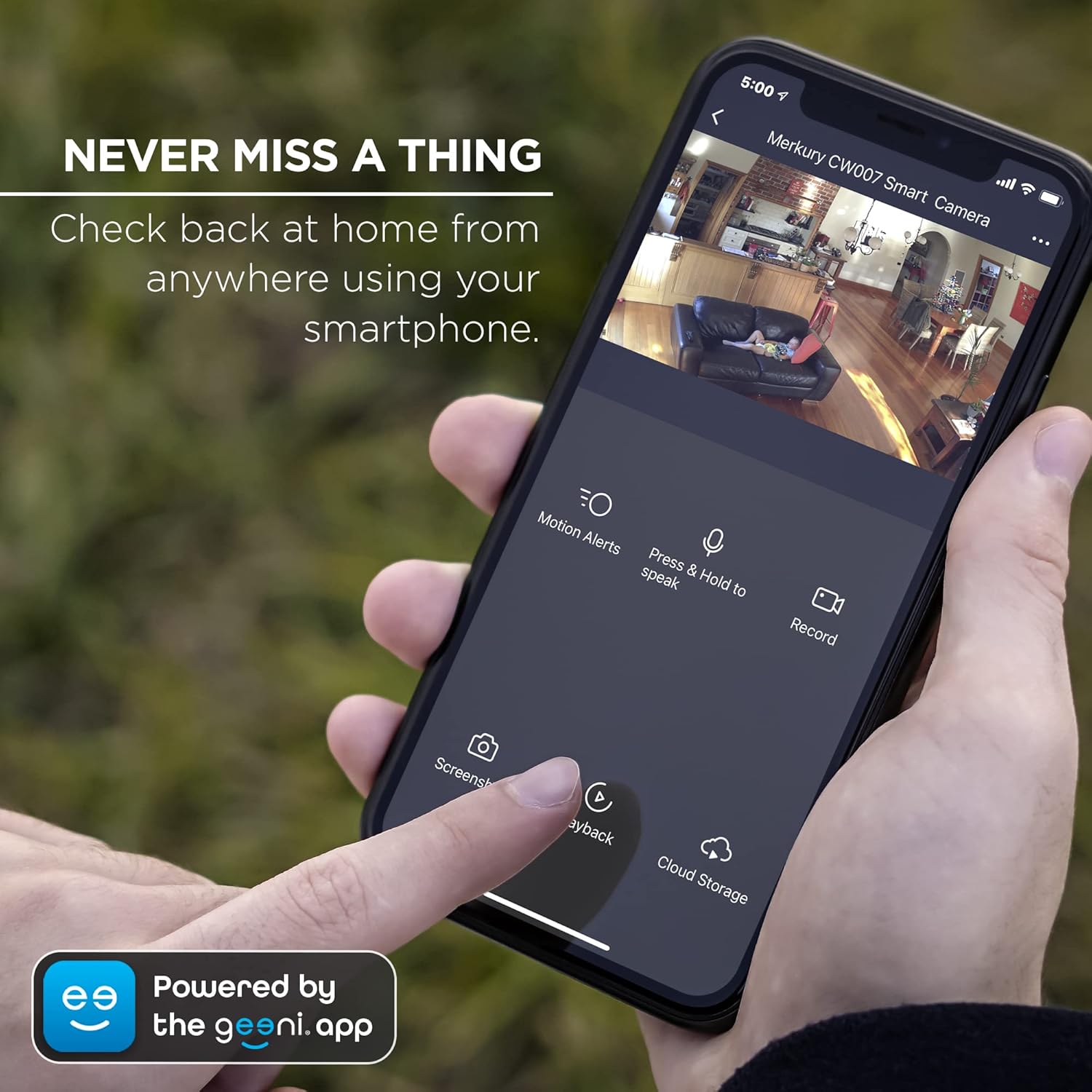
Image: A smartphone displaying the Geeni app interface for the Merkury Innovations Smart Wi-Fi Camera, showing options for motion alerts, two-way talk, recording, screenshot, playback, and cloud storage.

Image: A person interacting with the two-way audio feature of the Merkury Innovations Smart Wi-Fi Camera via the Geeni app, with a dog visible in the background, illustrating communication capabilities.

Image: A smartphone displaying the night vision feed from the Merkury Innovations Smart Wi-Fi Camera, showing a baby sleeping in a crib in a dark room, demonstrating its low-light monitoring capability.
Voice Control Integration
The camera can be controlled using voice commands through Amazon Alexa or Google Assistant.
- Linking Accounts: Follow the instructions in your Alexa or Google Home app to link your Geeni account.
- Sample Commands:
- "Alexa, show me the [Camera Name]."
- "Hey Google, show me the [Camera Name] on [Device Name]."

Image: A smart display showing the live feed from the Merkury Innovations Smart Wi-Fi Camera, with logos for "Works with Alexa" and "Hey Google," illustrating its voice control capabilities.
Maintenance
- Cleaning: Use a soft, dry cloth to clean the camera lens and body. Do not use liquid cleaners or aerosols.
- Firmware Updates: Regularly check the Geeni app for available firmware updates to ensure optimal performance and security.
- Storage Management: If using a microSD card, periodically review and manage stored footage to prevent the card from becoming full.
Troubleshooting
| Problem | Possible Solution |
|---|---|
| Camera won't connect to Wi-Fi. |
|
| QR code scanning fails. |
|
| No video feed or offline status. |
|
| Motion alerts are not working. |
|

Image: A detailed diagram showing the dimensions and key components of the Merkury Innovations Smart Wi-Fi Camera, including the microSD card slot, speaker, microphone, micro USB port, and reset button.
Specifications
| Feature | Detail |
|---|---|
| Model Number | MI-CW007-199WW |
| Video Capture Resolution | 720p HD |
| Connectivity Technology | Wi-Fi (2.4GHz only) |
| Indoor/Outdoor Usage | Indoor |
| Control Method | Voice (Alexa, Google Assistant), App (Geeni) |
| Audio | 2-Way Talk (Built-in Microphone and Speaker) |
| Night Vision | Yes |
| Storage | microSD card slot (up to 128GB, card not included), Cloud Storage (optional) |
| Dimensions (L x W x H) | 3.54 x 3.45 x 5.91 inches |
| Item Weight | 1 Pound |
| Power Source | AC Power Adapter (included) |
| UPC | 194383023012 |
Warranty and Support
For warranty information and technical support, please refer to the official Merkury Innovations website or contact their customer service directly. Keep your purchase receipt for warranty claims.
Online Support: www.merkuryinnovations.com/support
Documents and downloads
Ask a question about this manual
Ask about setup, troubleshooting, compatibility, parts, safety, or missing instructions. Manuals+ will review the question and use this page’s manual context to help answer it.