
Introduction
This manual provides essential instructions for setting up, operating, and maintaining your Epson EcoTank L121 A4 Ink Tank Printer. Please read this guide thoroughly before using the printer to ensure correct operation and to maximize its lifespan.

Image: Front view of the Epson EcoTank L121 A4 Ink Tank Printer. This image shows the compact design and the front paper output tray.
1. Setup
1.1 Unpacking
Carefully remove the printer from its packaging. Ensure all protective tapes and materials are removed from the exterior and interior of the printer. Keep the packaging materials for future transport if needed.
1.2 Filling Ink Tanks
The EcoTank L121 uses refillable ink tanks. Use only genuine Epson 664 series ink bottles (6641 Black, 6642 Cyan, 6643 Magenta, 6644 Yellow) for optimal performance and to prevent damage.
- Open the ink tank unit cover on the side of the printer.
- Open the cap for the corresponding color ink tank you wish to fill.
- Carefully uncap the ink bottle and insert it into the filling port. The ink will automatically start to fill the tank. Do not squeeze the bottle.
- Once the tank is full, remove the ink bottle and securely close the ink tank cap.
- Repeat for all other colors.
- Close the ink tank unit cover.
After filling, press and hold the Maintenance button (often depicted as a droplet or triangle with a lightning bolt) for 3 seconds to initiate ink charging. This process takes approximately 20 minutes. Do not turn off the printer during ink charging.
1.3 Connecting to a Computer
The Epson EcoTank L121 connects via USB 2.0.
- Ensure the printer is powered on and ink charging is complete.
- Connect one end of the USB cable to the printer's USB port.
- Connect the other end of the USB cable to an available USB port on your computer.
1.4 Software Installation
Insert the provided software CD into your computer's CD-ROM drive. If the installer does not start automatically, browse the CD and run the setup file. Follow the on-screen instructions to install the printer drivers and utility software. If you do not have a CD drive, download the latest drivers from the official Epson support website.
2. Operating the Printer
2.1 Loading Paper
The printer supports A4 paper size.
- Open the paper support and pull it up.
- Slide the edge guides to the width of your paper.
- Load paper print-side up into the rear paper feeder. Ensure the stack is even and does not exceed the maximum load line.
- Adjust the edge guides against the sides of the paper.
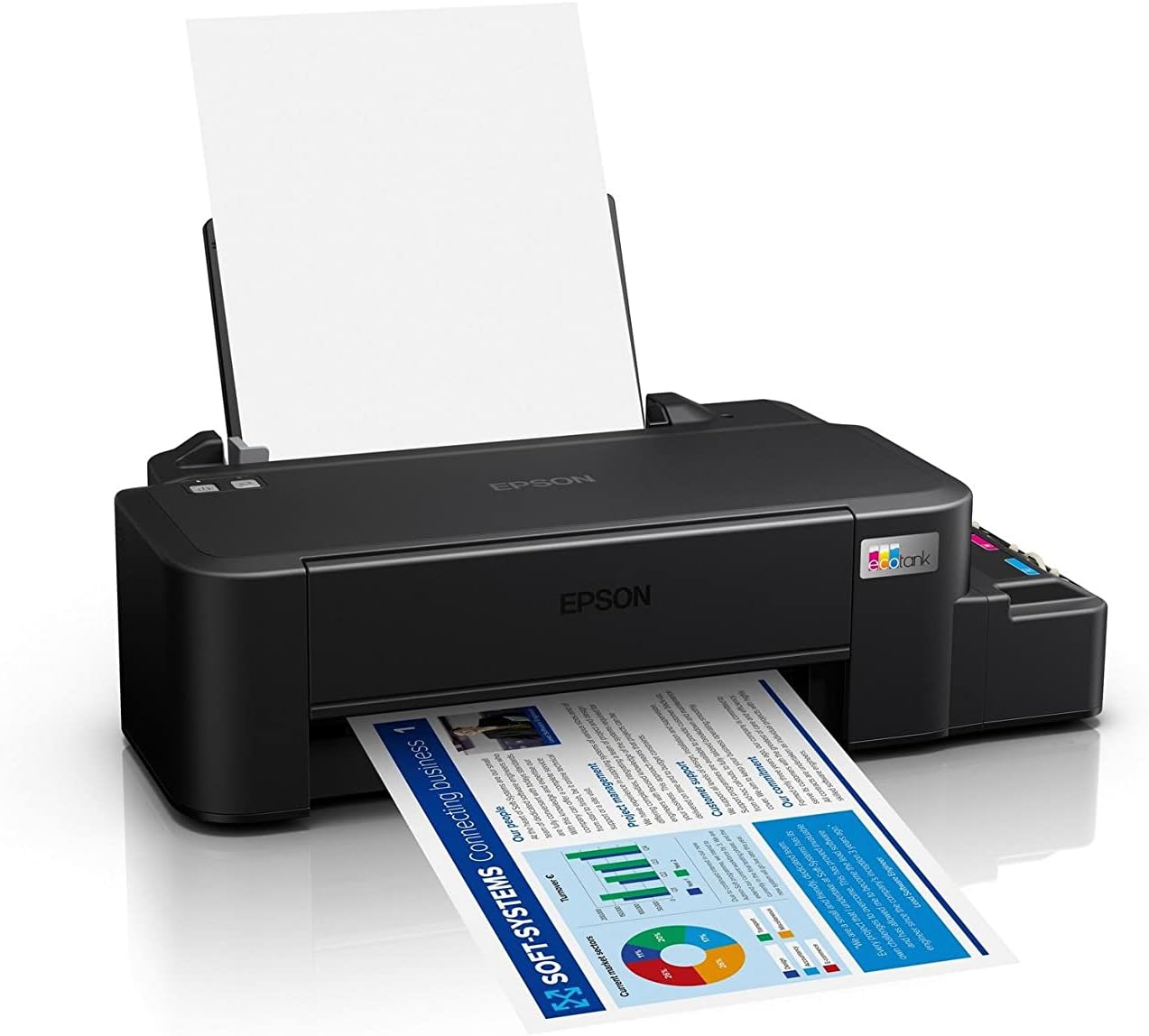
Image: The Epson EcoTank L121 printer actively printing a document. This illustrates paper being fed from the rear tray and exiting the front output tray.
2.2 Basic Printing
To print a document or image from your computer:
- Open the document or image you wish to print.
- Select Print from the application's menu (e.g., File > Print).
- Choose your Epson EcoTank L121 printer from the list of available printers.
- Adjust print settings such as paper size, print quality, and number of copies as needed.
- Click Print.
3. Maintenance
3.1 Checking Ink Levels
Visually inspect the ink tanks on the side of the printer. The transparent tanks allow you to monitor ink levels. Refill ink when levels approach the lower line to prevent air from entering the system, which can affect print quality.

Image: Angled view of the Epson EcoTank L121 printer, highlighting the external ink tanks. This view clearly shows the four color ink reservoirs.
3.2 Print Head Cleaning
If print quality declines (e.g., missing lines, incorrect colors), perform a print head cleaning. This can be done through the printer utility software on your computer:
- Open the Epson printer utility on your computer.
- Navigate to the Maintenance or Utility tab.
- Select Head Cleaning and follow the on-screen instructions.
Alternatively, you can perform a head cleaning by holding down the Maintenance button on the printer for 3 seconds until the power light starts flashing. Release the button and wait for the cleaning cycle to complete.
3.3 Nozzle Check
After a head cleaning, or if you suspect print quality issues, perform a nozzle check to verify if all nozzles are firing correctly. This can also be done via the printer utility software or by holding the Maintenance button for a shorter duration (e.g., 1 second) to print a nozzle check pattern.
4. Troubleshooting
This section addresses common issues you might encounter with your Epson EcoTank L121 printer.
- Printer Not Responding:
- Ensure the printer is powered on and connected securely via USB.
- Check if the printer drivers are correctly installed on your computer.
- Restart both the printer and your computer.
- Poor Print Quality:
- Perform a nozzle check to identify clogged nozzles.
- Run a print head cleaning cycle if nozzles are clogged.
- Check ink levels and refill if necessary.
- Ensure you are using genuine Epson ink.
- Paper Jams:
- Turn off the printer and carefully remove any jammed paper from the input tray, output tray, or inside the printer.
- Ensure paper is loaded correctly and not creased or curled.
- Do not overload the paper tray.
- Ink Light Flashing:
- This usually indicates low ink. Check the ink tanks and refill any low colors.
- After refilling, press the Maintenance button to reset the ink level indicator.
For more detailed troubleshooting, refer to the Epson support website or the full electronic manual.
5. Specifications
| Feature | Detail |
|---|---|
| Brand | Epson |
| Model Name | EcoTank L121 |
| Printing Technology | Inkjet |
| Connectivity Technology | USB 2.0 |
| Printer Output | Colour |
| Maximum Print Resolution (Color) | 720 x 720 dpi |
| Maximum Print Speed (Black) | 9 ppm (ISO) |
| Maximum Print Speed (Color) | 4.8 ppm (ISO) |
| Special Features | Refillable Ink Tank |
| Item Weight | 2.4 Kilograms |
| Item Dimensions (D x W x H) | 21.5D x 46.1W x 13H centimetres |
| Maximum Media Size | A4 |
| Compatible Ink | Epson 664 series (6641/6642/6643/6644) |
| Duplex Printing | Manual |
6. Warranty Information
The Epson EcoTank L121 printer comes with a warranty of 2-years or 20,000 pages, whichever comes first. Please retain your proof of purchase for warranty claims. For full terms and conditions, refer to the official Epson warranty documentation included with your product or visit the Epson support website.
7. Support
For further assistance, driver downloads, FAQs, and additional support resources, please visit the official Epson support website:
When contacting support, please have your printer model (L121) and serial number ready.


