
1. Introduction
The Epson EcoTank L5290 is a versatile A4 Wi-Fi All-in-One Ink Tank Printer designed for efficiency and convenience. It integrates print, scan, copy, and fax functionalities, along with an Automatic Document Feeder (ADF) for enhanced productivity. This manual provides essential information for the proper use and care of your device.
Key Features
- A4 Wi-Fi All-in-One Ink Tank Printer with Wi-Fi & Wi-Fi Direct.
- Print, scan, copy, and fax capabilities with an Automatic Document Feeder (ADF).
- Print speeds of up to 15ppm (color draft) / 33ppm (black draft) and 5.0ppm (color ISO) / 10.0ppm (black ISO).
- Maximum printing resolution: 5760 x 1440 dpi.
- Scanning optical resolution: 1200 x 2400 dpi.
- Connectivity: 1 Hi-Speed USB 2.0, Wi-Fi IEEE 802.11b/g/n, Wi-Fi Direct.
- Compatible with Apple Airprint and Mopria Print Service.
- Uses Epson 003 series ink bottles for economical and spill-free refilling.

Image 1.1: Front view of the Epson EcoTank L5290 printer, showcasing its compact design and control panel.
2. Setup
2.1 Unpacking the Printer
- Remove the printer from its packaging.
- Remove all protective tapes and packing materials from the exterior and interior of the printer.
- Place the printer on a stable, flat surface near a power outlet.
2.2 Initial Ink Filling
The EcoTank L5290 uses integrated ink tanks for a high-capacity, refillable ink system. Follow these steps for initial ink filling:
- Open the ink tank unit cover on the side of the printer.
- Open the cap for the black ink tank.
- Uncap the black ink bottle and align its nozzle with the ink tank's filling port. The bottles are designed for spill-free refilling, ensuring ink only flows into the correct tank.
- Allow the ink to drain into the tank. Do not squeeze the bottle.
- Once the tank is full, remove the ink bottle and securely close the ink tank cap.
- Repeat the process for the cyan, magenta, and yellow ink tanks using their respective color bottles.
- Close the ink tank unit cover.
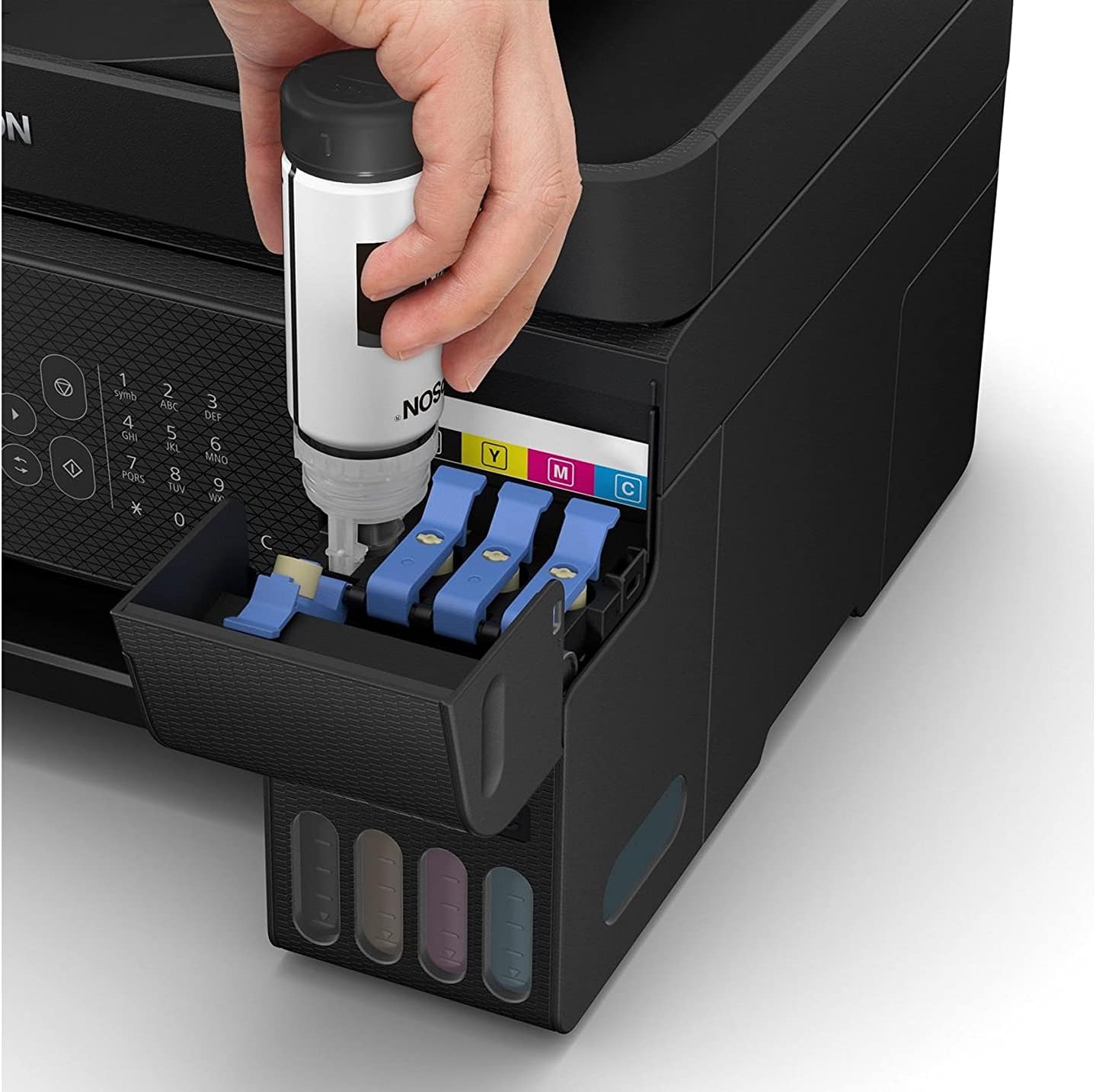
Image 2.1: A hand demonstrating the spill-free ink refilling process for the Epson EcoTank L5290.
2.3 Powering On the Printer
- Connect the power cord to the printer and then to a power outlet.
- Press the power button on the printer's control panel.
- Follow the on-screen instructions on the printer's LCD panel to complete the initial setup, including language selection and ink initialization. Ink initialization may take several minutes.
2.4 Software Installation
To utilize all printer functions, install the necessary drivers and software on your computer or mobile device.
- For Computers: Insert the installation CD (if provided) or download the latest drivers and utilities from the official Epson support website. Follow the on-screen instructions for installation.
- For Mobile Devices: Download the Epson Smart Panel app from your device's app store (Apple App Store or Google Play Store). This app facilitates printing, scanning, and printer management from your smartphone or tablet.
2.5 Network Connection (Wi-Fi / Wi-Fi Direct)
The L5290 supports both standard Wi-Fi and Wi-Fi Direct for flexible connectivity.
- Wi-Fi Setup: On the printer's control panel, navigate to the Wi-Fi settings. Select your network from the list of available networks and enter the password.
- Wi-Fi Direct: This feature allows direct connection between your device and the printer without a router. Enable Wi-Fi Direct on the printer and then connect your mobile device or computer to the printer's direct Wi-Fi network.
3. Operating Instructions
3.1 Printing Documents
- Load paper into the paper tray. Ensure the paper guides are adjusted to fit the paper size.
- Open the document you wish to print on your computer or mobile device.
- Select 'Print' from the application's menu.
- Choose the Epson EcoTank L5290 as your printer.
- Adjust print settings (e.g., paper size, print quality, color/grayscale) as needed.
- Click 'Print'.
3.2 Scanning Documents
You can scan documents using the flatbed scanner or the Automatic Document Feeder (ADF).
- Using the Flatbed: Place the document face-down on the scanner glass, aligning it with the corner mark.
- Using the ADF: Load multiple pages face-up into the ADF.
Initiate the scan from your computer using Epson Scan software or from the Epson Smart Panel app on your mobile device. Select scan settings such as resolution, color mode, and destination, then start the scan.
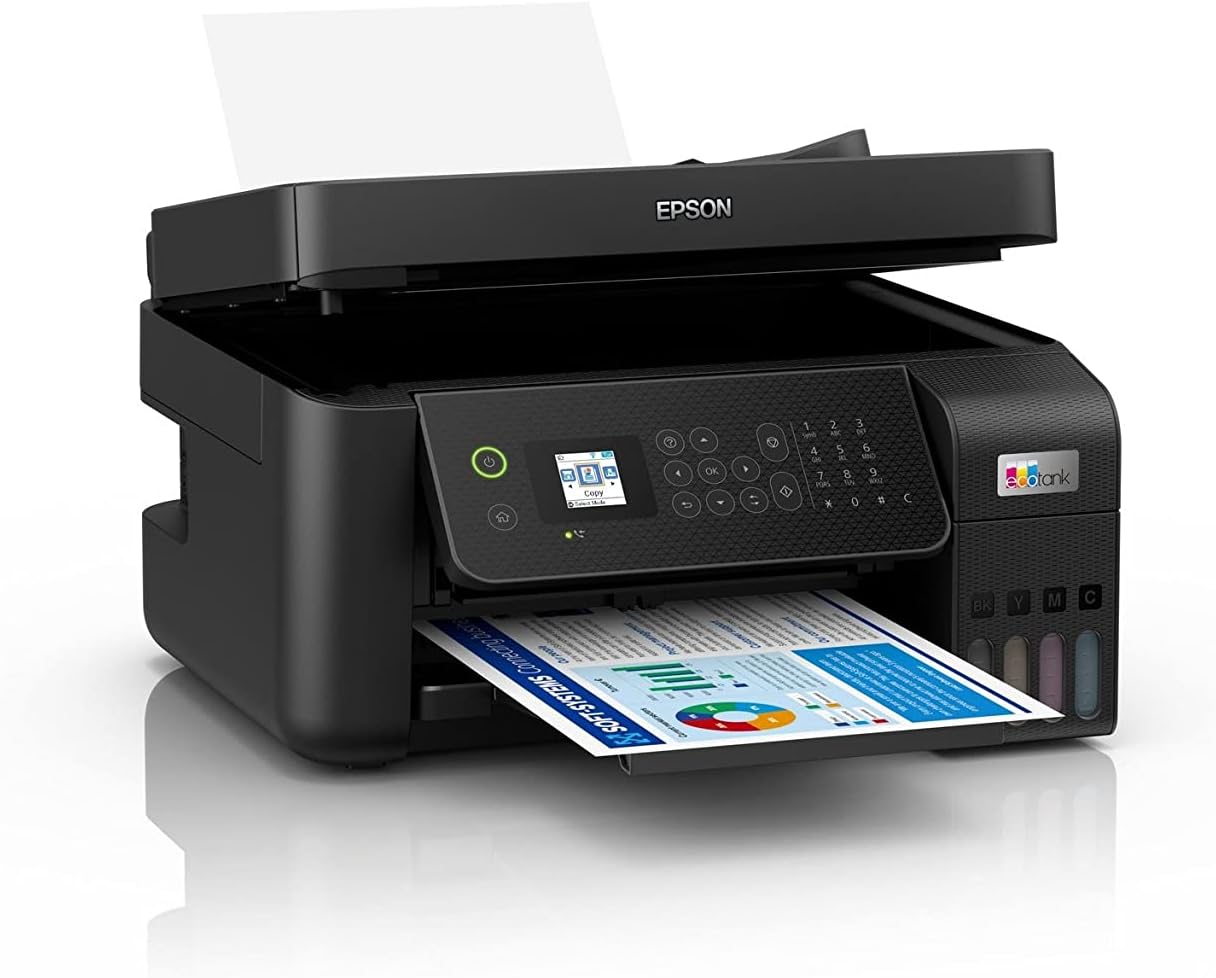
Image 3.1: The Epson EcoTank L5290 printer with paper loaded in the front tray and the ADF ready for use.
3.3 Copying Documents
- Load the original document on the scanner glass or in the ADF.
- On the printer's control panel, select the 'Copy' function.
- Adjust settings such as number of copies, color/black & white, and paper size.
- Press the 'Start' button to begin copying.
3.4 Faxing Documents
The L5290 includes fax functionality. Ensure the printer is connected to a phone line.
- Load the document(s) into the ADF or place a single page on the scanner glass.
- On the printer's control panel, select the 'Fax' function.
- Enter the recipient's fax number using the numeric keypad.
- Adjust any necessary fax settings (e.g., resolution, color/black & white).
- Press the 'Start' button to send the fax.
4. Maintenance
4.1 Ink Level Management and Refilling
Regularly check the ink levels through the transparent ink tanks or via the printer's control panel/software. When an ink tank is low, refill it using genuine Epson 003 series ink bottles, following the procedure outlined in Section 2.2.
4.2 Cleaning the Printer
- Exterior: Wipe the printer's exterior with a soft, damp, lint-free cloth. Avoid using abrasive cleaners or solvents.
- Scanner Glass: Gently clean the scanner glass with a soft, lint-free cloth moistened with a small amount of glass cleaner.
- Print Head Cleaning: If print quality declines (e.g., missing lines, streaking), perform a print head cleaning cycle through the printer's maintenance menu or the printer driver software.
4.3 Clearing Paper Jams
If a paper jam occurs, the printer's LCD panel will display an error message. Follow these general steps:
- Turn off the printer and unplug the power cord.
- Carefully open all covers (e.g., rear cover, top cover) to access the paper path.
- Gently pull out any jammed paper in the direction of the paper path. Avoid tearing the paper.
- Ensure all paper fragments are removed.
- Close all covers, plug in the power cord, and turn on the printer.
5. Troubleshooting
This section addresses common issues you might encounter. For detailed troubleshooting, refer to the comprehensive online manual or Epson support resources.
- Printer Not Responding: Check power connections, USB/network cables, and ensure the printer is selected as the default printer on your computer. Restart both the printer and computer.
- Poor Print Quality: Perform a nozzle check and print head cleaning. Ensure genuine Epson ink is used and ink levels are sufficient. Check paper type settings in the print driver.
- Paper Feed Issues: Ensure paper is loaded correctly and not creased or damaged. Adjust paper guides. Clean the paper rollers if necessary.
- Network Connection Problems: Verify Wi-Fi settings on both the printer and your router. Restart your router and printer. Ensure the printer is within range of your Wi-Fi network.
- Error Messages: Refer to the specific error code displayed on the printer's LCD panel and consult the online manual for detailed solutions.
6. Specifications
| Feature | Detail |
|---|---|
| Brand | Epson |
| Model Number | L5290 |
| Manufacturer Part Number | C11CJ65502 |
| Functions | Print, Scan, Copy, Fax with ADF |
| Print Resolution (Max) | 5760 x 1440 dpi |
| Scan Resolution (Optical) | 1200 x 2400 dpi |
| Connectivity | USB 2.0, Wi-Fi (IEEE 802.11b/g/n), Wi-Fi Direct |
| Compatible Ink | Epson 003 Ink Bottles |
| Color | Black |
| Date First Available | 21 June 2022 |
7. Warranty and Support
Your Epson EcoTank L5290 printer comes with a manufacturer's warranty. For specific warranty terms and conditions, please refer to the documentation included with your product or visit the official Epson support website for your region.
For technical assistance, driver downloads, FAQs, and further support, please visit the Epson support website or contact their customer service. Keep your printer's model number (L5290) and serial number ready when seeking support.


