
1. Introduction
This manual provides detailed instructions for the installation, operation, and maintenance of your MekedeTech M200S Android Car Stereo. Please read this manual thoroughly before installation and use to ensure proper functionality and to maximize your user experience. This unit is designed to upgrade the in-car entertainment and navigation system for specific Lexus IS models.

Image 1.1: MekedeTech M200S Android Car Stereo main unit.
2. Compatibility and Important Notes
The MekedeTech M200S is compatible with Lexus IS250, IS200, IS220, IS300, and IS350 models from 2005 to 2011 with a low-level factory system. It is crucial to verify your vehicle's factory system level before installation.
- 2005-2011 Lexus IS Models (Low Level): This unit is designed for these vehicles.
- 2010-2011 Lexus IS Models (High Level): This model is not suitable for vehicles with a high-level factory system.
- Sportscars with Sliding-Top: This radio is not compatible with sportscars featuring a sliding-top mechanism.
- Vehicles with Factory Navigation Screen: If your dash includes a factory navigation screen with air-conditioning controls, the original air-conditioning functionality through that screen will not work with this unit. However, AC controls will be integrated into the new touch screen.

Image 2.1: Compatibility check for Lexus IS dashboards. Shows 'Can Fit' for standard and AC screen, 'Can't Fit' for factory navigation screen.
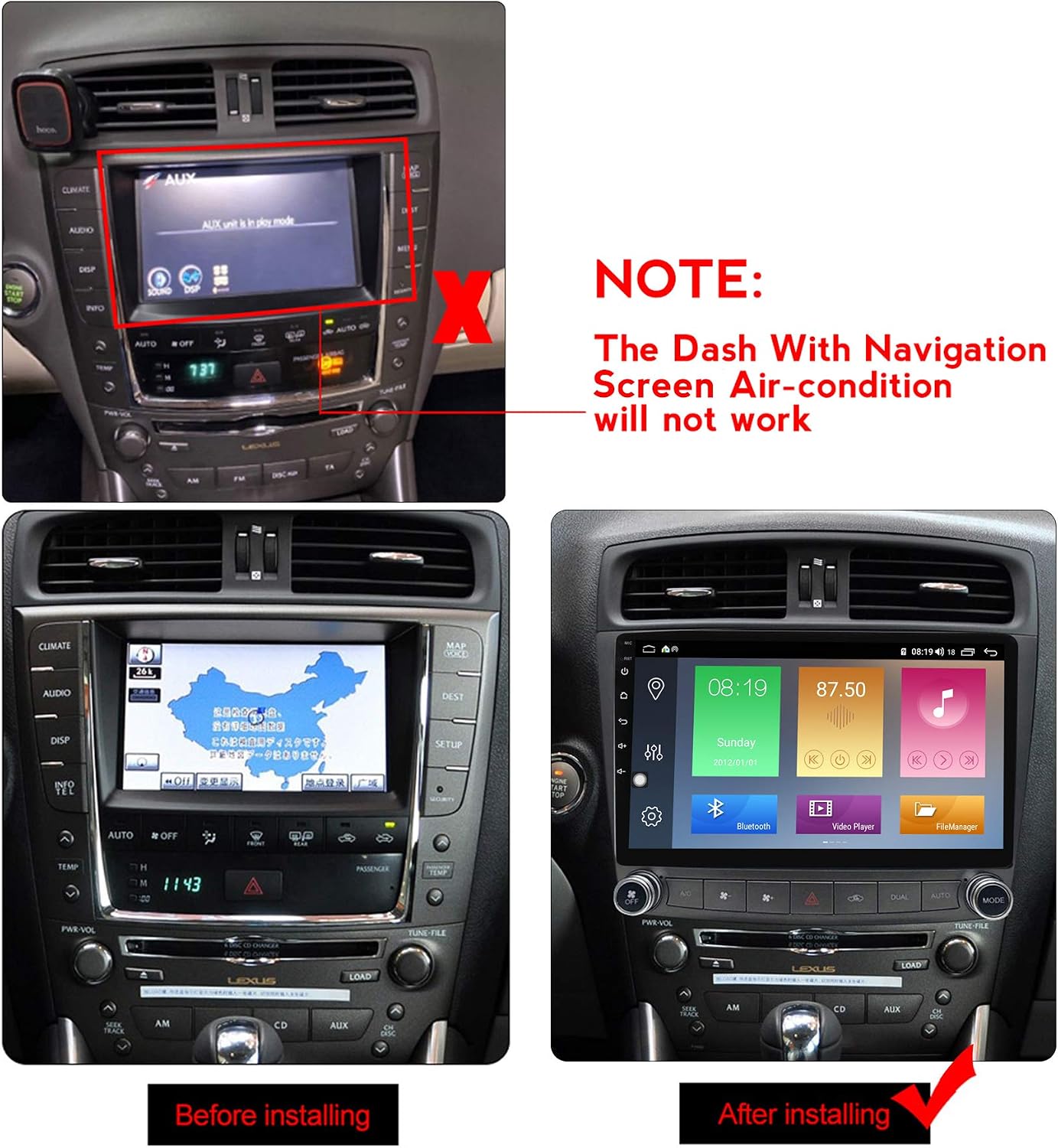
Image 2.2: Visual guide for compatibility, highlighting the factory navigation screen issue.
3. Package Contents
Upon unpacking, please ensure all the following components are present:

Image 3.1: Included accessories and cables.
- MekedeTech M200S Head Unit
- Power Cable Harness
- RCA Cable
- USB Cables (2x 6-pin, 1x 4-pin)
- GPS Antenna
- 4G Antenna
- External Microphone
- Reversing Camera Cable
- Mounting Brackets
- CAN Bus Decoder Box
- User Manual (this document)
4. Installation Guide
Professional installation is recommended. Ensure the vehicle's battery is disconnected before beginning installation. Refer to your vehicle's service manual for specific dashboard removal procedures.
4.1 Wiring Diagram
Carefully connect all wire harnesses as indicated. Incorrect connections can lead to malfunctions, especially with AC controls and steering wheel functions.

Image 4.1: Wiring diagram for the head unit.
- Power Cable: Connect the main power harness to the vehicle's wiring.
- RCA Cables: For external amplifiers or audio/video input/output.
- USB Cables: Connect for USB devices, dash cams, or wired Android Auto.
- GPS Antenna: Mount in a location with a clear view of the sky for optimal signal reception.
- 4G Antenna: Connect for 4G network access (if applicable to your model variant).
- External Microphone: Connect for improved call quality.
- Reversing Camera Cable: Connect to your aftermarket reversing camera. Note: OEM backup cameras may require additional adapters or may not be compatible.
- CAN Bus Decoder Box: This is essential for integrating with vehicle functions like steering wheel controls and AC. Ensure it is correctly plugged in.
- OBD Connection: Connect the OBD cable to the OEM car OBD plug for features like dynamic parking lines with a backup camera.
- Hazard Light and AC Control Cable: Ensure this cable is properly connected for AC functionality.
4.2 Physical Installation
- Carefully remove the factory radio and AC control panel from your Lexus IS.
- Attach the provided mounting brackets to the MekedeTech M200S head unit.
- Connect all necessary wiring harnesses as per the diagram in Section 4.1.
- Test all connections (power, audio, AC, steering wheel controls) before fully reassembling the dashboard.
- Secure the head unit into the dashboard opening.
- Reinstall any removed trim pieces.

Image 4.2: Before and after installation view.
5. Operating Instructions
5.1 Initial Power-On and System Configuration
After installation, turn on your vehicle's ignition. The unit will boot up. The first boot may take longer than subsequent starts.
- CAN Bus Settings: Navigate to the system settings to configure the CAN bus. Select 'Lexus' as the car brand and 'IS' as the model. Choose 'LowConfig' for your vehicle type. This step is critical for proper integration of AC controls and steering wheel functions.
- AC Display: The AC display will appear on the touch screen. You can control it via touch or the original physical buttons. Ensure all AC-related wire harnesses are correctly plugged in for proper operation.

Image 5.1: CAN Bus configuration screen.
5.2 Key Features
- Wireless CarPlay & Wired Android Auto: Connect your smartphone for seamless integration of navigation, music, calls, and messages. Wireless CarPlay is supported, while Android Auto requires a wired connection via USB.
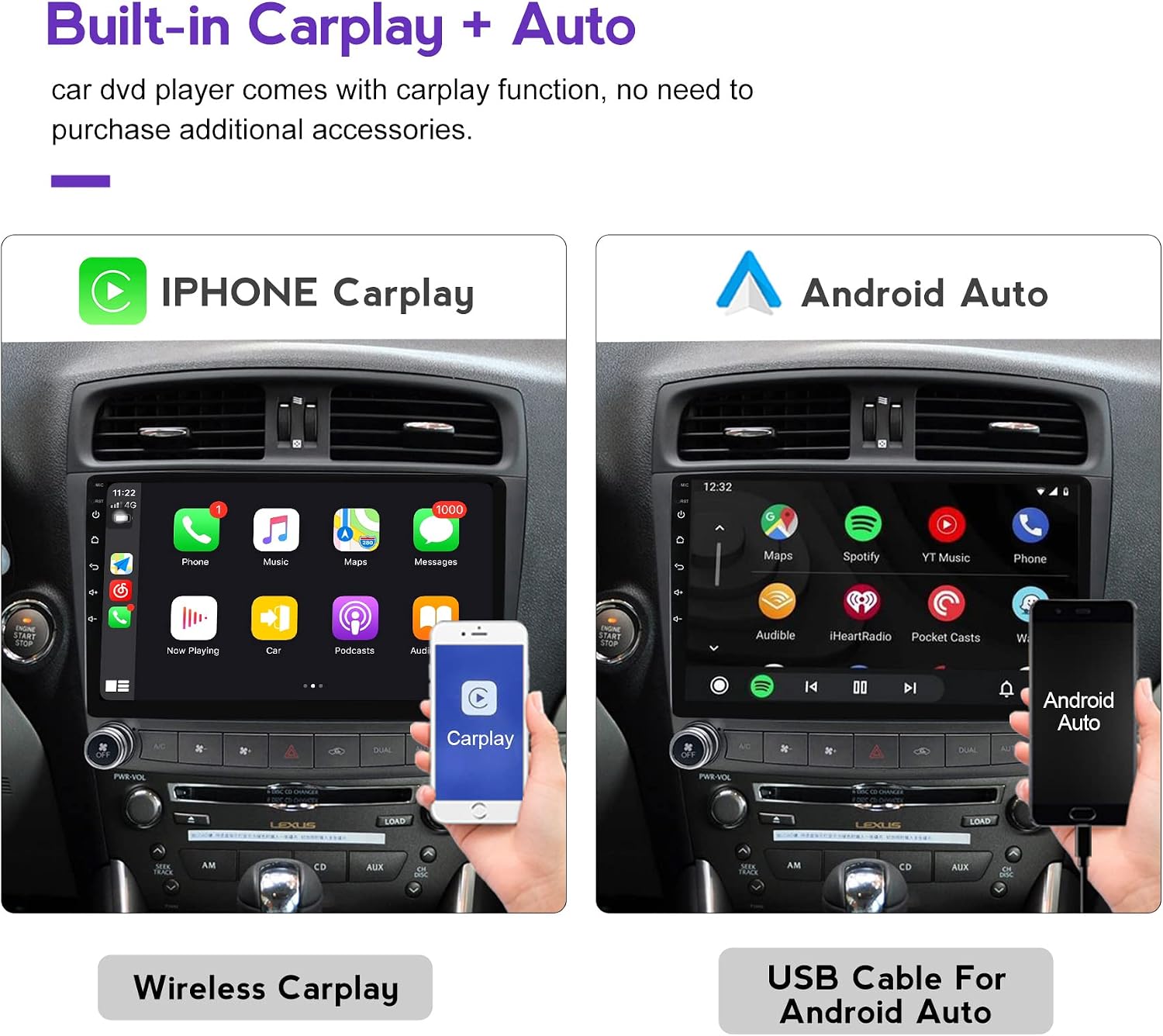
Image 5.2: Wireless CarPlay and Wired Android Auto interfaces.
- Bluetooth Connectivity: Pair your mobile phone for hands-free calling and audio streaming. The built-in microphone provides clear communication.

Image 5.3: Bluetooth phone interface.
- Mirror Link: Mirror your mobile phone screen (Android USB, Android WiFi, iPhone WiFi) directly onto the stereo display.

Image 5.4: Mirror Link functionality.
- Built-in DSP: The Digital Sound Processor provides enhanced audio quality. Ensure your factory CD player is in good working condition or consider an aftermarket amplifier for optimal sound.
- Split Screen Functionality: Run two applications simultaneously on the screen, such as navigation and music playback.
- GPS Navigation: Utilize built-in GPS for worldwide navigation.
- Steering Wheel Controls (SWC): Retain control of volume, track changes, and other functions directly from your steering wheel.
- AHD Reversing Video: Supports AHD (Analog High Definition) reversing cameras for clear rear-view display when parking.
6. Maintenance
To ensure the longevity and optimal performance of your MekedeTech M200S Android Car Stereo, follow these maintenance guidelines:
- Screen Cleaning: Use a soft, lint-free cloth to gently wipe the touch screen. For stubborn smudges, slightly dampen the cloth with water or a screen-safe cleaner. Avoid harsh chemicals or abrasive materials.
- Software Updates: Periodically check for system software updates provided by MekedeTech to ensure you have the latest features and bug fixes. Follow the on-screen instructions for safe updates.
- Environmental Conditions: Avoid exposing the unit to extreme temperatures or direct sunlight for prolonged periods when the vehicle is parked, as this can affect performance and lifespan.
- Cable Connections: Occasionally check that all cables are securely connected, especially after any vehicle maintenance or modifications.
7. Troubleshooting
This section addresses common issues you might encounter. If you experience problems not listed here, please contact customer support.
| Problem | Possible Cause | Solution |
|---|---|---|
| AC controls not working or displaying correctly. | Incorrect wiring of AC control cable or CAN bus decoder. Incorrect CAN bus settings. | Ensure the hazard light and AC control cable is properly connected. Verify the CAN bus decoder is plugged in and configured correctly in system settings (Lexus, IS, LowConfig). |
| No sound or poor sound quality. | Factory CD player issue. Volume levels between head unit and factory amplifier are mismatched. | Ensure your factory CD player is in good working condition. Adjust the volume levels on both the head unit and the factory amplifier (if applicable) to find the optimal balance. Check DSP settings. |
| OEM backup camera not working. | Incompatibility with the unit's decoder box or wiring. | The unit's decoder box controls the backup camera. Verify all cable port pins are in good condition. OEM backup cameras may not be directly compatible and might require an aftermarket camera. |
| Unit takes a long time to boot up. | First boot after installation or system update. | Initial boot-up can take approximately 30 seconds. Subsequent starts should be faster. Essential functions like backup camera and AC controls are typically accessible sooner. |
| Steering Wheel Controls not functioning. | CAN bus decoder not connected or configured correctly. | Ensure the CAN bus decoder is properly connected and configured in the system settings. |
8. Specifications
Below are the technical specifications for the MekedeTech M200S Android Car Stereo:
- Model Name: M200S
- Operating System: Android 11
- Processor: Octa-core
- RAM: 2GB
- ROM: 32GB
- Display Size: 10 Inches
- Resolution: 800 x 480
- Connectivity: Auxiliary, Bluetooth, USB, Wi-Fi (AC WiFi)
- Special Features: Cooling Fan, RDS, Spotify support, Touchscreen, Built-in DSP, Wireless CarPlay, Wired Android Auto
- Audio Output Mode: Stereo
- Map Type: Worldwide (via GPS)
- Item Weight: Approximately 5.06 pounds
- Package Dimensions: 13.54 x 9.21 x 4.88 inches
9. Warranty and Support
9.1 Warranty Information
The MekedeTech M200S Android Car Stereo comes with a 1-Year Warranty from the date of purchase. This warranty covers manufacturing defects and malfunctions under normal use. It does not cover damage caused by improper installation, misuse, accidents, or unauthorized modifications.
9.2 Customer Support
For technical assistance, troubleshooting, or warranty claims, please contact MekedeTech customer support through the retailer where you purchased the product or visit the official MekedeTech store online. When contacting support, please have your product model (M200S) and purchase details readily available.
For additional resources and product information, you may visit the MekedeTech Store on Amazon.