
1. Introduction
This manual provides detailed instructions for the setup, operation, and maintenance of your VGKE T28 4K Projector. Please read this manual thoroughly before using the projector to ensure proper functionality and to extend the product's lifespan. Keep this manual for future reference.
2. Safety Information
- Power Supply: Use only the specified power adapter. Ensure the voltage matches your local power supply.
- Ventilation: Do not block ventilation openings. Ensure adequate airflow around the projector to prevent overheating.
- Placement: Place the projector on a stable, level surface. Avoid placing it in direct sunlight, near heat sources, or in humid environments.
- Lens Care: Do not look directly into the projector lens when the lamp is on, as the bright light can cause eye damage. Clean the lens with a soft, lint-free cloth.
- Maintenance: Do not attempt to disassemble or repair the projector yourself. Refer all servicing to qualified personnel.
3. Product Overview
The VGKE T28 is a high-performance 4K-supported projector designed for various entertainment and professional applications. It features Android OS, 5G WiFi, Bluetooth connectivity, and advanced image correction capabilities.

Image: Front view of the VGKE T28 Projector, showcasing the lens and overall design.
Ports and Controls
Familiarize yourself with the various ports and controls on your projector for optimal use.

Image: Diagram illustrating the projector's compatibility with various devices and its input/output ports, including HDMI, USB, AV, and RJ45.
- HDMI Ports: Connect to laptops, gaming consoles (PS3, PS4, X-box), TV boxes, Fire TV Sticks, etc.
- USB Ports: For connecting USB drives (U Disk) to play media files directly.
- RJ45 Port: For wired internet connection.
- AV Port: For connecting older audio/video devices.
- Audio Out: For connecting external speakers or headphones.
4. Setup
4.1 Placement
Position the projector on a flat, stable surface. Ensure there is enough space around the projector for proper ventilation. The projection distance will determine the screen size. The VGKE T28 supports a projection size from 50 to 300 inches.

Image: Visual representation of adjustable screen sizes (50, 120, 150, 300 inches) at different projection distances.
4.2 Power Connection
Connect the power adapter to the projector's power input and then plug it into a wall outlet (AC 100-240 V).
5. Operating Instructions
5.1 Power On/Off
Press the power button on the projector or the remote control to turn the projector on or off.
5.2 Focus Adjustment
The VGKE T28 features electronic focus. Use the "F+" and "F-" buttons on the remote control to adjust the image clarity until it is sharp.
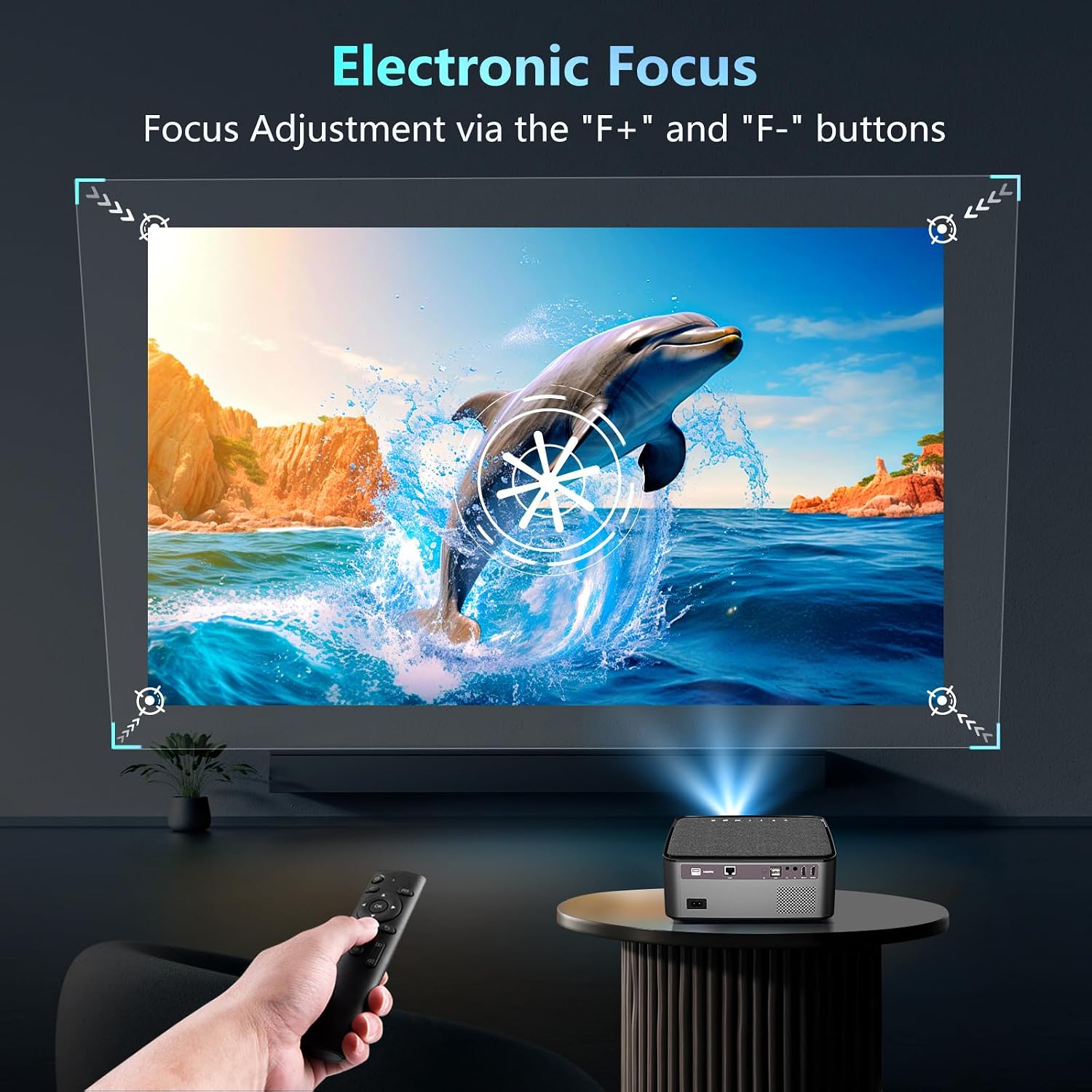
Image: A hand holding a remote control, adjusting the electronic focus of the projected image using 'F+' and 'F-' buttons.
5.3 Keystone Correction
The projector supports 4D electronic four-point keystone correction, allowing for both vertical and horizontal adjustments up to ±50°. This corrects distorted images when the projector is not perfectly aligned with the screen, including side projection.

Image: A sequence demonstrating how four-point keystone correction adjusts a trapezoidal image back to a rectangular shape.
5.4 Zoom Function
The digital zoom function allows you to adjust the image size from 100% down to 70% without moving the projector.
5.5 Connectivity
5.5.1 Wireless WiFi Screen Mirroring
The projector supports 5G WiFi for seamless screen mirroring from your smartphone (Android/iOS) or PC (MiraCast/DLNA). Connect the projector to your WiFi network, then use the screen mirroring function on your device.
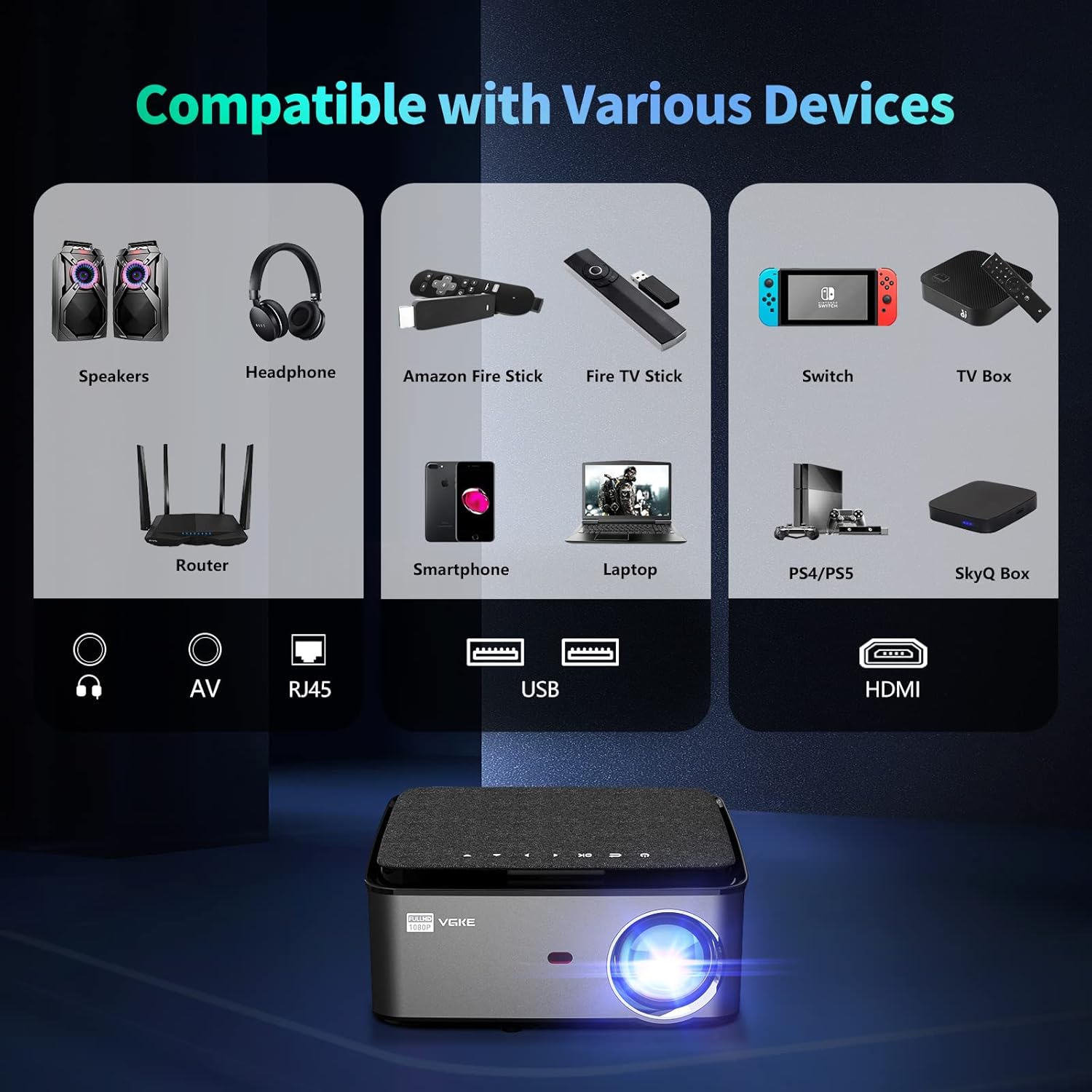
Image: Illustration of wireless screen mirroring from a smartphone and tablet to the projector via WiFi.
5.5.2 Bluetooth Connectivity
Connect Bluetooth headphones, speakers, or other audio devices to the projector for enhanced audio experience.
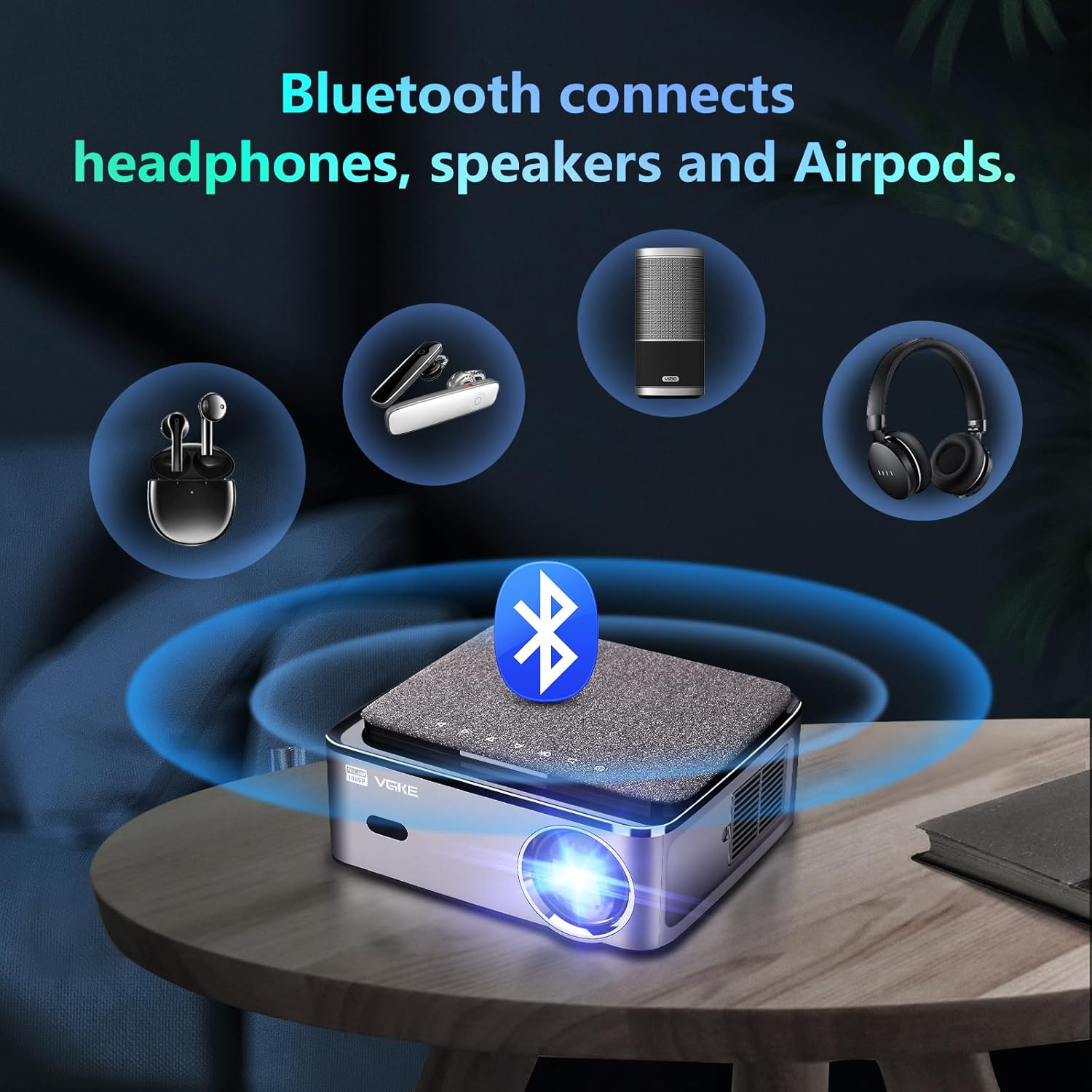
Image: The projector wirelessly connecting to various Bluetooth audio devices like headphones, speakers, and earbuds.
5.5.3 USB Media Playback
Insert a USB drive into the USB 2.0 port to directly play supported media files (PPT/Excel/Office documents, videos, images).

Image: A projector displaying a business presentation from a USB disk, demonstrating direct file playback.
5.6 Android OS Features
The VGKE T28 runs on Android OS with the Google Play Store installed, allowing you to download and use various applications directly on the projector. Navigate the interface using the remote control.
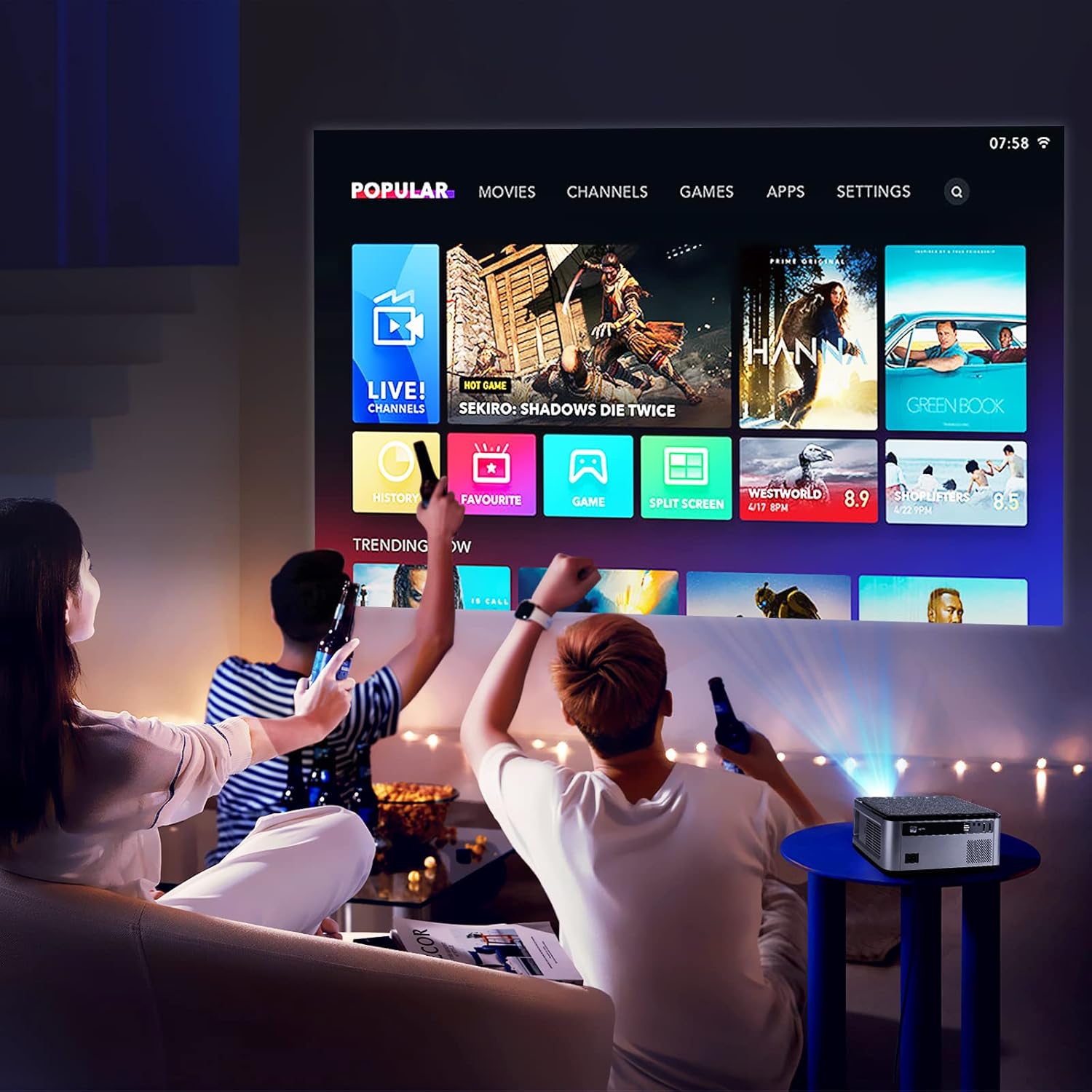
Image: The projector displaying its Android OS home screen with various app icons like Movies, Channels, Games, and Settings.
Note: Due to copyright restrictions, some streaming services like Netflix and Hulu may not support screen mirroring from mobile devices. Please use the built-in Android apps or connect a streaming stick (e.g., Fire TV Stick) via HDMI for these services.
6. Maintenance
- Cleaning the Lens: Use a soft, lint-free cloth specifically designed for optical lenses. Do not use abrasive cleaners or solvents.
- Cleaning the Casing: Wipe the projector casing with a soft, dry cloth. For stubborn stains, use a slightly damp cloth and then dry thoroughly.
- Ventilation: Regularly check and clean the ventilation openings to prevent dust buildup, which can affect cooling and performance.
- Lamp Life: The LED lamp inside has a lifespan of up to 50,000 hours, ensuring long-term use without frequent lamp replacement.
7. Troubleshooting
- No Power: Ensure the power cable is securely connected to both the projector and the power outlet. Check if the power outlet is functional.
- No Image: Verify the input source is correctly selected. Check HDMI/USB cable connections. Adjust focus and keystone correction.
- Blurry Image: Adjust the electronic focus using the remote control. Ensure the projection surface is flat.
- Distorted Image: Use the 4D keystone correction function to adjust the image shape.
- No Sound: Check the volume settings on the projector and the connected source device. Ensure external speakers/headphones are properly connected if used.
- WiFi/Bluetooth Connection Issues: Ensure the projector is within range of the router/Bluetooth device. Restart the projector and the device you are trying to connect.
8. Specifications
Below are the technical specifications for the VGKE T28 Projector:

Image: A visual comparison highlighting the VGKE T28's 650 ANSI lumens and Native 1080P resolution against other projectors.
| Feature | Specification |
|---|---|
| Model | T28 |
| Projection Technology | LCD |
| Light Source | LED |
| Light Source Brightness | 25000 Lumens (650 ANSI) |
| Standard Resolution | FHD 1920x1080 (Supports 4K video) |
| Maximum Screen Resolution | 3840 x 2160 |
| Focus Method | Electronic Focus |
| Keystone Correction | Electronic Four-Point Keystone (±50° vertical/horizontal, supports side projection) |
| Zoom Function | 100% - 70% Digital Zoom |
| Projection Size | 50 - 300 inches |
| Operating System | Android OS with Google Play Store |
| Connectivity Technology | 5G Wi-Fi, Bluetooth |
| Input Interfaces | HDMI, USB 2.0, RJ45, AV |
| Output Interfaces | Audio Out |
| Power Supply | AC 100-240 V |
| Wattage | 250 watts |
| Product Dimensions | 26 x 23 x 11 cm |
| Weight | 3.09 kg |
| Lamp Lifespan | Up to 50,000 hours |
9. Warranty and Support
The VGKE T28 Projector comes with a standard manufacturer's warranty. Please refer to the warranty card included in your package for specific terms and conditions. For technical support, troubleshooting assistance, or warranty claims, please contact VGKE customer service through the retailer where you purchased the product.
Guaranteed software updates until: Unknown.

