
Introduction
The SanDisk Ultra Curve 32GB USB 3.2 Flash Drive is a portable storage device designed for reliable and efficient data transfer. Featuring a compact design and USB 3.2 interface, it offers read speeds of up to 100MB/s, making it suitable for storing and transferring documents, photos, music, and other digital files. This manual provides essential information for setting up, operating, maintaining, and troubleshooting your flash drive.
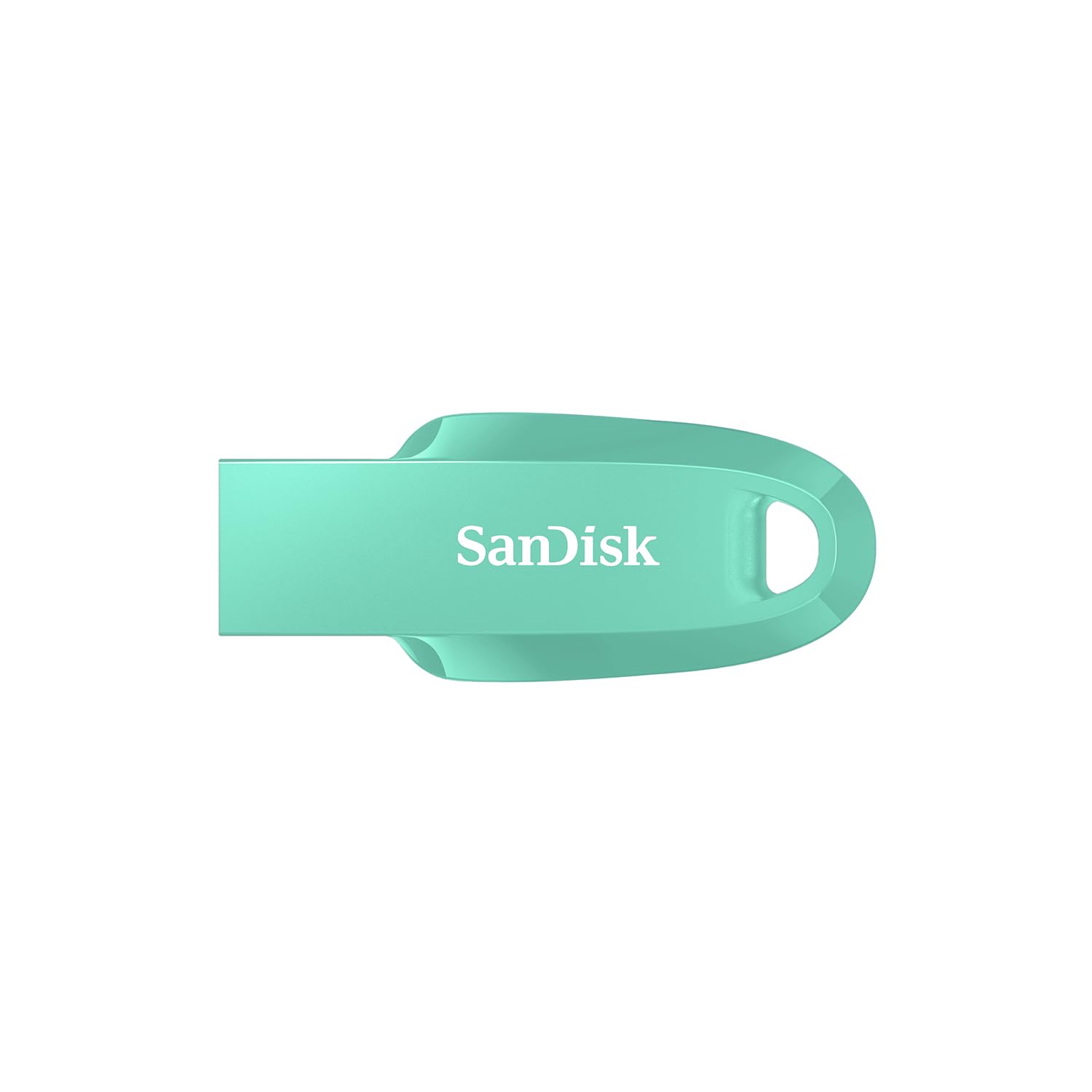
Image: SanDisk Ultra Curve 32GB USB 3.2 Flash Drive in Green. This image displays the compact, curved design of the flash drive, highlighting its portability.
Setup
- System Requirements: Ensure your computer or device has a compatible USB port (USB 3.2, USB 3.0, or USB 2.0). The drive is compatible with most operating systems, including Windows, macOS, and Linux.
- Connecting the Drive: Carefully insert the SanDisk Ultra Curve flash drive into an available USB port on your computer. The drive is designed for easy insertion.
- Automatic Recognition: Your operating system should automatically detect and install the necessary drivers for the flash drive. A new removable disk drive will appear in 'My Computer' (Windows) or 'Finder' (macOS).
- Initial Formatting (Optional): The drive comes pre-formatted and ready for use. If you wish to reformat the drive, right-click on the drive icon and select 'Format'. Choose your preferred file system (e.g., FAT32 for broad compatibility, NTFS for Windows-specific use, exFAT for large files and cross-platform use).
Operating
Transferring Files
- Copying Files To the Drive: Locate the files or folders you wish to transfer on your computer. Drag and drop them into the SanDisk Ultra Curve drive folder, or right-click and select 'Send To' > [Drive Letter].
- Copying Files From the Drive: Open the SanDisk Ultra Curve drive folder. Select the files or folders you wish to copy. Drag and drop them to your desired location on your computer, or right-click and select 'Copy', then 'Paste' to the destination.
Using SanDisk SecureAccess Software
The SanDisk Ultra Curve flash drive is compatible with SanDisk SecureAccess software, which helps protect your private files with password protection and 128-bit AES encryption. This software is typically pre-loaded on the drive or available for download from the SanDisk website.
- Installation: If not already installed, locate the SecureAccess installer on your drive or download it. Follow the on-screen instructions to install.
- Setup: Launch SecureAccess. You will be prompted to create a password and a private vault.
- Securing Files: Drag and drop files into the SecureAccess vault to encrypt them. These files will be protected and require your password to access.
Safely Removing the Drive
Always safely remove the flash drive to prevent data corruption. Do not simply pull the drive out while it is in use.
- Windows: Click the 'Safely Remove Hardware and Eject Media' icon in the system tray (bottom-right corner). Select the SanDisk drive and wait for the 'Safe to Remove Hardware' message.
- macOS: Drag the drive icon from the desktop to the Trash, or right-click the drive icon and select 'Eject'.
Maintenance
- Physical Care: Keep the flash drive clean and free from dust and debris. Avoid exposing it to extreme temperatures, direct sunlight, or moisture.
- Temperature Range: The operating temperature range is 0°C to 45°C. The storage temperature range is -10°C to 70°C. Operating outside these ranges may affect performance or damage the drive.
- Data Backup: Regularly back up important data stored on the flash drive to another storage medium to prevent data loss.
- Avoid Impact: While durable, avoid dropping or subjecting the drive to strong impacts, as this can cause internal damage.
Troubleshooting
- Drive Not Recognized:
- Try inserting the drive into a different USB port on your computer.
- Test the drive on another computer to rule out a computer-specific issue.
- Ensure the drive is fully inserted into the USB port.
- Check your computer's Device Manager (Windows) or System Information (macOS) to see if the drive is listed.
- Slow Transfer Speeds:
- Ensure you are using a USB 3.0 or USB 3.2 port for optimal performance. USB 2.0 ports will result in slower speeds.
- Transferring many small files can be slower than transferring a few large files.
- Close other applications that might be using system resources.
- Drive Becomes Warm During Use:
- It is normal for flash drives to generate some heat during intensive data transfer operations. This is generally not a cause for concern unless the drive becomes excessively hot to touch or performance is severely impacted.
- Ensure adequate airflow around the drive if possible.
- Data Corruption:
- Always use the 'Safely Remove Hardware' option before disconnecting the drive.
- If data appears corrupted, you may attempt to run a disk check utility (e.g., 'Error Checking' in Windows) on the drive.
Specifications
| Brand | SanDisk |
| Model Name | Cruzer Force (SDCZ550-032G-I35G) |
| Memory Storage Capacity | 32 GB |
| Hardware Interface | USB 3.2 Gen 2 |
| Read Speed | 100 Megabytes Per Second |
| Write Speed | 20 MB per second |
| Compatible Devices | Computers, Laptops, Tablets, Smartphones (with USB connectivity) |
| Color | Green |
| UPC | 619659196707 |
| Country of Origin | Malaysia |
Warranty and Support
Warranty Information
This SanDisk Ultra Curve Flash Drive comes with a 5-year limited warranty. Please retain your proof of purchase for warranty claims. The warranty covers defects in materials and workmanship under normal use. It does not cover damage caused by misuse, accident, modification, or unauthorized repair.
Customer Support
For technical assistance, warranty claims, or further inquiries, please contact SanDisk customer support. You can find contact information and support resources on the official SanDisk website. For manufacturing and packing inquiries, the manufacturer contact information is: Plot 301A Persiaran Cassia Selatan 1 Taman Perindustrian Batu Kawan, MK13 Batu Kawan Seberang Perai Selatan 14100 Penang Malaysia.
Importer Contact Information: RASHI PERIPHERALS PVT LTD.,RASHI COMPLEX A BLDG, SURVEY 186, DONGARIPADA, POMAN, VASAI-E,THANE, MAHARASHTRA-401208.