
Introduction
This manual provides essential information for the proper use and maintenance of your SanDisk Ultra Curve 256GB USB 3.2 Flash Drive. Please read these instructions carefully before using the device to ensure optimal performance and longevity.
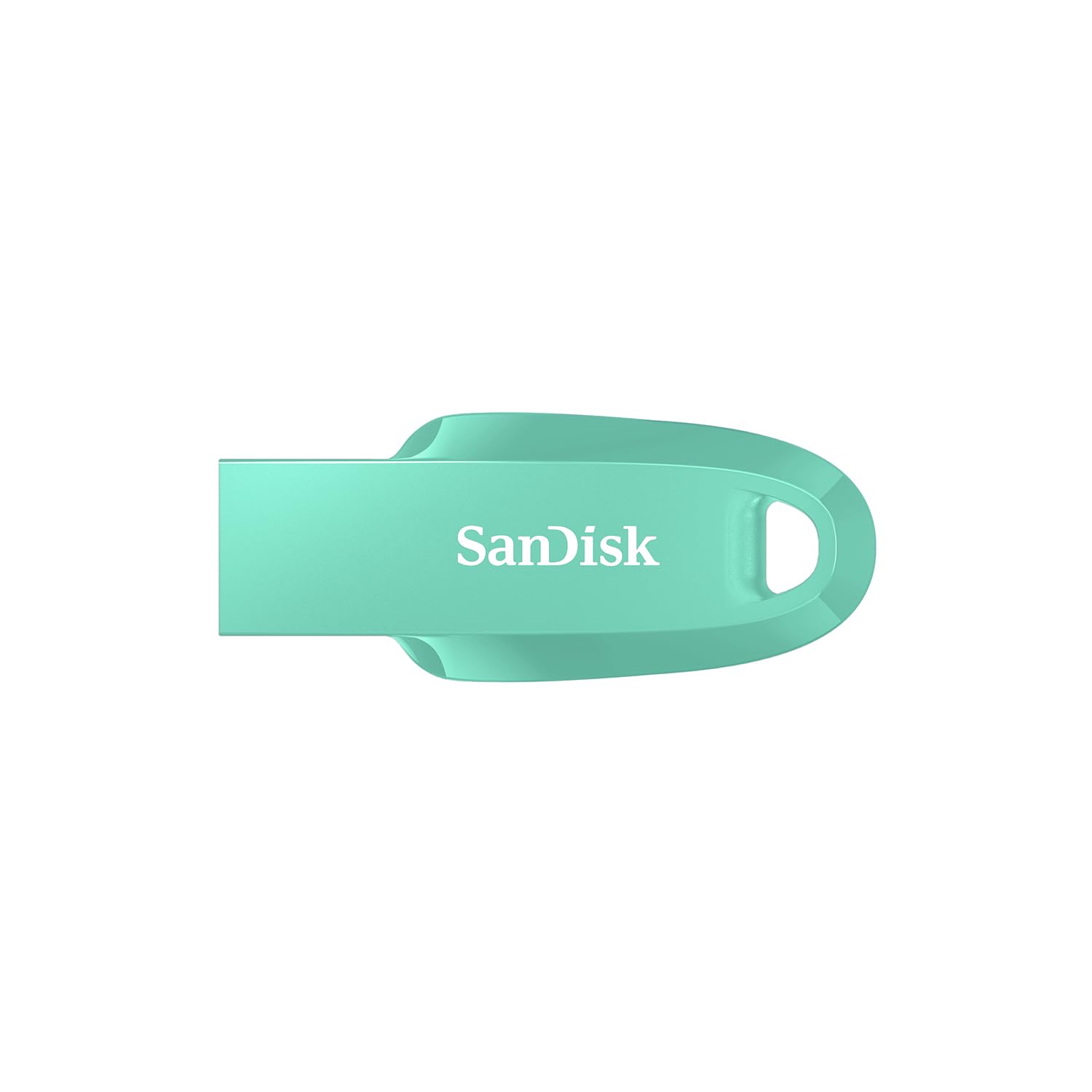
Image: The SanDisk Ultra Curve 256GB USB 3.2 Flash Drive, shown in green, featuring its curved design and integrated loop.
Setup
- System Requirements: Ensure your computer or device has a compatible USB port (USB 3.2 Gen 1/2 or USB 2.0). The drive is compatible with most operating systems, including Windows, macOS, and Linux.
- Connecting the Drive: Carefully insert the SanDisk Ultra Curve flash drive into an available USB port on your computer. The drive is designed for easy insertion.
- Automatic Recognition: Your operating system should automatically detect and install the necessary drivers. The drive will appear as a removable storage device (e.g., 'USB Drive' or 'SanDisk Ultra Curve') in 'My Computer' (Windows) or 'Finder' (macOS).

Image: The SanDisk Ultra Curve flash drive securely inserted into the USB port of a laptop, ready for use.
Operating the Device
File Transfer
- Copying Files To: Drag and drop files or folders from your computer to the SanDisk Ultra Curve drive icon, or use the 'Copy' and 'Paste' functions.
- Copying Files From: Drag and drop files or folders from the SanDisk Ultra Curve drive icon to your computer, or use 'Copy' and 'Paste'.
Safe Removal
Always safely eject the flash drive before physically removing it from your computer to prevent data corruption. This is crucial for maintaining data integrity.
- Windows: Click the 'Safely Remove Hardware and Eject Media' icon in the system tray, then select the SanDisk Ultra Curve drive.
- macOS: Drag the drive icon from your desktop to the Trash, or right-click (Control-click) the drive icon and select 'Eject'.
Maintenance
- Physical Care: Keep the drive clean and free from dust and moisture. Avoid extreme temperatures. The integrated loop allows for attachment to a keychain, reducing the chance of misplacement.
- Data Backup: Regularly back up important data stored on the flash drive to another storage medium.
- Data Recovery: The SanDisk Ultra Curve includes an offer for RescuePRO Deluxe data recovery software (download required). This software can assist in recovering accidentally deleted files.

Image: The SanDisk Ultra Curve flash drive conveniently attached to a keychain, highlighting its portability and secure design.
Troubleshooting
- Drive Not Recognized:
- Try inserting the drive into a different USB port or another computer. Ensure the USB port is functioning correctly. Check your computer's Device Manager (Windows) or System Information (macOS) to see if the drive is listed.
- Slow Transfer Speeds:
- Ensure you are using a USB 3.0 or 3.2 port for optimal speeds. USB 2.0 ports will result in slower transfers. Large numbers of small files can also transfer slower than a single large file of the same total size.
- Data Corruption:
- Always use the 'Safely Remove Hardware' or 'Eject' function before disconnecting the drive. If data corruption occurs, consider using the included data recovery software.
Specifications
| Brand | SanDisk |
| Model Name | Ultra Curve |
| Model Number | SDCZ550-256G-I35G |
| Memory Storage Capacity | 256 GB |
| Hardware Interface | USB 3.2 Gen 2 |
| Read Speed | Up to 100 MB/s |
| Special Feature | Compact design with integrated loop |
| Color | Green (variant shown) |
| Weight | 3 Grams |
Warranty and Support
Your SanDisk Ultra Curve flash drive is covered by a 5-year limited warranty. For warranty claims, technical support, or additional product information, please visit the official SanDisk support website or contact their customer service. Keep your proof of purchase for warranty validation.
Official SanDisk Website: www.sandisk.com
Official Product Videos
No relevant official product videos from the seller were found for embedding in this manual. Please refer to the manufacturer's website for any available video resources.


