
1. Introduction
This manual provides essential information for the proper use and care of your SanDisk Ultra Curve 64GB USB 3.2 Flash Drive. Please read these instructions carefully to ensure optimal performance and longevity of your device.
2. Product Overview
Key Features:
- Capacity: 64GB
- Interface: USB 3.2 Gen 2
- Read Speed: Up to 100 MB/s
- Write Speed: Up to 20 MB/s
- Design: Compact and portable with a curved form factor
- Security: Compatible with SanDisk SecureAccess Software (download required)
What's in the Box:
- 1 x SanDisk Ultra Curve 64GB USB 3.2 Flash Drive
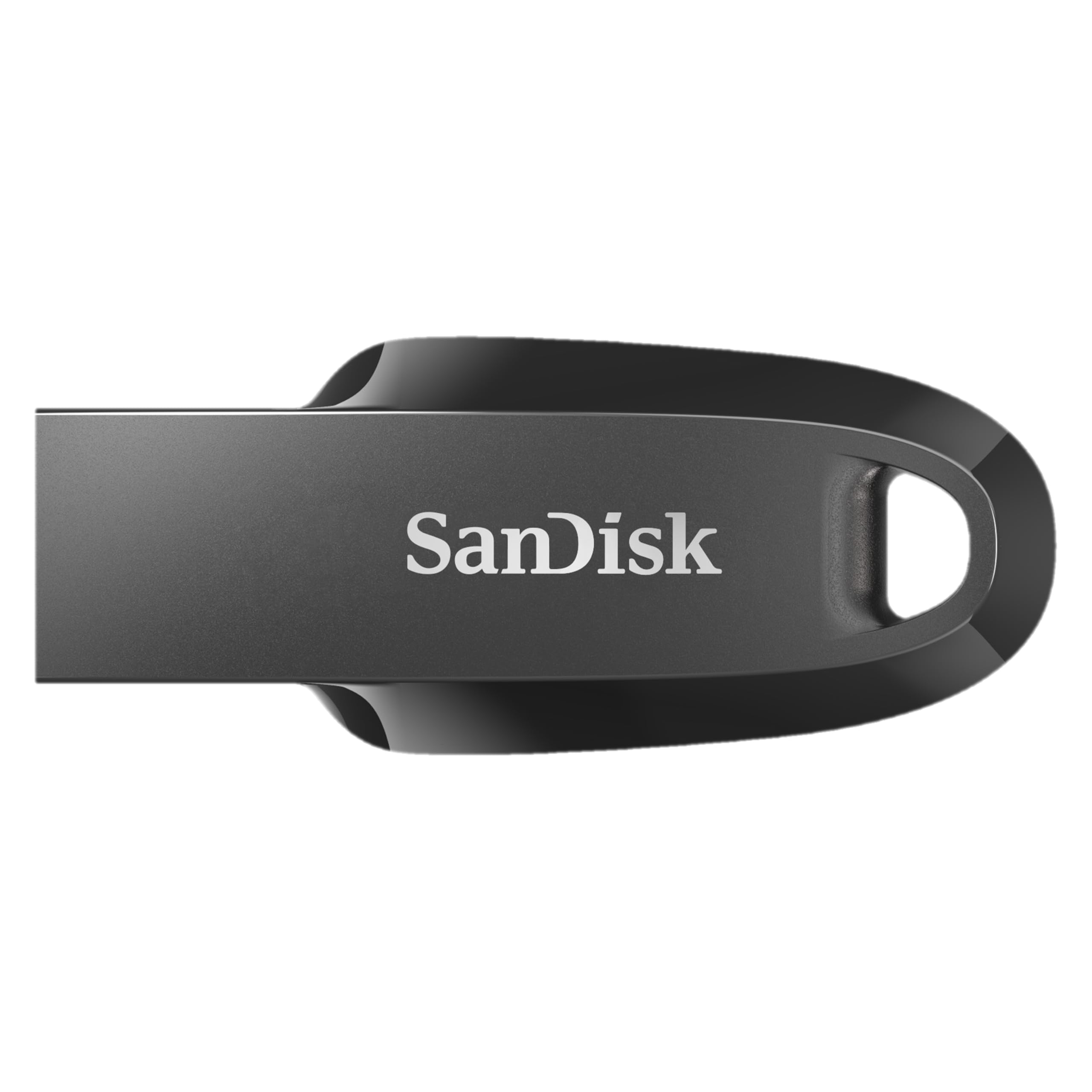
Image 1: The SanDisk Ultra Curve 64GB USB 3.2 Flash Drive in Black.
3. Setup
Connecting the Flash Drive:
- Locate an available USB Type-A port on your computer or compatible device. For optimal performance, use a USB 3.2 compatible port.
- Insert the SanDisk Ultra Curve Flash Drive firmly into the USB port.
- Your operating system should automatically detect and install the necessary drivers. The drive will appear as a removable storage device.

Image 2: SanDisk Ultra Curve Flash Drive connected to a laptop's USB port.
Optional: SanDisk SecureAccess Software
For enhanced security, you can download and install SanDisk SecureAccess Software. This software allows you to create a password-protected folder on your drive to keep sensitive files private. Visit the official SanDisk website for download instructions.
4. Operating Instructions
Transferring Files:
- Once the flash drive is recognized, open 'File Explorer' (Windows) or 'Finder' (macOS).
- Navigate to the files or folders you wish to transfer.
- Drag and drop the selected files/folders to the SanDisk Ultra Curve drive icon, or copy and paste them into the drive's directory.
Safely Removing the Drive:
Always safely remove the flash drive to prevent data corruption.
- Windows: Click the 'Safely Remove Hardware and Eject Media' icon in the system tray, then select your SanDisk drive. Wait for the 'Safe to Remove Hardware' notification before unplugging.
- macOS: Drag the SanDisk drive icon from the desktop or Finder sidebar to the Trash icon, or right-click (Control-click) the drive icon and select 'Eject'. Wait for the icon to disappear before unplugging.

Image 3: The compact design of the SanDisk Ultra Curve Flash Drive.
5. Maintenance
Physical Care:
- Keep the flash drive clean and free from dust and debris.
- Avoid exposing the drive to extreme temperatures, direct sunlight, or moisture.
- The drive features a compact design without a cap; take care to protect the USB connector from physical damage when not in use.
- Utilize the integrated loop for attachment to a keychain or lanyard to prevent loss.

Image 4: SanDisk Ultra Curve Flash Drive showing its integrated loop for portability.
Environmental Conditions:
- Operating Temperature: 0ºC to 45ºC (32ºF to 113ºF)
- Storage Temperature: -10ºC to 70ºC (14ºF to 158ºF)
6. Troubleshooting
Drive Not Recognized:
- Ensure the drive is fully inserted into the USB port.
- Try a different USB port on your computer.
- Test the drive on another computer to rule out a computer-specific issue.
- Check your computer's 'Disk Management' (Windows) or 'Disk Utility' (macOS) to see if the drive is detected but not assigned a drive letter or mounted.
Slow Transfer Speeds:
- Ensure you are using a USB 3.2 compatible port on your computer. Connecting to a USB 2.0 port will result in slower speeds.
- Transferring many small files can be slower than transferring a few large files.
- Other USB devices connected to the same hub or controller may affect performance.
Drive Gets Warm During Use:
It is normal for flash drives to generate some heat during active data transfer, especially during prolonged use or when transferring large files. If the drive becomes excessively hot and causes performance issues, ensure it is not obstructed and has adequate ventilation. If concerns persist, discontinue use and contact support.
7. Specifications
| Feature | Detail |
|---|---|
| Brand | SanDisk |
| Model Name | Ultra Curve (Cruzer Force) |
| Model Number | SDCZ550-064G-I35 |
| Memory Storage Capacity | 64 GB |
| Hardware Interface | USB 3.2 Gen 2 |
| Read Speed | 100 Megabytes Per Second |
| Write Speed | 20 MB per second |
| Compatible Devices | Devices with USB port |
| Colour | Black |
| Item Weight | 3 Grams |
| UPC | 619659196134 |
| Country of Origin | Malaysia |
8. Warranty and Support
Warranty Information:
This SanDisk Ultra Curve Flash Drive comes with a 5-year limited warranty. For detailed terms and conditions, please refer to the warranty documentation included with your purchase or visit the official SanDisk website.
Customer Support:
For technical assistance, product inquiries, or warranty claims, please visit the official SanDisk support website or contact their customer service. Contact details can typically be found on the SanDisk website or product packaging.
9. Important Notice: SanDisk Logo Transition

Image 5: Notice regarding the SanDisk logo transition.
As part of SanDisk's ongoing commitment to innovation, a new logo is being introduced. During this transition period, products may feature either the original or the new logo. Both logos represent genuine, high-quality SanDisk products.


