
Dreo DR-HTF005
Dreo Pilot Pro Tower Fan User Manual
Model: DR-HTF005
Introduction
Thank you for choosing the Dreo Pilot Pro Tower Fan. This manual provides essential information for the safe and efficient operation, maintenance, and troubleshooting of your new fan. Please read it thoroughly before use and retain it for future reference.
The Dreo Pilot Pro Tower Fan is designed to provide powerful and quiet air circulation for your home or office. It features multiple speed settings, various modes, oscillation, and a convenient remote control for enhanced comfort.
Important Safety Instructions
To reduce the risk of fire, electric shock, or injury, please observe the following safety precautions:
- Always plug the fan directly into a 120V AC wall outlet. Never use with an extension cord.
- Do not operate any fan with a damaged cord or plug. Discard fan or return to an authorized service facility for examination and/or repair.
- Do not run cord under carpeting. Do not cover cord with throw rugs, runners, or similar coverings. Do not route cord under furniture or appliances. Arrange cord away from traffic area and where it will not be tripped over.
- Unplug the fan from the outlet when not in use or when moving the fan.
- Do not immerse the fan in water or other liquids.
- Do not allow foreign objects to enter any ventilation or exhaust opening as this may cause an electric shock or fire, or damage the fan.
- Do not block air openings or operate near curtains or other materials that may block the air intake.
- This appliance is not intended for use by persons (including children) with reduced physical, sensory or mental capabilities, or lack of experience and knowledge, unless they have been given supervision or instruction concerning use of the appliance by a person responsible for their safety.
- Children should be supervised to ensure that they do not play with the appliance.
Package Contents
- Dreo Pilot Pro Tower Fan
- Remote Control
- User Manual (this document)
- Power Cord
- Base Assembly Parts
Product Overview
Fan Components

Image: Two Dreo Pilot Pro Tower Fans, illustrating the product design and included remote controls.
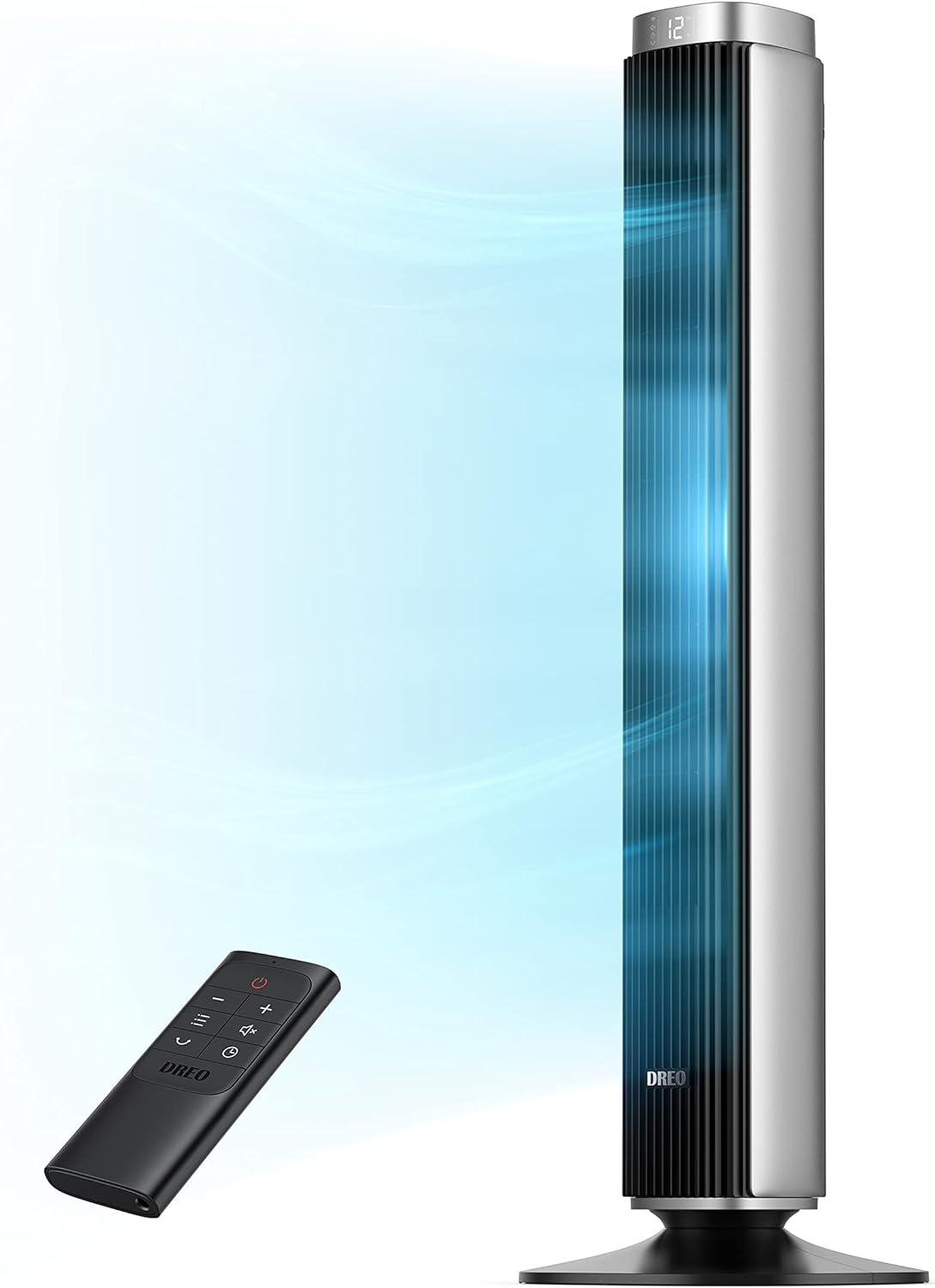
Image: A silver Dreo Pilot Pro Tower Fan demonstrating its cooling airflow and the remote control.
- Air Outlet: Where the cooled air is expelled.
- Control Panel: Top-mounted panel with touch controls and LED display.
- Fan Body: The main housing of the tower fan.
- Base: Provides stability for the fan.
- Power Cord: Connects the fan to an electrical outlet.
- Remote Control: For convenient operation from a distance.
Control Panel & Display

Image: Detailed view of the fan's intuitive control panel and LED display.
- Power Button: Turns the fan On/Off.
- Mode Button: Cycles through Normal, Natural, Sleep, and Auto modes.
- Speed Buttons (+/-): Adjusts fan speed.
- Oscillation Button: Activates/deactivates 90° oscillation.
- Timer Button: Sets the auto-off timer (up to 12 hours).
- LED Display: Shows current speed, mode, timer, and oscillation status.
Remote Control
The remote control duplicates the functions of the control panel, allowing for convenient operation from a distance. Ensure the remote control has batteries installed (not included, typically AAA).
Setup
Follow these steps to assemble and set up your Dreo Pilot Pro Tower Fan:
- Unpack: Carefully remove all components from the packaging.
- Assemble Base:
- Connect the two halves of the fan base together.
- Align the base with the bottom of the fan body.
- Secure the base to the fan body using the provided screws.
- Placement: Place the fan on a firm, level surface. Ensure there is at least 12 inches (30 cm) of clear space around the fan for proper airflow.
- Power Connection: Plug the power cord into a standard 120V AC electrical outlet.
Operating Instructions
Power On/Off
- Press the Power button on the control panel or remote control to turn the fan on or off.
Adjusting Fan Speed

Image: Illustration of the fan's 6 speed settings and 3 primary wind modes.
- Press the + or - buttons on the control panel or remote to increase or decrease the fan speed. The fan offers up to 9 speed levels (Product 1) or 6 speed levels (Product 2).
Selecting Modes

Image: The fan's ability to create a customized climate with various modes and speed options.
- Press the Mode button to cycle through the available modes:
- Normal Mode: Provides a constant airflow at the selected speed.
- Natural Mode: Simulates natural breeze by varying fan speed.
- Sleep Mode: Gradually decreases fan speed and dims the LED display for quiet operation during sleep.
- Auto Mode: Adjusts fan speed automatically based on ambient temperature (if sensor is present).
Oscillation Function

Image: The fan's 90° oscillation feature, designed to distribute air widely across a room.

Image: The fan's oscillation feature, potentially controllable via a mobile application.
- Press the Oscillation button to start or stop the 90° oscillation function, which helps distribute air across a wider area.
Setting the Timer
- Press the Timer button repeatedly to set the auto-off timer in 1-hour increments, up to 12 hours. The fan will automatically turn off after the set time.
Maintenance
Regular cleaning and maintenance will help prolong the life of your fan and ensure optimal performance.
Cleaning
- Before Cleaning: Always unplug the fan from the power outlet before cleaning.
- Exterior Cleaning: Use a soft, damp cloth to wipe the exterior surfaces of the fan. Do not use abrasive cleaners or solvents.
- Air Inlet/Outlet: Use a vacuum cleaner with a brush attachment or compressed air to remove dust from the air inlet and outlet grilles.
- Storage: If storing the fan for an extended period, cover it with a plastic bag or return it to its original box to protect it from dust. Store in a cool, dry place.
Do not immerse the fan in water or allow water to drip into the motor housing.
Troubleshooting
If you encounter issues with your fan, please refer to the following common problems and solutions:
| Problem | Possible Cause | Solution |
|---|---|---|
| Fan does not turn on. | Not plugged in; Power outlet not working; Power button not pressed. | Ensure fan is securely plugged into a working outlet; Press the Power button. |
| Weak airflow. | Air inlets/outlets blocked; Fan speed too low. | Clear any obstructions from grilles; Increase fan speed. |
| Fan is noisy. | Fan not on a level surface; Foreign object inside. | Place fan on a flat, stable surface; Unplug and check for foreign objects (if safe to do so). |
| Remote control not working. | Batteries dead or incorrectly inserted; Remote out of range. | Replace batteries; Ensure remote is pointed at the fan and within range. |
If the problem persists after trying these solutions, please contact customer support.
Specifications
| Feature | Specification |
|---|---|
| Model Name | DR-HTF005 |
| Power Source | Corded Electric |
| Rated Power | 24W |
| Voltage | 24 Volts |
| Noise Level | 25 dB - 45 dB |
| Oscillation Angle | 90° |
| Timer | Up to 12 hours |
| Control Method | Remote, Touch Control |
| Air Flow Capacity | 1200 CFM (approx. 24ft/s velocity) |
| Certification | ETL certified |
Warranty and Support
Dreo products come with a standard warranty. For detailed warranty information, please refer to the warranty card included with your product or visit the official Dreo website.
For technical support, troubleshooting assistance, or to inquire about replacement parts, please contact Dreo Customer Service:
- Online Support: Visit the Dreo Store on Amazon for product information and support resources.
- User Manual (PDF): A downloadable PDF version of the user manual is available at this link.
- Email Support: Refer to your product packaging or the official Dreo website for customer service email addresses.
Related documentsDR-HTF005


Ask a question about this manual
Ask about setup, troubleshooting, compatibility, parts, safety, or missing instructions. Manuals+ will review the question and use this page’s manual context to help answer it.