
1. Important Safety Instructions
Please read this user manual thoroughly before using the product and retain it for future reference. Failure to follow these instructions may result in electric shock, fire, or serious injury.
- Always unplug the fan before cleaning, performing maintenance, or moving it.
- Do not operate the fan with a damaged cord or plug. If the cord or plug is damaged, contact Dreo Customer Service.
- Keep the fan out of reach of children and pets.
- Do not insert fingers or foreign objects into the fan grille during operation.
- Ensure the fan is placed on a stable, level surface to prevent tipping.
- Do not use the fan in wet or damp environments, such as bathrooms.
- Do not block air inlets or outlets.
2. Package Contents
- Tower Fan Unit (Pilot Pro DR-HTF005 or Pilot Max)
- Base (Front and Rear Parts)
- Remote Control
- Power Adapter
- User Manual
3. Setup
3.1 Base Assembly
The fan requires simple base assembly before first use.
- Align the front and rear parts of the base and snap them together.
- Place the fan unit onto the assembled base, ensuring the alignment posts on the base fit into the corresponding holes on the fan unit.
- Secure the base to the fan unit using the provided fasteners (if any, typically screws from the bottom).
3.2 Placement
Place the fan on a firm, level surface. Ensure there is at least 12 inches (30 cm) of clear space around the fan for optimal airflow and oscillation.
4. Operating Instructions
The fan can be operated using the control panel on top of the unit or the included remote control.
4.1 Control Panel and Remote Control
The control panel features touch-sensitive buttons for various functions. The remote control duplicates these functions for convenience.

Image: Close-up of the Dreo Pilot Pro tower fan's top control panel, showing power, mode, speed, oscillation, and timer buttons, along with an LED display.
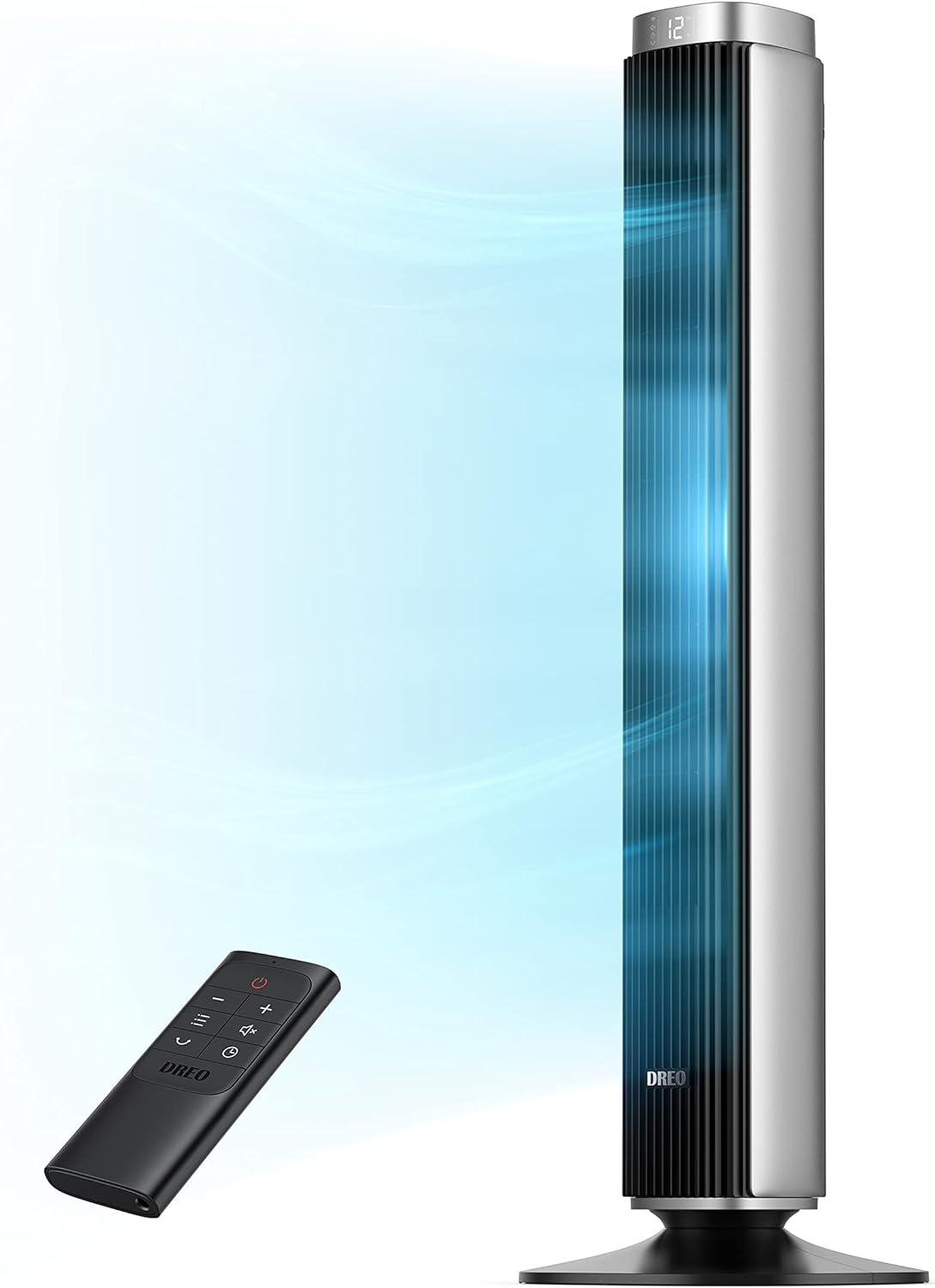
Image: The Dreo Pilot Pro tower fan standing next to its remote control, with blue lines illustrating airflow from the fan.
- Power Button (⏻): Turns the fan On or Off.
- Mode Button (M): Cycles through available wind modes (Normal, Natural, Auto, Sleep).
- Speed Adjustment Buttons (+ / -): Increases or decreases the fan speed.
- Oscillation Button (⟳): Activates or deactivates the oscillation function.
- Timer Button (🕒): Sets the auto-off timer.
4.2 Wind Modes
Both Pilot Pro and Pilot Max models feature 4 wind modes:
- Normal Mode: Provides a constant, steady airflow at your selected speed.
- Natural Mode: Simulates natural breeze by varying fan speeds intermittently.
- Auto Mode: Adjusts fan speed automatically based on the ambient room temperature.
- Sleep Mode: Operates at a lower speed and reduced noise level for undisturbed sleep. The fan speed may gradually decrease over time.

Image: The Dreo Pilot Pro tower fan in a modern living space, highlighting its ability to create a personalized climate with 4 modes and 9 wind speed levels.
4.3 Speed Settings
- Pilot Pro DR-HTF005: Offers 9 adjustable wind speeds.
- Pilot Max: Offers 12 adjustable wind speeds.
4.4 Oscillation
- Pilot Pro DR-HTF005: Provides a 90° wide oscillation angle to distribute air across the room.
- Pilot Max: Features customizable oscillation angles of 30°, 60°, 90°, or 120° for broader coverage.

Image: The Dreo Pilot Max tower fan positioned in a spacious living room, illustrating its 120-degree ultra-wide oscillation for comprehensive cooling.
4.5 Timer Function
Press the Timer button to set the fan to automatically turn off after a specified duration. The timer can be set in 1-hour increments.
- Pilot Pro DR-HTF005: Timer can be set for up to 12 hours.
- Pilot Max: Timer can be set for up to 12 hours, with an additional 15-hour auto-off feature in certain modes.
5. Maintenance
5.1 Cleaning
Regular cleaning helps maintain the fan's performance and extends its lifespan.
- Always unplug the fan from the power outlet before cleaning.
- Wipe the exterior surface of the fan with a soft, damp cloth. Do not use abrasive cleaners or solvents.
- Use a vacuum cleaner with a brush attachment to gently remove dust from the air inlet and outlet grilles.
- Ensure the fan is completely dry before plugging it back in and operating.
5.2 Storage
When not in use for extended periods, store the fan in a cool, dry place. It is recommended to cover the fan to protect it from dust.
6. Troubleshooting
If you encounter issues with your fan, please refer to the following common problems and solutions:
| Problem | Possible Cause | Solution |
|---|---|---|
| Fan does not turn on. | No power supply. | Ensure the power cord is securely plugged into a working outlet. |
| Weak or no airflow. | Air inlets/outlets are blocked. | Check for obstructions and clear them. Clean dust from grilles. |
| Fan is making unusual noise. | Fan is not on a level surface or internal components are loose. | Place the fan on a flat, stable surface. If noise persists, contact customer support. |
| Remote control not working. | Batteries are dead or incorrectly inserted. | Replace batteries with new ones, ensuring correct polarity. Ensure no obstructions between remote and fan. |
If the problem persists after trying these solutions, please contact Dreo Customer Service.
7. Specifications
| Feature | Pilot Pro DR-HTF005 | Pilot Max |
|---|---|---|
| Rated Power | 24W | Not specified (similar to Pro) |
| Input Voltage | 100-240V~, 50/60Hz | 100-240V~, 50/60Hz |
| Wind Speed | Up to 24 ft/s | Up to 26 ft/s |
| Air Flow Capacity | 1200 CFM | Not specified (higher than Pro) |
| Noise Level | 25dB - 45dB | 25dB |
| Speeds | 9 | 12 |
| Modes | 4 (Normal, Natural, Auto, Sleep) | 4 (Normal, Natural, Auto, Sleep) |
| Oscillation | 90° | 30°/60°/90°/120° |
| Timer | 12 Hours | 12 Hours (15h auto-off) |
| Certification | ETL | ETL |
| Control Method | Remote Control | Remote Control |

Image: The Dreo Pilot Max tower fan in a contemporary setting, emphasizing its powerful 1475 CFM maximum air volume, tested under internal lab conditions.
8. Warranty and Support
Dreo products come with a limited warranty. For detailed warranty information, product support, or to report any issues, please contact Dreo Customer Service.
- Please have your model number (Pilot Pro DR-HTF005 or Pilot Max) and purchase information ready when contacting support.


