
Introduction
This manual provides detailed instructions for the setup, operation, and maintenance of your INNOCN 32C1U 32-inch 4K UHD monitor. Please read this guide thoroughly to ensure proper use and to maximize your monitor's performance.
Product Features
- 32" 4K UHD (3840x2160) IPS Display: Experience top-tier picture and video quality with advanced IPS panel technology, 178° wide viewing angle, and a frameless design.
- HDR400 with Flicker-Free: High Dynamic Range (HDR) technology delivers enhanced contrast and color performance, meeting Display HDR 400 standards for smooth visuals.
- Versatile Connectivity: Equipped with 1x DisplayPort 1.4, 1x USB Type-C (65W Power Delivery), 2x HDMI 2.0, and 1x 3.5mm Audio Jack for broad compatibility with various devices.
- Ergonomic Stand: The included stand offers extensive adjustments including tilt (5° forward, 20° backward), swivel (45° left/right), height adjustment (±5 inches), and pivot (90° for vertical orientation).
- Integrated Speakers: Features built-in speakers for convenient audio output.
- Wall Mountable: VESA compatible for flexible mounting options.
Package Contents
Verify that all items are present in the box:
- INNOCN 32C1U Monitor Display
- Monitor Stand (Base and Neck)
- Power Adapter and AC Power Cable
- USB Type-C Cable
- DisplayPort (DP) Cable
- HDMI Cable
- User Manual
- Color Calibration Factory Report

Image: The monitor packaging with all included components.
This image displays the monitor's packaging, clearly showing the monitor panel, the two parts of the stand, the power adapter, and various connection cables including USB-C, DisplayPort, and HDMI, along with documentation.
Physical Setup
1. Stand Assembly and Attachment
- Carefully remove the monitor panel and stand components from the packaging.
- Assemble the stand base and neck according to the instructions in the user manual.
- Attach the assembled stand to the back of the monitor panel. Ensure it clicks securely into place.
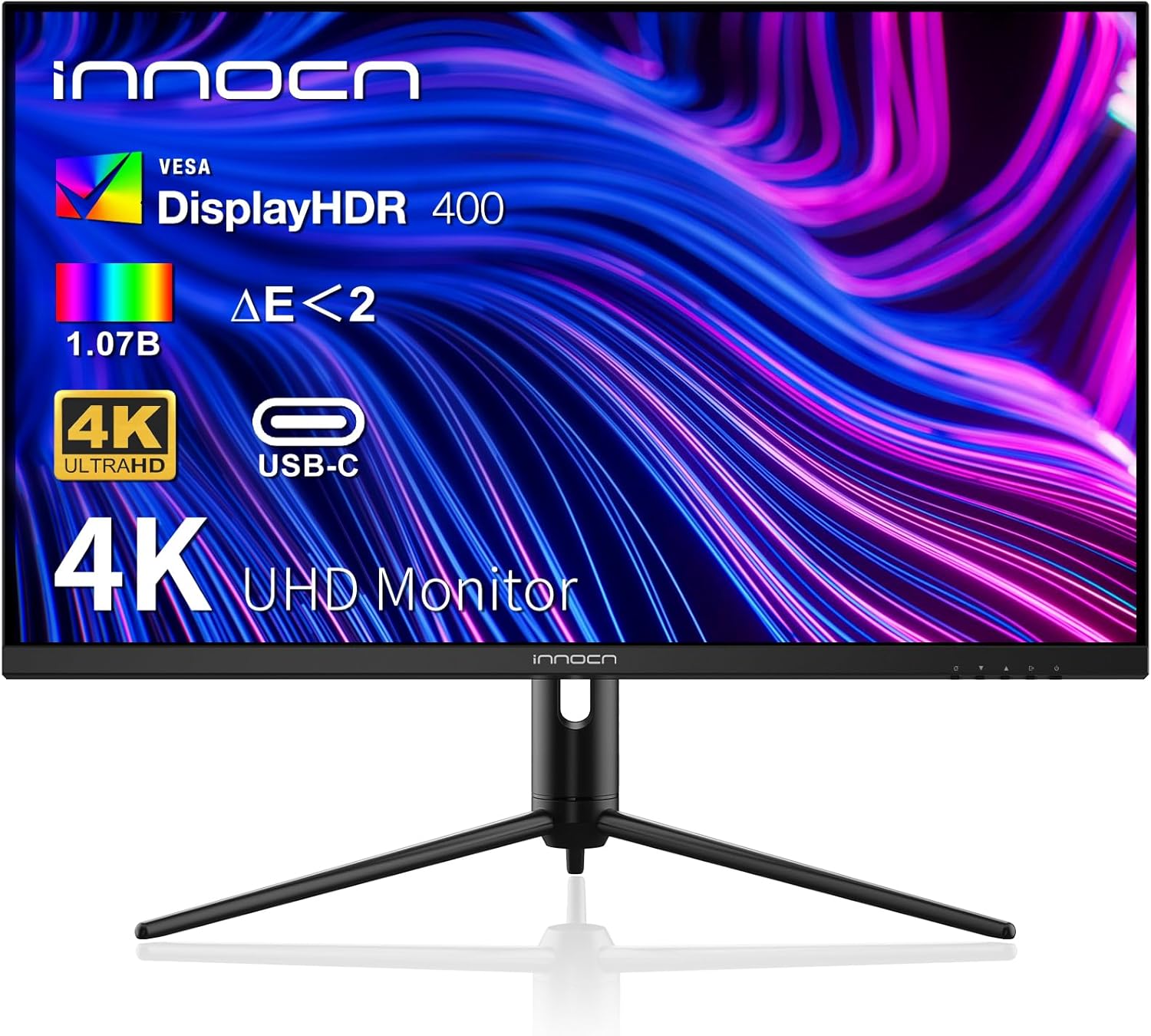
Image: Front view of the INNOCN 32C1U 4K monitor on its stand.
This image shows the INNOCN 32C1U monitor from the front, resting on its assembled stand, displaying a vibrant abstract wallpaper.
2. Connecting Cables
- Connect the power adapter to the monitor's power input and then plug the AC power cable into a wall outlet.
- Connect your preferred video cable (HDMI, DisplayPort, or USB Type-C) from your computer or device to the corresponding port on the monitor.
- If using USB Type-C, ensure your device supports video output and power delivery for full functionality.
- For external audio, connect headphones or external speakers to the 3.5mm Audio Jack.

Image: Close-up view of the monitor's rear ports.
This image provides a detailed view of the monitor's rear connectivity panel, highlighting the HDMI, DisplayPort, USB-C, and Audio Out ports.
3. VESA Wall Mounting
The monitor is VESA compatible. If you prefer to wall mount, detach the stand and use a compatible VESA mount (not included) following its specific instructions.
Operating the Monitor
1. Power On/Off
Press the power button, usually located on the bottom right side of the monitor, to turn the display on or off.
2. On-Screen Display (OSD) Menu Navigation
The OSD menu allows you to adjust various monitor settings. Use the physical buttons on the monitor (typically located on the bottom or rear) to navigate the menu.
- Menu Button: Press to open the OSD menu.
- Navigation Buttons: Use arrow buttons (or a joystick if present) to move through menu options.
- Select/Confirm Button: Press to select an option or confirm a setting.
- Exit Button: Press to exit the OSD menu.
3. Common OSD Settings
- Brightness/Contrast: Adjust these settings to suit your viewing environment and preferences.
- Input Source: Manually select the active video input (HDMI1, HDMI2, DisplayPort, USB-C).
- Color Settings: Choose from various preset color modes (e.g., Standard, sRGB, Adobe) or customize color temperature, hue, and saturation.
- Picture Settings: Adjust sharpness, dynamic contrast, and HDR modes (Standard, Movie, Design).
- Game Settings: Access specific modes like RTS/RPG, FPS Arena, MOBA, and adjust response time.
4. Stand Adjustments
The ergonomic stand allows for flexible positioning to optimize your viewing comfort:
- Height Adjustment: Gently push or pull the monitor panel up or down to adjust its height.
- Tilt: Tilt the monitor panel forward or backward to adjust the vertical viewing angle.
- Swivel: Rotate the monitor panel left or right on its base.
- Pivot: Rotate the monitor 90 degrees for vertical (portrait) orientation.

Image: Diagram illustrating monitor dimensions and stand adjustment ranges.
This diagram provides detailed measurements of the monitor and visualizes the range of motion for its height, tilt, and swivel adjustments.
Connectivity
The INNOCN 32C1U monitor offers a variety of ports to connect to your devices:
- USB Type-C (65W Power Delivery): Connect compatible laptops, Macs, phones, and tablets for video, data transfer, and simultaneous charging.
- HDMI 2.0 (x2): Connect to computers, gaming consoles, and other HDMI-enabled devices.
- DisplayPort 1.4 (x1): Connect to computers and graphics cards for high-resolution video output.
- 3.5mm Audio Jack: For connecting headphones or external speakers.

Image: Rear view of the monitor highlighting the ports and cable management.
This image shows the back of the monitor, clearly indicating the placement of the various input ports and the integrated cable management solution within the stand.
Audio
The monitor includes built-in speakers for convenient audio playback. For enhanced audio experience, you may connect external speakers or headphones via the 3.5mm audio jack.
Maintenance
To maintain the performance and longevity of your monitor, follow these guidelines:
- Cleaning: Use a soft, dry cloth to clean the screen and exterior. For stubborn marks, lightly dampen the cloth with water or a mild, non-abrasive cleaner.
- Avoid Harsh Chemicals: Do not use alcohol, ammonia, or abrasive cleaners, as they can damage the screen surface.
- Ventilation: Ensure proper airflow around the monitor to prevent overheating. Do not block ventilation openings.
- Storage: When not in use for extended periods, store the monitor in a cool, dry place away from direct sunlight.
Troubleshooting
If you encounter issues with your monitor, refer to the following common problems and solutions:
- No Signal/Black Screen:
- Ensure all video cables are securely connected to both the monitor and your device.
- Verify that the correct input source is selected in the OSD menu.
- Check if your computer or device is powered on and outputting a signal.
- Flickering Screen:
- Check the video cable for damage or loose connections.
- Ensure your graphics card drivers are up to date.
- Adjust the refresh rate in your device's display settings.
- Blurry/Pixelated Text (macOS users):
- This can sometimes be related to macOS font smoothing settings. Refer to Apple support documentation for adjusting or disabling font smoothing.
- Ensure your display resolution is set to 3840x2160 (4K) in macOS display settings.
- No Audio from Speakers:
- Check the volume level in the OSD menu and on your connected device.
- Ensure the correct audio output device is selected in your computer's sound settings.
- If using HDMI/DP/USB-C, ensure your device is configured to send audio through the video cable.
Specifications
| Feature | Specification |
|---|---|
| Model Number | 32C1U |
| Screen Size | 32 Inches |
| Resolution | 3840 x 2160 (4K UHD) |
| Panel Type | IPS LED Backlit |
| Refresh Rate | 60Hz |
| Brightness | 400 nits (Max) |
| Contrast Ratio | 1000:1 |
| Color Gamut | 99% sRGB |
| Color Depth | 1.07 Billion (8-bit + FRC) |
| Viewing Angle | 178° |
| Ports | 1x DisplayPort 1.4, 1x USB Type-C (65W PD), 2x HDMI 2.0, 1x 3.5mm Audio Jack |
| Speakers | Built-in (2x 5W) |
| Stand Adjustments | Tilt (5° forward, 20° backward), Swivel (45° L/R), Height (up/down ±5"), Pivot (90°) |
| VESA Mount | Yes |
| Product Dimensions | 1.18 x 27 x 15 inches |
| Item Weight | 22.8 pounds |
Official Product Video
Video: INNOCN 32C1U 4K Monitor Review by CH Gadgetz.
This video provides a comprehensive review of the INNOCN 32C1U 4K monitor, including unboxing, setup, feature demonstrations, and performance analysis. It offers visual guidance on connecting devices and navigating the monitor's settings.
Warranty and Support
For warranty information and technical support, please refer to the documentation included with your product or visit the official INNOCN website. Specific warranty terms and conditions may vary by region and retailer.