
1. Introduction
The Paperang LP15 is a compact, portable wireless thermal label printer designed for creating custom labels up to 15mm wide. It connects via Bluetooth to iOS and Android devices, offering a variety of templates for home and office use. This manual provides essential information for setting up, operating, and maintaining your LP15 label printer.

Image: The Paperang LP15 printer in hand, next to a smartphone showing the label creation interface.
2. Product Features
- Compact and Portable: Weighing only 130 grams, the LP15 is easy to carry for on-the-go labeling.
- Wireless Bluetooth Connectivity: Connects seamlessly to your Apple (iOS 9.0+) or Android (5.0+) mobile device.
- High-Quality Thermal Printing: Offers superior print clarity and smooth printing effects for labels up to 15mm (0.6 inches) wide.
- Versatile Label Creation: Supports continuous and pre-cut label paper, with various styles available (white, transparent, circular, price tags).
- Customization Options: The Paperang app provides numerous texts, graphic symbols, business icons, logos, barcodes, and QR codes for personalized labels.
- Long-Lasting Rechargeable Battery: The built-in battery can last for months on a single charge.
- Durable Labels: Compatible label papers are water-resistant, corrosion-resistant, and BPA-free.

Image: Business applications of the LP15, including labeling folders, name tags, storage bins, price tags, plant care instructions, and cable management.
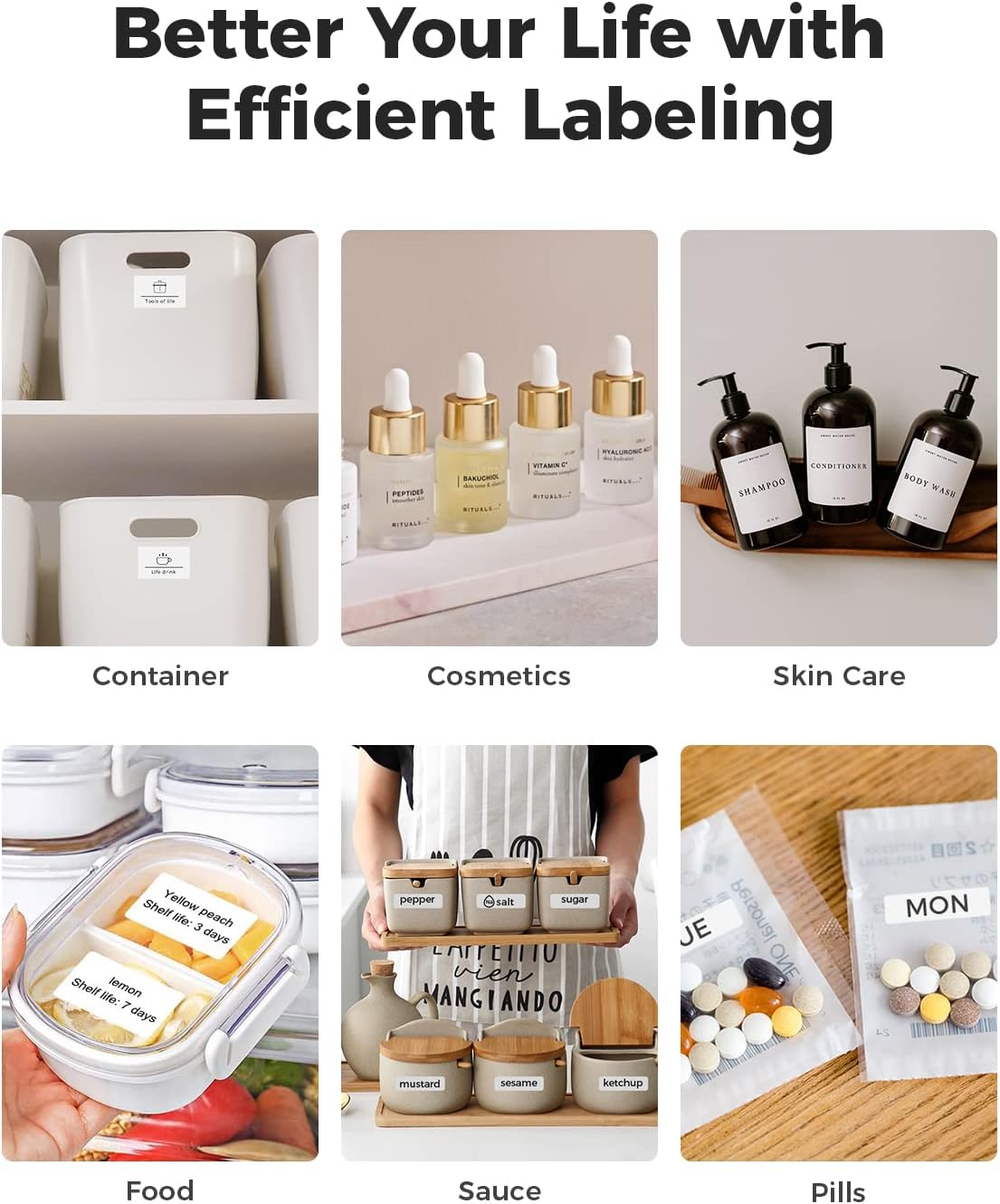
Image: Home applications of the LP15, such as labeling kitchen containers, cosmetic bottles, skincare products, food items, sauce jars, and pill organizers.
3. Getting Started
3.1. Charging the Device
Before first use, fully charge your Paperang LP15 printer. Connect the included USB cable to the printer's USB port and to a power source (e.g., computer, USB wall adapter). The indicator light will show charging status. A full charge provides approximately 4 hours of continuous printing time.

Image: The Paperang LP15 printer highlighting its 1200mAh battery and 4 hours of printing time.
3.2. Loading Label Tape
Open the printer cover, insert the label roll with the printing surface facing up, and ensure the tape feeds smoothly through the output slot. Close the cover securely.
3.3. App Download and Installation
The Paperang LP15 requires the official Paperang app for operation. Download the app from your device's app store:
- Download on the App Store (for iOS devices)
- GET IT ON Google Play (for Android devices)

Image: Screenshot showing the Paperang app with download options for Apple App Store and Google Play.
3.4. Bluetooth Pairing and First Use
- Turn on Bluetooth: Ensure Bluetooth is enabled on your smartphone.
- Open the App: Launch the Paperang app and tap to access the devices list.
- Connect to Printer: Select "Paperang_LP15" from the available devices to establish a connection.
- Choose a Template: Once connected, select a template or start a new design to create your labels.

Image: A visual guide demonstrating the four steps to set up the Paperang LP15: enabling Bluetooth, opening the app, selecting the device, and choosing a template.
4. Operating Instructions
4.1. Creating Labels
The Paperang app offers extensive customization options:
- Text: Add and format text.
- Icons: Choose from a library of graphic symbols and business icons.
- Date: Insert current or custom dates.
- Border: Apply various border styles.
- Barcode/QR Code: Generate and print barcodes or QR codes.
- Form: Utilize pre-designed forms or create your own.
- Images: Insert images from your device.
- Shape/Line: Add shapes and lines for design elements.

Image: The Paperang app interface displaying various customization tools for label design, including text, icons, dates, borders, barcodes, QR codes, forms, images, and shapes.
4.2. Printing Labels
After designing your label in the app, tap the "Print" button. You can usually adjust the number of copies before printing. Ensure the printer is connected and has sufficient label tape.
5. Maintenance
5.1. Cleaning the Printer
To maintain print quality, periodically clean the print head and roller. Use a soft, lint-free cloth slightly dampened with isopropyl alcohol. Ensure the printer is turned off and disconnected from power before cleaning. Allow it to dry completely before use.
5.2. Storage
Store the printer in a cool, dry place away from direct sunlight and extreme temperatures. Remove the label roll if storing for an extended period.
6. Troubleshooting
- Printer not connecting via Bluetooth: Ensure the printer is turned on and within range. Check your phone's Bluetooth settings and try re-pairing. Restart both the printer and your phone.
- Poor print quality: Check if the label tape is loaded correctly. Clean the print head. Ensure the battery is sufficiently charged.
- Printer not printing: Verify the printer is connected to the app. Check for sufficient label tape. Ensure the battery is charged.
- App issues: Ensure the app is updated to the latest version. Try restarting the app or reinstalling it.
7. Specifications
| Feature | Specification |
|---|---|
| Brand | Paperang |
| Model | LP15 |
| Connectivity Technology | Bluetooth |
| Printing Technology | Thermal |
| Special Feature | Portable |
| Color | Pink (Tape not included) |
| Item Weight | 130 grams |
| Compatible Operating Systems | iOS 9.0+, Android 5.0+ |
| Print Media | Labels |
| Compatible Devices | Smartphones |
| Printer Functions | Print only |
| Control Method | Via App |
| Hardware Interface | USB |
| Total USB Ports | 1 |
| Power | 2 Watts |
| Duplex Printing | No |
| UPC | 768488493072 |
8. Warranty and Support
For warranty information and technical support, please refer to the documentation included with your product or visit the official Paperang website. You can find more information at www.cnkailan.com.