
1. Introduction
Thank you for choosing the Rii K18S Wireless Keyboard. This versatile device combines a full-size keyboard with a large multi-touch touchpad, offering seamless control for various devices. With dual-mode connectivity (2.4 GHz RF and Bluetooth), a rechargeable battery, and a two-color backlight, the K18S is designed for convenience and efficiency. This manual will guide you through the setup, operation, and maintenance of your new keyboard.

Figure 1.1: Rii K18S Wireless Keyboard
2. Safety Information
- Keep the device away from water, moisture, and extreme temperatures.
- Do not attempt to disassemble or repair the device yourself.
- Use only the specified charging cable and power source.
- Avoid dropping or subjecting the device to strong impacts.
- Dispose of the battery according to local regulations.
3. Package Contents
- Rii K18S Wireless Keyboard
- USB Charging Cable
- 2.4 GHz USB Receiver (stored in battery compartment)
- User Manual (this document)
4. Product Overview
Familiarize yourself with the layout and functions of your Rii K18S keyboard.

Figure 4.1: Keyboard Layout and Key Functions
Key Features:
- Dual Mode Connectivity: Switch between 2.4 GHz RF and Bluetooth modes.
- Large Touchpad: Multi-touch sensitive touchpad for precise navigation.
- 2-Color Backlight: Green and Blue backlight options for low-light environments.
- Multimedia Hotkeys: Dedicated keys for quick access to media controls.
- Rechargeable Battery: Built-in Li-ION battery for extended use.
5. Setup
5.1 Charging the Keyboard
Before first use, fully charge the keyboard. The battery indicator light will show charging status.
- Connect the small end of the USB charging cable to the keyboard's charging port.
- Connect the other end of the USB cable to a USB power source (e.g., computer USB port, USB wall adapter).
- The charging indicator will illuminate. Once fully charged, the indicator may change color or turn off. A full charge typically lasts about 2 weeks of normal use.
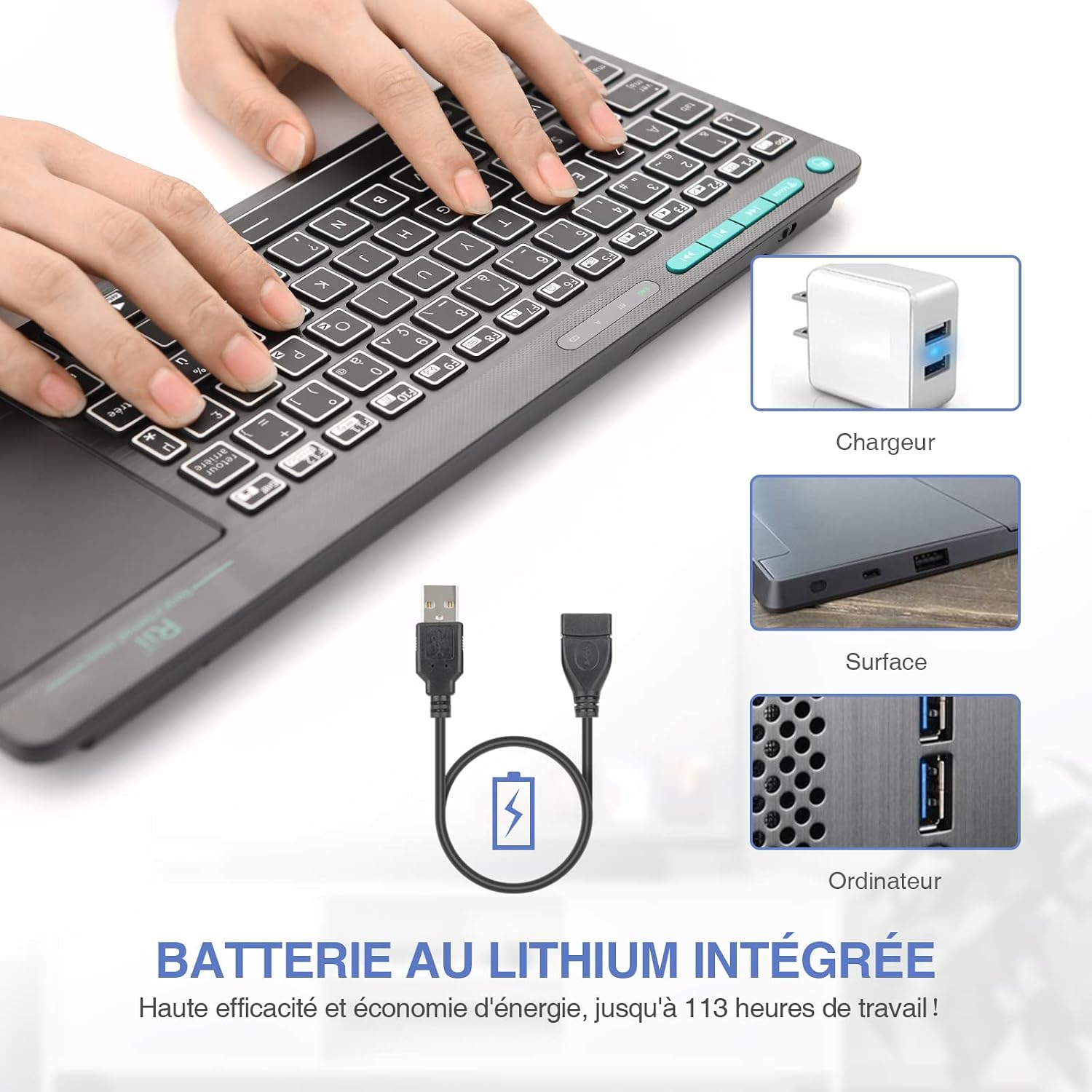
Figure 5.1: Charging the Keyboard
5.2 2.4 GHz RF Connection
This mode uses a USB receiver for wireless connection.
- Locate the 2.4 GHz USB receiver in the battery compartment on the back of the keyboard. Open the cover and remove the receiver.
- Turn on the keyboard using the power switch (usually on the side or back).
- Insert the USB receiver into an available USB port on your device (e.g., PC, Smart TV, Android TV Box). The driver should install automatically.
- Press the "Mode" button on the keyboard to switch to 2.4G mode. The 2.4G indicator (green) will illuminate, indicating a successful connection.

Figure 5.2: USB Receiver Location
5.3 Bluetooth Connection
This mode allows connection without a USB receiver, ideal for Bluetooth-enabled devices.
- Turn on the keyboard using the power switch.
- Press the "FN" key and "F1" simultaneously to enter Bluetooth pairing mode. Then, press the "Mode" button to switch to Bluetooth mode. The Bluetooth indicator will flash.
- On your device (e.g., tablet, smartphone, Smart TV), enable Bluetooth and search for new devices.
- Select "K18S Keyboard" from the list of available devices.
- Once paired, the Bluetooth indicator on the keyboard will stop flashing and remain solid, indicating a successful connection.

Figure 5.3: Dual Mode Connectivity Example
6. Operating Instructions
6.1 Touchpad Functions
The large touchpad supports multi-touch gestures for enhanced navigation.
- Single Finger Tap: Left mouse click.
- Two Finger Tap: Right mouse click.
- Two Finger Slide (Pinch/Spread): Zoom in/out.
- Single Finger Drag: Move cursor.

Figure 6.1: Touchpad Operation
6.2 Backlight Control
The keyboard features a two-color backlight (blue and green) for visibility in dark environments.
- Press the Bulb icon button (located at the bottom right of the keyboard) to cycle through backlight colors (Blue, Green, Off).

Figure 6.2: Backlight Colors
6.3 Multimedia Keys
The green-colored buttons on the keyboard function as multimedia hotkeys. Press them directly to activate their functions.
- FN + ESC: Switch auto sleep mode
- FN + F1: RF Pairing
- FN + F2: Mute
- FN + F3: Volume Down
- FN + F4: Volume Up
- FN + F5: Activate/Deactivate cursor
- FN + F6: Home
- FN + F7: Search
- FN + F8: Menu
- FN + F9: Email
- FN + F10: Calculator
6.4 Power Saving Mode
The keyboard is designed to conserve battery life. It will automatically enter sleep mode after a period of inactivity. To wake it up, simply press any key.
7. Maintenance
- Cleaning: Use a soft, dry cloth to clean the keyboard surface. For stubborn dirt, a slightly damp cloth can be used, but ensure no liquid enters the device.
- Storage: When not in use for extended periods, store the keyboard in a cool, dry place. Ensure the power is turned off to preserve battery life.
- Battery Care: Avoid fully discharging the battery frequently. Recharge when the low battery indicator appears.
8. Troubleshooting
| Problem | Possible Cause | Solution |
|---|---|---|
| Keyboard not responding | Low battery; Not connected; Incorrect mode. | Charge the keyboard; Ensure USB receiver is plugged in (2.4G) or Bluetooth is paired; Press 'Mode' button to select correct connection mode. |
| Touchpad not working | Cursor deactivated; Software issue. | Press FN+F5 to activate/deactivate cursor; Restart the connected device. |
| Backlight not working | Backlight off; Low battery. | Press the Bulb icon button to turn on/cycle backlight; Charge the keyboard. |
| Bluetooth pairing fails | Keyboard not in pairing mode; Device Bluetooth off. | Ensure keyboard is in Bluetooth pairing mode (flashing indicator); Check device's Bluetooth settings. |
9. Specifications
- Brand: Rii
- Model Number: K18+
- Connectivity Technology: RF 2.4 GHz, Bluetooth
- Operating System Compatibility: Windows, macOS, Android, Smart TV
- Special Features: Round keycaps, Portable, Backlit (Blue & Green), Integrated Touchpad
- Battery Type: Lithium-ion (Rechargeable)
- Keyboard Description: Multi-functional
- Recommended Use: Office, Multimedia
10. Warranty and Support
The Rii K18S Wireless Keyboard comes with a 24-month warranty from the date of purchase. This warranty covers manufacturing defects and workmanship under normal use.
For technical support, troubleshooting assistance, or warranty claims, please contact your retailer or the manufacturer's customer service. Please have your purchase receipt and product model number (K18+) ready when contacting support.


