1. Introduction
This manual provides detailed instructions for the installation, operation, and maintenance of your TOPXCDZ WiFi LED Strip Controller. This device allows you to control RGB LED strip lights via a mobile application, an included remote control, and voice commands through compatible smart home systems like Alexa and Google Home. Please read this manual thoroughly before use to ensure proper functionality and safety.
2. Package Contents
Upon opening the package, you should find the following items:
- 1 x WiFi LED Controller (with music function)
- 1 x IR 24-Key Remote Control
Please note: The product package does not include a power adapter cord, power supply, LED light strips, or batteries for the remote control. These items must be purchased separately.

Image: The TOPXCDZ WiFi LED Strip Controller and its accompanying 24-key IR remote control.
3. Product Features
- Unlimited Colors: Access to 16 million colors and various multi-modes, including gradual color changing and jumping color changing. Customize and dim to any color.
- APP Control: Control your LED strip lights using a mobile phone, tablet, or other devices with built-in Wi-Fi, enabling smart home integration.
- Music Synchronization: Features a smart music mode with a built-in high-sensitive microphone, allowing lights to dance to ambient sound and create a dynamic atmosphere.
- Voice Control Compatibility: Compatible with smart assistants like Alexa Echo and Google Home for convenient voice-activated control.
- Easy to Use: Versatile controller compatible with various LED strip light types (e.g., 3528, 5050, 2835).
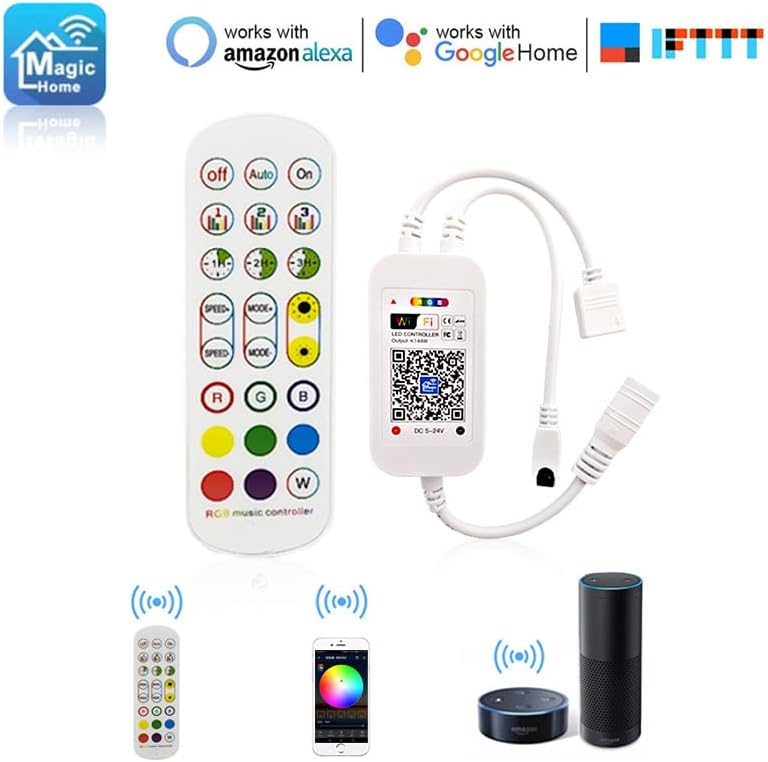
Image: The WiFi LED Strip Controller demonstrating compatibility with Magic Home app, Amazon Alexa, Google Home, and IFTTT for smart control options.
4. Specifications
| Feature | Detail |
|---|---|
| Model | WiFi+IR 24Key Remote RGB LED Music Controller |
| Input Voltage | DC 5-24V |
| Max Output Power | 100W |
| Connection Mode | Common Anode (+) |
| Working Temperature | -20°C to 55°C (-4°F to 131°F) |
| Controller Dimensions (L*W*H) | 53mm x 24mm x 11mm (approx. 2.09 x 0.94 x 0.43 inches) |
| Remote Control Dimensions | 124mm x 40mm (approx. 4.88 x 1.57 inches) |
| Item Weight | 2.24 ounces |
| Control Method | App, IR Remote, Voice Control (Alexa, Google Home) |
| Material | Metal, Polycarbonate |
| Indoor/Outdoor Usage | Indoor |

Image: Detailed dimensions of the WiFi LED Strip Controller (66mm length, 12.5mm thickness) and the remote control (124mm length, 40mm width), highlighting the sound sensor on the controller.
5. Setup Instructions
5.1 Physical Connection
- Ensure all components (LED strip, power supply, controller) are disconnected from power before making connections.
- Connect your 4-pin RGB LED strip to the output port of the WiFi LED Controller. Important: Ensure that the red arrow on the controller's connector aligns with the black arrow on the LED strip's connector. Incorrect alignment can cause a short circuit and damage the device.
- Connect a compatible DC 5-24V power supply (not included) to the input port of the WiFi LED Controller.
- Insert batteries into the IR remote control (batteries not included).
- Once all connections are secure, connect the power supply to an electrical outlet.

Image: Diagram illustrating the correct connection of the LED strip to the controller, emphasizing the alignment of arrows on the connectors to prevent short circuits.
5.2 App Download and Pairing
- Download the "Magic Home Pro" app from your smartphone's app store (iOS or Android) or by scanning the QR code located on the controller or by visiting the official download link: http://app.magichue.net/download/mgchomepro/AppDown.aspx.
- Open the Magic Home Pro app and register or log in.
- Ensure your phone's Wi-Fi is enabled and connected to a 2.4GHz Wi-Fi network.
- Power on the LED strip controller. The lights should flash, indicating pairing mode. If not, power cycle the controller (turn off/on) a few times until the lights flash.
- In the app, follow the on-screen instructions to add a new device. The app will guide you through connecting the controller to your home Wi-Fi network.
- Once successfully paired, you can rename your device for easier identification.
6. Operating Instructions
6.1 Remote Control Operation
The included 24-key IR remote control provides quick access to basic functions:
- Off/On: Power the lights off or on.
- Auto: Activates an automatic cycle of dynamic modes.
- Music Activation Mode (1, 2, 3): Select different music synchronization modes.
- Timing Mode (1H, 2H, 3H): Set a timer for the lights to turn off after 1, 2, or 3 hours.
- Speed Increase/Decrease: Adjust the speed of dynamic modes.
- Brightness Dimming: Adjust the brightness level.
- Dynamic Mode: Cycle through various pre-programmed dynamic lighting effects.
- 9-Key Static Mode (R, G, B, W, Yellow, Cyan, Purple, Orange, Light Blue): Select specific static colors, including pure white.

Image: A detailed diagram of the 24-key IR remote control, labeling each button with its corresponding function, such as power, auto mode, music modes, timing, speed, brightness, dynamic modes, and static color selection.
6.2 App Control
The Magic Home Pro app offers advanced control features:
- Color Selection: Choose from 16 million colors using a color wheel or predefined palettes.
- Brightness Adjustment: Precisely dim or brighten your lights.
- Dynamic Modes: Access a wider range of dynamic lighting effects and customize their speed and intensity.
- Music Mode: Utilize the controller's built-in microphone or your phone's microphone to sync lights with music.
- Timer Function: Schedule lights to turn on/off at specific times.
- DIY Modes: Create and save your own custom lighting scenes and effects.
6.3 Voice Control
Integrate your controller with Amazon Alexa or Google Home for hands-free control:
- Ensure your controller is successfully paired with the Magic Home Pro app and connected to your Wi-Fi network.
- Open the Alexa or Google Home app on your smartphone.
- Enable the "Magic Home" skill/service within the respective app.
- Link your Magic Home Pro account to your Alexa or Google Home account.
- Discover devices. Your LED strip controller should appear.
- You can now use voice commands such as:
- "Alexa/Hey Google, turn on [Device Name]"
- "Alexa/Hey Google, set [Device Name] to red"
- "Alexa/Hey Google, dim [Device Name] to 50%"
7. Maintenance
- Keep the controller and remote clean by wiping with a dry, soft cloth.
- Avoid exposing the device to moisture, extreme temperatures, or direct sunlight.
- Do not attempt to disassemble or repair the device yourself, as this will void any potential warranty.
- Replace remote control batteries when necessary.
8. Troubleshooting
| Problem | Possible Solution |
|---|---|
| Lights do not turn on. |
|
| Remote control is not working. |
|
| App cannot find the device or connect. |
|
| Voice control (Alexa/Google Home) is not working. |
|
9. Warranty and Support
Specific warranty details for this product are not provided in the available information. For warranty claims, technical support, or further assistance, please contact the seller or manufacturer directly through your purchase platform. Keep your purchase receipt as proof of purchase.


