
CISCO DESIGNED CBW150AX
Cisco Business 150AX Wi-Fi 6 Access Point User Manual
Model: CBW150AX | Brand: CISCO DESIGNED
Introduction
The Cisco Business 150AX Access Point delivers increased speed and capacity with Wi-Fi 6 in a compact form factor. It provides a highly secure and reliable wireless connection for small business workplaces. This manual provides essential information for setting up, operating, and maintaining your access point.
What's in the Box
Upon unboxing your Cisco Business 150AX Access Point, verify that all the following components are included:
- CBW150AX Access Point
- Support contact pointer card
- Mounting bracket and hardware
- Power over Ethernet (PoE) injector
- Cat5 Ethernet Cable
- Quick Start Guide
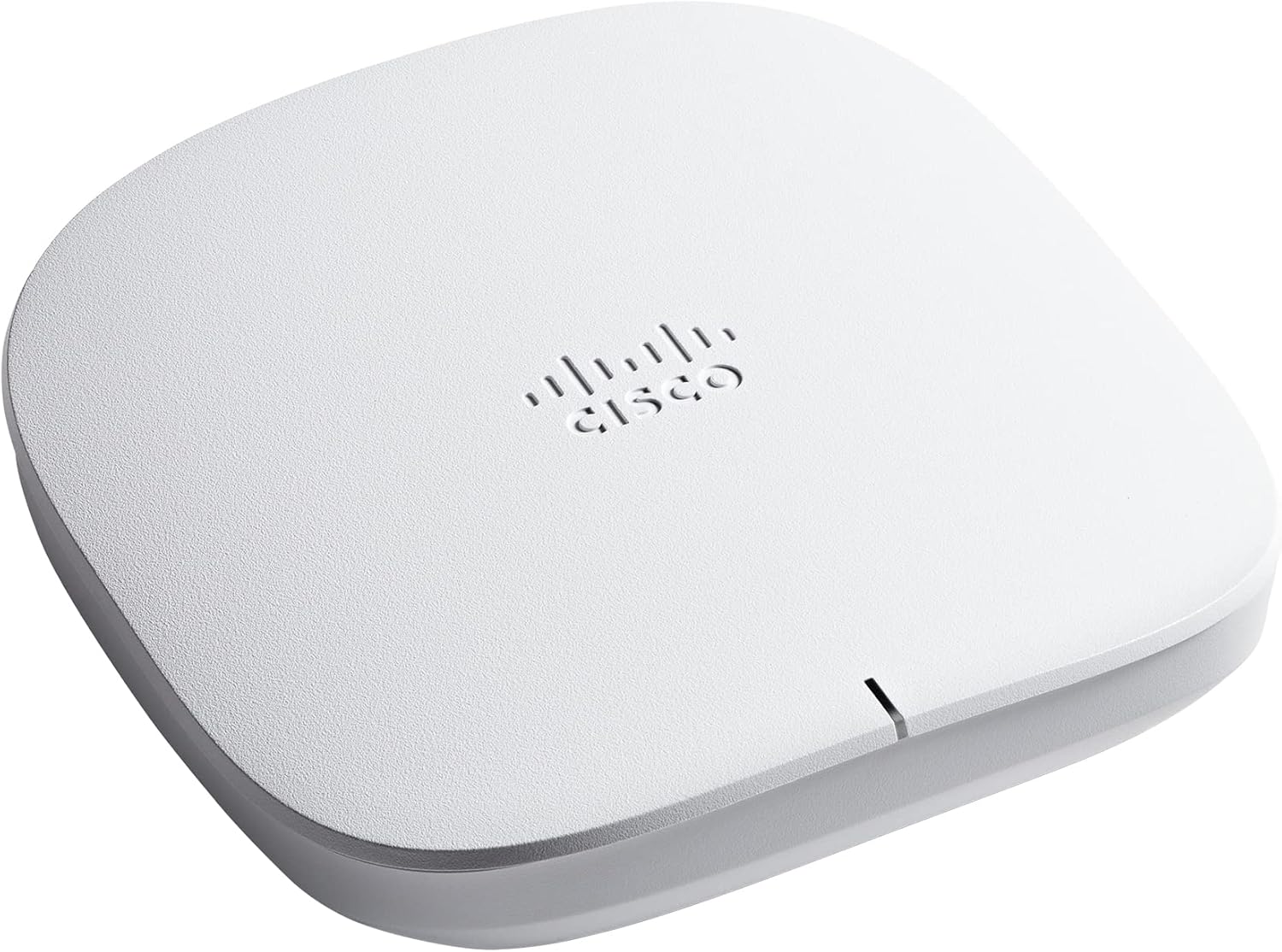
Image: Contents of the Cisco Business 150AX Access Point packaging. This includes the access point unit, a Power over Ethernet (PoE) injector, an Ethernet cable, mounting hardware, and documentation.
Product Overview
The Cisco Business 150AX is a compact Wi-Fi 6 access point designed for efficient wireless connectivity. It features a single Gigabit Ethernet port for network connection and power via PoE.

Image: Top view of the Cisco Business 150AX Access Point. The device is white, square with rounded corners, and features the Cisco logo on its surface.

Image: Detailed view of the rear ports on the Cisco Business 150AX Access Point. Visible ports include a Gigabit Ethernet port, a Reset button, and a Serial Connection port (labeled as "Not Used"). A security lock slot is also present.

Image: Composite image showing various angles of the Cisco Business 150AX Access Point. This includes a side profile, a top-down view, and a view of the underside revealing the integrated mounting plate for ceiling or wall installation.
Setup and Installation
The Cisco Business 150AX Access Point is designed for flexible deployment, supporting both wall and ceiling mounting. A Power over Ethernet (PoE) injector and mounting kit are included for convenience.
Initial Connection
- Unpack all components from the box.
- Connect one end of the provided Ethernet cable to the Gigabit Ethernet port on the access point.
- Connect the other end of the Ethernet cable to the "PoE" port on the Power over Ethernet (PoE) injector.
- Connect another Ethernet cable from the "LAN" port on the PoE injector to your network router or switch.
- Plug the power cord into the PoE injector and then into a power outlet. The access point will power on.
Configuration via Cisco Business Mobile App
For simplified management and monitoring, use the Cisco Business Mobile app:
- Download the Cisco Business Mobile app from your device's app store (available for Android and iOS).
- Launch the app and follow the on-screen prompts to discover and add your new access point.
- The app will guide you through the initial configuration, including setting up your Wi-Fi network name (SSID) and password.
Configuration via Web User Interface (UI)
For advanced configuration and control, access the web UI:
- Ensure your computer is connected to the same network as the access point.
- Open a web browser and enter the IP address of the access point. If you don't know the IP address, you can find it using the Cisco Business Mobile app or by checking your router's DHCP client list.
- Log in using the default credentials (refer to the Quick Start Guide or product documentation for initial login details).
- Navigate through the web UI to configure advanced settings, monitor network status, and manage connected devices.
Operation
Once configured, the Cisco Business 150AX Access Point will broadcast your Wi-Fi network. Devices can connect to this network using the Wi-Fi name and password you set during setup.
Key Operational Features:
- Wi-Fi 6 (802.11ax) Support: Provides increased speed and capacity for multiple connected devices.
- Dual-Band Operation: Supports both 2.4 GHz and 5 GHz frequencies for flexible connectivity.
- Scalability: Compatible with Cisco Business 151AXM Mesh Extenders to expand Wi-Fi coverage.
- Security: Enterprise-class security features help protect your network from threats.
Maintenance
Regular maintenance ensures optimal performance and longevity of your access point:
- Firmware Updates: Periodically check for and install the latest firmware updates via the Cisco Business Mobile app or web UI to ensure security and performance improvements.
- Physical Cleaning: Keep the access point free from dust and debris. Use a soft, dry cloth for cleaning.
- Network Monitoring: Regularly monitor your network status and connected clients using the mobile app or web UI to identify potential issues early.
- Optimal Placement: Ensure the access point is placed in an optimal location, free from obstructions, to maximize Wi-Fi coverage.
Troubleshooting
This section provides solutions to common issues you might encounter:
| Problem | Possible Cause | Solution |
|---|---|---|
| No power/LED off | Power cable disconnected, faulty PoE injector, power outlet issue. | Check all power connections. Ensure the PoE injector is properly connected and receiving power. Try a different power outlet. |
| Cannot connect to Wi-Fi network | Incorrect Wi-Fi password, out of range, network not broadcasting. | Verify Wi-Fi password. Move closer to the access point. Check if the SSID broadcast is enabled in the app/web UI. |
| Slow Wi-Fi speeds | Network congestion, interference, outdated firmware, suboptimal placement. | Reduce the number of active devices. Check for sources of interference. Update firmware. Relocate the access point for better signal. |
| Access point frequently reboots | Power instability, hardware issue, firmware bug. | Ensure stable power supply. Check for firmware updates. If issues persist, contact Cisco support. |
| Cannot access web UI or mobile app | Incorrect IP address, network connectivity issue, forgotten credentials. | Verify the access point's IP address. Ensure your device is on the same network. Reset the access point to factory defaults if credentials are lost (note: this will erase all configurations). |
For more detailed troubleshooting, refer to the official Cisco Business support documentation or contact Cisco support.
Specifications
| Feature | Detail |
|---|---|
| Model Number | CBW150AX |
| Wireless Type | 802.11ax (Wi-Fi 6) |
| Frequency Band Class | Dual-Band (2.4 GHz, 5 GHz) |
| Connectivity Technology | Ethernet |
| Ports | 1 GbE Port |
| Power | Power over Ethernet (PoE) Injector Included |
| Operating System | Cisco IOS |
| Item Weight | 2.05 pounds |
| Product Dimensions (LxWxH) | 5.92 x 5.92 x 1.57 inches |
| Manufacturer | Cisco |
| Country of Origin | China |
| First Available Date | July 7, 2022 |
Warranty and Support
The Cisco Business 150AX Access Point comes with a 3-Year Hardware Protection plan. For support inquiries, please refer to the support contact pointer card included in your product packaging or visit the official Cisco support website.
Additional protection plans may be available for purchase to extend coverage beyond the standard hardware protection.
Ask a question about this manual
Ask about setup, troubleshooting, compatibility, parts, safety, or missing instructions. Manuals+ will review the question and use this page’s manual context to help answer it.