
1. Introduction
Welcome to the user manual for your new AJAZZ AK692 Mechanical Wireless Gaming Keyboard. This keyboard is designed for both gaming and office use, offering a compact 60% layout with a hotswap feature, white lighting, and multiple connectivity options. Please read this manual carefully to ensure proper setup, operation, and maintenance of your device.
2. Package Contents
Please verify that all items are present in your package:
- AJAZZ AK692 Mechanical Wireless Gaming Keyboard
- USB Type-C Cable
- 2.4G Wireless Receiver
- User Manual
3. Product Overview
The AJAZZ AK692 features a compact 60% layout with 69 keys, including a dedicated number pad and arrow keys for enhanced functionality in a smaller form factor. It supports three connection modes: 2.4G wireless, Bluetooth 5.0, and wired Type-C.

Image: The AJAZZ AK692 keyboard shown with its detachable USB-C cable and the underside revealing the Bluetooth logo and 2.4G receiver storage.

Image: Top-down view of the AJAZZ AK692 keyboard highlighting its compact 69-key layout, mechanical switches, integrated number pad, aesthetic design, and 3-mode hot-swappable capabilities.

Image: A visual comparison demonstrating the compact size of the 69-key AK692 keyboard relative to standard 87-key and 104-key layouts, emphasizing its portability.
4. Setup
4.1. Charging the Keyboard
The AK692 keyboard features a built-in 4000mAh rechargeable lithium battery. Before first use, it is recommended to fully charge the keyboard.
- Connect the provided USB Type-C cable to the keyboard's Type-C port.
- Connect the other end of the cable to a USB power source (e.g., computer USB port, USB wall adapter).
- The charging indicator light will show the charging status.
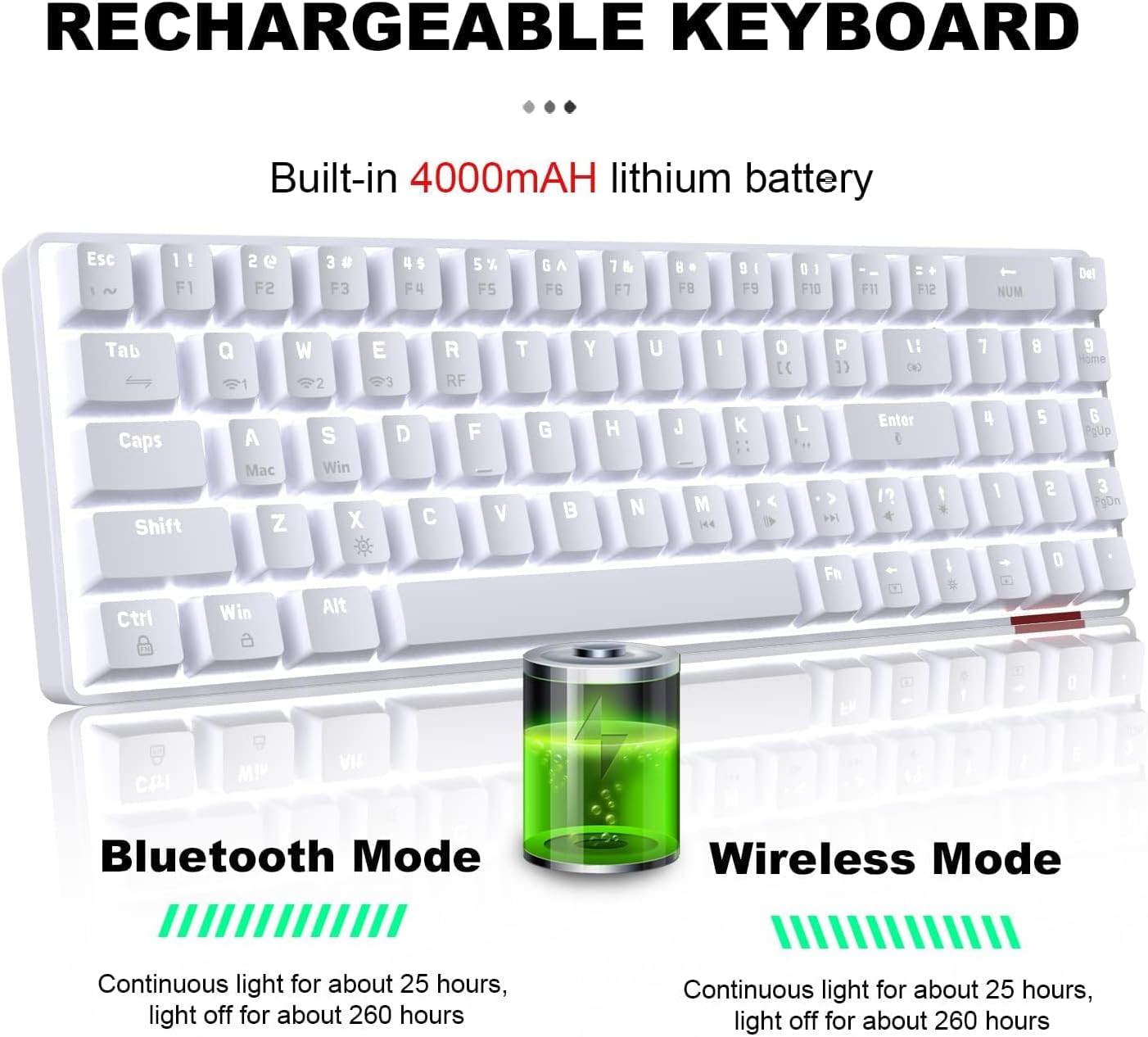
Image: Illustration of the keyboard's rechargeable battery, indicating approximately 25 hours of continuous light usage and 260 hours with light off for both Bluetooth and Wireless modes.
4.2. Connection Modes
The AK692 supports three versatile connection modes:
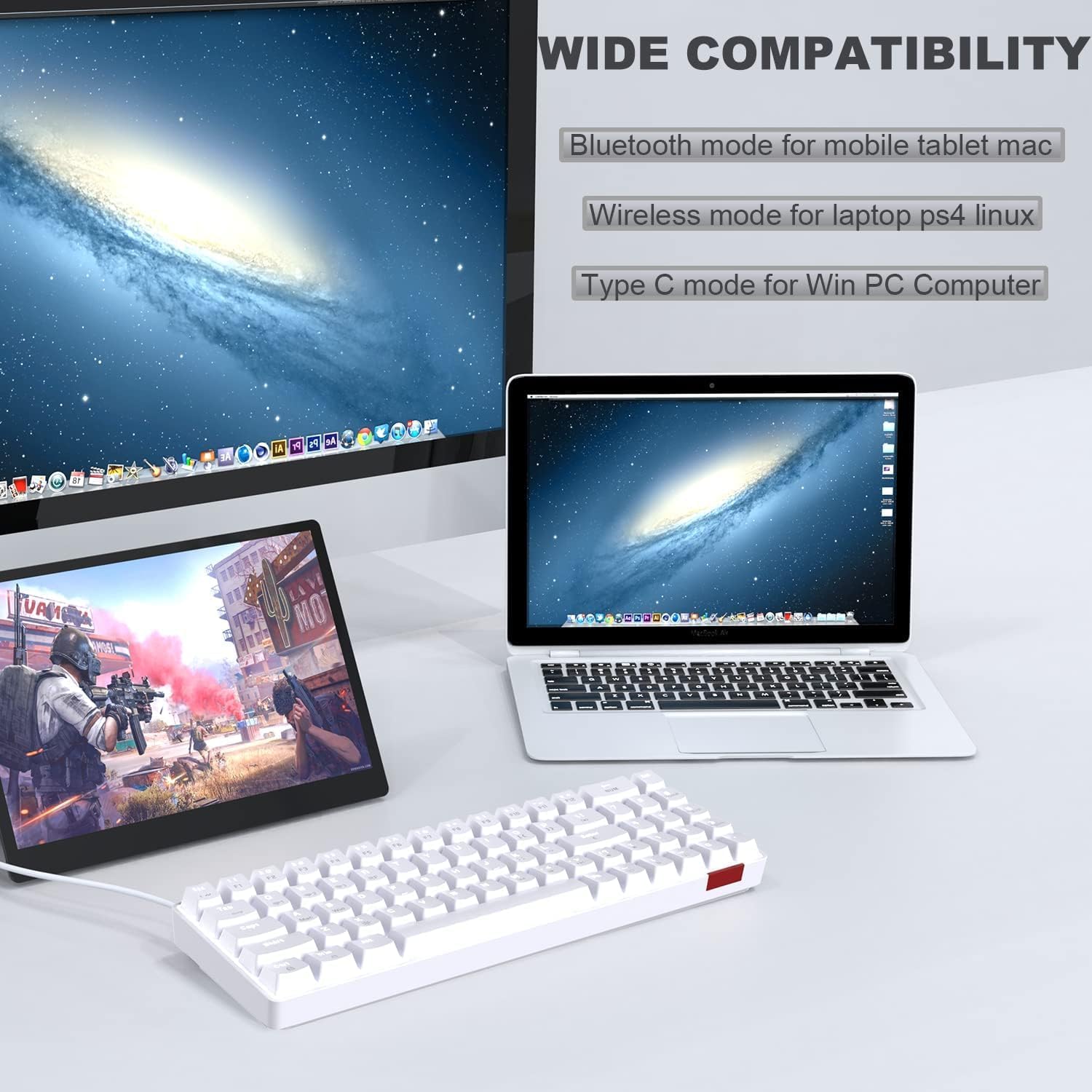
Image: The keyboard connected to a tablet, laptop, and desktop, illustrating its wide compatibility with Bluetooth mode for mobile/tablet/Mac, wireless mode for laptop/PS4/Linux, and Type-C mode for Win PC/Computer.
4.2.1. 2.4G Wireless Mode
- Locate the 2.4G wireless receiver, usually stored in a compartment on the keyboard's underside.
- Plug the 2.4G receiver into an available USB port on your device (PC, laptop, PS4, Linux).
- Press FN + R on the keyboard to switch to 2.4G wireless mode. The indicator light will confirm the connection.
4.2.2. Bluetooth Mode (3.0-5.0)
- Press FN + Q, FN + W, or FN + E to select one of the three Bluetooth channels. The corresponding indicator light will flash, indicating pairing mode.
- On your device (mobile, tablet, Mac), enable Bluetooth and search for available devices.
- Select "AJAZZ AK692" (or similar) from the list to pair. The indicator light will become solid once connected.
4.2.3. Wired Mode
- Connect the provided USB Type-C cable to the keyboard's Type-C port.
- Connect the other end of the cable to a USB port on your computer (Windows PC).
- The keyboard will automatically switch to wired mode. This is a plug-and-play connection.
5. Operating Instructions
5.1. Lighting Effects
The AK692 keyboard features 18 types of white lighting effects to enhance your experience. You can easily control these effects using the FN key combinations.

Image: The keyboard demonstrating its dynamic single white light, with visual cues for adjusting light effects, speed, and brightness using FN key combinations.
- Change Lighting Effect: Press FN + | (backslash key) to cycle through the 18 different lighting modes.
- Adjust Light Speed: Press FN + ← (left arrow) to decrease speed, and FN + → (right arrow) to increase speed.
- Adjust Light Brightness: Press FN + ↑ (up arrow) to increase brightness, and FN + ↓ (down arrow) to decrease brightness.
- Turn On/Off Light: Press FN + X to toggle the lighting on or off.
5.2. Key Functions and Combinations
The compact design utilizes the FN key for accessing secondary functions of certain keys.

Image: A detailed view of the integrated number key section and the dedicated arrow keys, highlighting the new design for convenience in gaming and office tasks.
- FN + Q/W/E: Switch between Bluetooth channels 1, 2, and 3.
- FN + R: Switch to 2.4G wireless mode.
- FN + X: Toggle backlight on/off.
- FN + ←/→: Adjust backlight speed.
- FN + ↑/↓: Adjust backlight brightness.
- FN + WIN: Lock/Unlock Windows key.
- FN + F1-F12: Access multimedia functions (specific functions may vary, refer to keycap legends).
5.3. Hot-Swappable Switches
The AJAZZ AK692 features hot-swappable mechanical switches, allowing you to easily change switches without soldering. This enables customization of your typing feel and sound. To replace a switch:
- Gently pull the keycap off using a keycap puller (not included).
- Use a switch puller (not included) to carefully remove the switch from the PCB.
- Align the pins of the new switch with the holes on the PCB and press firmly until it clicks into place.
- Re-attach the keycap.
6. Maintenance
6.1. Cleaning
To maintain the keyboard's appearance and functionality:
- Disconnect the keyboard from all power sources before cleaning.
- Use a soft, lint-free cloth slightly dampened with water or a mild cleaning solution to wipe the surface.
- For dust and debris between keycaps, use compressed air or a small brush.
- Avoid using harsh chemicals, abrasives, or solvents.
6.2. Storage
When not in use for extended periods, store the keyboard in a cool, dry place away from direct sunlight and extreme temperatures. Ensure the battery is not completely depleted before storage to prolong its lifespan.
7. Troubleshooting
If you encounter issues with your keyboard, please refer to the following common problems and solutions:
| Problem | Possible Cause | Solution |
|---|---|---|
| Keyboard not responding in wireless mode. | Low battery, incorrect mode, receiver not connected. | Charge the keyboard. Ensure 2.4G receiver is plugged in. Press FN + R to select 2.4G mode. |
| Bluetooth pairing fails. | Keyboard not in pairing mode, device Bluetooth off, interference. | Press FN + Q/W/E to enter pairing mode. Ensure device Bluetooth is on. Try pairing in a different environment. |
| Backlight not working or dim. | Backlight off, low brightness, low battery. | Press FN + X to toggle. Press FN + ↑ to increase brightness. Charge the keyboard. |
| Keys not registering or double-typing. | Faulty switch, debris under keycap. | Clean under the keycap. If issue persists, replace the switch (due to hot-swappable design). |
8. Specifications
| Feature | Detail |
|---|---|
| Model | AK692 |
| Brand | Ajazz |
| Connectivity | Bluetooth 5.0, 2.4G Wireless, USB Type-C Wired |
| Battery Capacity | 4000mAh |
| Keyboard Layout | 60% (69 Keys) with Numberpad |
| Switches | Hot-swappable Mechanical Switches (Red Switch variant) |
| Keycaps | PBT |
| Backlight | White Lighting (18 effects) |
| Compatible OS | Windows, macOS, Android, Linux |
| Dimensions | 34.79 x 14.9 x 4.4 cm |
| Weight | 840 g |
9. Warranty and Support
Your AJAZZ AK692 Mechanical Wireless Gaming Keyboard comes with a standard manufacturer's warranty. Please retain your proof of purchase for warranty claims. For technical support, troubleshooting assistance, or warranty inquiries, please contact your retailer or the official AJAZZ customer service channel.
For more information, visit the official AJAZZ website or contact their support team directly.


