
1. Introduction
This manual provides detailed instructions for the installation, operation, and maintenance of your Merkury Innovations Smart Outdoor Camera. Please read this manual thoroughly before using the product to ensure proper function and safety. Keep this manual for future reference.

Image 1.1: Merkury Innovations Smart Outdoor Camera and its retail packaging.
2. Package Contents
Verify that all components are present in the package:
- Merkury Innovations Smart Outdoor Camera
- Mounting Kit (screws, wall anchors)
- Power Adapter
- User Manual (this document)
3. Product Overview
The Merkury Innovations Smart Outdoor Camera is designed for outdoor surveillance, featuring 1080p resolution, motion detection, night vision, and weather resistance. It connects to your home Wi-Fi network and can be controlled via a mobile application and voice commands.

Image 3.1: Overview of the camera's physical features and key specifications.
Key Features:
- HD Livestream: View live footage in 1080p resolution.
- Motion Sensor: Detects movement and triggers alerts.
- Night Vision: Provides clear visibility in low-light conditions.
- 2-Way Audio: Allows for communication through the camera.
- Share Access: Multiple users can access the camera feed.
- Control by App: Manage settings and view footage via a mobile application.
- microSD Card Slot: For local video storage.
- Weatherproof (IP66): Designed to withstand outdoor elements.

Image 3.2: Visual representation of the camera's main features.
4. Setup
4.1 App Installation
- Download the 'Geeni' app from the App Store (iOS) or Google Play Store (Android).
- Register for an account or log in if you already have one.
4.2 Device Pairing
- Plug in the camera using the provided power adapter.
- Open the Geeni app and tap '+' to add a new device.
- Follow the on-screen instructions to connect the camera to your 2.4GHz Wi-Fi network. Ensure your Wi-Fi password is correct.
- The camera will indicate successful pairing, and it will appear in your app's device list.
4.3 Mounting
The camera is designed for wall mounting. Choose a location that provides the desired viewing angle and is within range of your Wi-Fi network and a power outlet.
- Use the mounting template (if provided) or the camera base to mark screw positions on the wall.
- Drill pilot holes and insert wall anchors if mounting into drywall or masonry.
- Secure the camera base to the wall using the provided screws.
- Adjust the camera's swivel neck and antenna for optimal positioning.
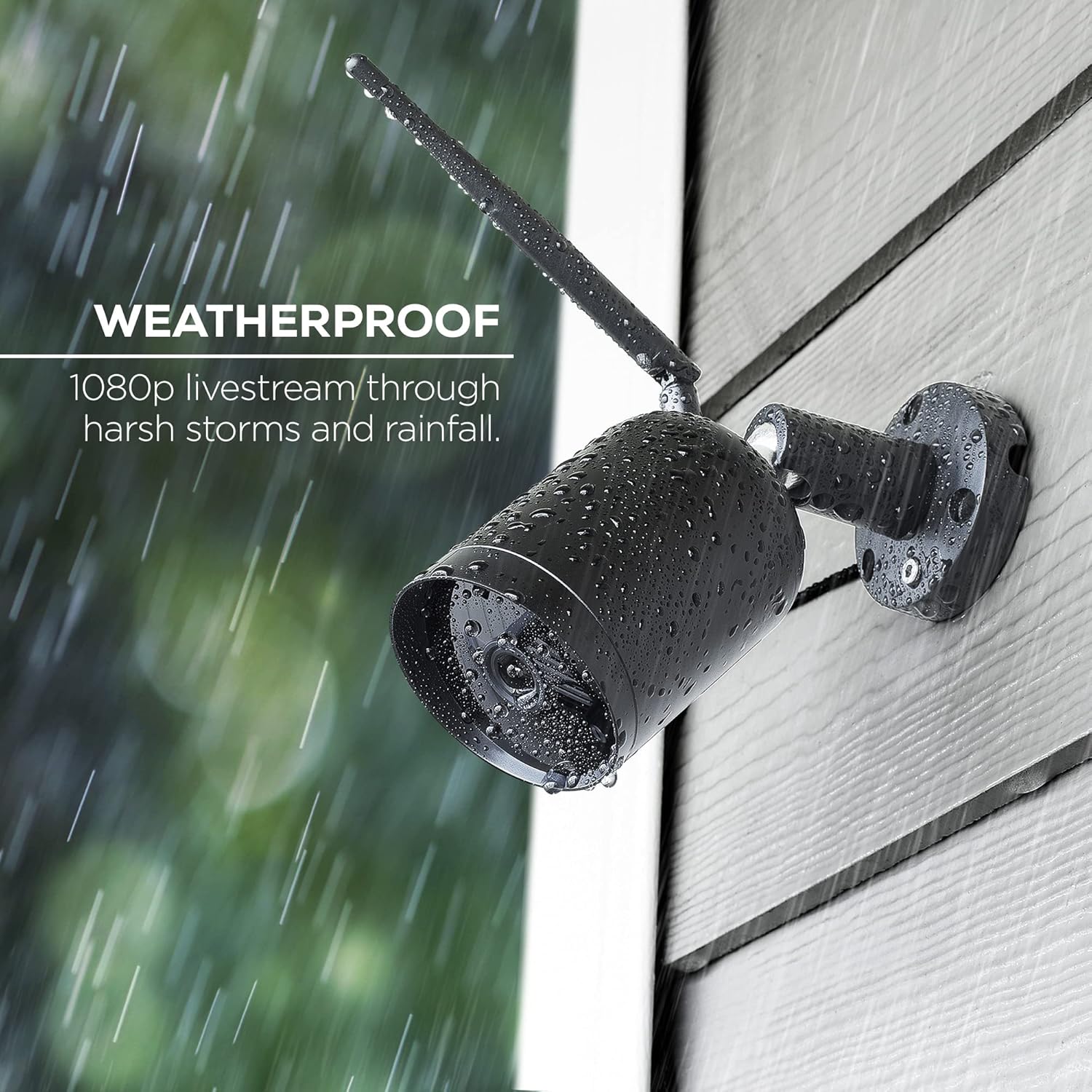
Image 4.1: The camera's weatherproof design ensures functionality in various outdoor conditions.
5. Operating Instructions
5.1 Live View
Open the Geeni app and select your camera from the device list to view the live feed. You can switch between 720p and 1080p resolution within the app settings.
5.2 Motion Detection Settings
The camera features a motion sensor that can trigger alerts. To configure:
- Navigate to the camera settings in the Geeni app.
- Adjust motion sensitivity levels.
- Set specific surveillance areas to reduce false alarms.
- Schedule alarm activation times.

Image 5.1: Example of instant motion alerts received on a smartphone.
5.3 Night Vision
The camera automatically activates infrared night vision in low-light conditions, providing clear black and white footage.

Image 5.2: Night vision footage displayed on the mobile app.
5.4 Two-Way Audio
Use the 'Press & Hold to speak' function in the app to communicate through the camera's built-in speaker.
5.5 Recording & Playback
Insert a microSD card (up to 128GB, not included) into the camera's slot for local storage of recordings. You can access recorded footage via the 'Playback' option in the Geeni app.
5.6 Voice Control Integration
The camera supports voice control through Amazon Alexa and Google Assistant. Link your Geeni account to your preferred voice assistant app.
Example Commands:
- "Alexa, show me the [Camera Name]."
- "Hey Google, show me the [Camera Name]."

Image 5.3: The camera integrates with voice control platforms for convenient monitoring.
6. Maintenance
6.1 Cleaning
Periodically clean the camera lens and housing with a soft, damp cloth. Avoid abrasive cleaners or solvents that could damage the surface or lens.
6.2 Firmware Updates
Ensure your camera's firmware is up to date through the Geeni app settings. Firmware updates often include performance improvements and security enhancements.
7. Troubleshooting
If you encounter issues with your camera, refer to the following common solutions:
| Problem | Possible Cause | Solution |
|---|---|---|
| Camera offline | No power, Wi-Fi disconnected, poor Wi-Fi signal | Check power connection. Verify Wi-Fi network is active. Move camera closer to router or use a Wi-Fi extender. Re-pair device if necessary. |
| Motion alerts not received | Motion detection off, sensitivity too low, app notifications disabled | Enable motion detection in app settings. Increase sensitivity. Check phone notification settings for the Geeni app. |
| Poor video quality | Low bandwidth, dirty lens, incorrect resolution setting | Ensure stable Wi-Fi connection. Clean the camera lens. Select 1080p resolution in app settings. |
| Cannot connect to Wi-Fi | Incorrect password, 5GHz network, camera too far from router | Double-check Wi-Fi password. Ensure you are connecting to a 2.4GHz network. Move camera closer to the router. |
For further assistance, refer to the support section of the Geeni app or visit the Merkury Innovations website.
8. Specifications
- Model: MI-CW020-101W
- Video Resolution: 1080p (1920x1080p) / 720p
- Frame Rate: 25 frames/sec
- Field of View: 125°
- Connectivity: Wi-Fi (2.4GHz only)
- Weather Resistance: IP66
- Storage: microSD card slot (up to 128GB, not included)
- Audio: Two-way audio (built-in speaker)
- Night Vision: Infrared
- Control Method: App (Geeni), Voice (Amazon Alexa, Google Assistant)
- Dimensions (W x H x D): 2.36" (60mm) x 2.36" (60mm) x 6.5" (165mm)
- Item Weight: 1.23 pounds
- UPC: 194383023043
9. Safety Information
- Do not expose the camera to extreme temperatures or humidity beyond its operating range.
- Use only the provided power adapter to prevent damage.
- Keep the camera and its components out of reach of children.
- Ensure proper installation to prevent the camera from falling.
10. Warranty and Support
For warranty information and technical support, please refer to the official Merkury Innovations website or contact their customer service directly. Details are typically available on the product packaging or within the Geeni app's support section.


