1. Introduction
This manual provides essential information for the safe and efficient use of your Lenovo ThinkVision 9227-AG1 17-inch LCD monitor. Please read these instructions carefully before operating the device and retain them for future reference. This monitor is designed for general office and home computing tasks, offering a clear 1280x1024 resolution display.
2. Package Contents
Verify that all items listed below are included in your package:
- Lenovo ThinkVision 9227-AG1 17-inch LCD Monitor
- Power Cable
- VGA Cable
3. Physical Features
Familiarize yourself with the various parts of your monitor.
3.1 Front View

Figure 3.1: Front view of the Lenovo ThinkVision 9227-AG1 monitor. The screen is black, indicating it is off or in standby. The Lenovo logo is visible at the top center bezel, and the ThinkVision logo is on the bottom left. Control buttons are located along the bottom bezel.
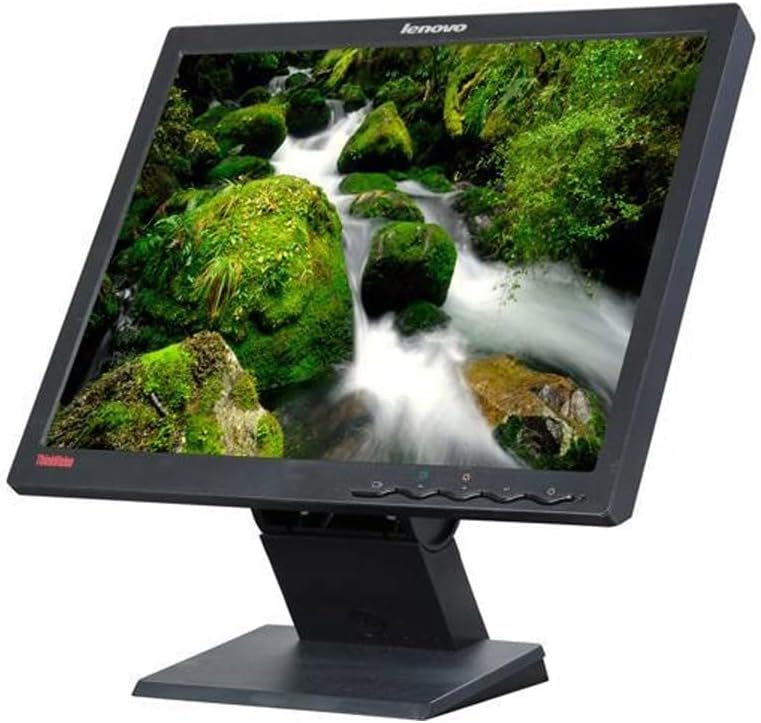
Figure 3.2: Front view of the Lenovo ThinkVision 9227-AG1 monitor displaying a colorful image of a waterfall and lush greenery. This illustrates the monitor's active display capabilities. The monitor is tilted slightly upwards on its stand.
3.2 Rear View
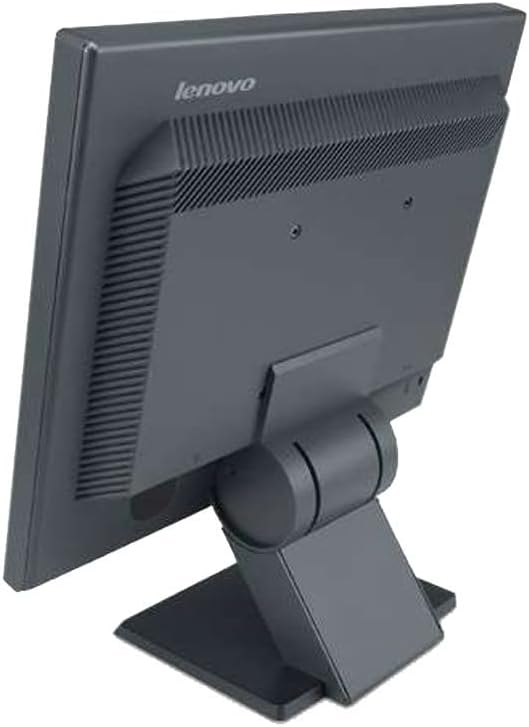
Figure 3.3: Rear view of the Lenovo ThinkVision 9227-AG1 monitor. This angle shows the ventilation grilles at the top, the sturdy stand attachment point, and the overall dark gray casing. The Lenovo branding is visible at the top rear.
3.3 Side View (Angled)
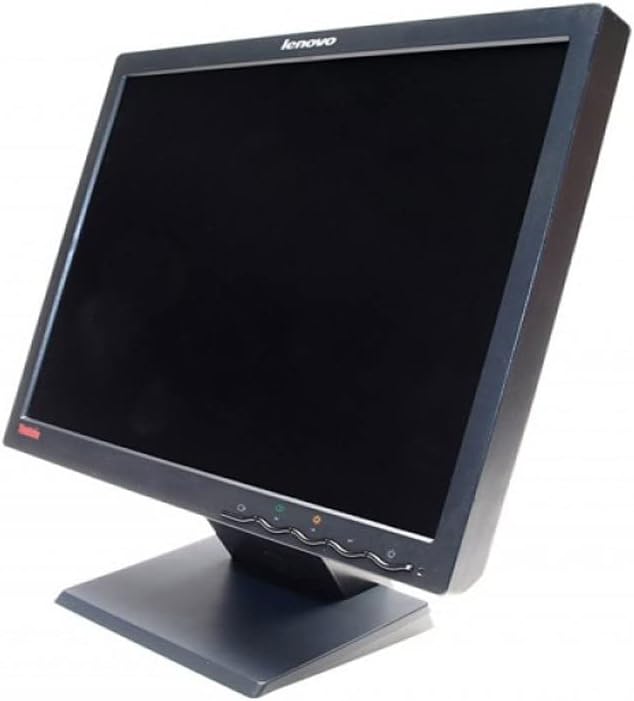
Figure 3.4: Angled front view of the Lenovo ThinkVision 9227-AG1 monitor, providing a better perspective of the bezel thickness and the design of the monitor stand. The control buttons are visible on the bottom right of the front bezel.
4. Setup
Follow these steps to set up your monitor:
- Unpack the Monitor: Carefully remove the monitor and all accessories from the packaging. Place the monitor on a stable, flat surface.
- Connect the Power Cable: Insert one end of the power cable into the power input port on the back of the monitor and the other end into a grounded electrical outlet.
- Connect the VGA Cable: Connect one end of the supplied VGA cable to the VGA port on the back of the monitor and the other end to the VGA output port on your computer. Ensure the connection is secure.
- Power On: Press the power button located on the front bezel of the monitor. Then, power on your computer. The monitor should automatically detect the signal.
5. Operating Instructions
5.1 Power On/Off
To turn the monitor on or off, press the power button located on the bottom right of the front bezel. The power indicator light will illuminate when the monitor is on.
5.2 Adjusting Display Settings
The monitor features an On-Screen Display (OSD) menu for adjusting various settings. Use the control buttons on the front bezel to navigate the OSD menu:
- Menu Button: Opens the OSD menu.
- Navigation Buttons (Up/Down or Left/Right): Used to scroll through menu options and adjust values.
- Select/Enter Button: Confirms a selection or enters a sub-menu.
- Exit Button: Exits the current menu or OSD.
Common adjustable settings include Brightness, Contrast, Color Temperature, and Image Position.
5.3 Tilt Adjustment
The monitor stand allows for tilt adjustment. Gently hold both sides of the monitor and tilt it forwards or backwards to achieve your desired viewing angle. Do not force the monitor beyond its natural range of motion.
6. Maintenance
Proper maintenance ensures the longevity and optimal performance of your monitor.
- Cleaning the Screen: Turn off the monitor and unplug the power cable. Use a soft, lint-free cloth lightly dampened with water or a specialized screen cleaner. Do not spray liquid directly onto the screen.
- Cleaning the Casing: Use a soft, dry cloth to wipe the monitor casing. Avoid using abrasive cleaners or solvents.
- Ventilation: Ensure the ventilation openings on the back of the monitor are not blocked to prevent overheating.
- Storage: If storing the monitor for an extended period, unplug it and store it in a cool, dry place, preferably in its original packaging.
7. Troubleshooting
Refer to the table below for common issues and their solutions.
| Problem | Possible Cause | Solution |
|---|---|---|
| No power | Power cable not connected; Power outlet not working; Monitor power button off. | Ensure power cable is securely connected to both monitor and outlet. Test the outlet with another device. Press the monitor's power button. |
| No signal / Blank screen | VGA cable not connected; Incorrect input source selected; Computer not powered on or in sleep mode. | Ensure VGA cable is securely connected to both monitor and computer. Check if the computer is powered on and not in sleep mode. The monitor should auto-detect VGA. |
| Image is blurry or distorted | Incorrect resolution; Loose VGA cable connection. | Set the computer's display resolution to 1280 x 1024. Ensure the VGA cable is tightly connected. Run the OSD auto-adjust function if available. |
| Colors are incorrect | Color settings in OSD are incorrect; Damaged VGA cable. | Adjust color settings in the OSD menu. Try a different VGA cable if available. |
8. Specifications
Key technical specifications for the Lenovo ThinkVision 9227-AG1 monitor:
| Feature | Detail |
|---|---|
| Brand | Lenovo |
| Model | ThinkVision 9227-AG1 (V1YX532) |
| Screen Size | 17 inches |
| Display Type | LCD TFT TN |
| Optimal Resolution | 1280 x 1024 (5:4 aspect ratio) |
| Refresh Rate | 75 Hz |
| Brightness | 300 cd/m² (standard) |
| Response Time | 5 ms (GTG) |
| Viewing Angle | 170° (Vertical) / 160° (Horizontal) |
| Connectivity | 1x VGA |
| Adjustments | Tilt |
| Weight | 3.4 kg |
| Special Feature | Anti-glare screen |
9. Warranty and Support
Specific warranty details for this product are not provided within this manual. For information regarding warranty coverage, please refer to the documentation provided at the time of purchase or contact your retailer. For technical support, please visit the official Lenovo support website or contact their customer service department.
As this product is listed as 'second-hand tested', warranty terms may vary. It is recommended to confirm warranty specifics with your point of purchase.