Introduction
The Gtheos Captain 300 Wireless Gaming Headset offers a versatile and immersive audio experience for gamers across multiple platforms. Designed for comfort during extended use and equipped with advanced connectivity options, this headset ensures clear communication and high-fidelity stereo sound.
Key features include stable 2.4GHz wireless technology for low latency gaming, Bluetooth 5.2 for mobile devices, and a 3.5mm wired connection for broad compatibility. The headset also boasts a detachable noise-canceling microphone and long-lasting battery life, making it suitable for various gaming and multimedia needs.
What's in the Box
- 1 * Captain 300 Gaming Headset White
- 1 * Detachable Noise Cancelling Microphone
- 1 * Type-C Charging Cable + 1 * USB Transmitter
- Cable
- User Manual
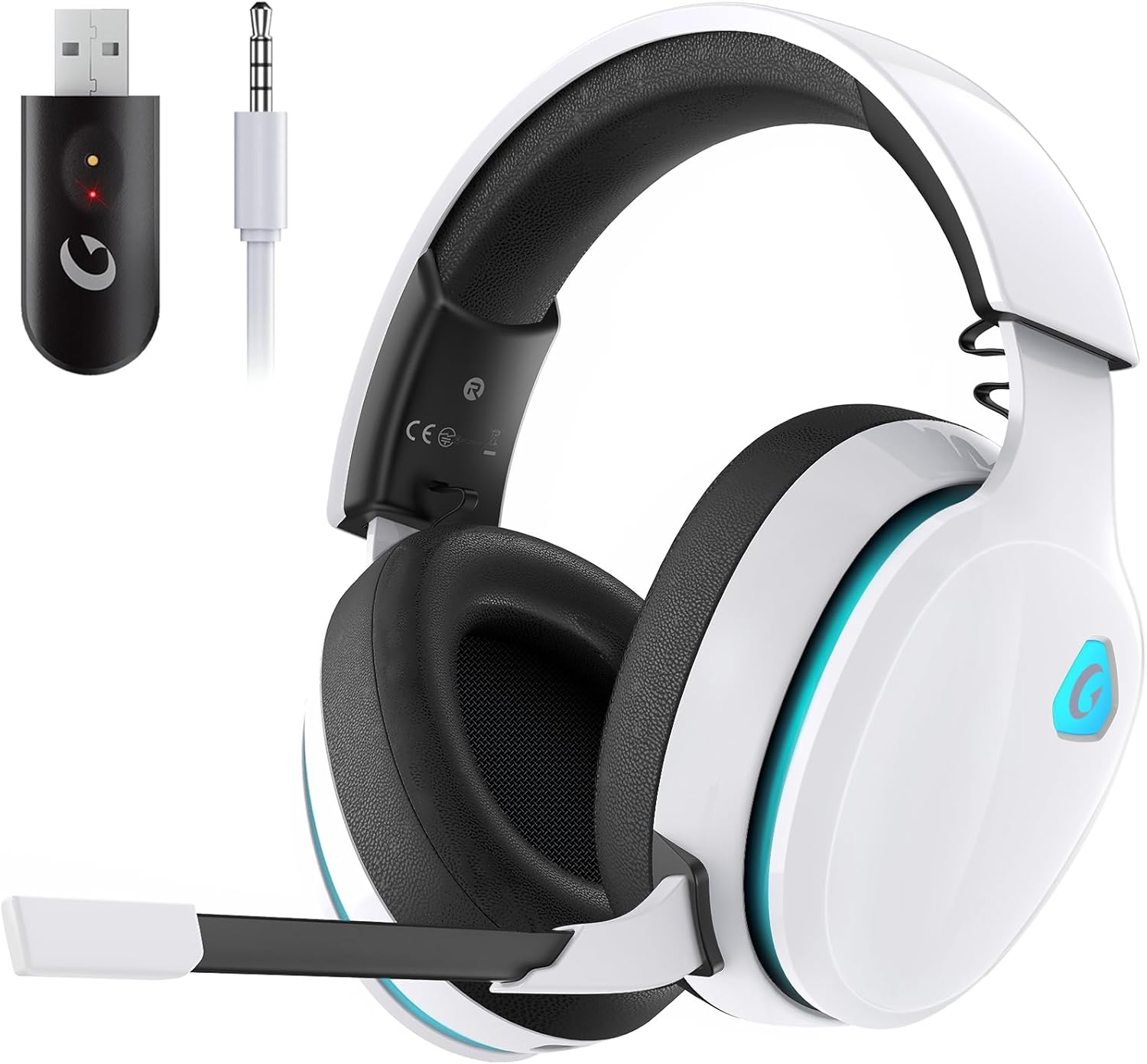
Image: Contents of the Gtheos Captain 300 Gaming Headset package, including the headset, USB dongle, charging cable, and detachable microphone.
Setup
Initial Charging
Before first use, fully charge your Captain 300 headset. Connect the provided Type-C charging cable to the headset's charging port and the other end to a USB power source. A full charge takes approximately 3 hours and provides 35-40 hours of gaming time (15-20 hours with RGB lighting on).

Image: The Gtheos Captain 300 headset connected via its Type-C charging cable, illustrating its long-lasting battery life.
Attaching the Microphone
The headset features a detachable omni-directional noise-reduction microphone. Align the 3.5mm jack of the microphone with the mic port on the headset and firmly insert it. The microphone is flexible and can be adjusted to your preferred angle for optimal voice clarity.

Image: Detailed view of the Gtheos Captain 300 headset highlighting the detachable microphone and ear cushion.
Adjusting the Headset
The padded adjustable headbands are designed for comfort and to fit various head shapes. Gently extend or retract the earcups to find a snug yet comfortable fit. The soft and breathable memory-protein earmuffs cover the ears completely, providing effective noise isolation.
Operating Instructions
3-in-1 Connection Modes
The Captain 300 offers three versatile connection methods:
- 2.4GHz Wireless Mode: For low latency (≤20ms) and lossless audio. Ideal for PC, PS5, PS4, and Mac. Simply plug the USB dongle into your device.
- Bluetooth Mode (Bluetooth 5.2): For stable wireless connection with phones, tablets, and other Bluetooth-enabled devices. Note: Microphone is invalid when connected to Nintendo Switch via Bluetooth.
- 3.5mm Wired Mode: For universal compatibility with devices supporting a 3.5mm audio jack, including Xbox series controllers.

Image: Visual representation of the 3-in-1 gaming headset connectivity options: 2.4GHz, Bluetooth, and 3.5mm wired modes.
Headset Controls
All primary controls are conveniently located on the earcup:
- Power Button: Press and hold to power on/off. Also functions as Play/Pause/Answer/Hang-up.
- Mic Mute Button/Light Control: Toggle microphone mute. Short press to cycle through RGB lighting effects or turn them off.
- Volume Control: Scroll wheel to adjust audio volume up or down.
- Mode Switching Dial: Switch between 2.4GHz and Bluetooth modes.

Image: Close-up of the headset's earcup displaying the power, mute, volume, and mode switching controls.
Official Product Videos
Unboxing and What to Expect!
Video: An unboxing video of the Gtheos Captain 300 headset, demonstrating its contents and initial appearance.
Quality and so easy to use
Video: A short video highlighting the quality and ease of use of the Gtheos Captain 300 headset, including a demonstration of its features.
Maintenance
To ensure the longevity and optimal performance of your Gtheos Captain 300 headset, follow these simple maintenance guidelines:
- Cleaning: Use a soft, dry cloth to wipe down the headset, especially the earcups and headband. Avoid using abrasive cleaners or solvents.
- Storage: Store the headset in a cool, dry place away from direct sunlight and extreme temperatures.
- Cable Care: Avoid sharp bends or excessive pulling on the cables to prevent damage.
Troubleshooting
If you encounter any issues with your Gtheos Captain 300 headset, please refer to the following common troubleshooting tips:
- No Sound/Low Volume:
- Ensure the headset is powered on and properly connected (2.4GHz dongle, Bluetooth, or 3.5mm jack).
- Check the volume control on the headset and your device.
- Verify that the correct audio output device is selected in your computer's sound settings.
- Microphone Not Working:
- Ensure the microphone is securely attached to the headset.
- Check if the mic mute button on the headset is disengaged.
- Verify microphone input settings on your device. Note: Microphone is invalid when connected to Nintendo Switch via Bluetooth.
- Connectivity Issues:
- For 2.4GHz, ensure the USB dongle is firmly inserted and the headset is in 2.4GHz mode.
- For Bluetooth, ensure Bluetooth is enabled on your device and the headset is in pairing mode. Try re-pairing if necessary.
- If using wired mode, ensure the 3.5mm cable is fully inserted into both the headset and your device.
For more detailed troubleshooting, please refer to the official Troubleshooting Guide (PDF) or the User Manual (PDF).
Specifications
| Feature | Detail |
|---|---|
| Brand | Gtheos |
| Model Name | PS5 Headset (CAPTAIN 300) |
| Connectivity Technology | Wireless (2.4GHz USB dongle, Bluetooth 5.2), Wired (3.5 mm Jack) |
| Audio Driver Size | 50 Millimeters |
| Audio Latency | ≤20 Milliseconds (2.4GHz) |
| Battery Life | 40 Hours (without RGB), 15-20 Hours (with RGB) |
| Charging Time | 3 Hours |
| Microphone | Detachable Omni-directional Noise-reduction |
| Material | Polycarbonate (PC), Leather, Acrylonitrile Butadiene Styrene (ABS) |
| Item Weight | 12.8 ounces (0.8 Pounds) |
| Product Dimensions | 7.68 x 3.74 x 7.87 inches |
Warranty and Support
Gtheos is committed to providing high-quality products and excellent customer service. For any warranty claims, technical support, or product inquiries, please refer to the contact information provided in your User Manual.
You can also find comprehensive information and support by downloading the full User Manual (PDF) or Troubleshooting Guide (PDF) directly from the product's Amazon page.


